

How to Add Walk-in Customers
2026-02-24 10:59
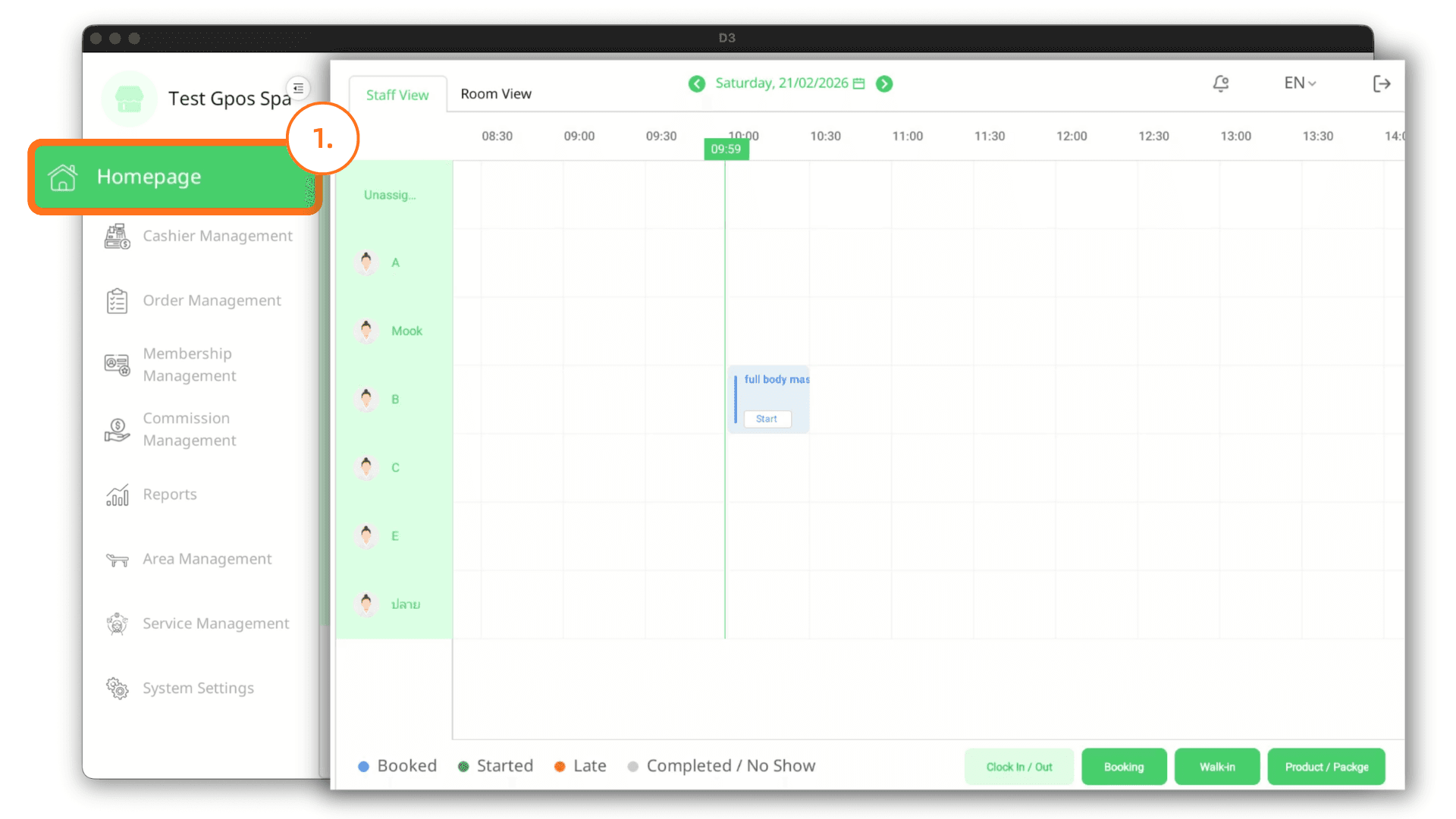
1. Log In
On the login page, enter your email and password, then click Login. Once successfully logged in, you will be directed to the Homepage.
2. How to Add Walk-in Customers
2.1 Add via Staff Schedule
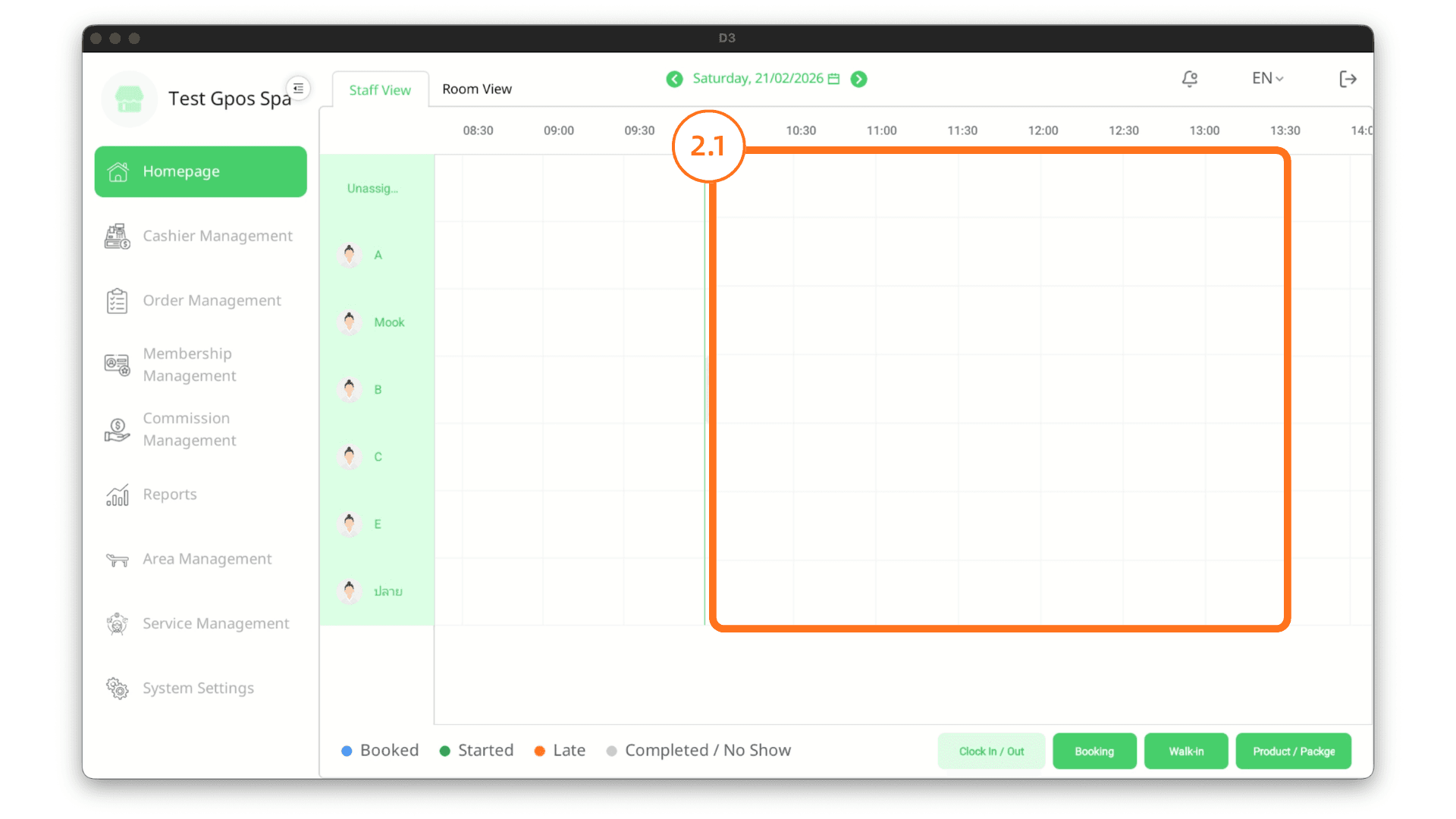
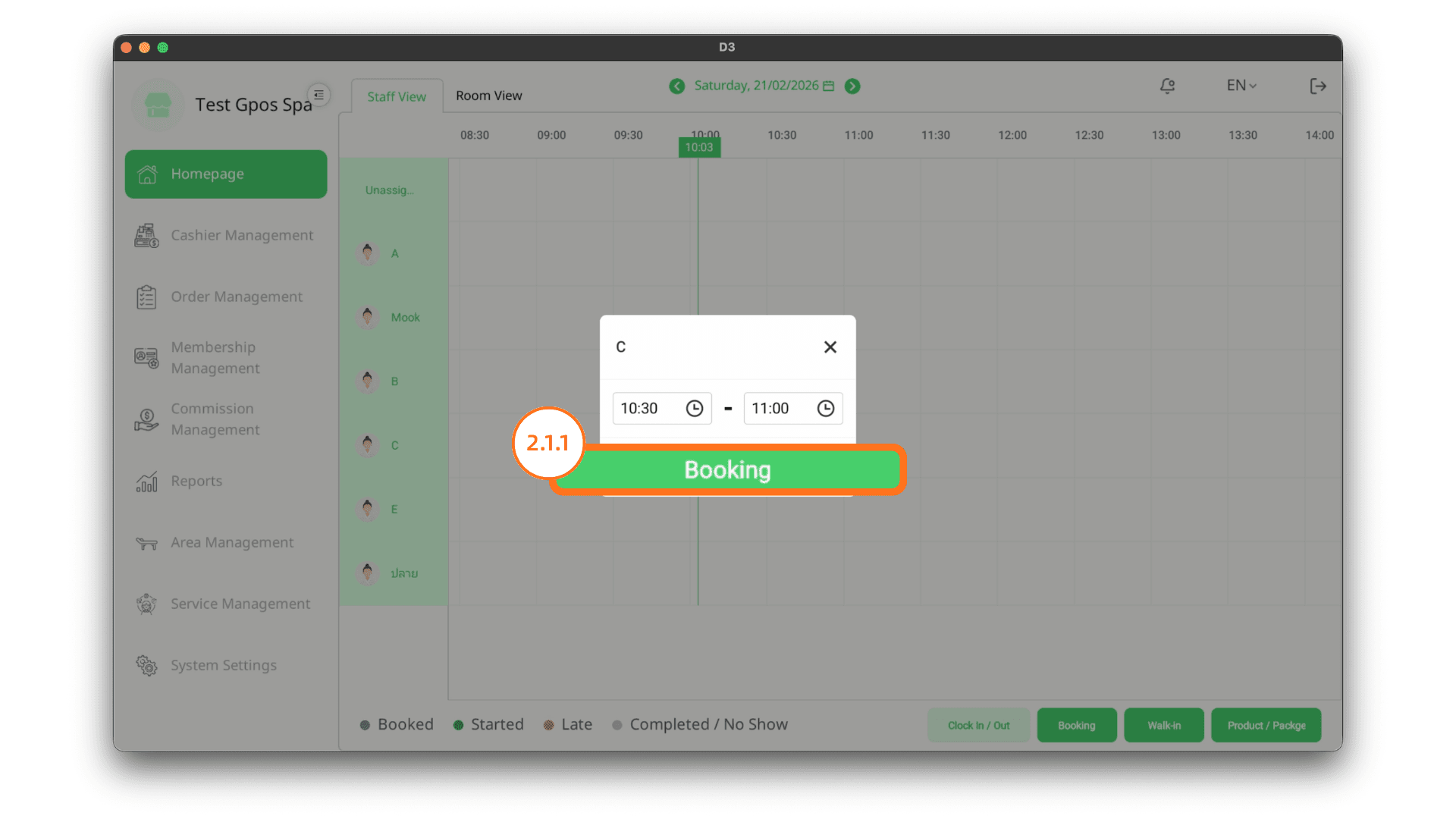
2.1.1 Click on an available time slot in the staff schedule. Verify the service time and staff name, then click Book.
2.1.2 On the transaction page, change the booking type to Walk-in.
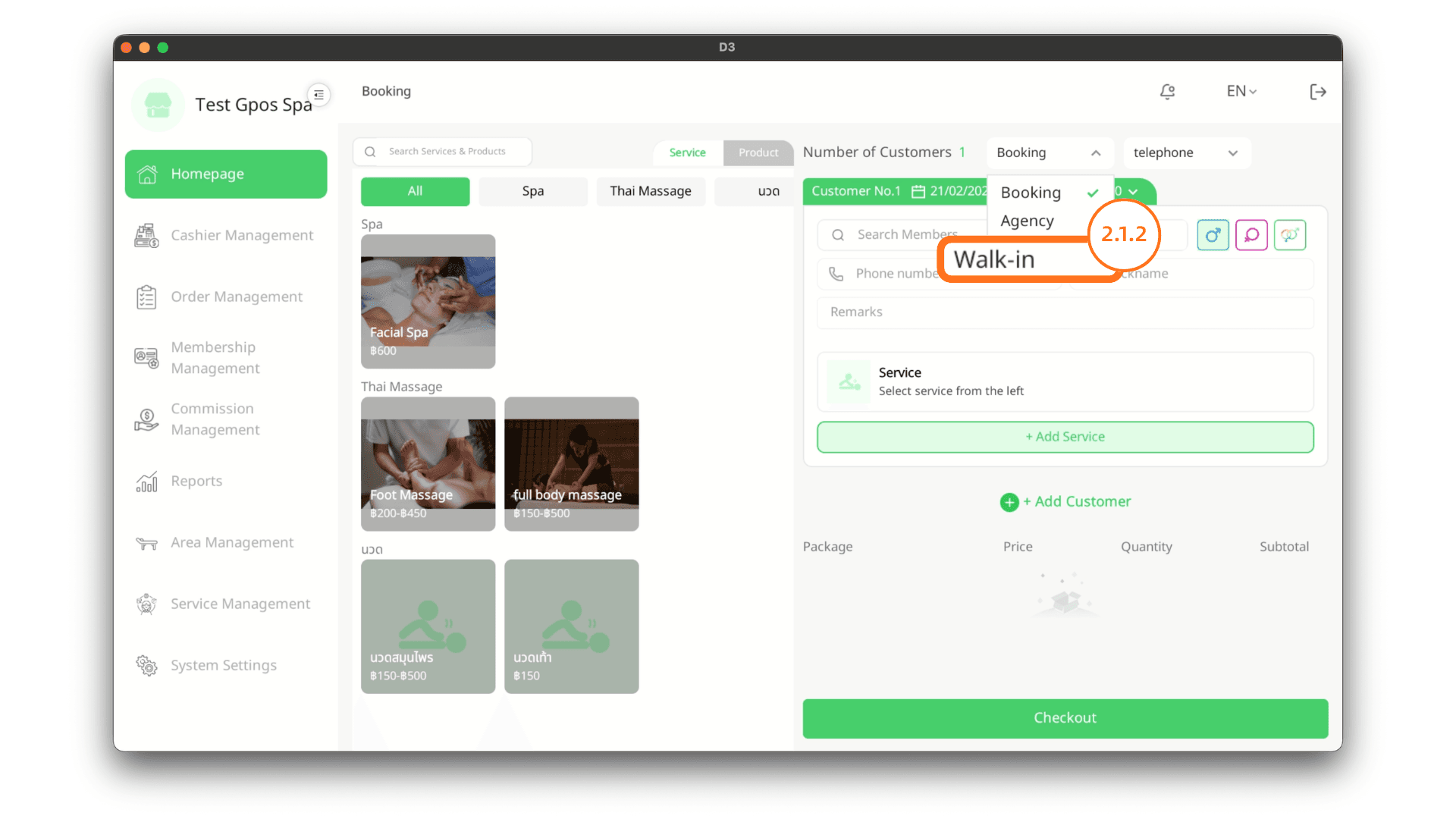
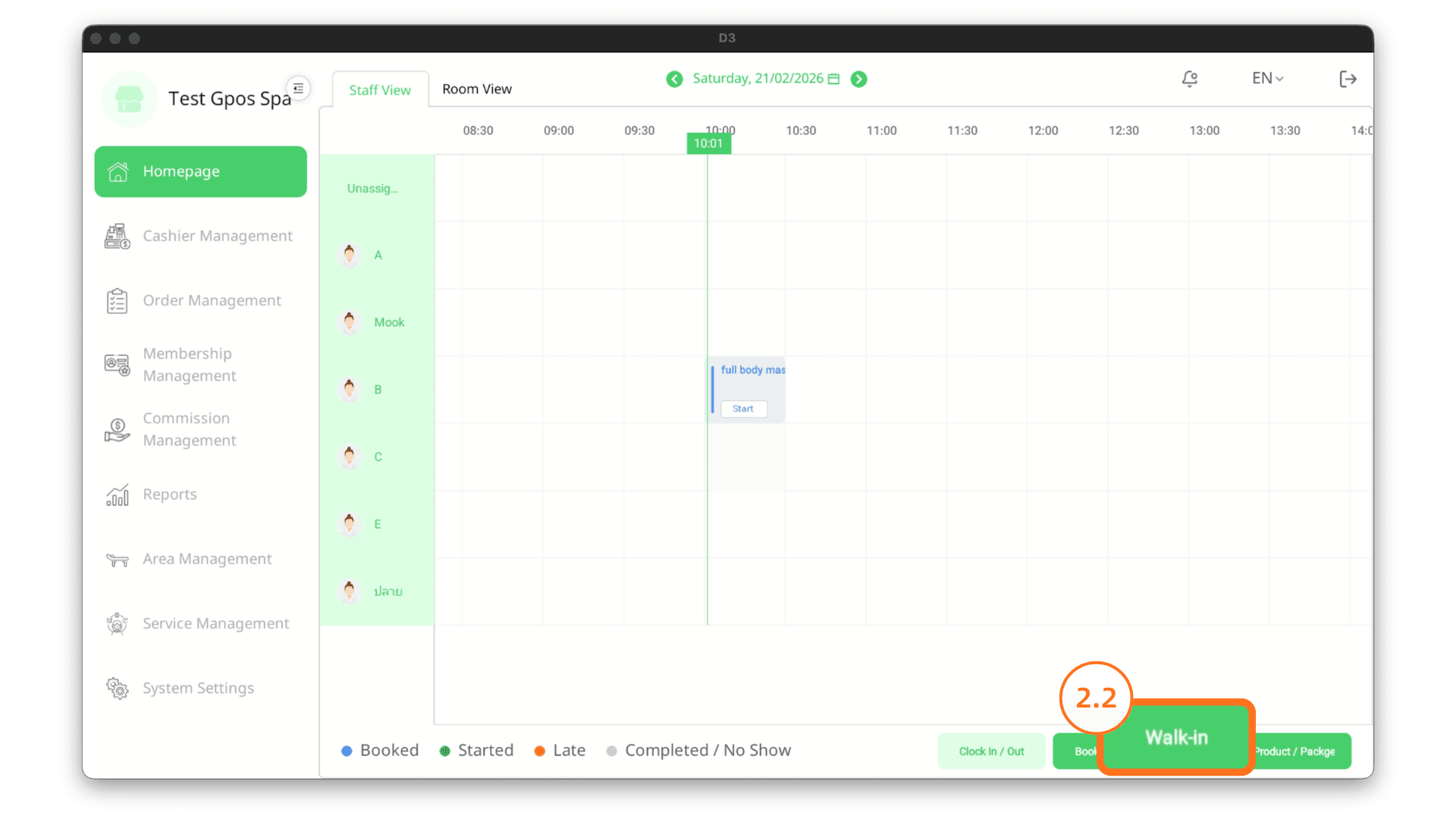
2.2 Add via Walk-in Button
You can click the Walk-in button to instantly create a walk-in transaction.
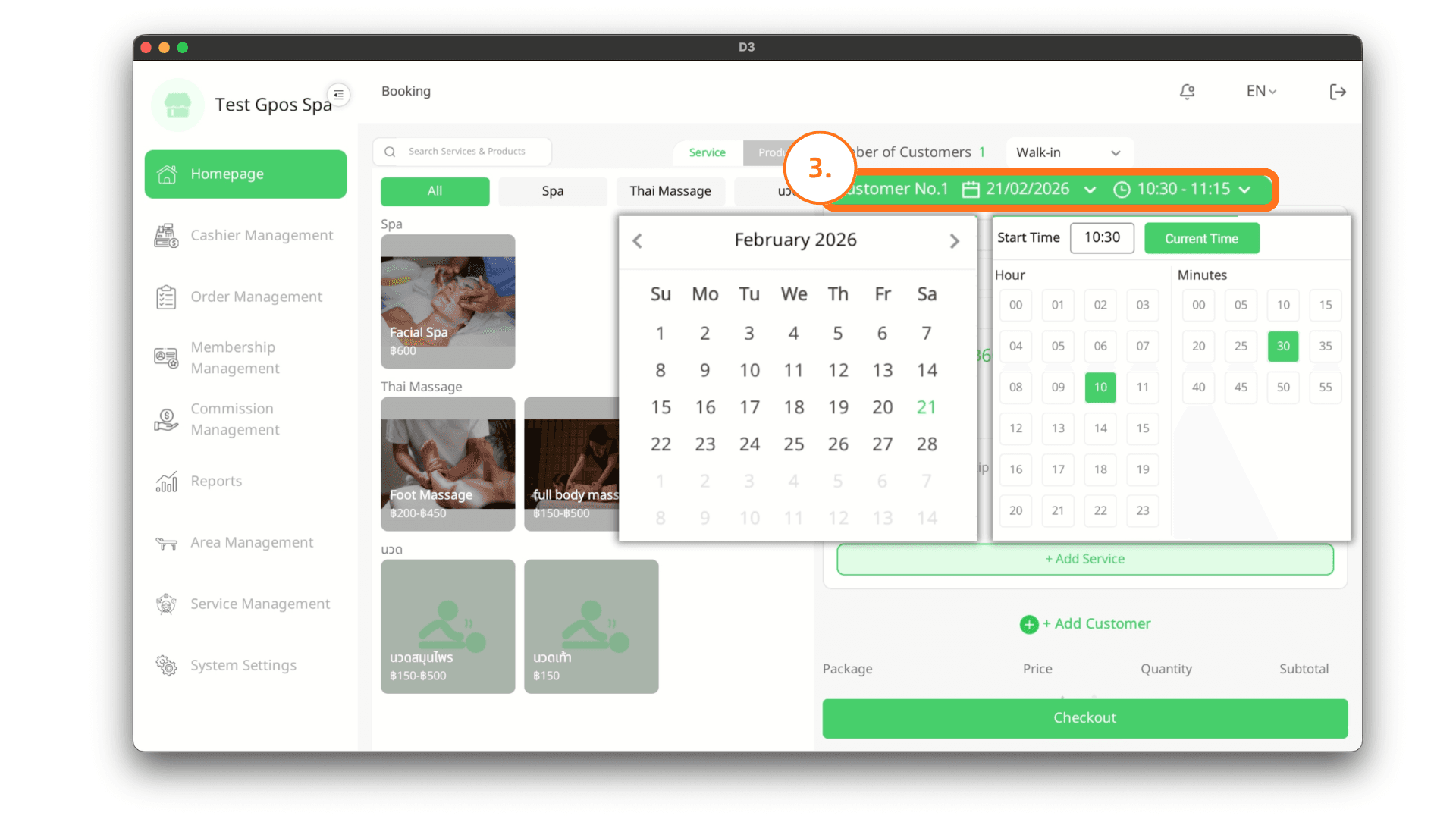
3. Create Transaction
On the booking page, check on date and time.
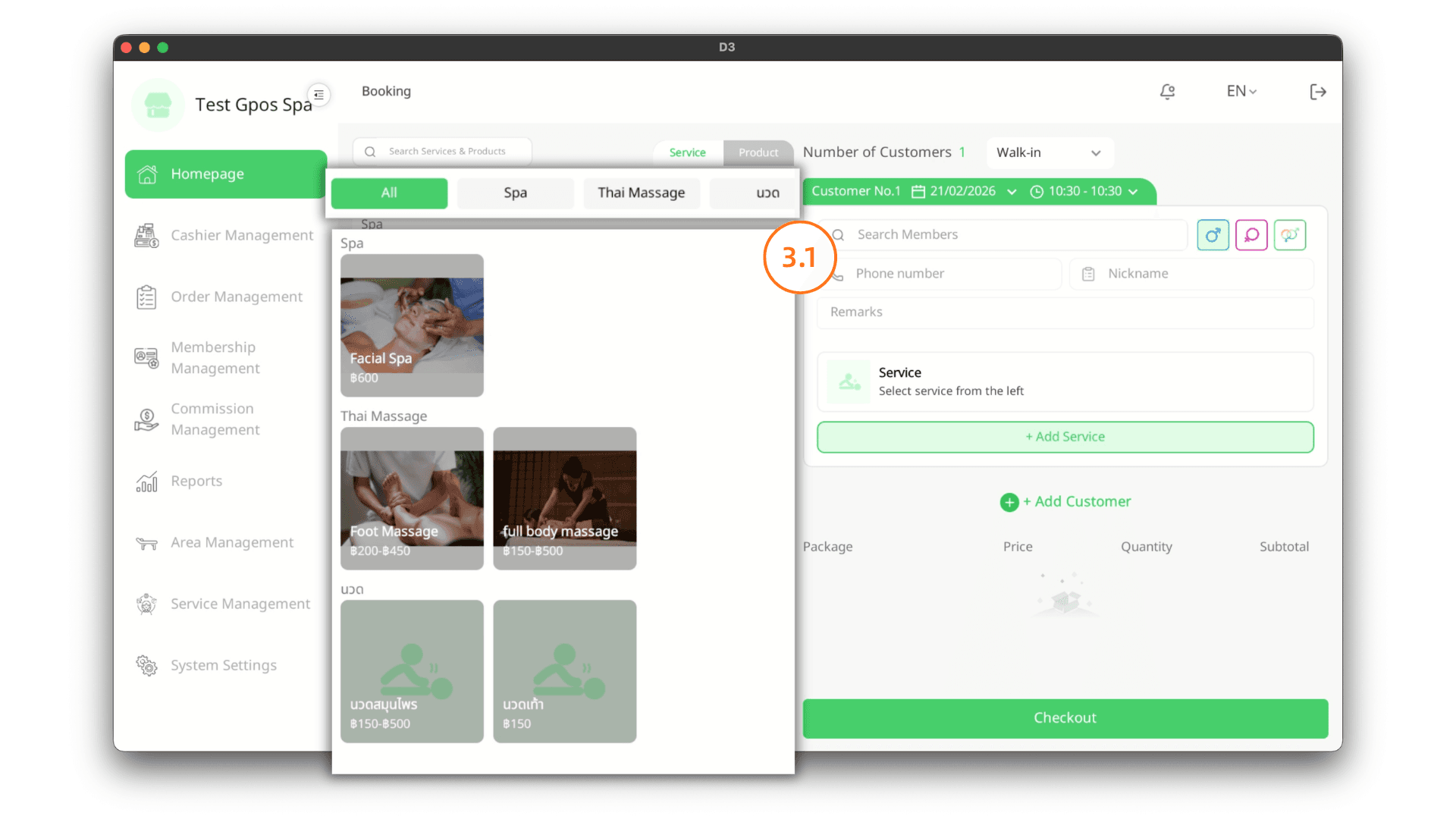
3.1 Select Service
On the left panel, select the desired service. You can browse services by category.
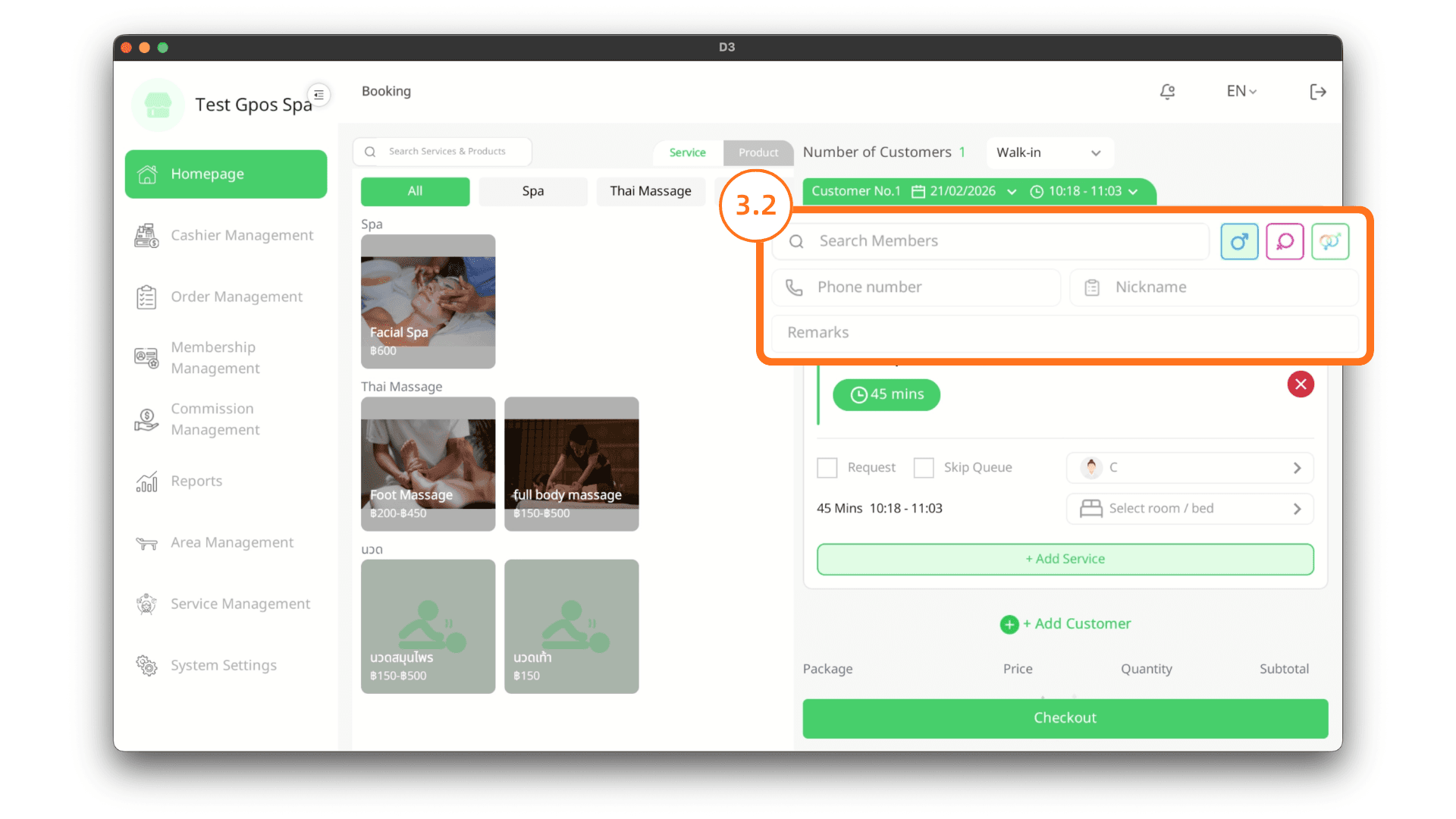
3.2 Enter Customer Information
- If the customer is an existing member, search by name or phone number.
- To add a new member, enter the phone number, nickname, and select gender.
Note: The system will automatically create a new member profile once the transaction is saved.
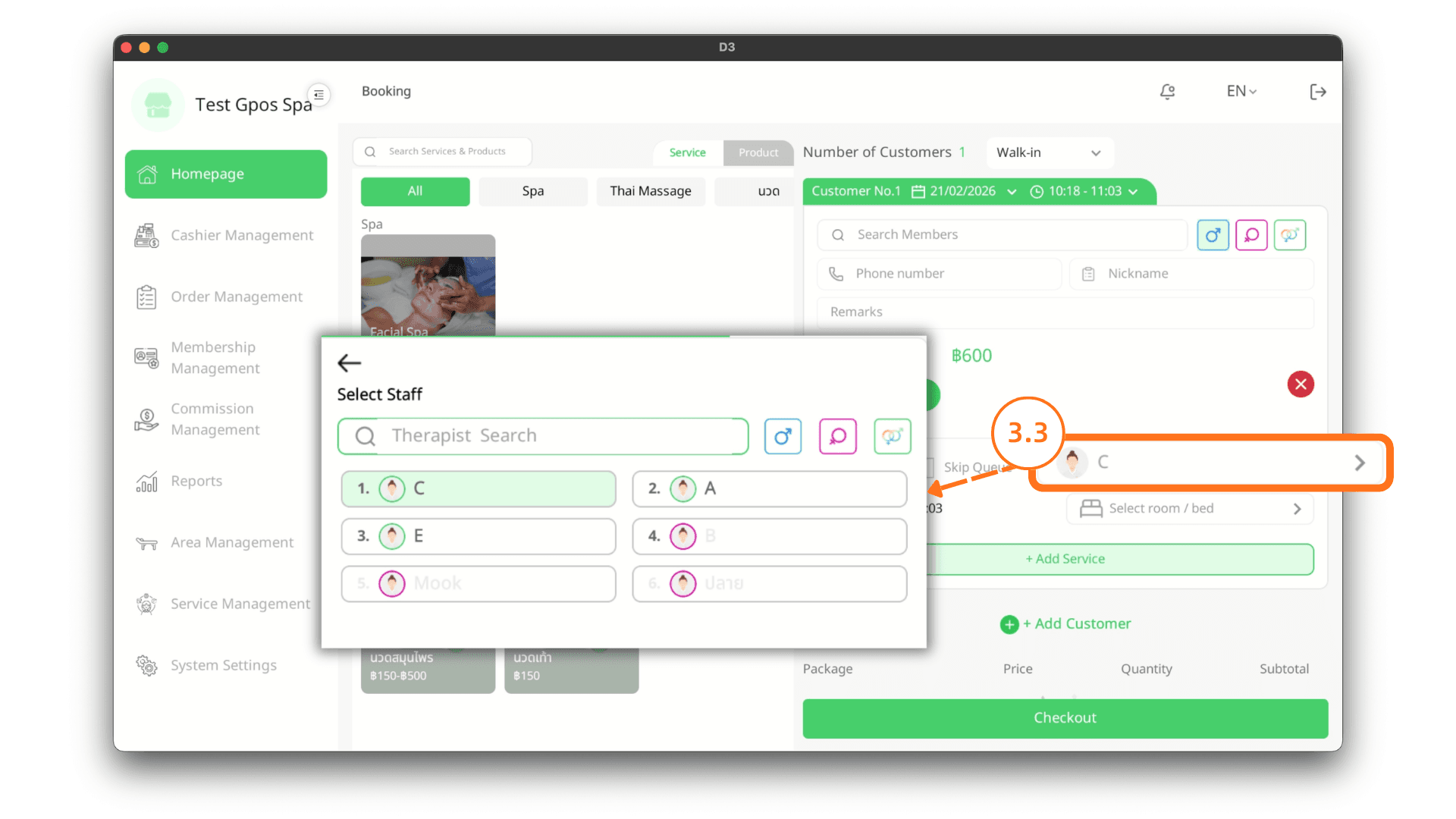
3.3 Select Staff
Select the service staff. If a staff member is unavailable or off-duty, their name will appear in grey.
3.4 Select Room or Bed
Select the room or bed for the service. If unavailable, it will be displayed in grey.

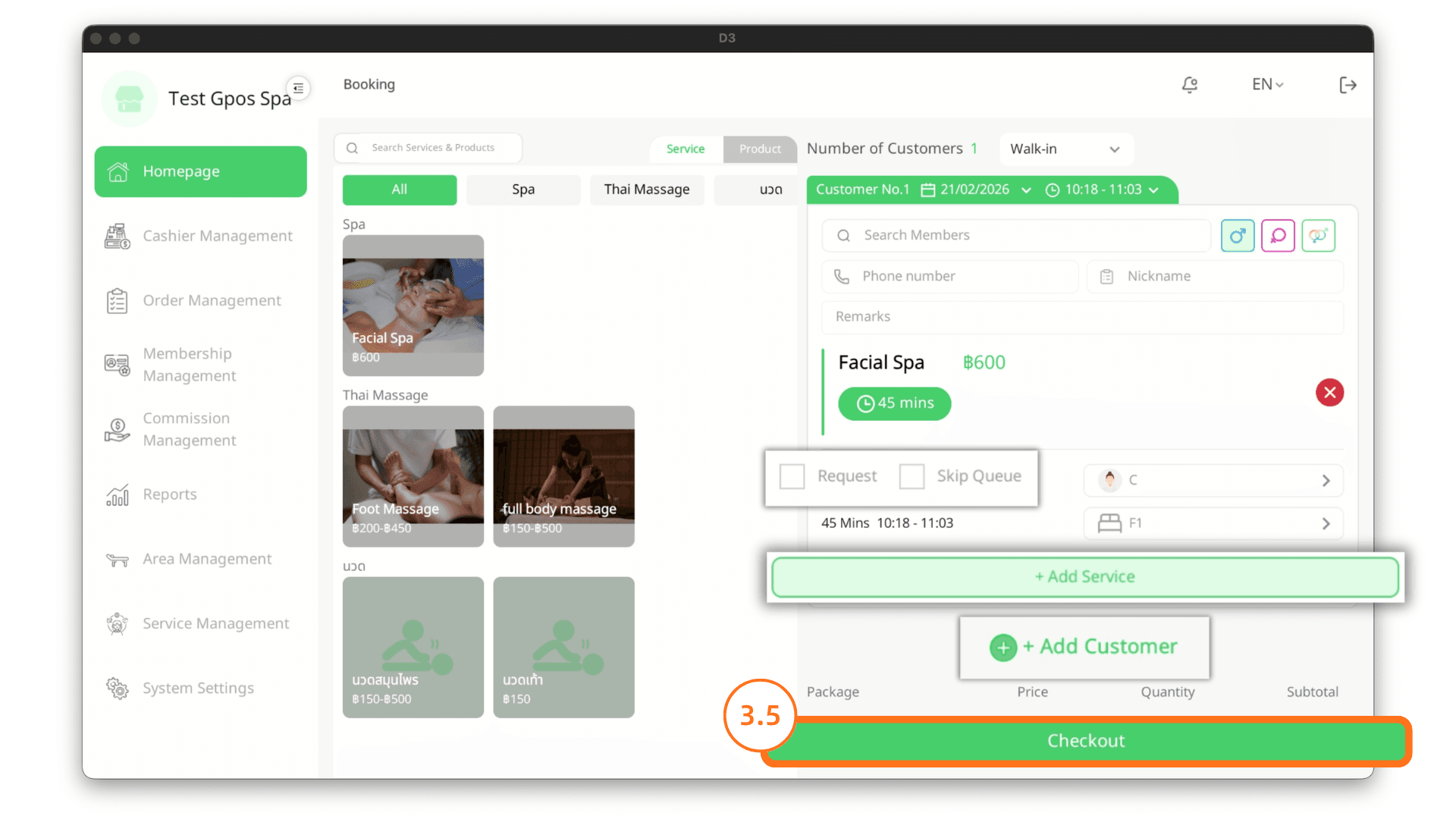
3.5 Payment
- Before payment, click Add Service to include additional services.
- If there is more than one customer, click Add Customer to create services for another customer.
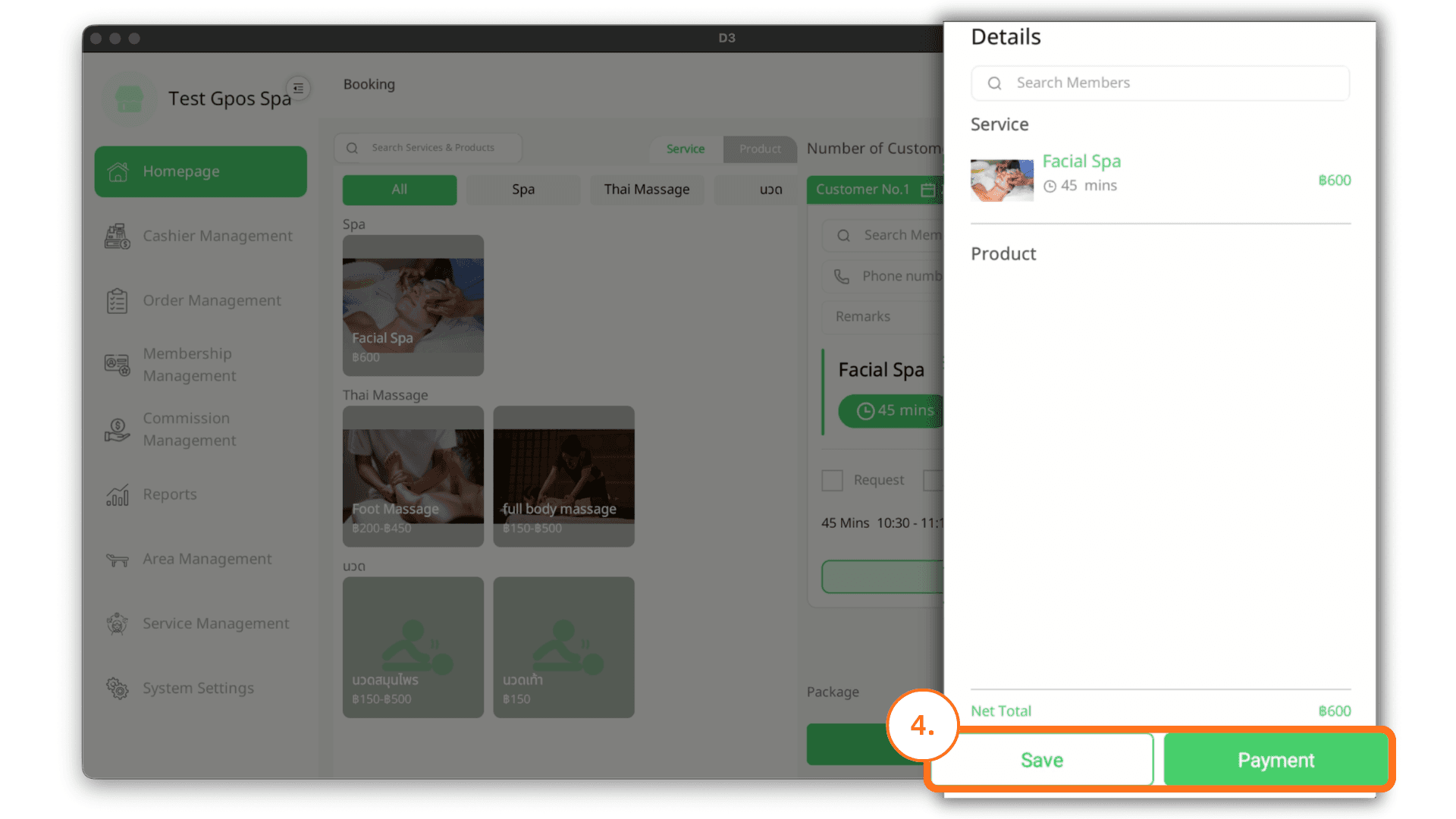
4. Save or Pay
You can choose to:
- Save the transaction and complete payment after the service, or
- Payment immediately.