

Category Management
2026-02-18 16:36
How to manage item category in Gpos Spa
1. Log In
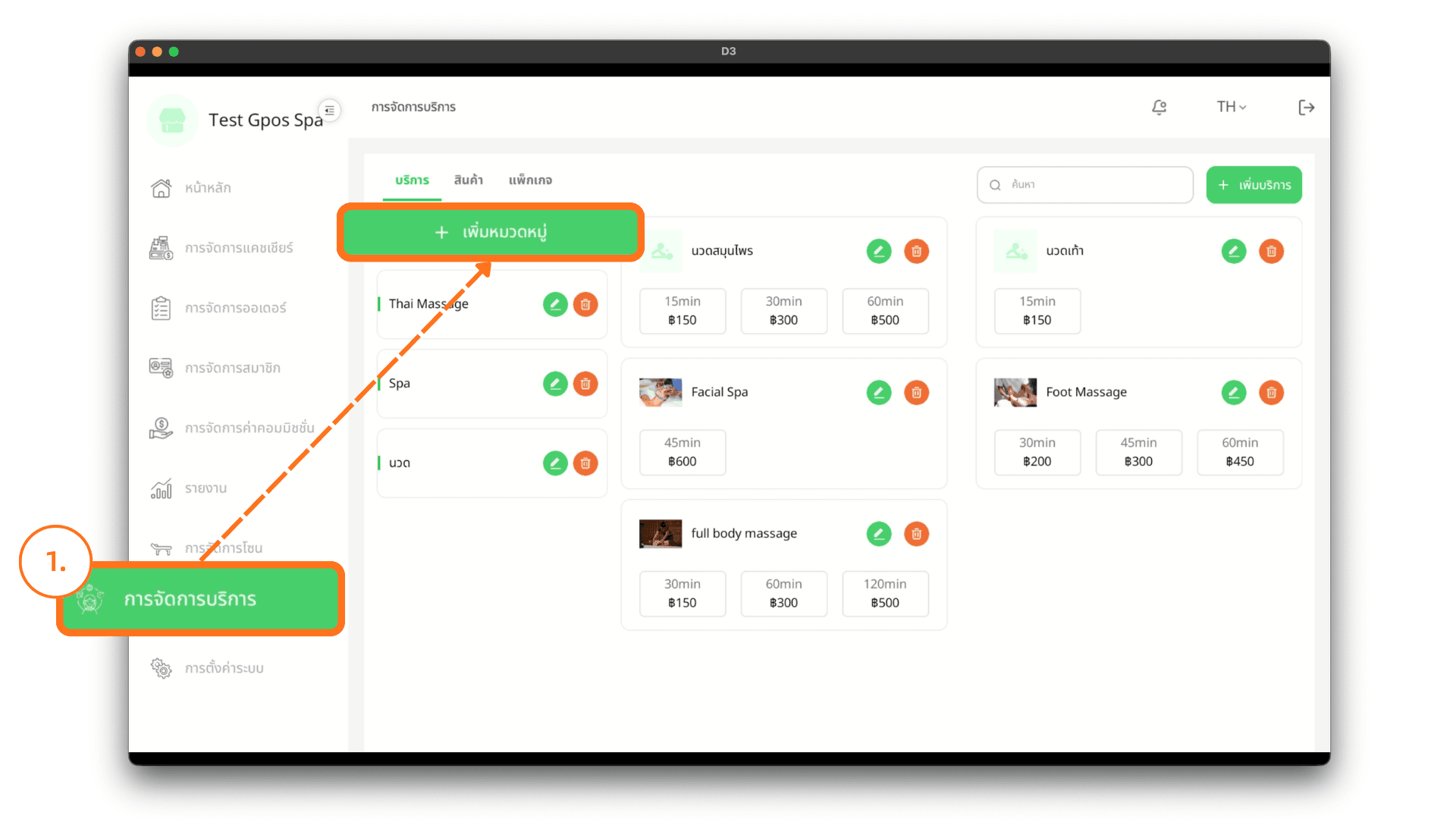
On the login page, enter your email and password, then click Log In. After successfully logging in, go to the Service Management menu and click the + Add Category button to create a category for services, products, or packages.
2. Add Category
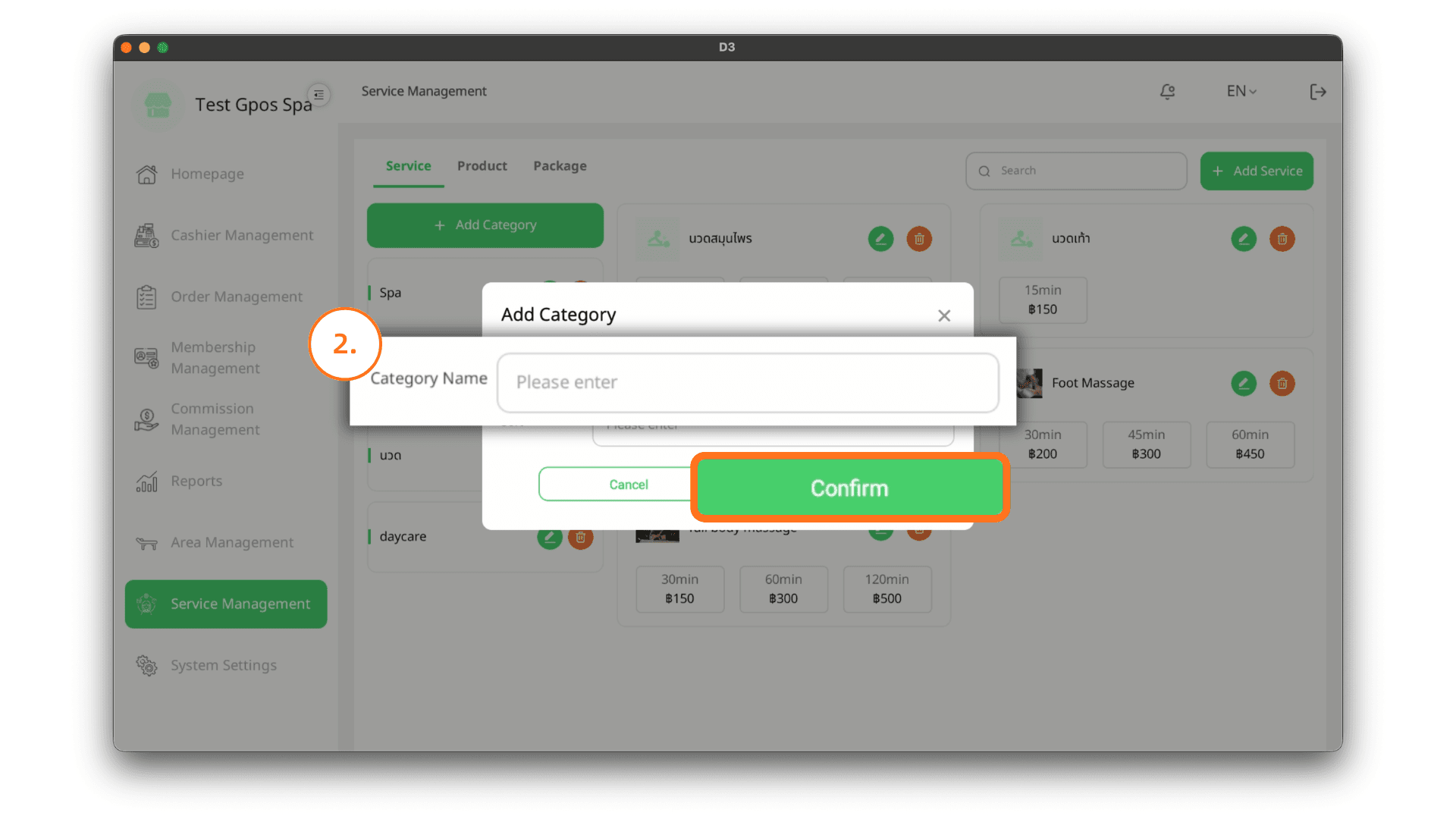
When clicking the Add Category button, enter the category name for the service, product, or package, then click the Confirm button to confirm adding the category.
3. Modify Category
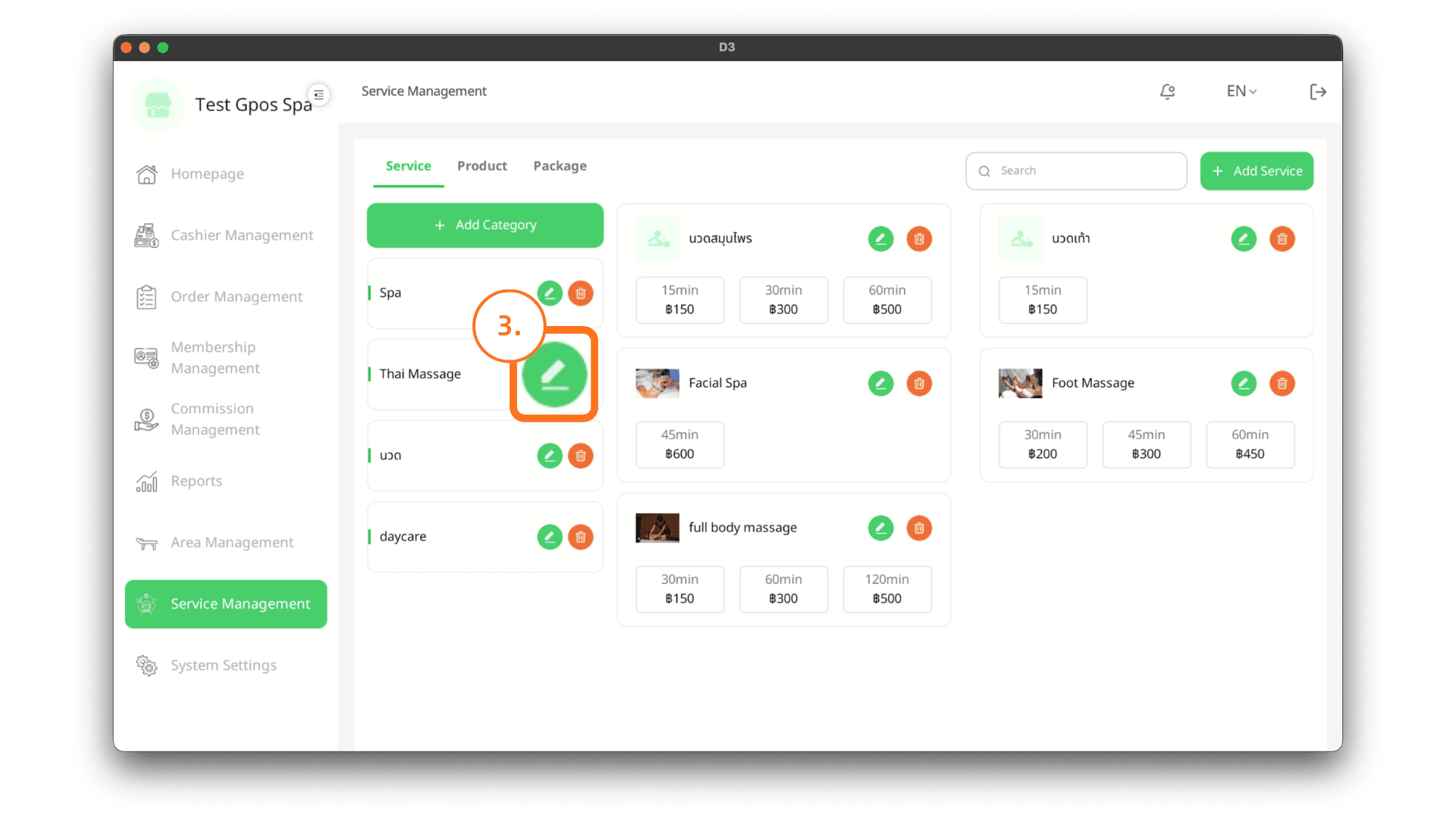
If you want to edit a category, click the Edit icon on the category you wish to modify.
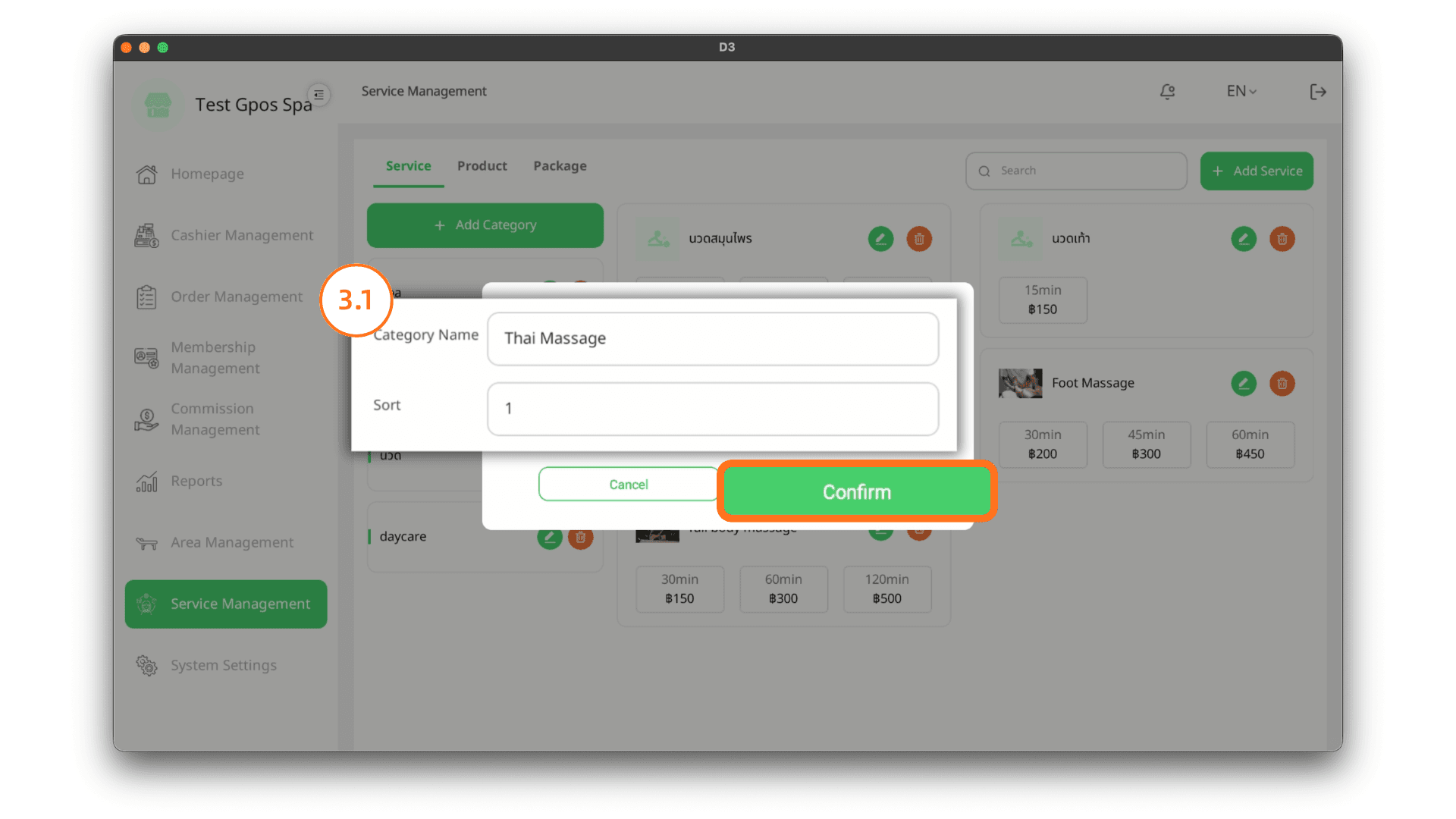
3.1 Edit the information
When clicking the Edit icon, modify the category name or display order, then click the Confirm button to confirm the changes.
Note: Display order refers to the sequence in which categories appear on the sales page.
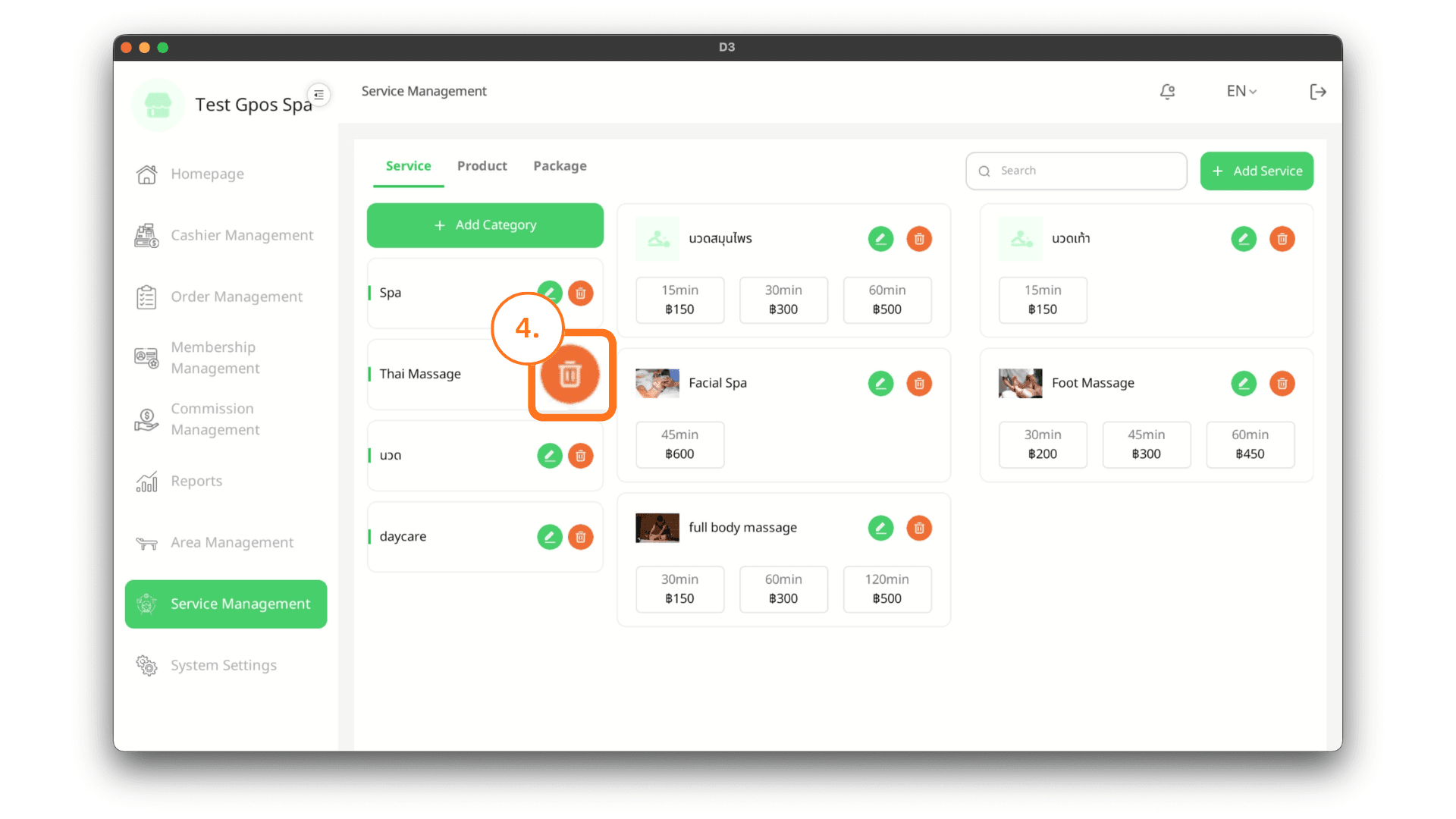
4. Delete Category
If you want to delete a category, click the Trash icon on the category you wish to remove.
4.1 Confirm Deletion
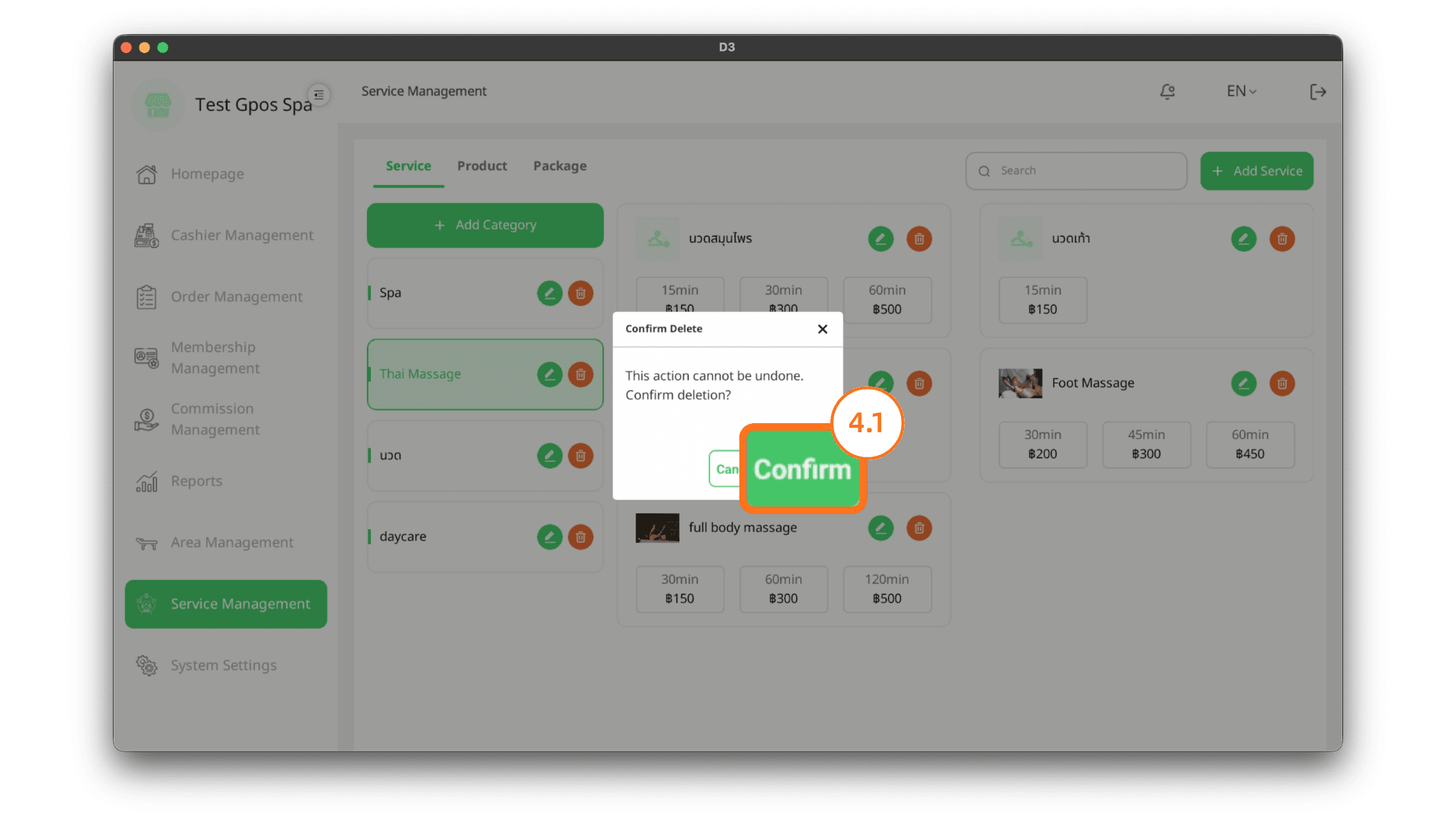
Click the Confirm button to confirm the deletion of the category.
Note: If there are services, products, or packages under that category, it cannot be deleted.