

Add new member
2026-02-16 16:53
How to add a new member to your store
1.Log In
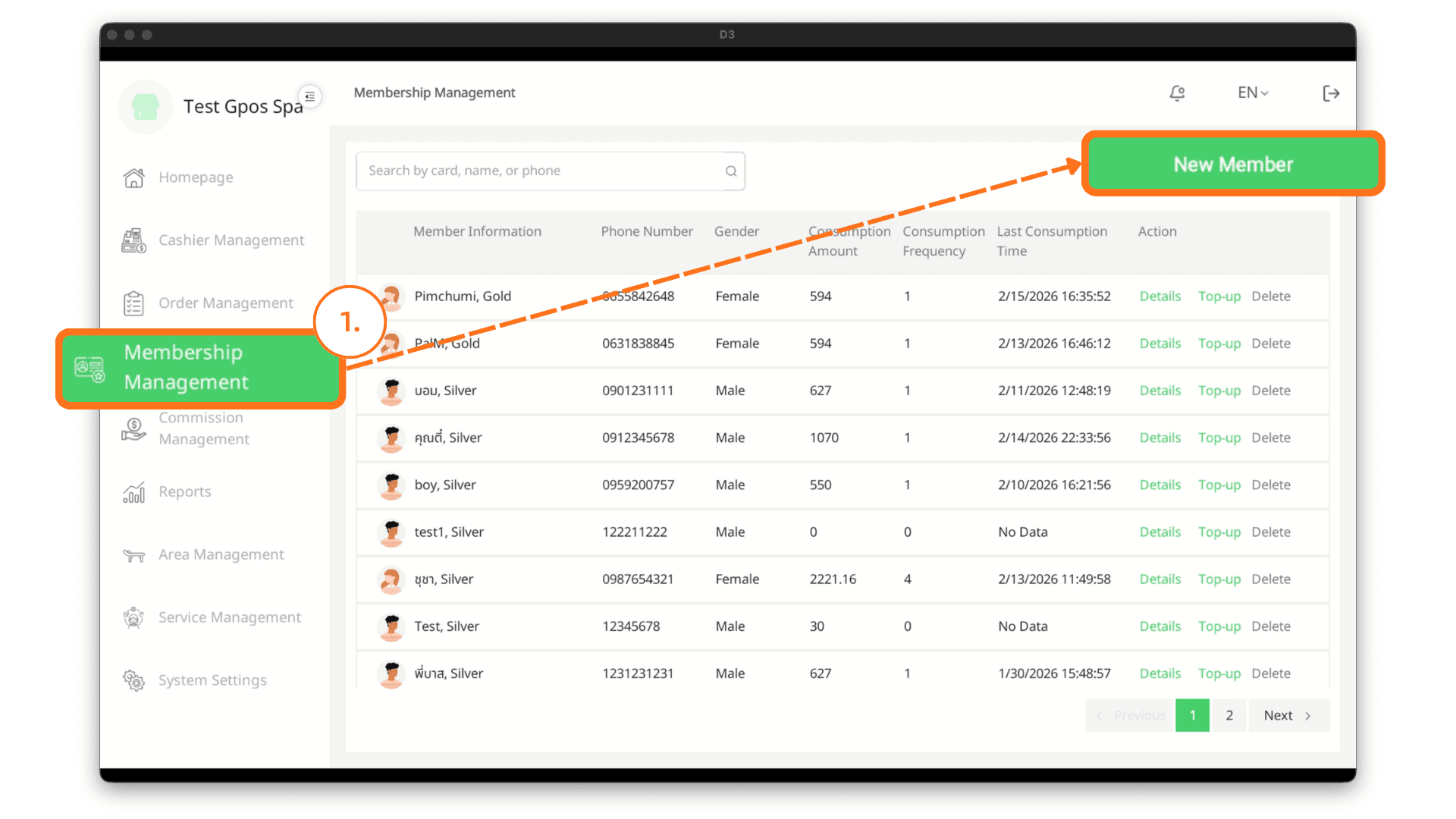
On the login page, enter your email and password, then click Log In. After successfully logging in, go to the Membership Management menu and click the New Member button.
2. Enter Member Information
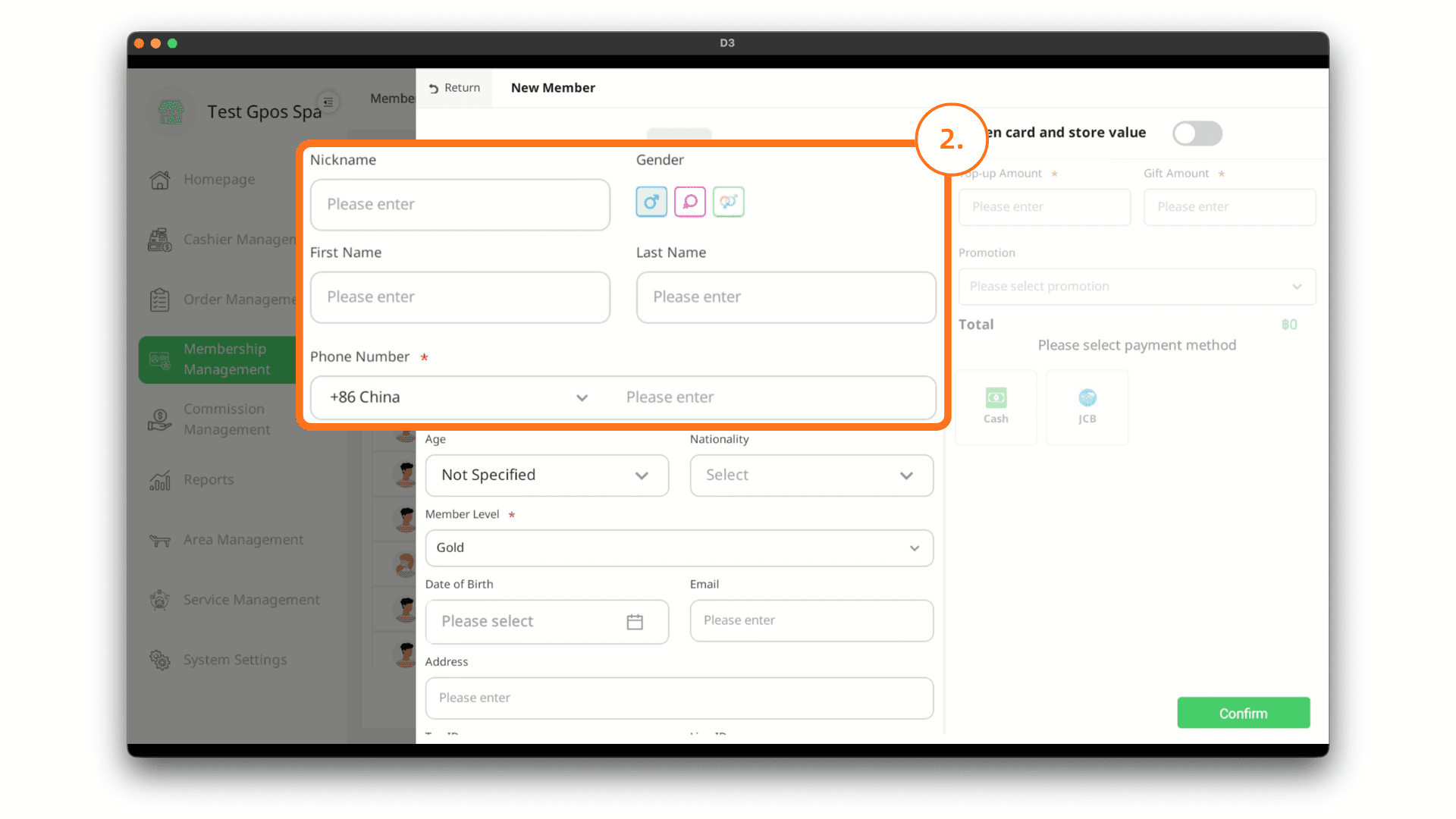
The system will display a form to input member details. Enter the nickname and phone number.
2.1 Selecting Membership Level
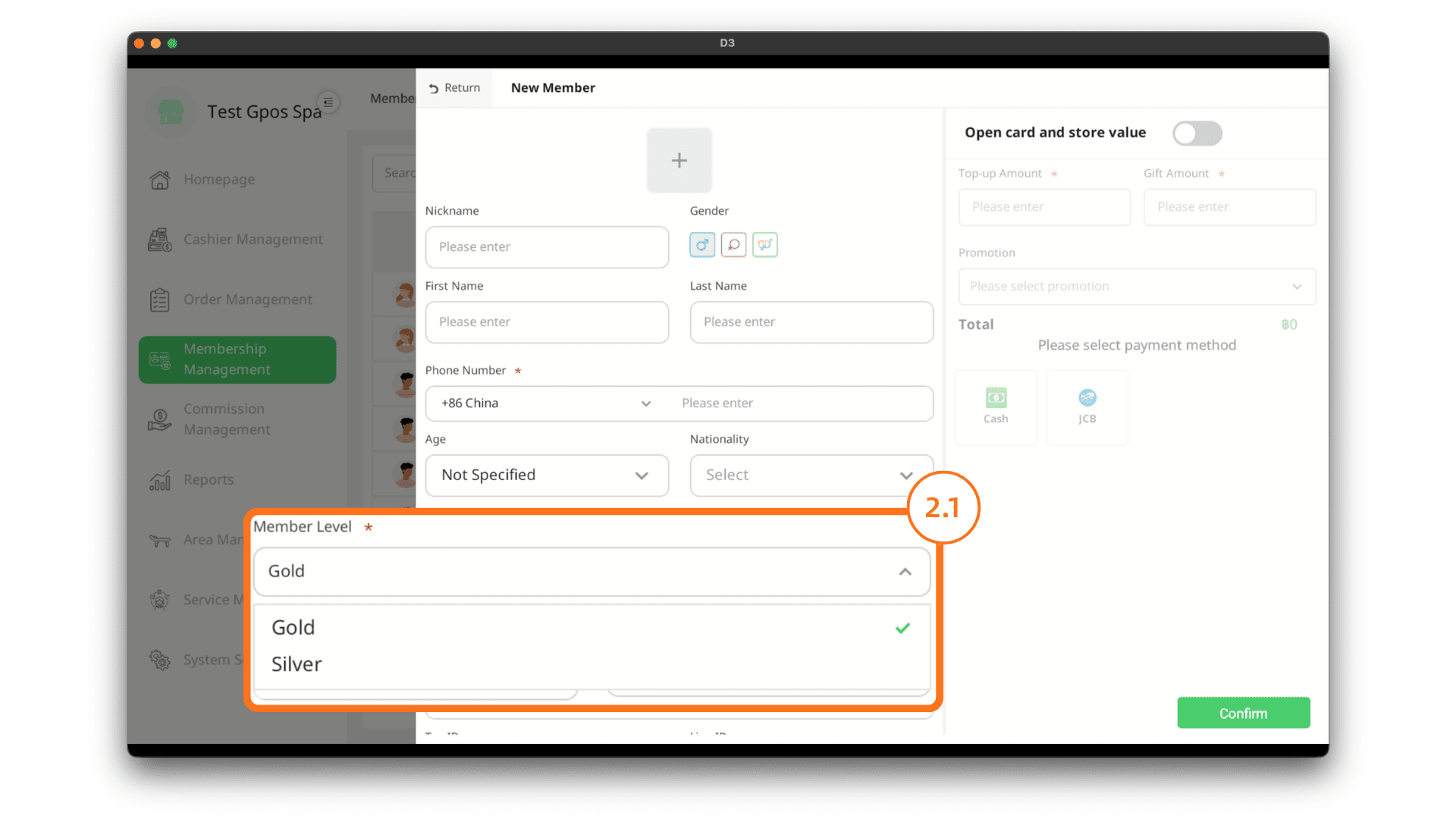
Select the desired membership level (if applicable). Membership levels can be created in advance—please refer to the Membership Level Settings menu for instructions on how to create them.
Note: The selected membership level affects the discount based on the settings defined for that level. Once a membership level has been selected, it cannot be removed. The system only supports changing the membership level, not deleting it.
2.2 Enter Additional Information and Save
Enter any additional member information as needed. Once all required information is completed, click the Confirm button to confirm adding the member.

3. Member Top-Up
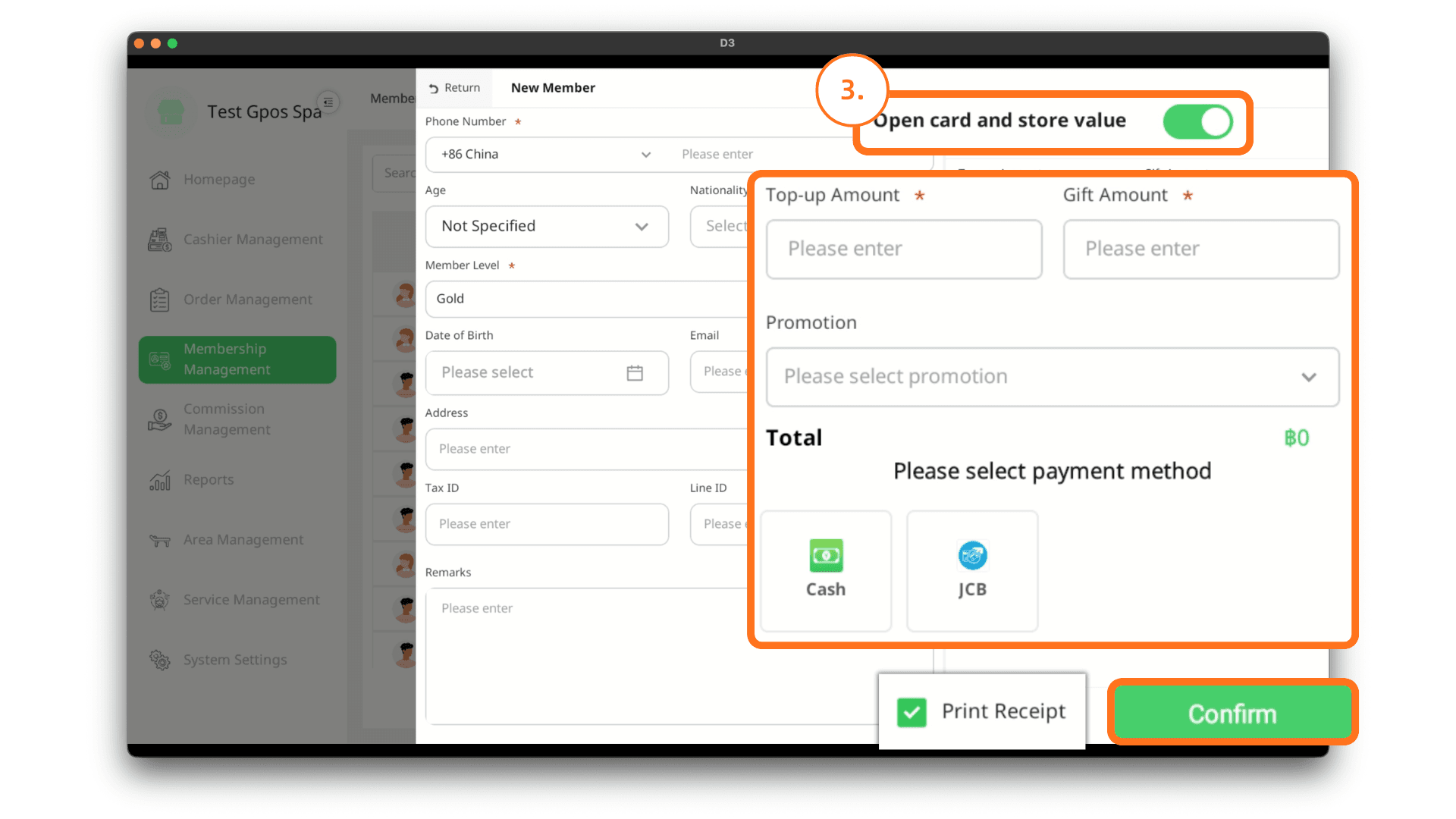
Activate the member card and top up the member’s balance by clicking the Activate button. Enter the top-up amount and the bonus amount, select the new member welcome promotion, and choose the payment method.
If you would like to print a receipt, click the Print Receipt button. Then click the Confirm button to complete the member addition process.
Note: Enter '0', if you don't want to give bonus amount.