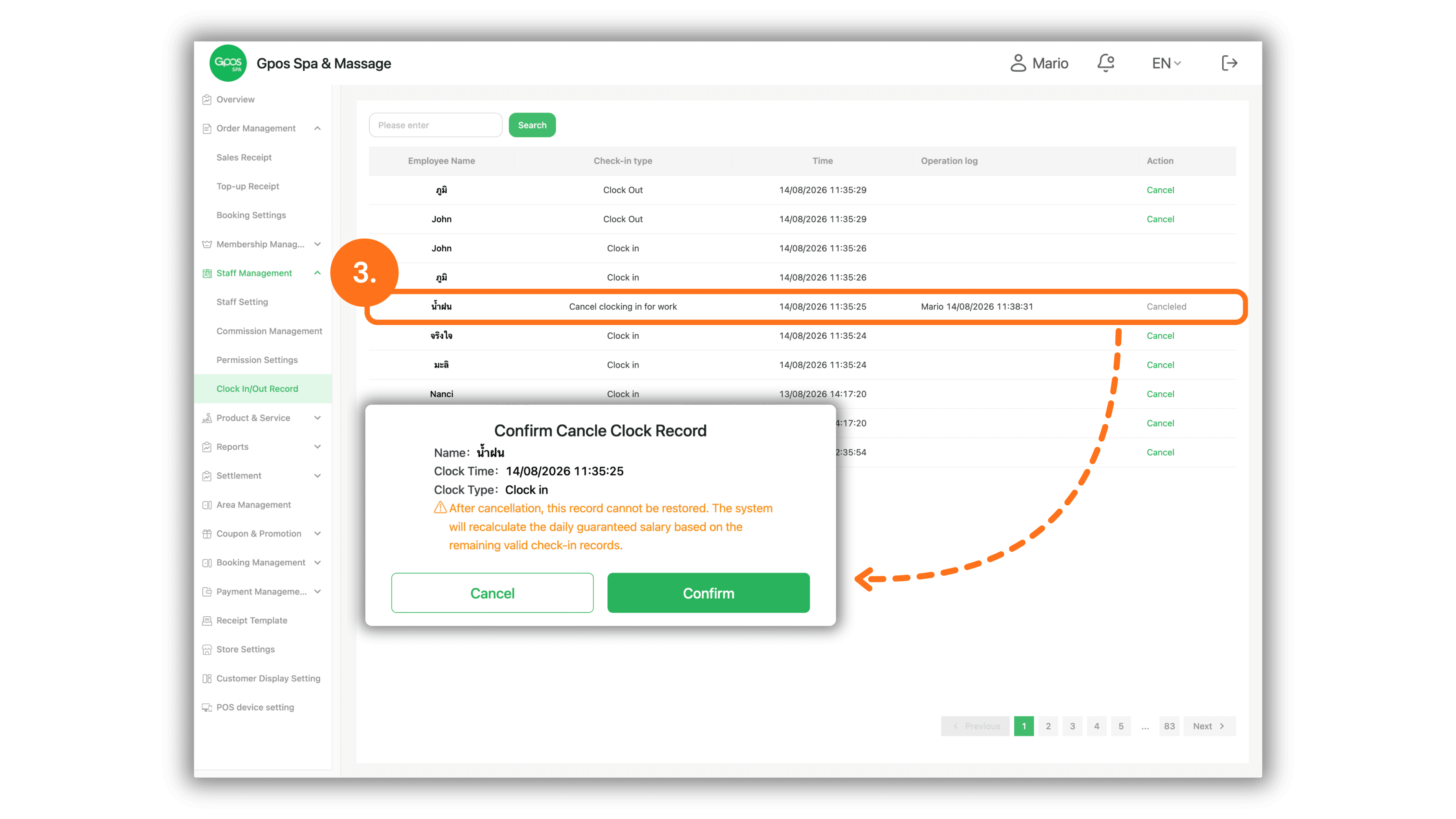
1. Select Store Branch
Select the desired store branch on the Please select a store page under The store I joined section to enter the management system.
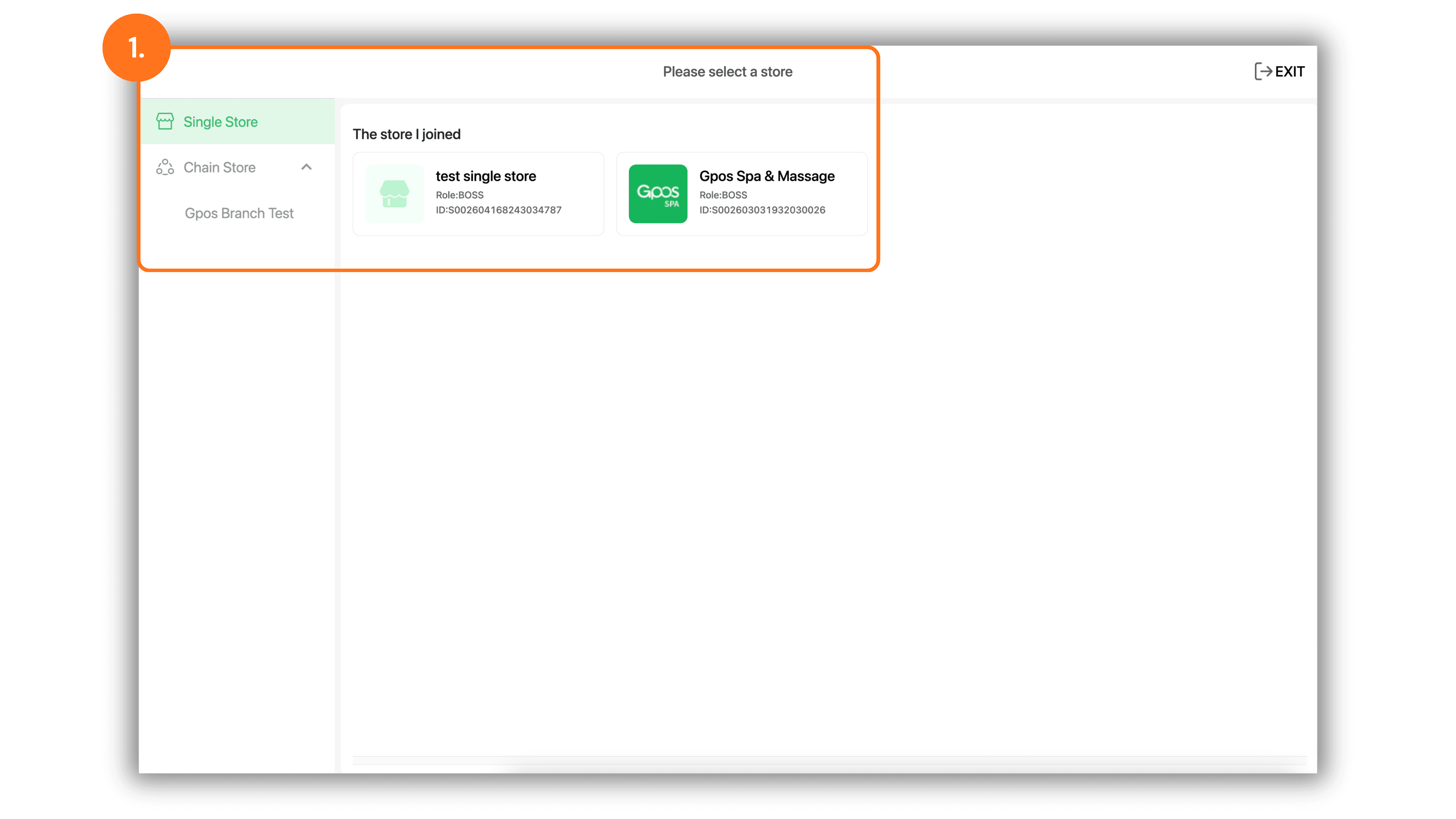
2. Navigate to Clock In/Out Record and Click Cancel
In the left sidebar menu, click Staff Management, then select Clock In/Out Record:
- Check-in type: Review employee attendance records (e.g., Clock in or Clock Out).
- Action: Locate the specific employee log you want to cancel and click the Cancel button in the Action column on the right.
Note: Canceling a clock-in record will cancel the daily guaranteed salary associated with it. It is strongly recommended to perform cancellations on the same day. If the day has passed or the staff member has already clocked out, any mistakenly lost guaranteed salary cannot be restored.
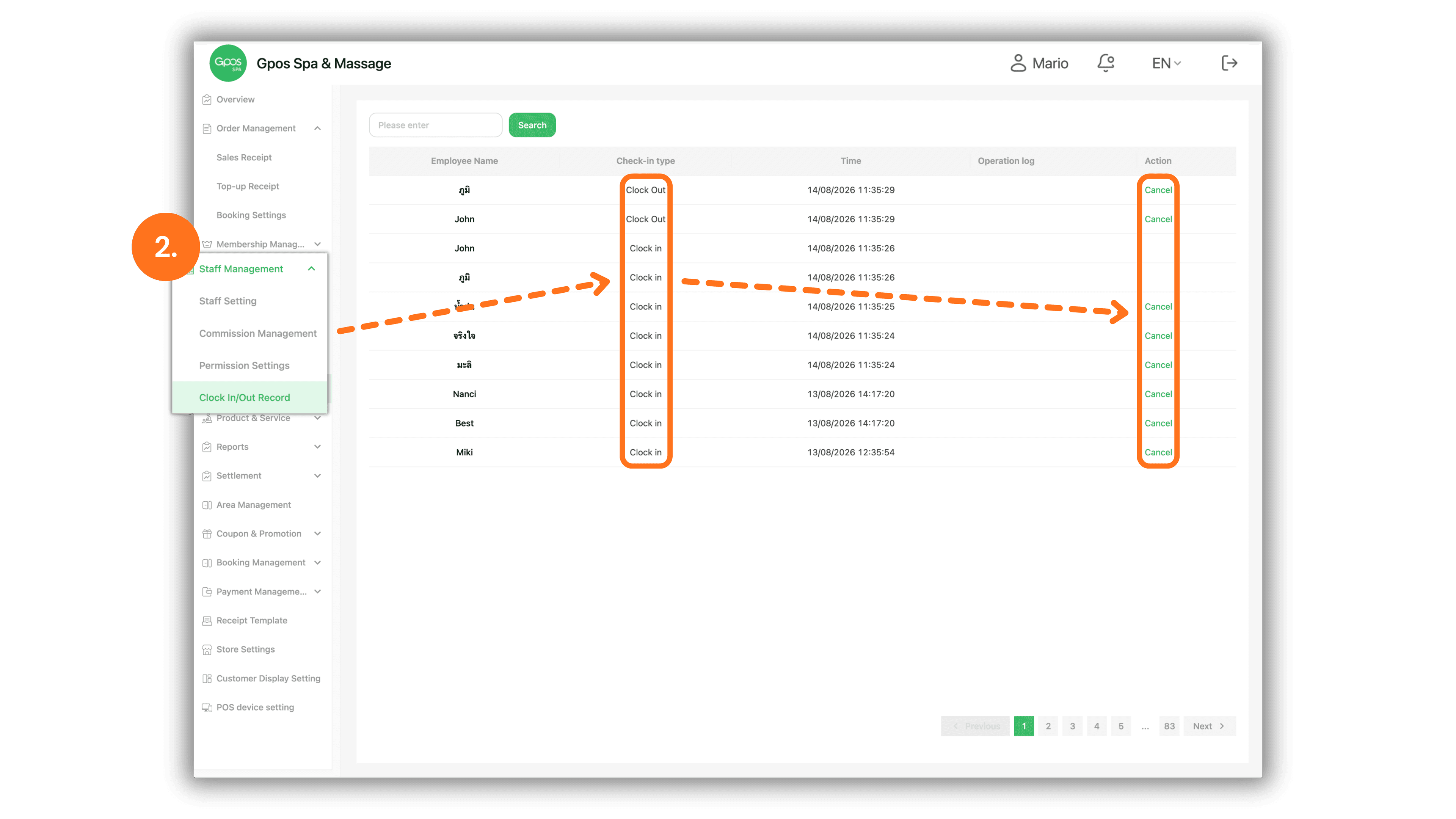
3. Confirm Cancellation and Verify Status
- When the Confirm Cancle Clock Record modal appears, review the Name, Clock Time, Clock Type, and system warning message regarding salary recalculation.
- Click the green Confirm button to complete the cancellation.
- After confirmation, the Check-in type status will update to Cancel clocking in for work, the Operation log will document the change, and the action button will update to Canceled.