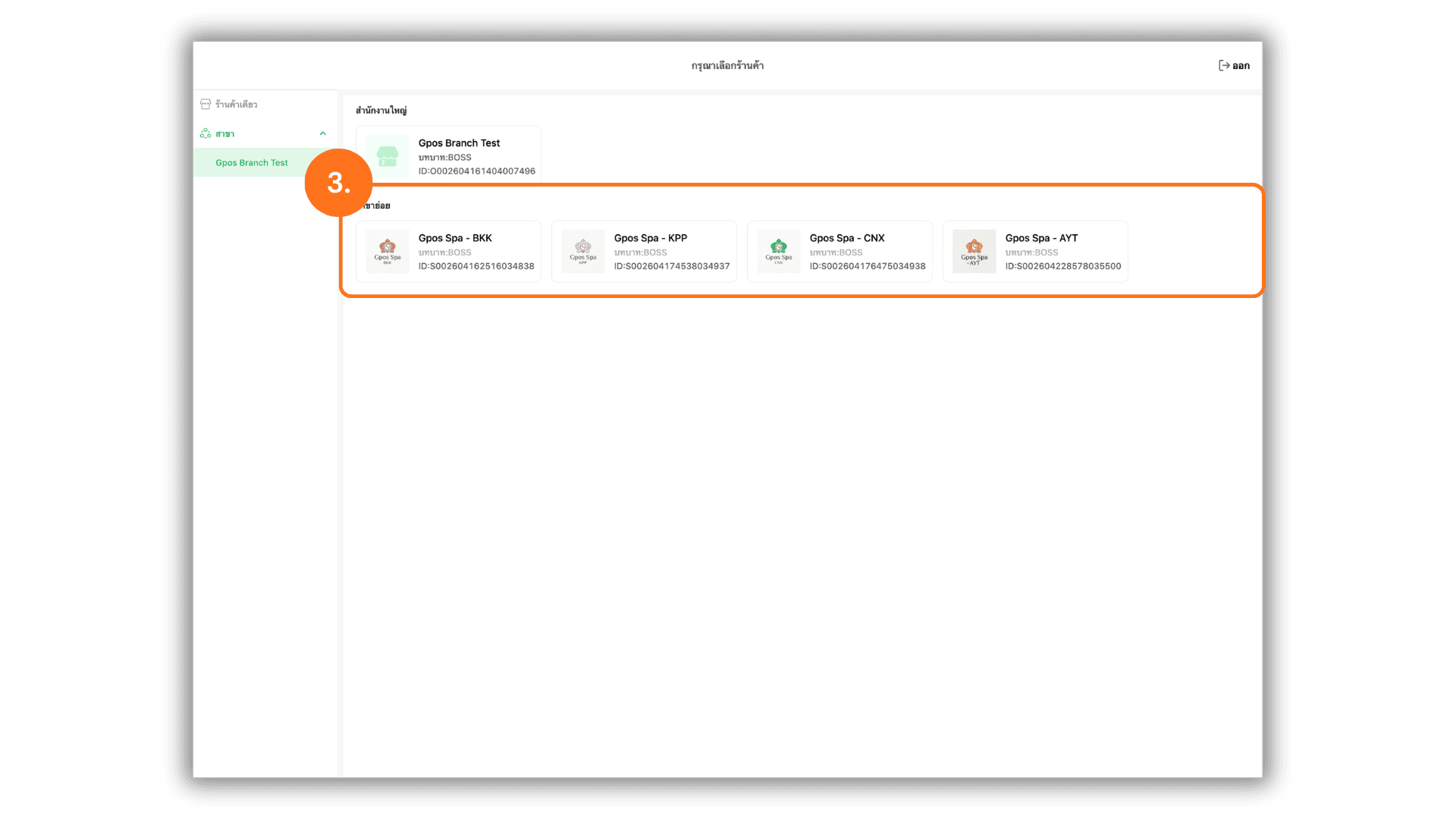
1. Select Headquarters to Enter the System
On the Please select a store page, click Headquarters (e.g., Gpos Branch Test) to access the system setup and main dashboard.
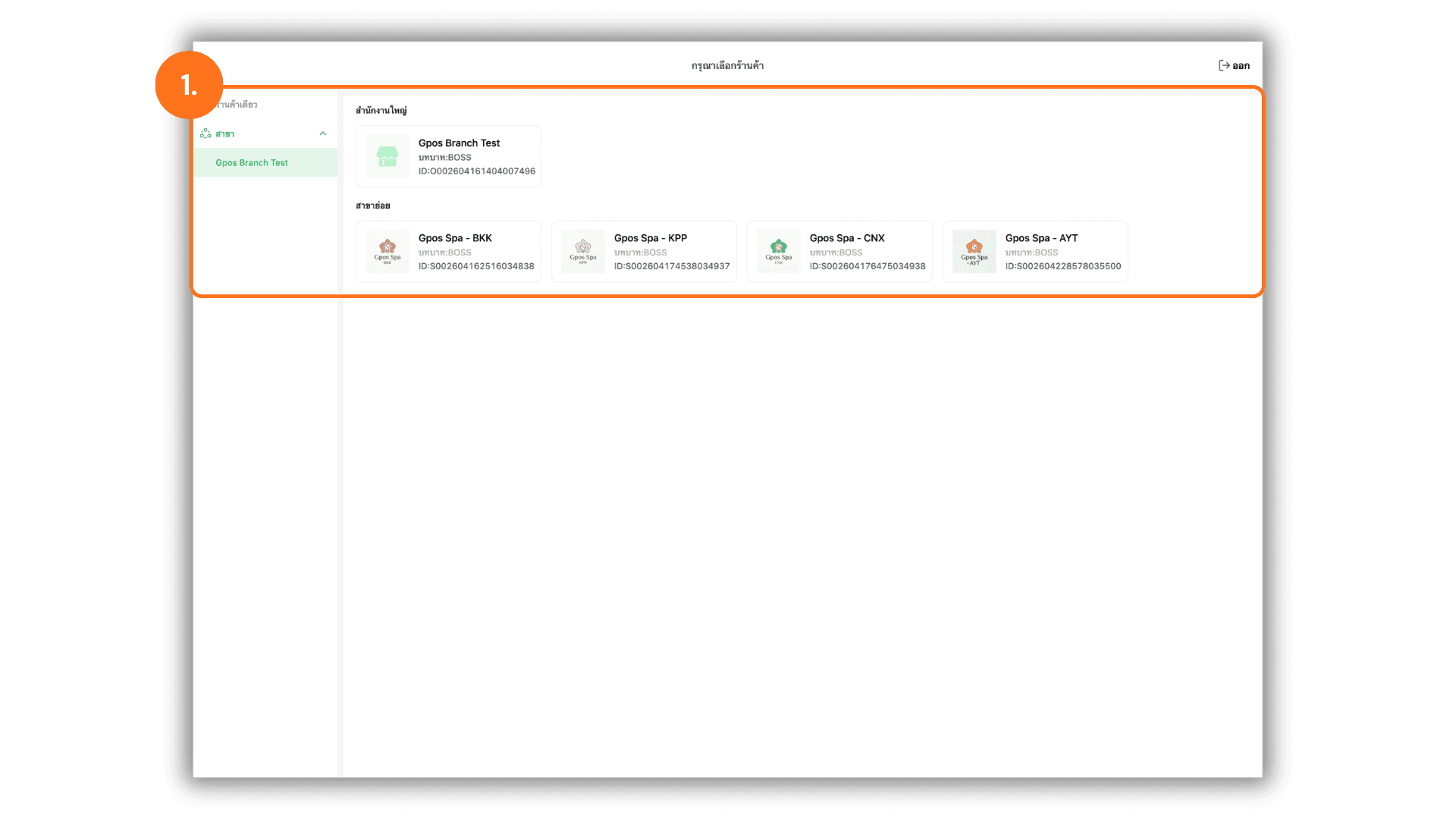
2. Click the Switch Store Icon in the Top Right Corner
While working on the dashboard, click the Switch Store icon (two opposing arrows icon) located in the top-right toolbar next to the language selector (EN) to change stores.
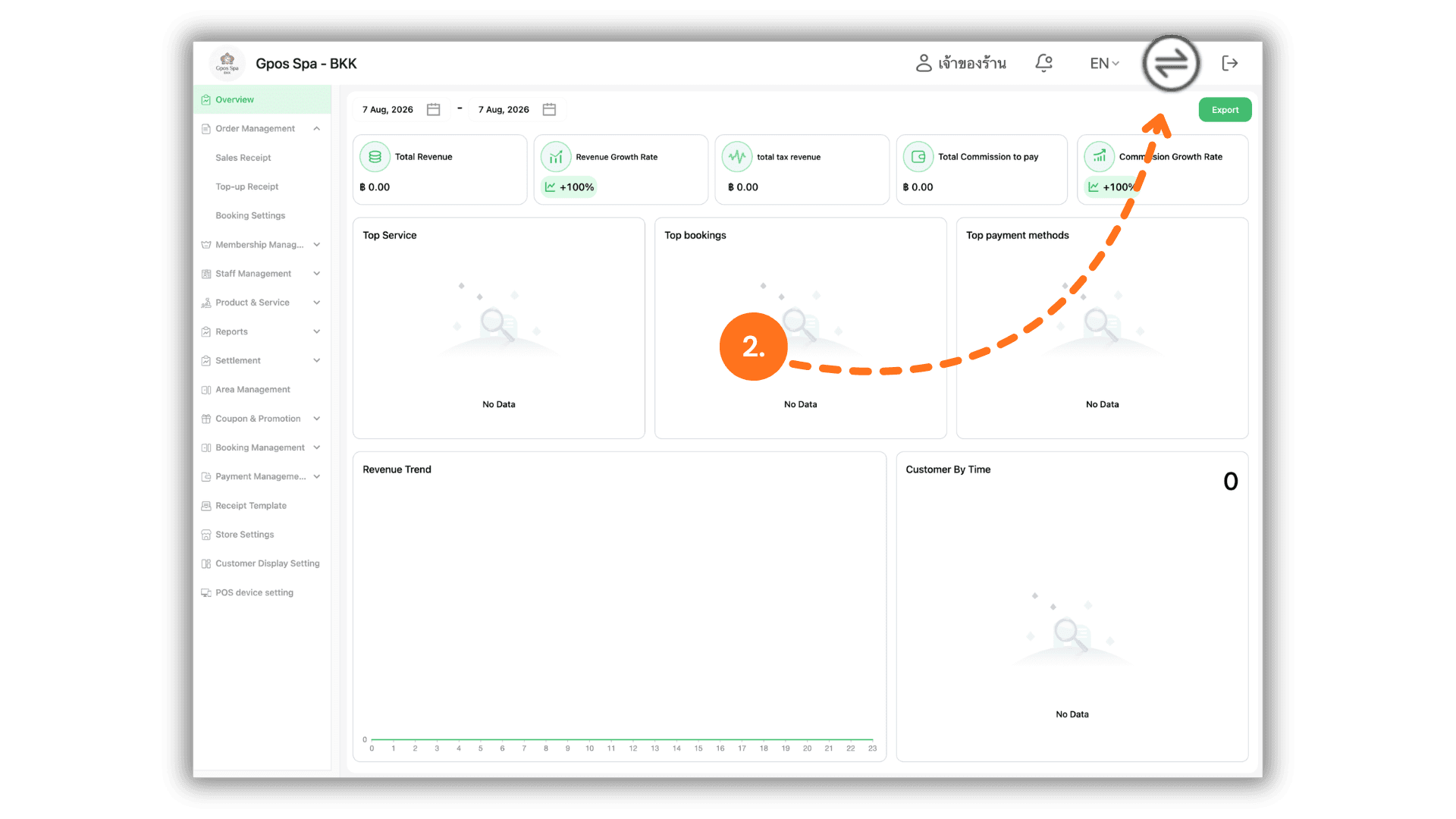
3. Select the Desired Branch Store to Switch
You will be redirected back to the store selection screen. Click on the specific Branch (e.g., Gpos Spa - BKK, Gpos Spa - KPP) you wish to switch or change to.