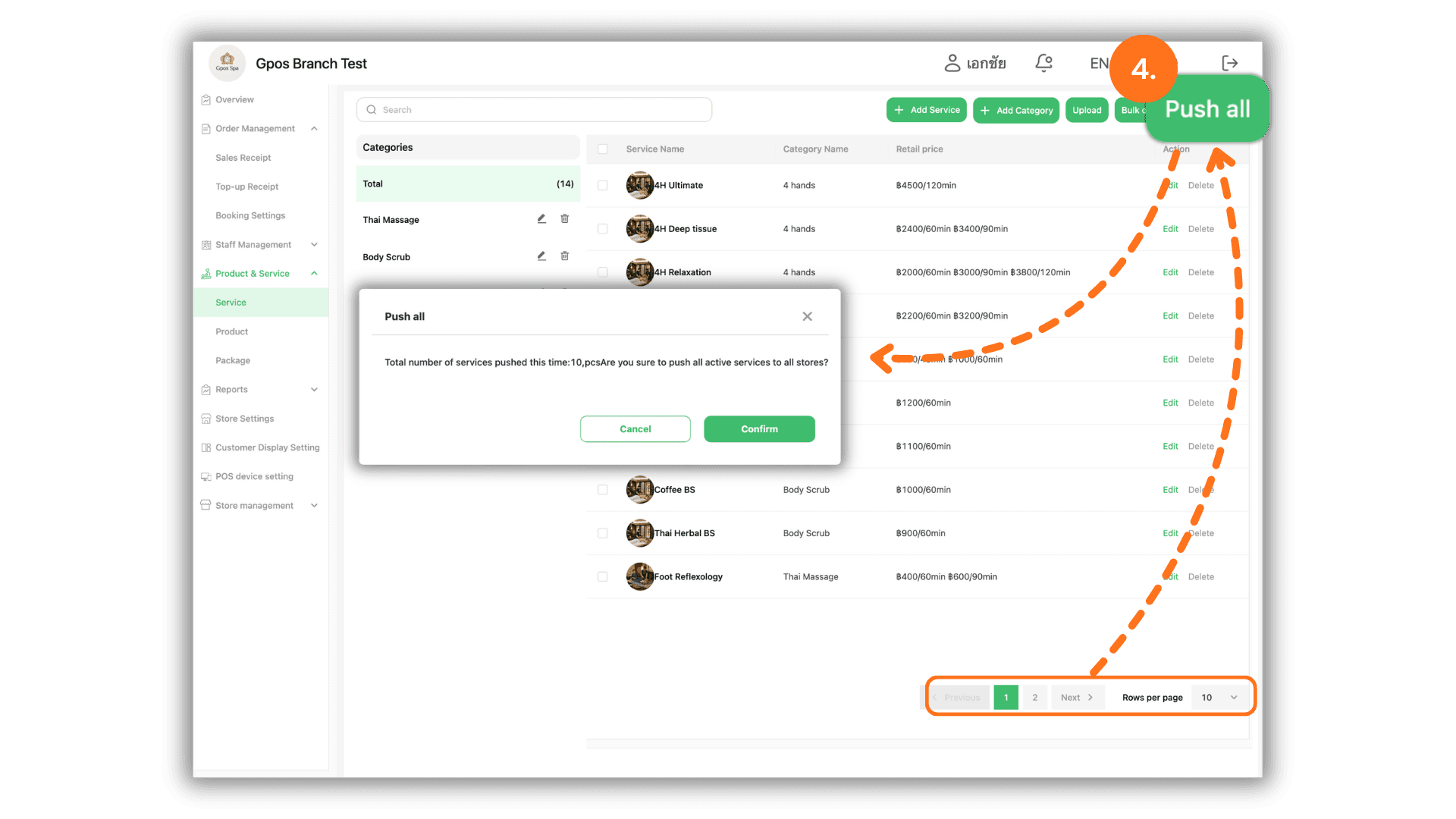
1. Select Headquarters to Access the System
Start by clicking to select Headquarters (e.g., Gpos Branch Test) on the Please select a store page to enter the central administration portal.
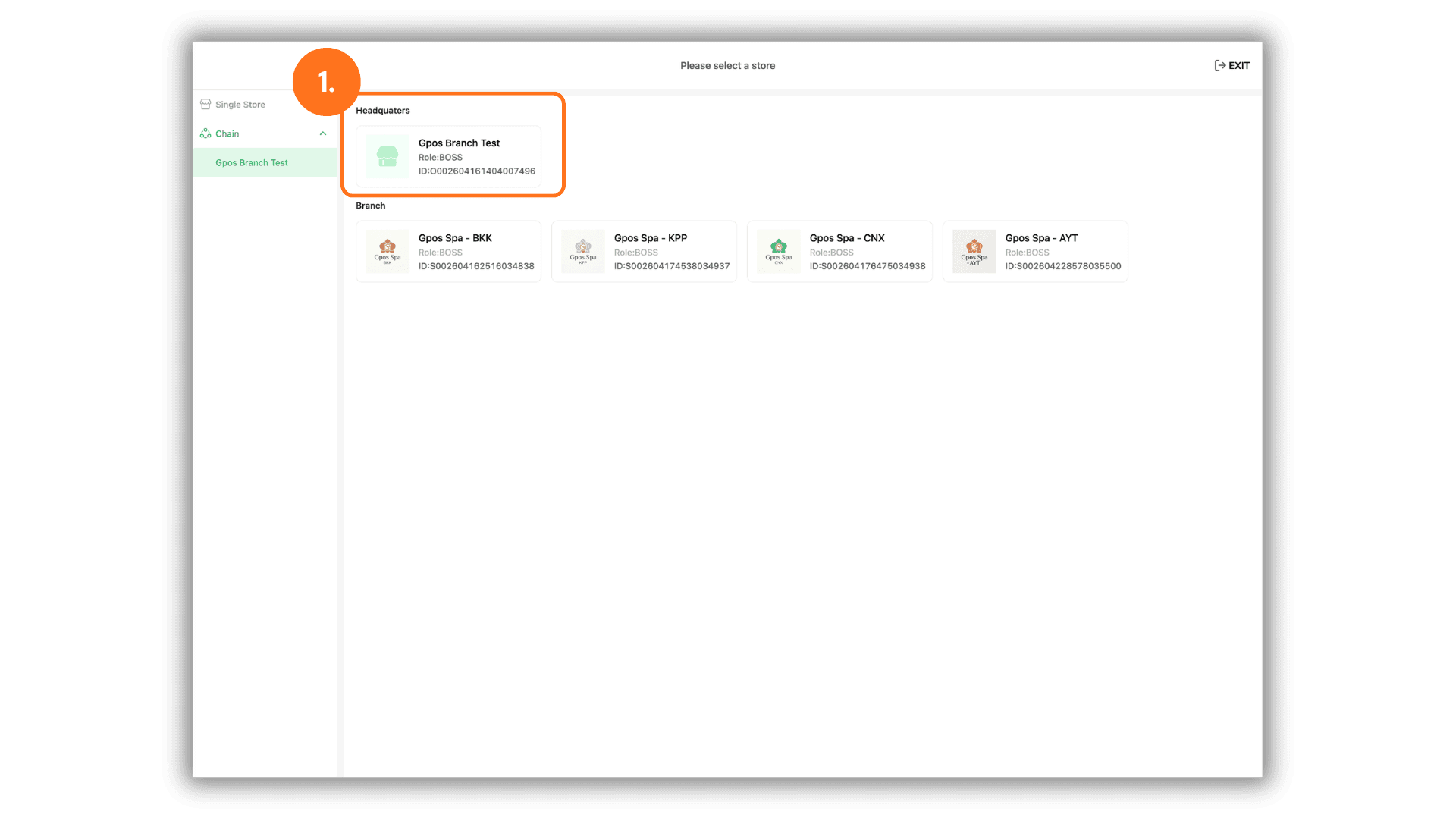
2. Select Service, Product, or Package Settings
In the left-hand menu, click Product & Service, then choose the category you wish to distribute to your branches: Service, Product, or Package.
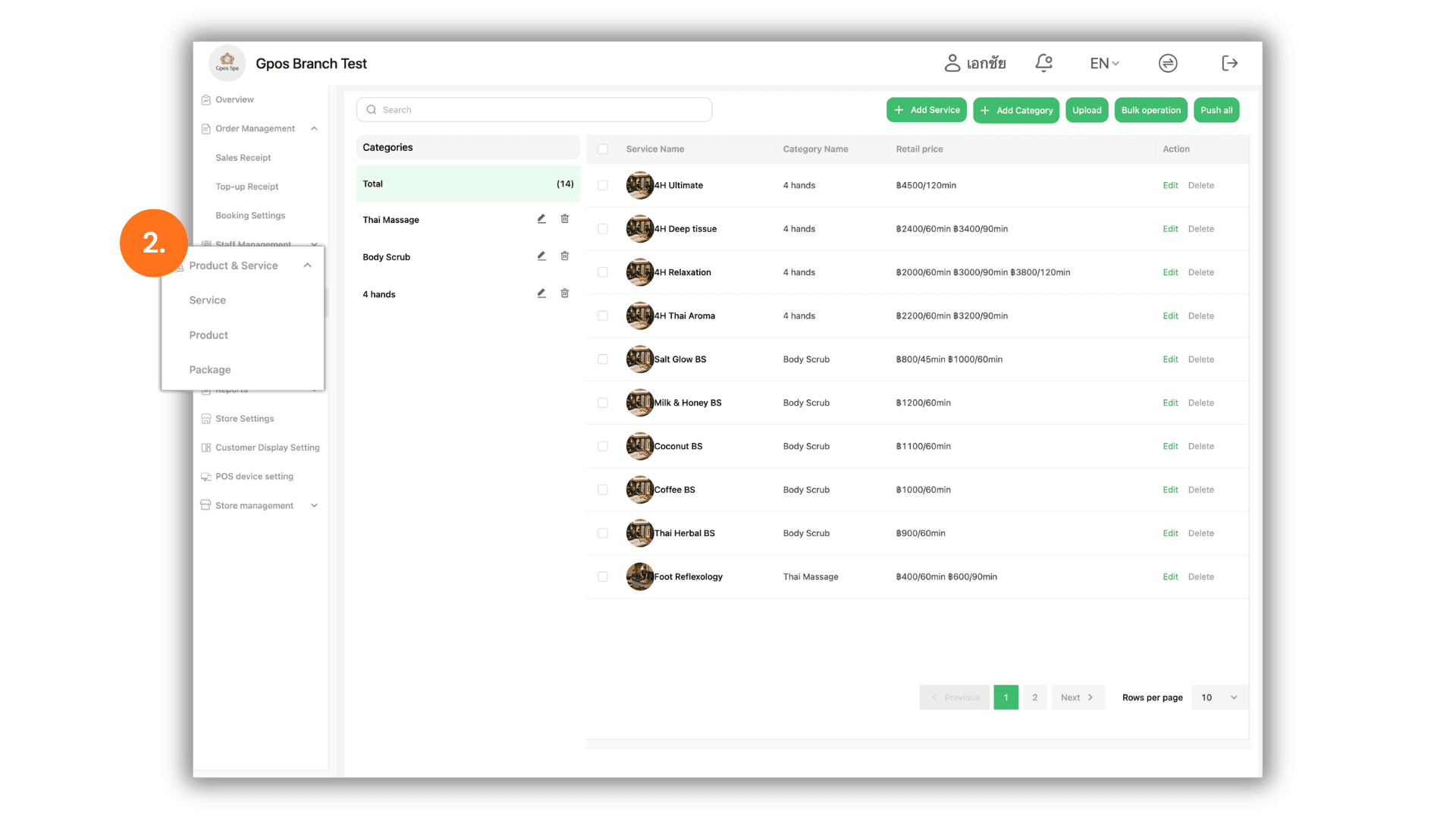
3. Distribute Selected Items to Specific Branches in Bulk
To send specific items or target selected branches:
- Check the boxes next to the items you wish to send.
- Click Bulk operation at the top right and select Bulk push.
- In the Please select a store pop-up window, check the target Branch locations.
- Click the green Confirm button to complete the distribution.
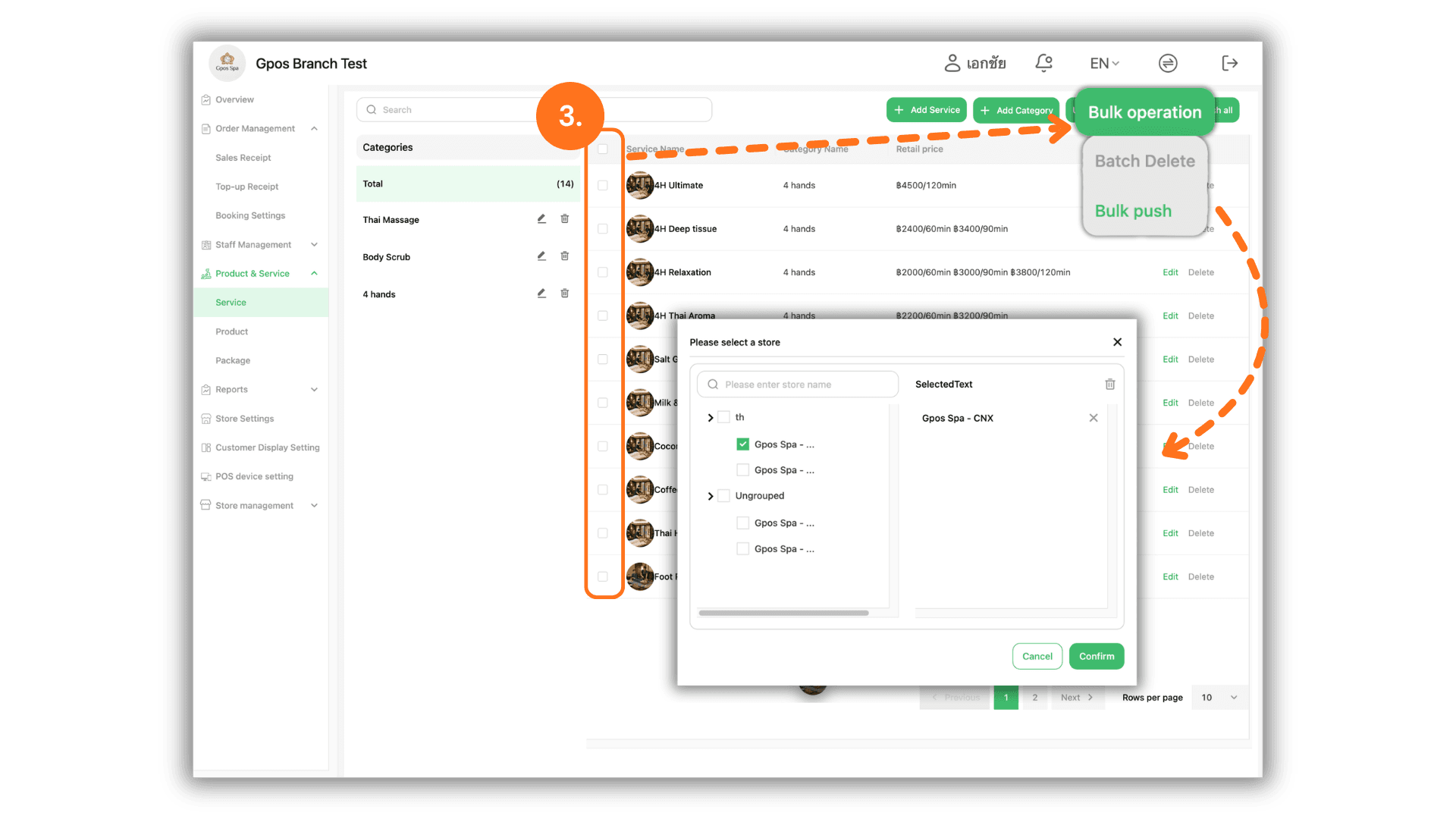
4. Push All Items to All Branches
To distribute all listed items across all branches, click the green Push all button at the top right and click Confirm on the confirmation prompt.
• Note: The system only pushes items currently displayed on the active page. If your list spans multiple pages, navigate through the pagination numbers at the bottom right to push remaining items.