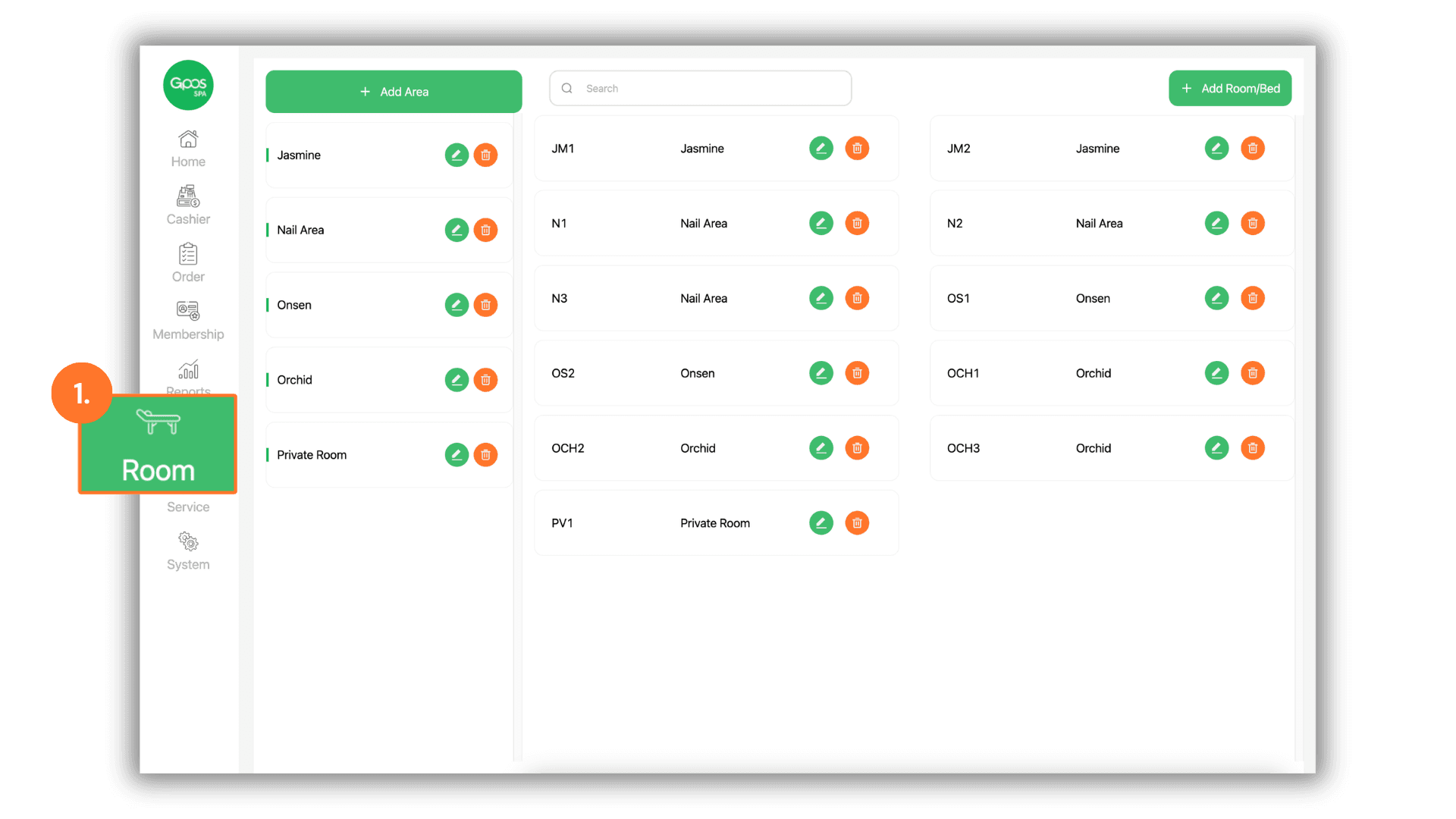
1.Access Menu
On the left sidebar menu, select “Room”
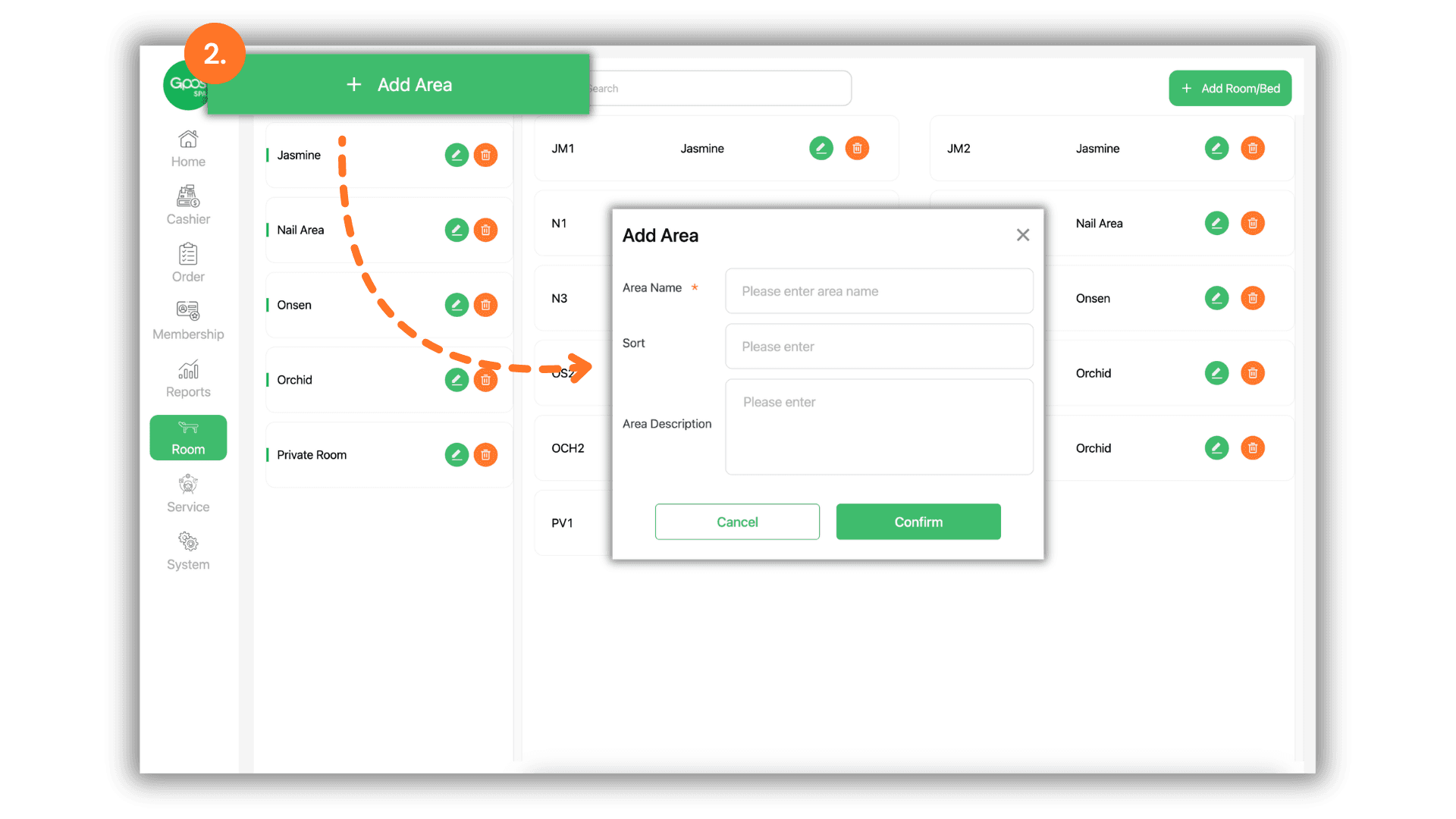
2.Add Area
Click the “+ Add Area” button. Enter the zone name (e.g., Private Room, General Area). You can define zones as private rooms or shared spaces based on your shop layout.
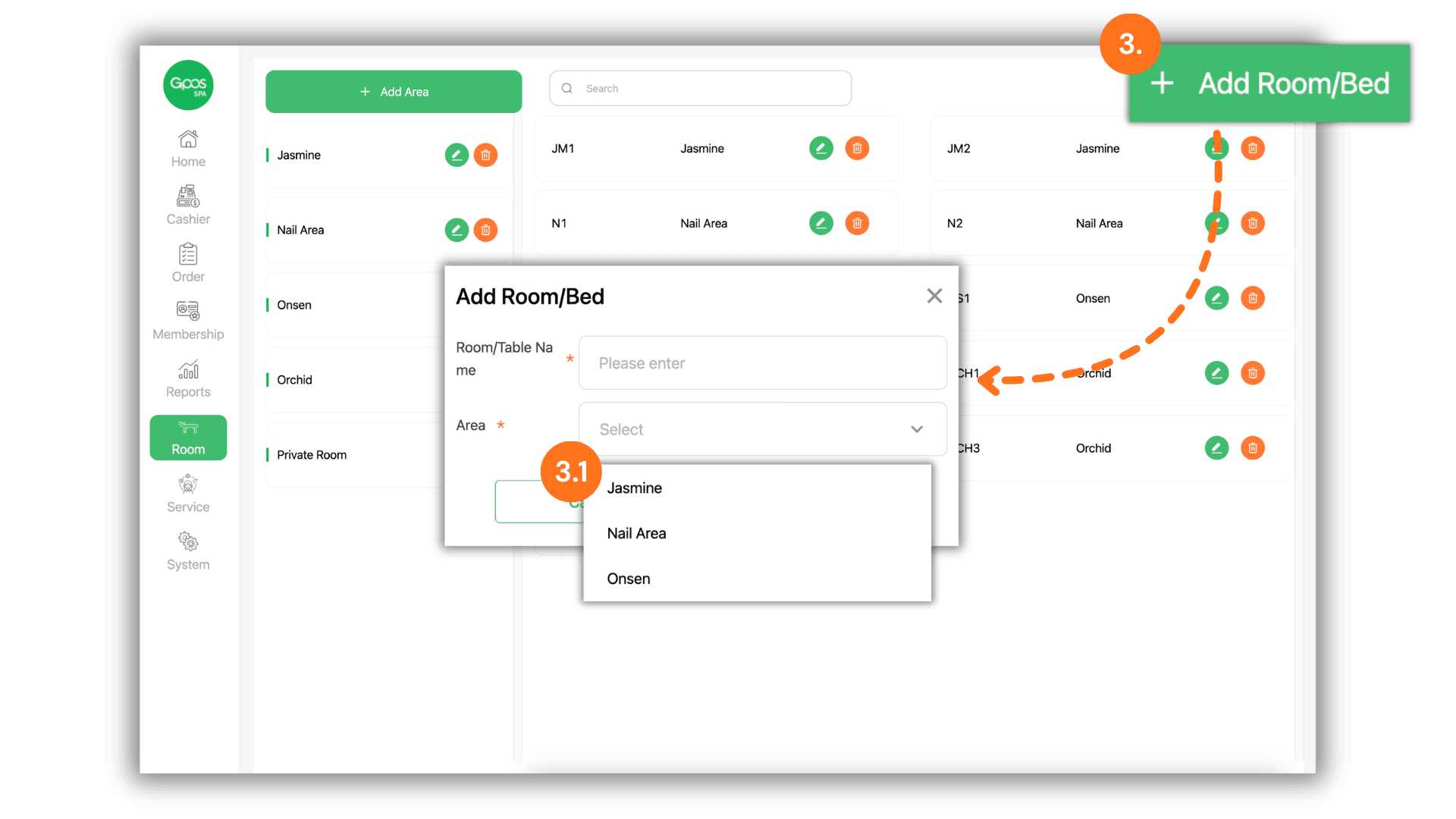
3.Add Room or Bed
Click the “+ Add Room/Bed” button to create a service spot.
• Enter the room name or bed number.
• Select Zone: Assign the room/bed to a previously created zone for organized grouping.
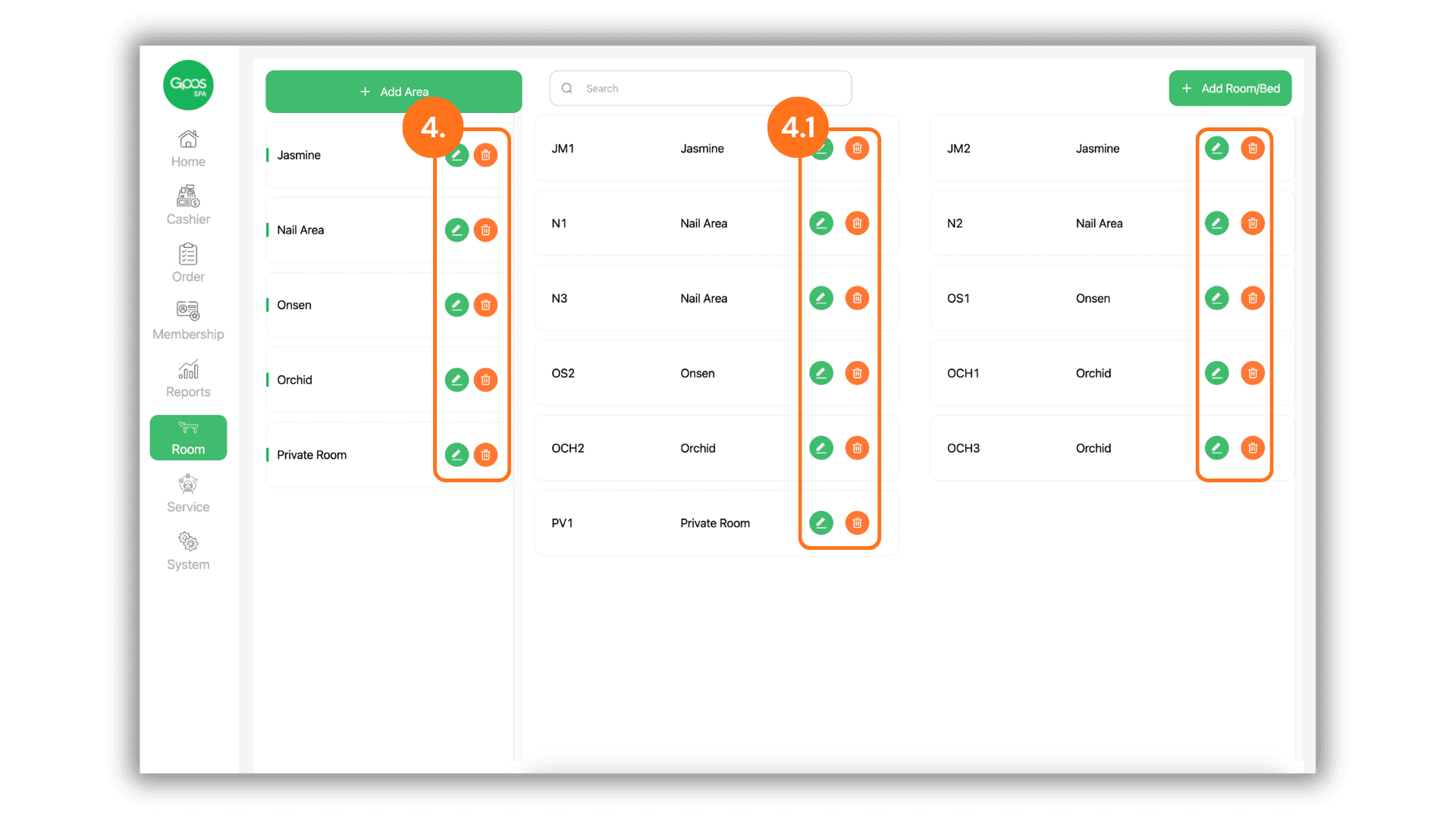
4.Modify or Remove
To make changes, click the Pencil icon (Edit) or the Trash icon (Delete) available for both Zones and individual Rooms/Beds.