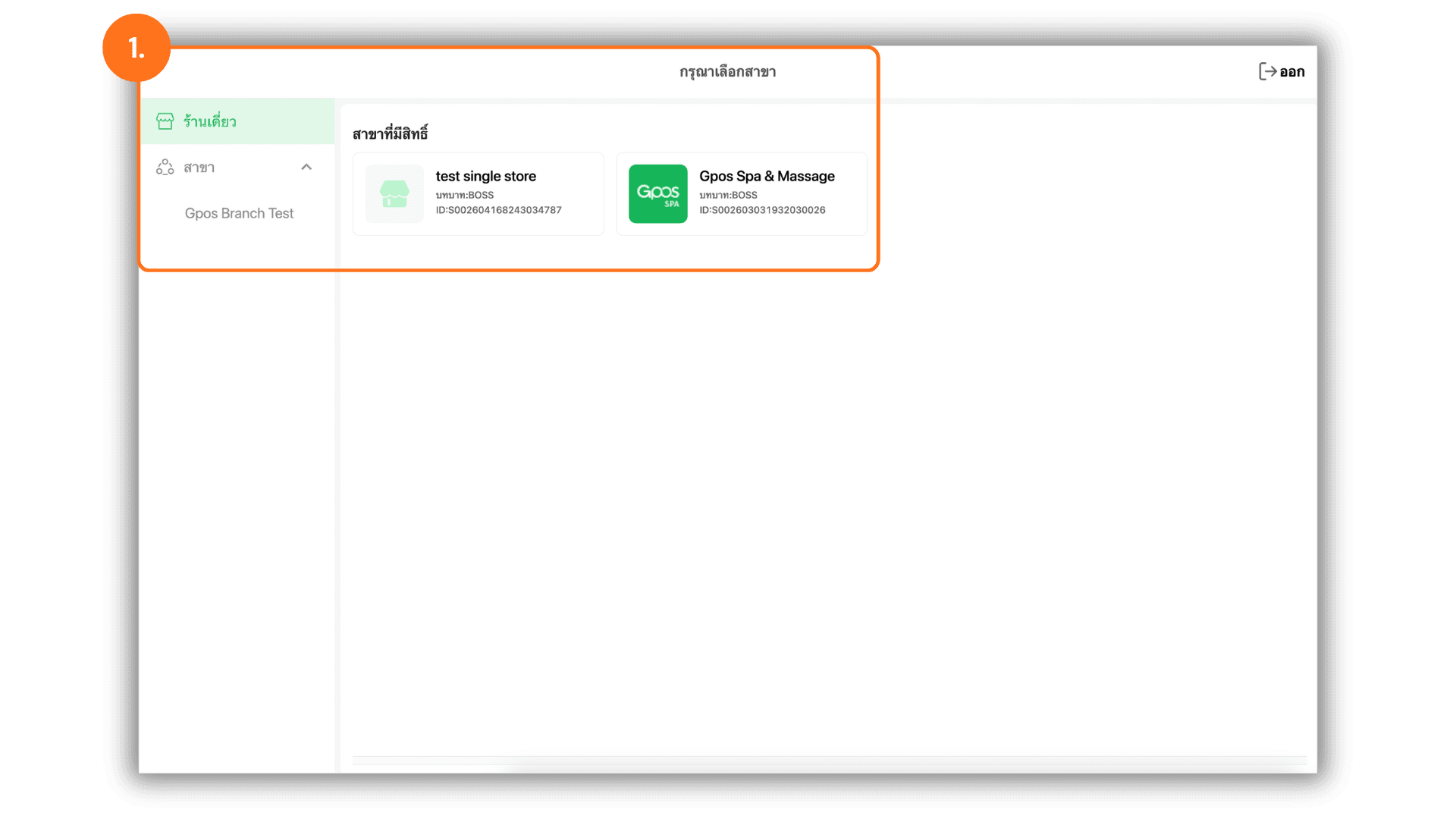
1.Select the Target Branch
- Begin by selecting the specific Store or Branch to access the transaction records and ensure the tax invoice is issued under the correct business location.
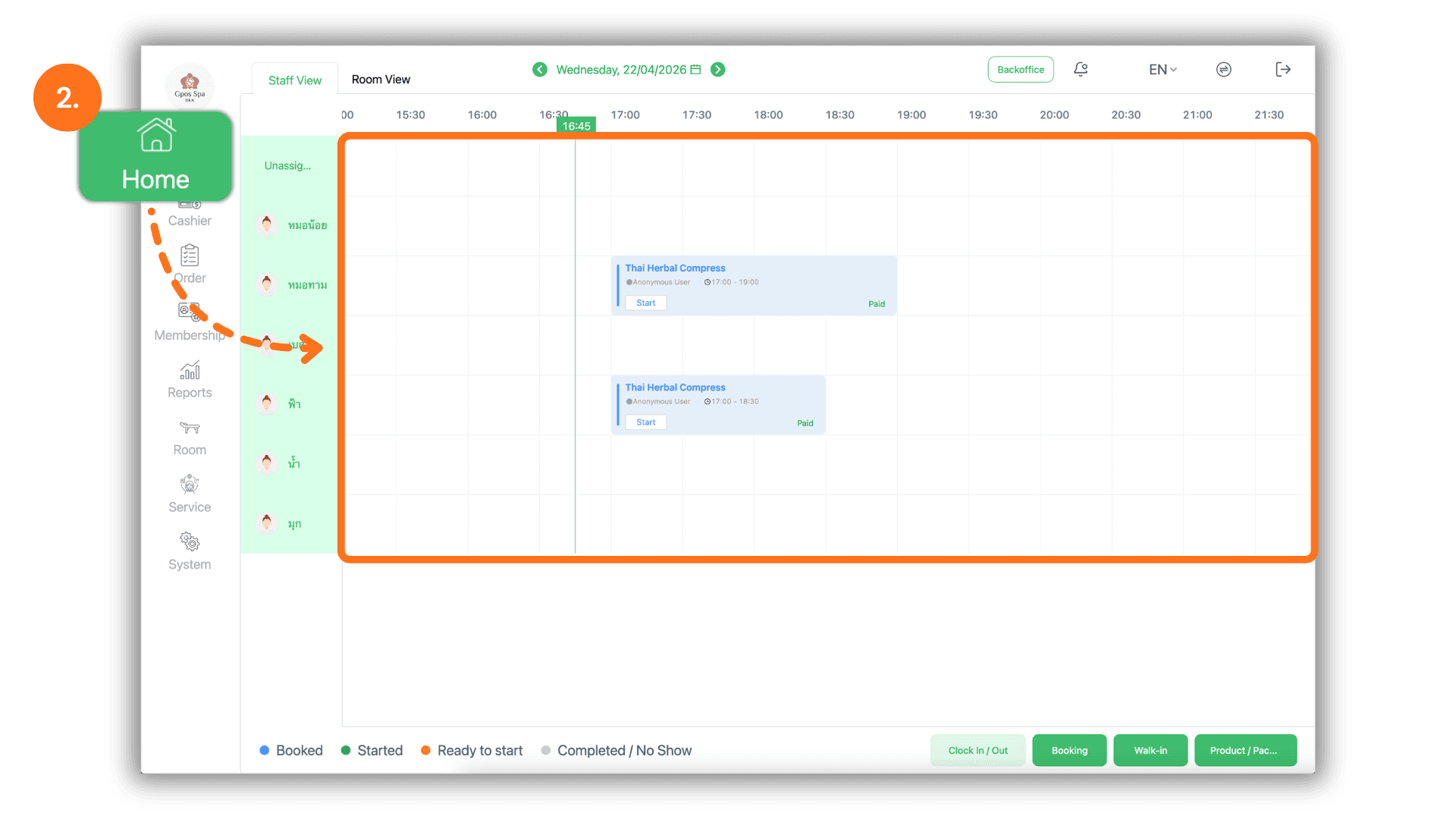
2.Access via Main Dashboard and Service Period
- Navigate to the "Home" page and select the specific Service Period for which the tax invoice is required. This helps in quickly locating the correct customer session.
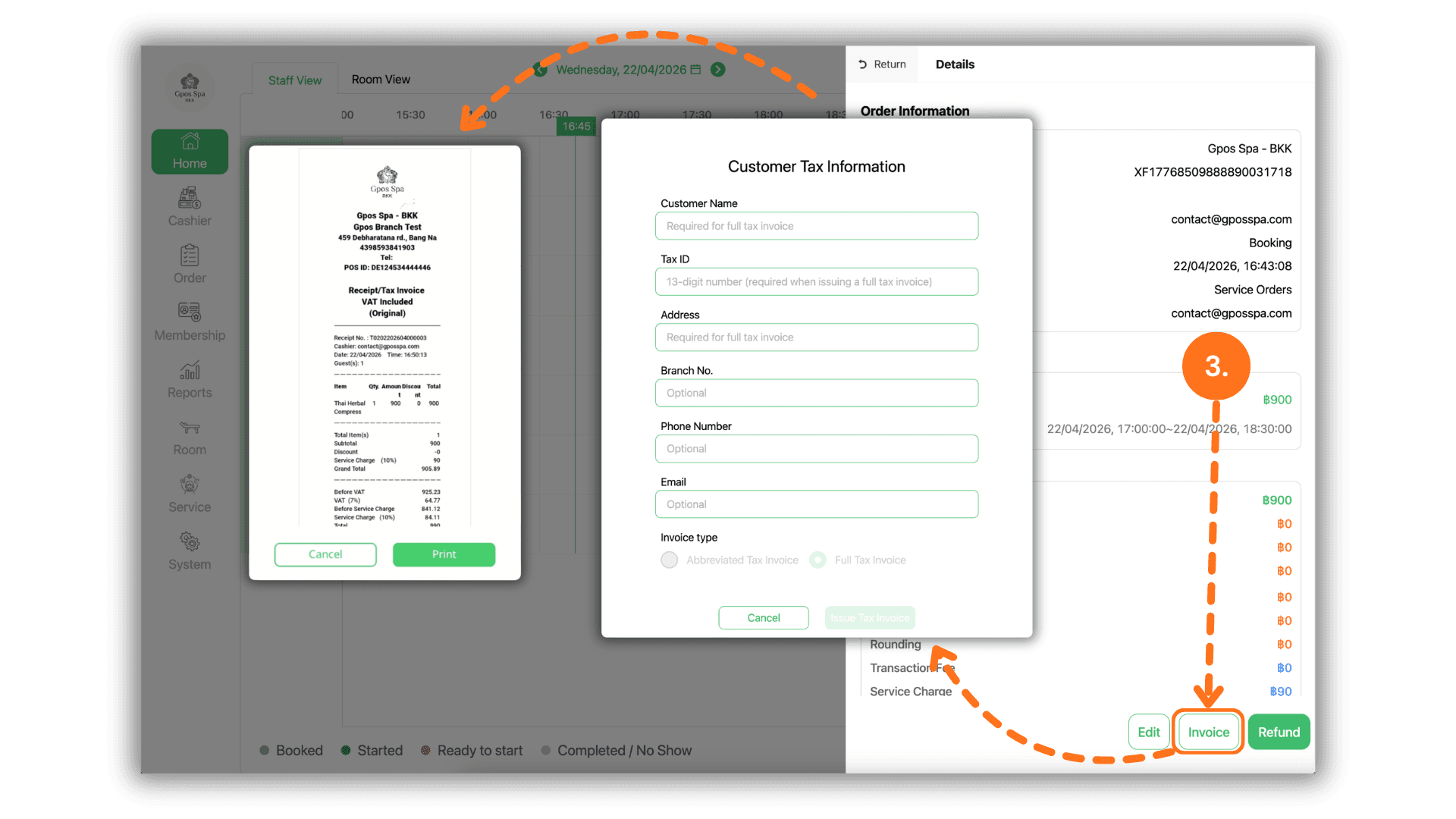
3.Enter Taxpayer Details and Generate Invoice
- Click the "Invoice" button and fill in the customer’s legal information :
- Customer Name : Enter the individual’s name or the registered Company Name.
- Tax ID : Provide the taxpayer identification number for the person or corporation.
- Address : Input the official registered address.
- Optional Fields : Branch, Phone Number, and Email are optional and can be skipped.
- Issuance : Select between "Abbreviated" or "Full tax invoice", then click "Issue Tax Invoice" followed by "Print."
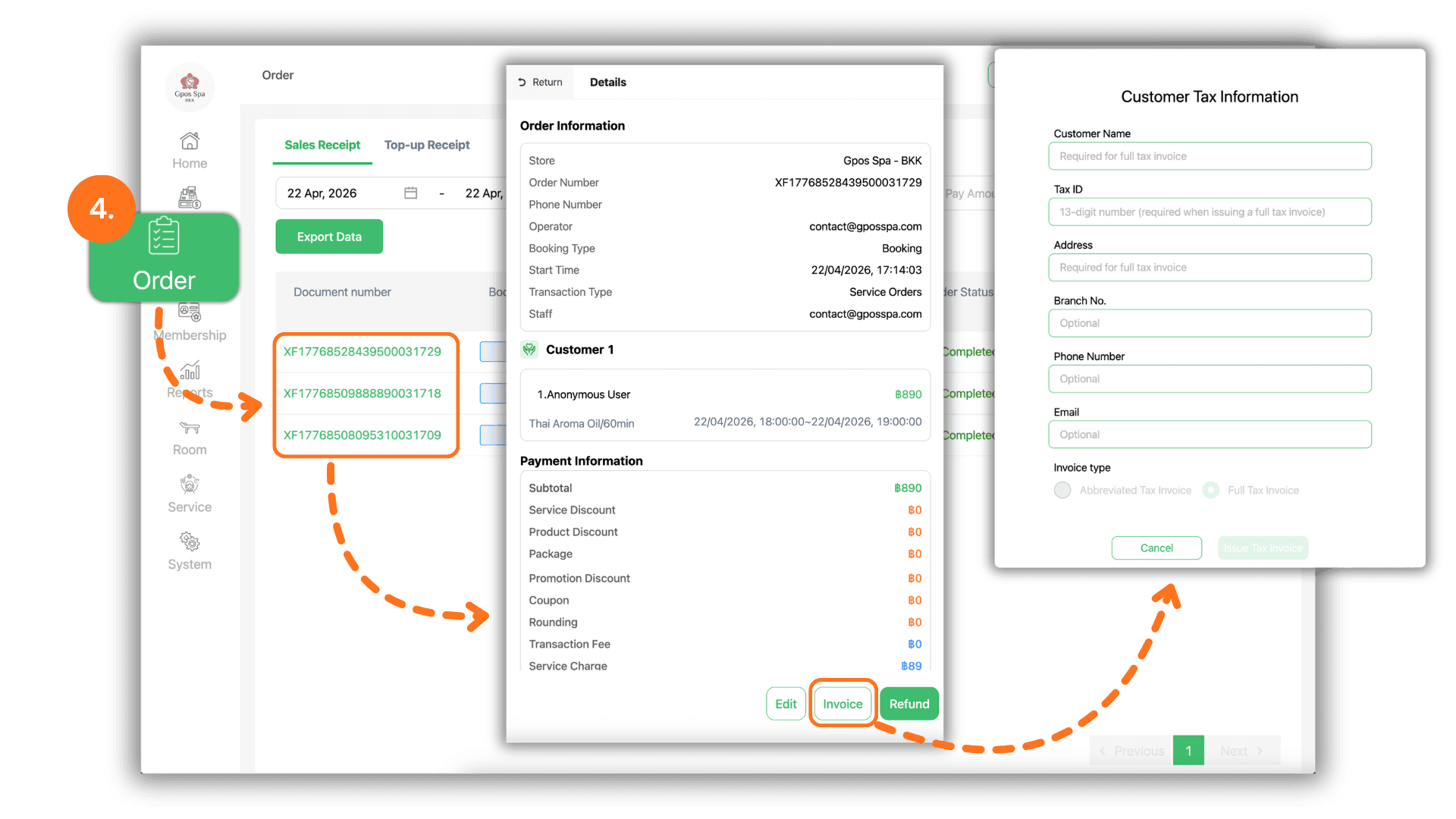
4.Issuance via Order History
- You can also issue invoices directly through the "Order" screen :
- Click on the specific Receipt Number required.
- Click the "Tax Invoice" button and provide the taxpayer details
- Customer Name : Enter the individual’s name or the registered Company Name.
- Tax ID : Provide the taxpayer identification number for the person or corporation.
- Address : Input the official registered address.
- Optional Fields : Branch, Phone Number, and Email are optional and can be skipped.
- Issuance : Select between "Abbreviated" or "Full tax invoice", then click "Issue Tax Invoice" followed by "Print."
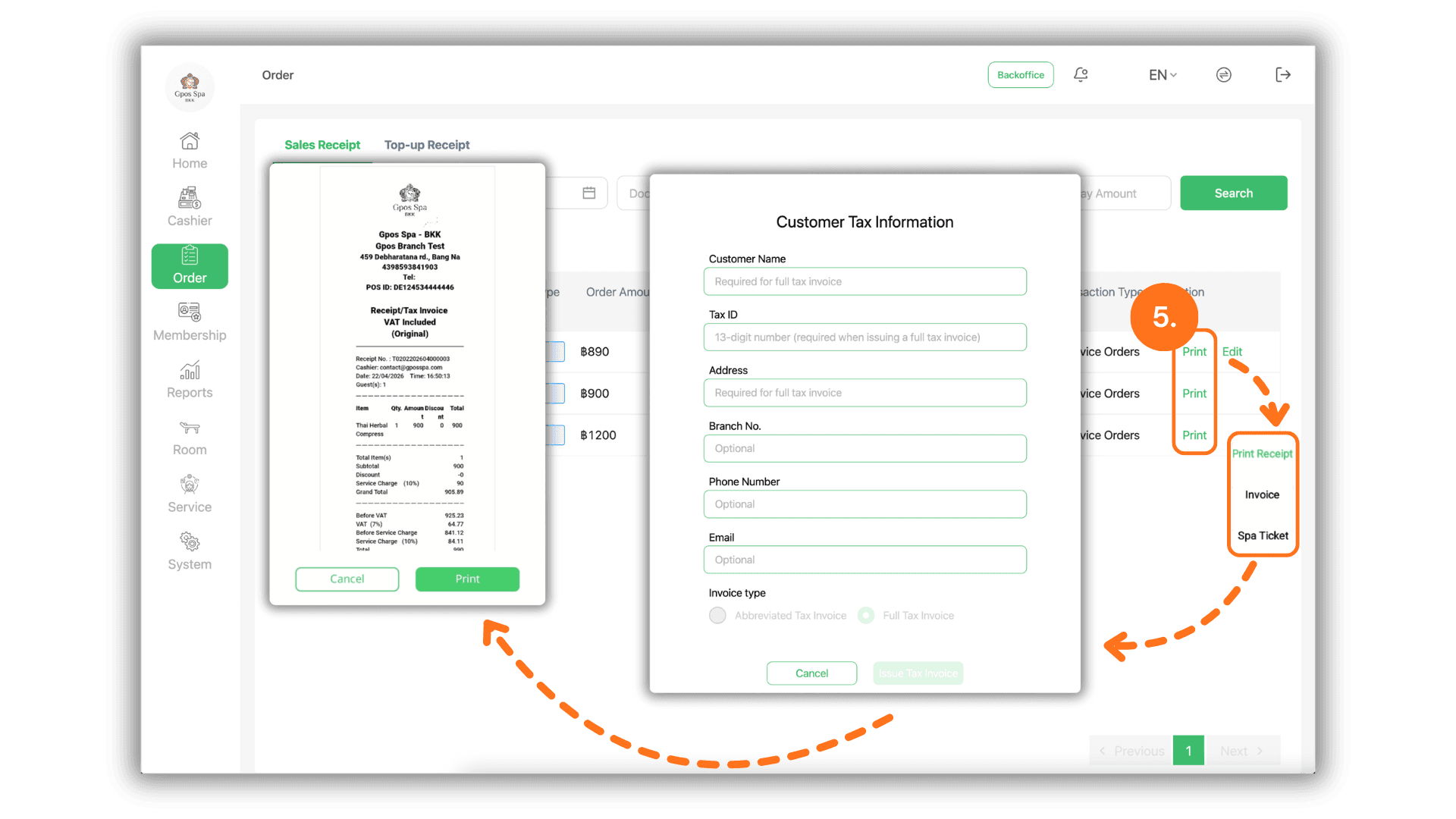
5.Direct Print and Invoice Configuration
- Alternatively, use the direct print shortcut :
- Click the "Print" button and select the "Tax Invoice" option.
- Customer Name : Enter the individual’s name or the registered Company Name.
- Tax ID : Provide the taxpayer identification number for the person or corporation.
- Address : Input the official registered address.
- Optional Fields : Branch, Phone Number, and Email are optional and can be skipped.
- Issuance : Select between "Abbreviated" or "Full tax invoice", then click "Issue Tax Invoice" followed by "Print."
- Click the "Print" button and select the "Tax Invoice" option.