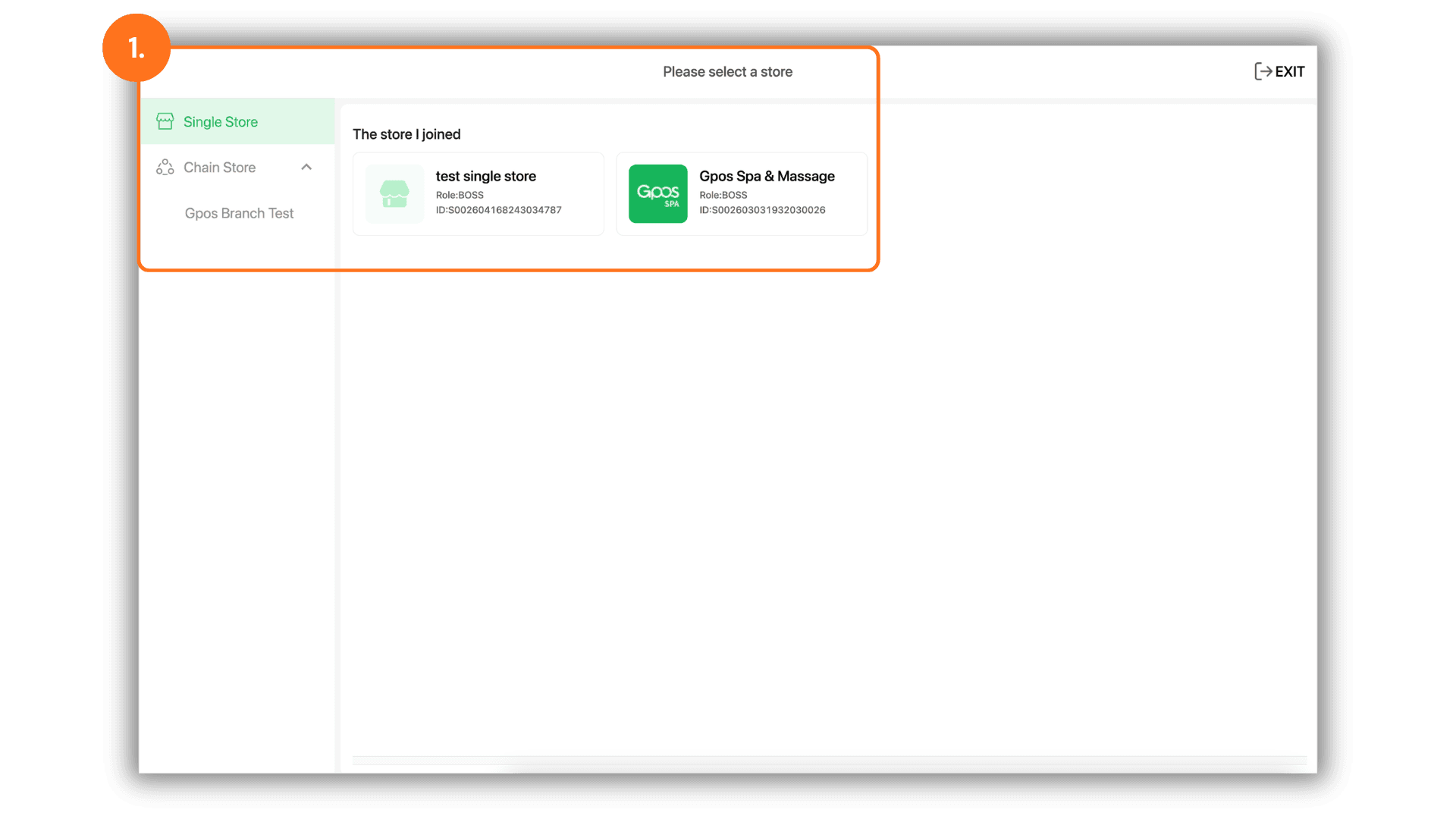
1.Select the Service Branch
- Begin by clicking and selecting the specific Shop or Branch where the service is being provided to access the localized dashboard.
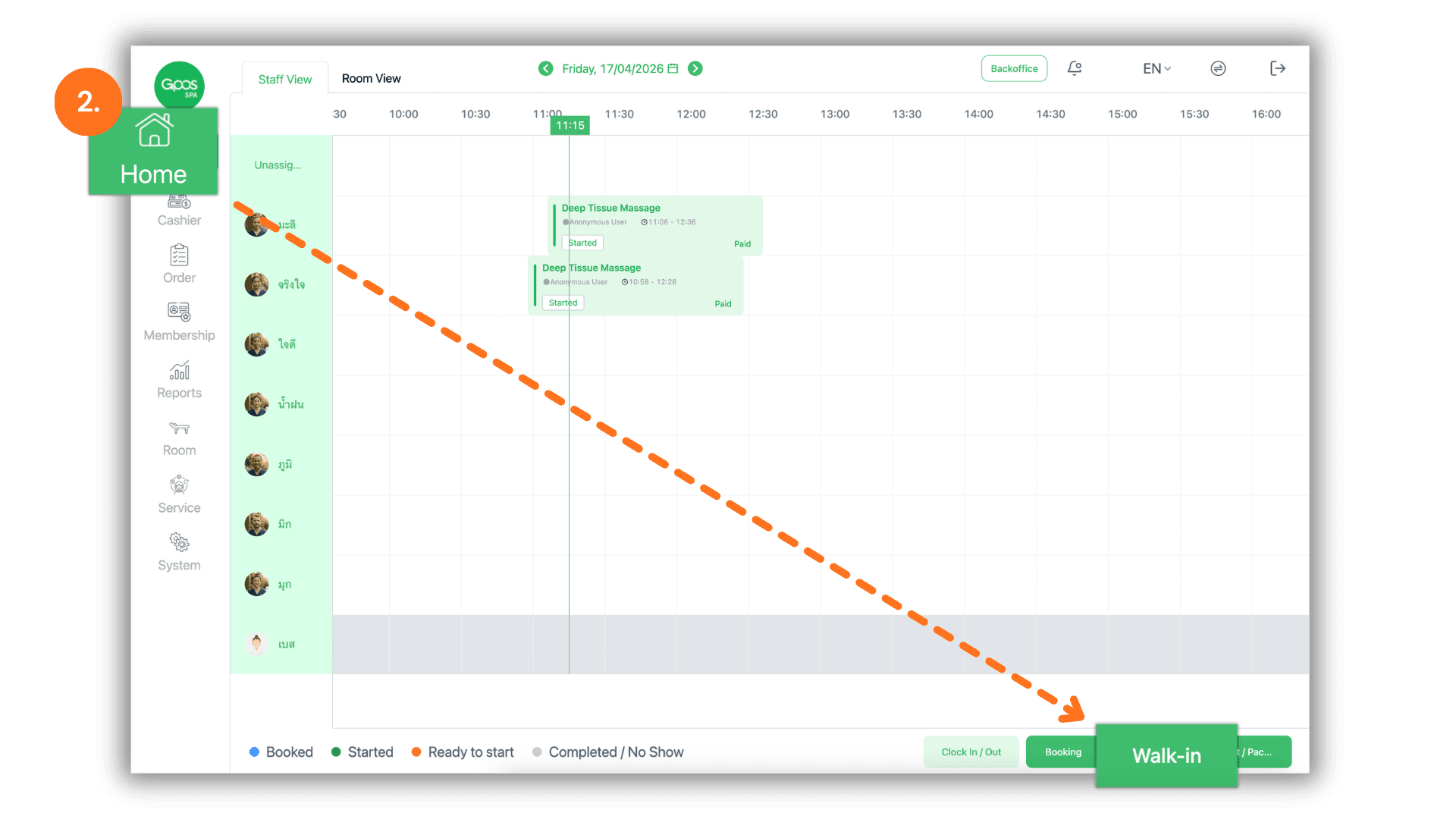
2.Initialize Walk-in Service
- Navigate to the "Home" menu on the sidebar, then click the "Walk-in" button to start a new service entry.
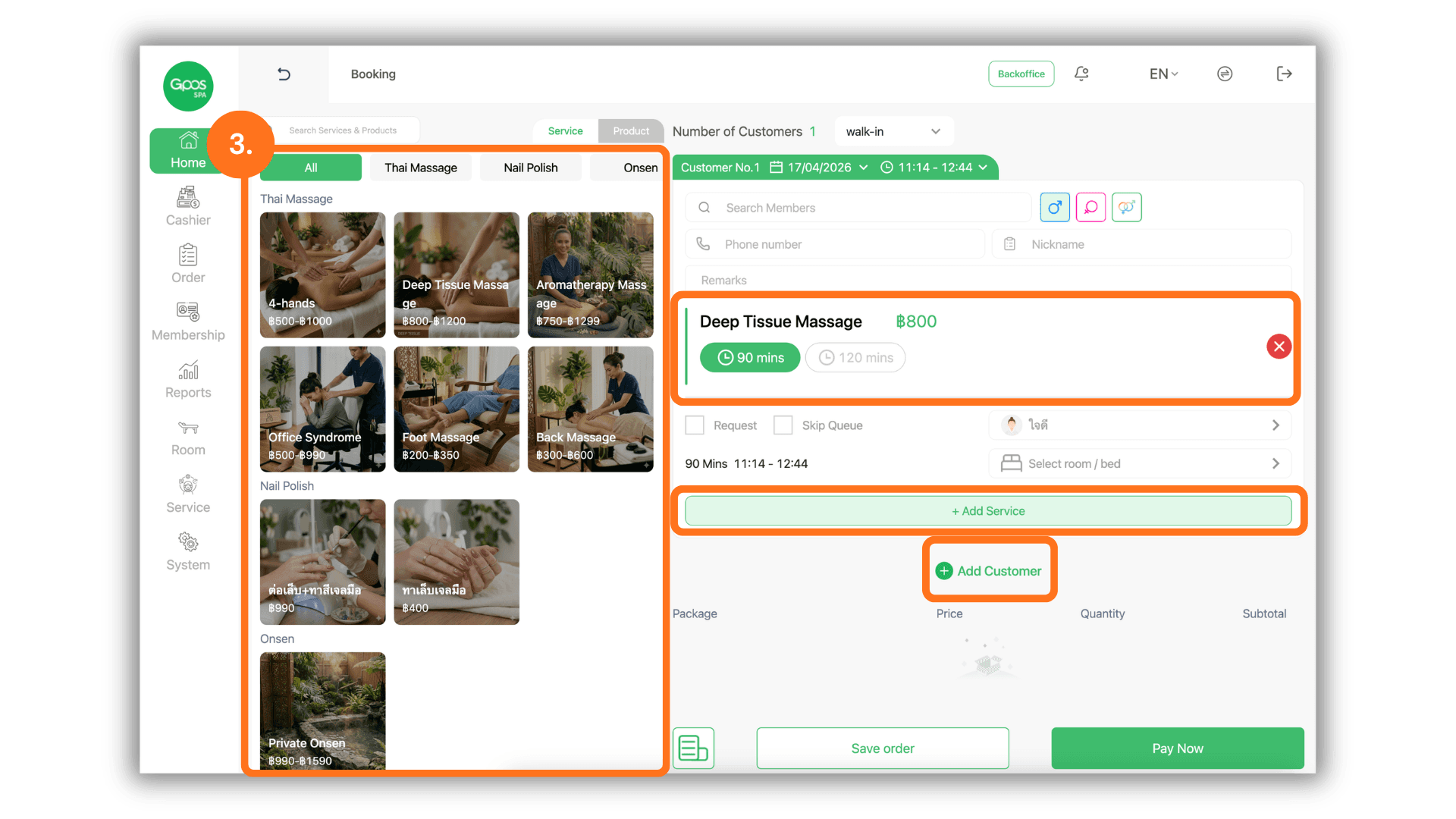
3.Service Selection & Billing Setup
- Select the desired service(s) from the list. Within this section, you can:
- Choose the specific Time Slot for the service to begin.
- Add Multiple Services if the customer requires more than one type of treatment.
- Add more customers to be processed under the Same Bill for collective payment.
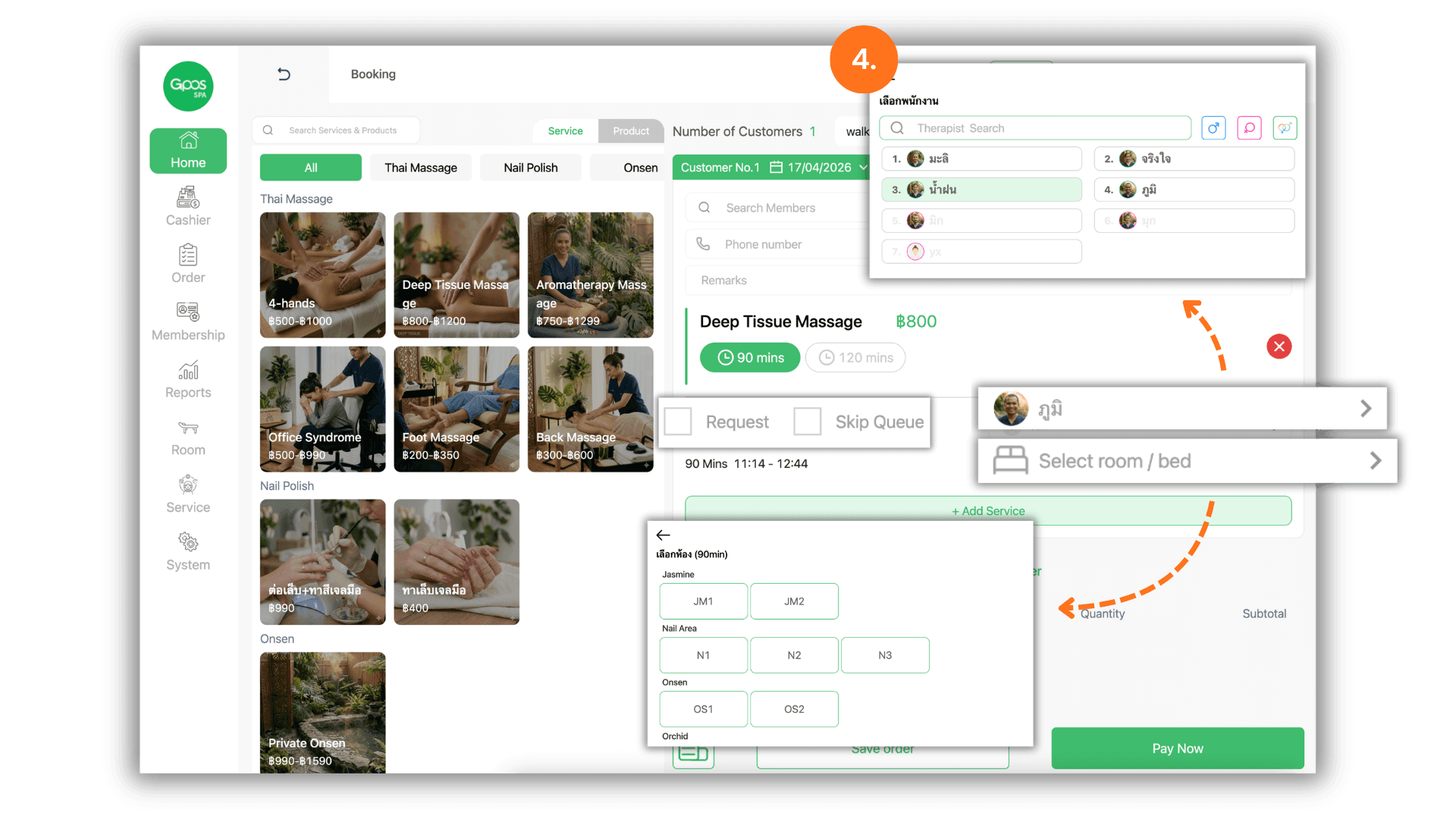
4.Assign Staff and Facilities
- Select the assigned staff member and the specific room or bed:
- Click the "Request" toggle if the customer has specifically asked for a particular staff member.
- Select “Skip Queue" if the staff member is available to provide consecutive services immediately
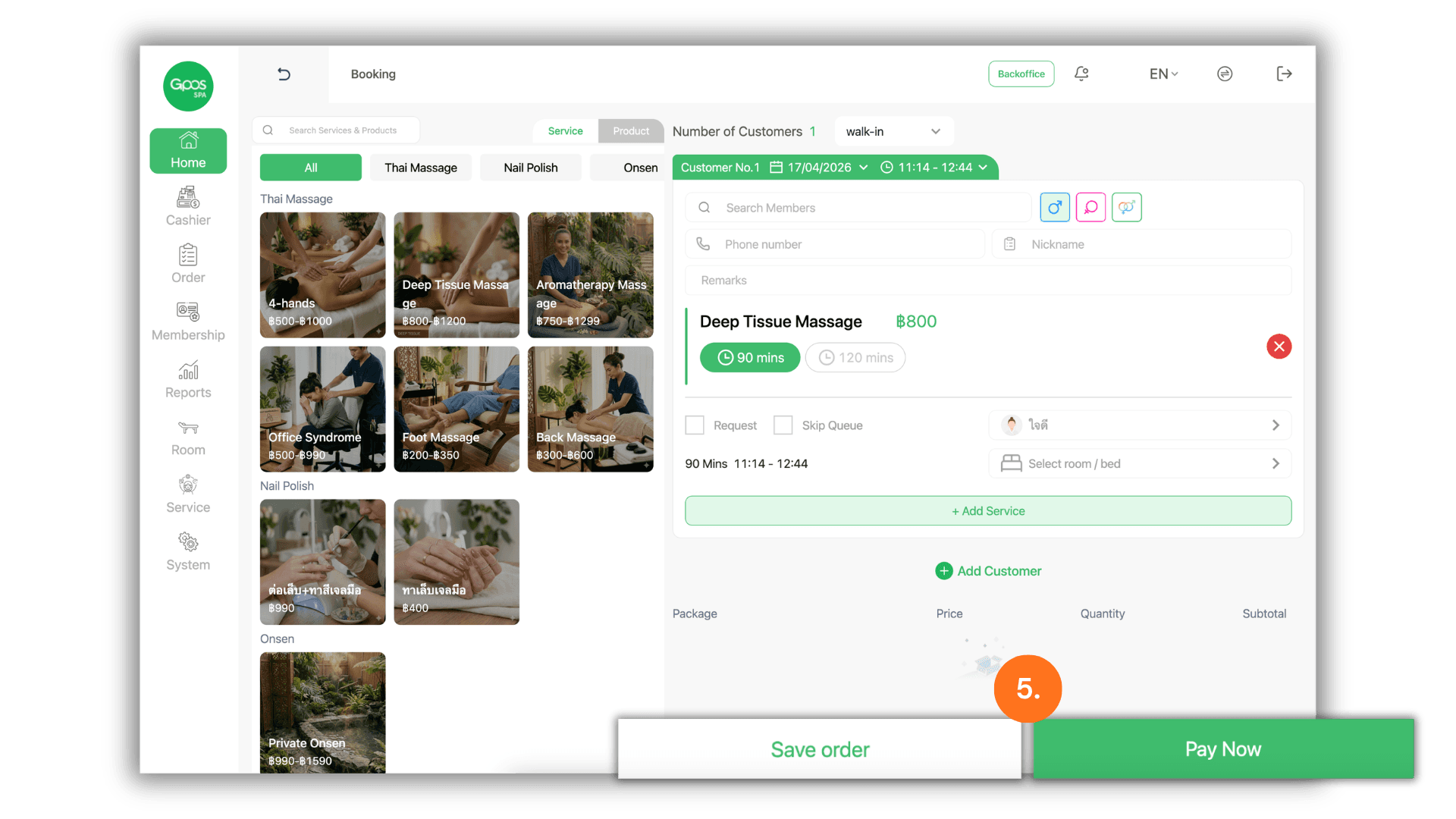
5.Record or Proceed to Checkout
- Once the details are confirmed, you can choose one of two actions:
- Click "Save order to record the service in the system for later billing.
- Click "Pay Now" to immediately proceed to the checkout screen for instant payment.
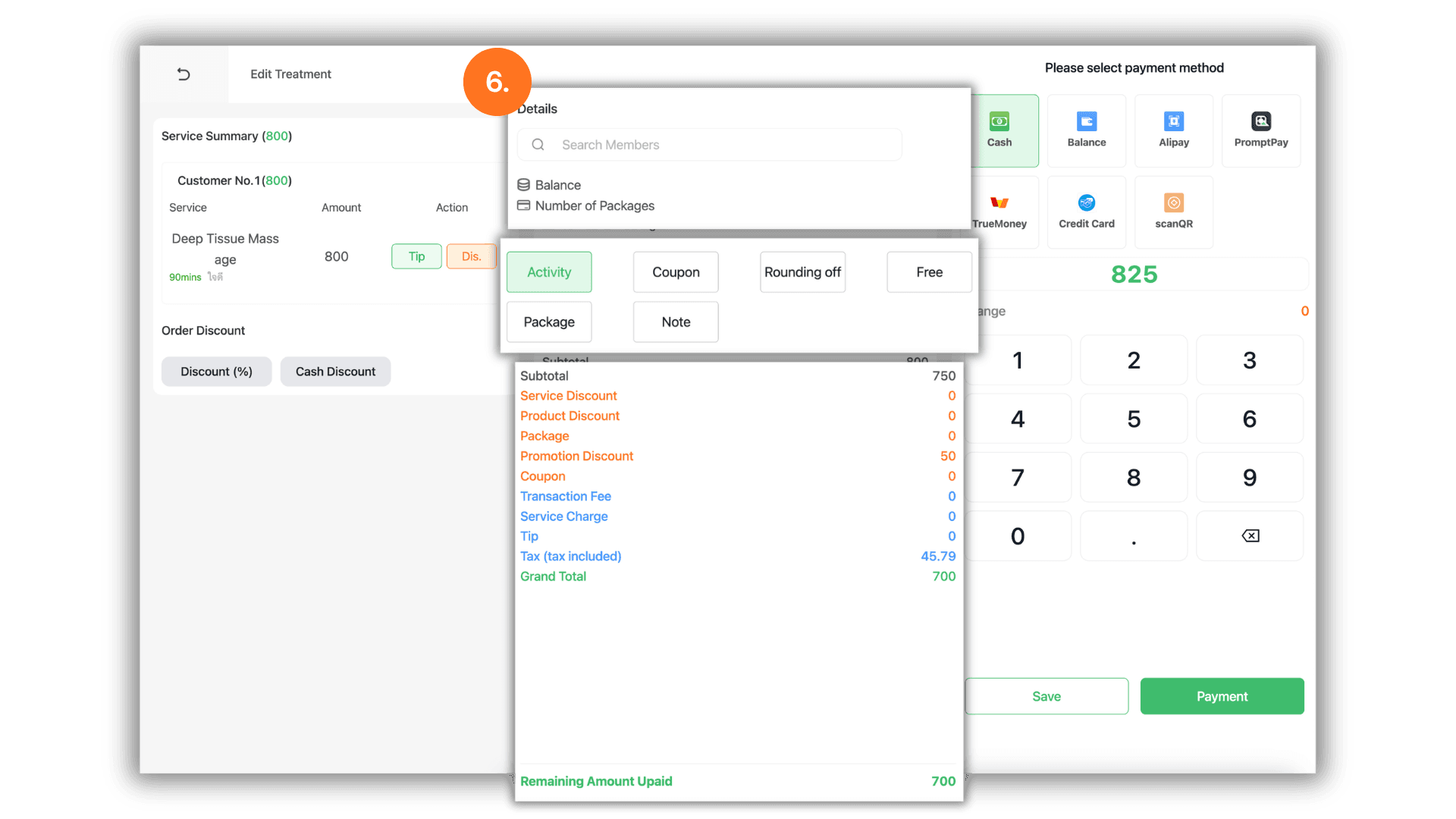
6.Apply Membership & Promotions
- If the customer is a member or has eligible discounts/promotions, apply them in this section. Review the calculated details and net total before finalization.
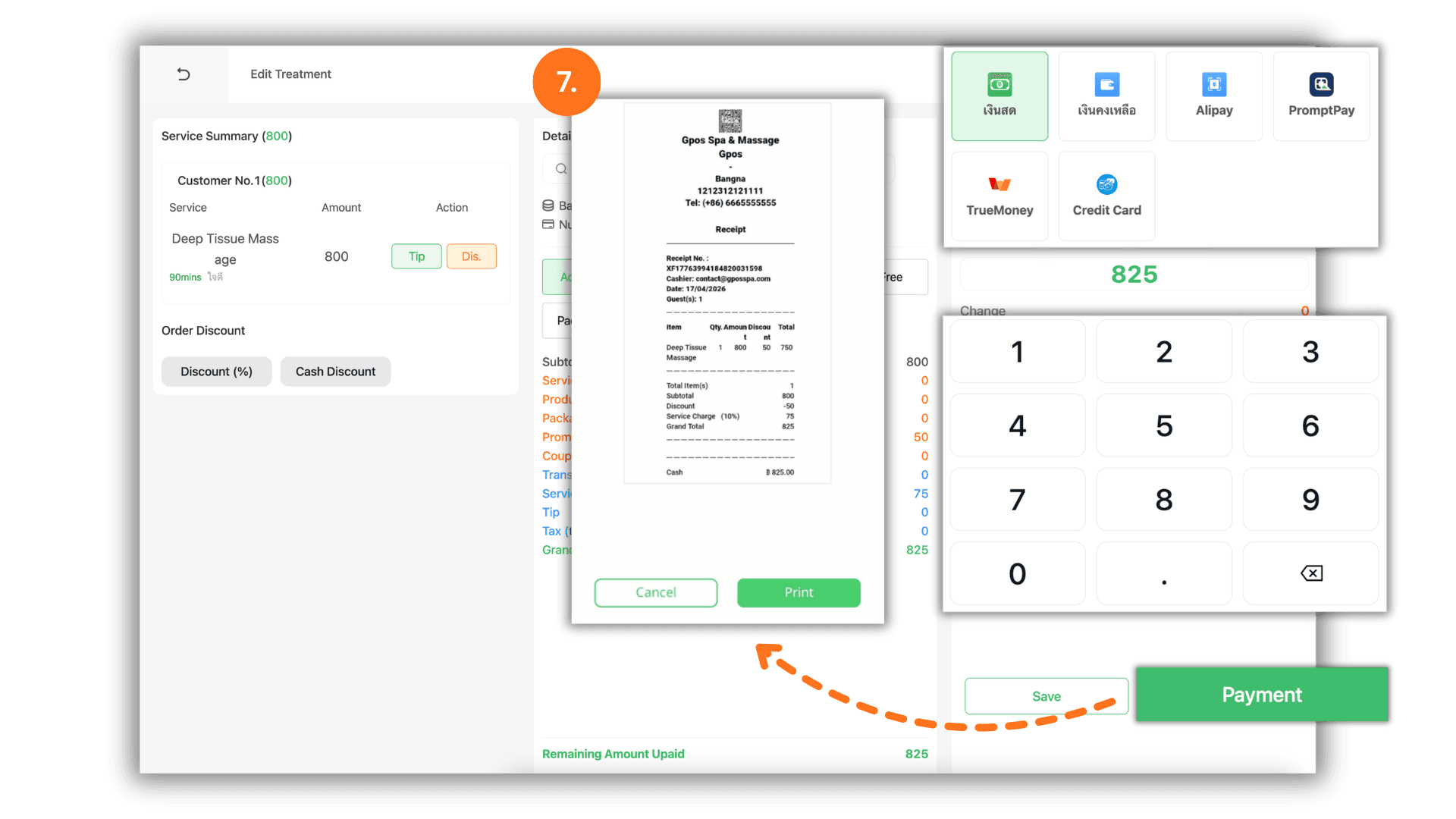
7.Payment & Change Calculation
- Select the preferred Payment Type and enter the amount received:
- For Cash Payments: You can clear the displayed amount and enter the specific amount the customer provided. The system will automatically calculate the Change Due.