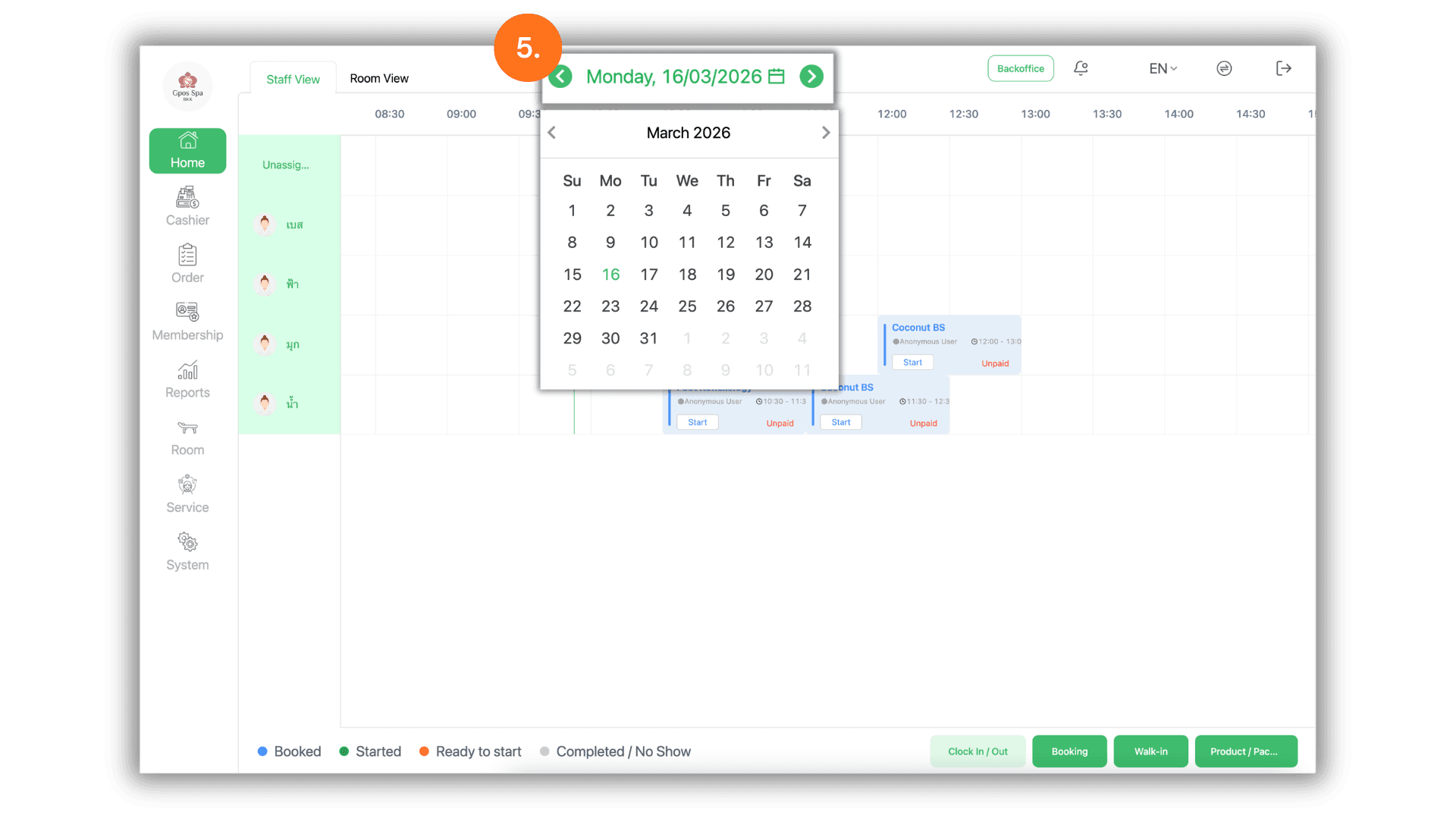
1.Select the Service Branch
- Begin the process by clicking on and selecting the specific Store or Branch you wish to monitor to access its dedicated schedule dashboard.
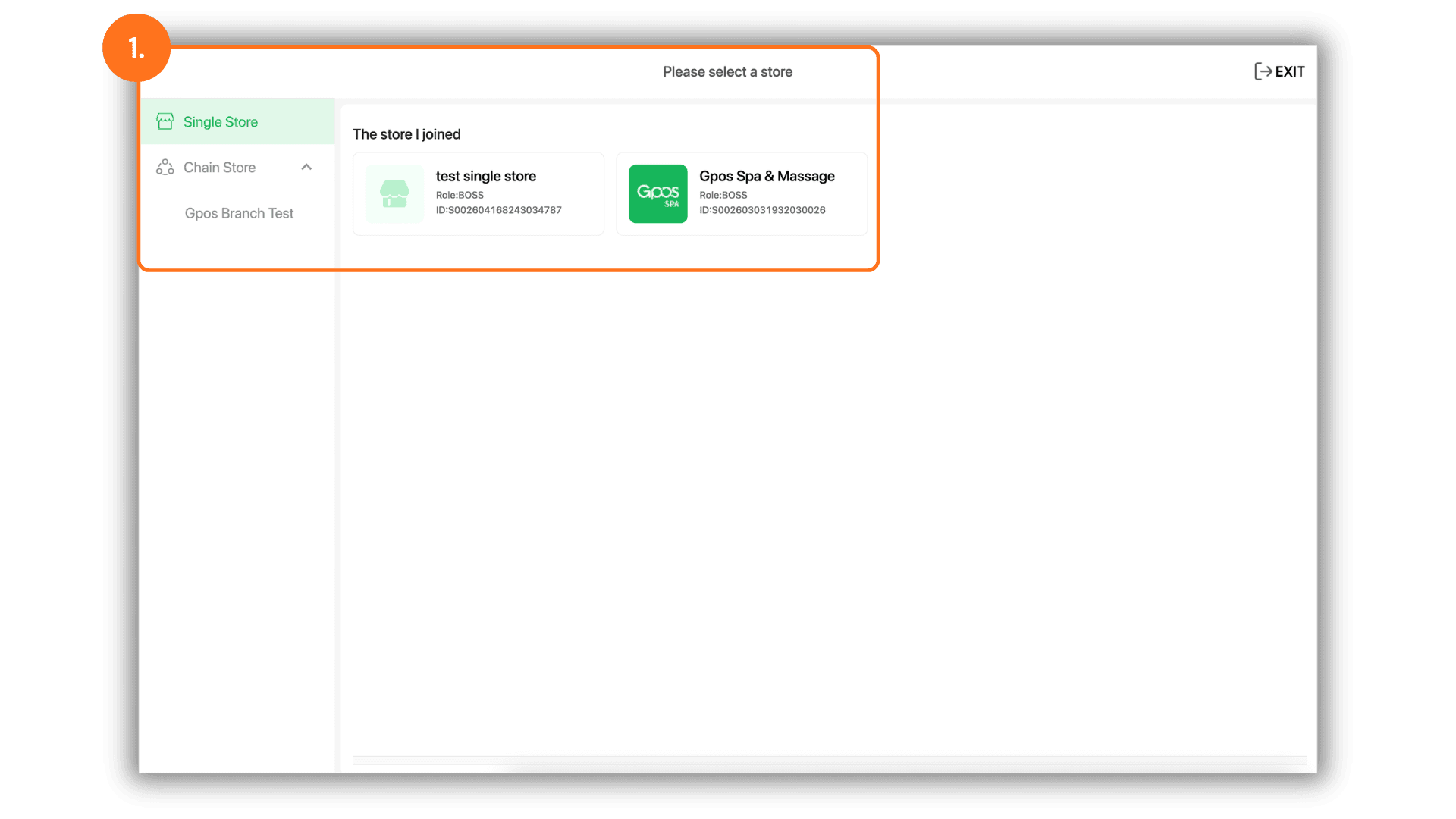
2.Navigate to Staff or Room/Bed View
- From the main dashboard, navigate to the Home section. You can then click on either the "Staff" or "Room/Bed" tab to check the availability of the specific resource you require.
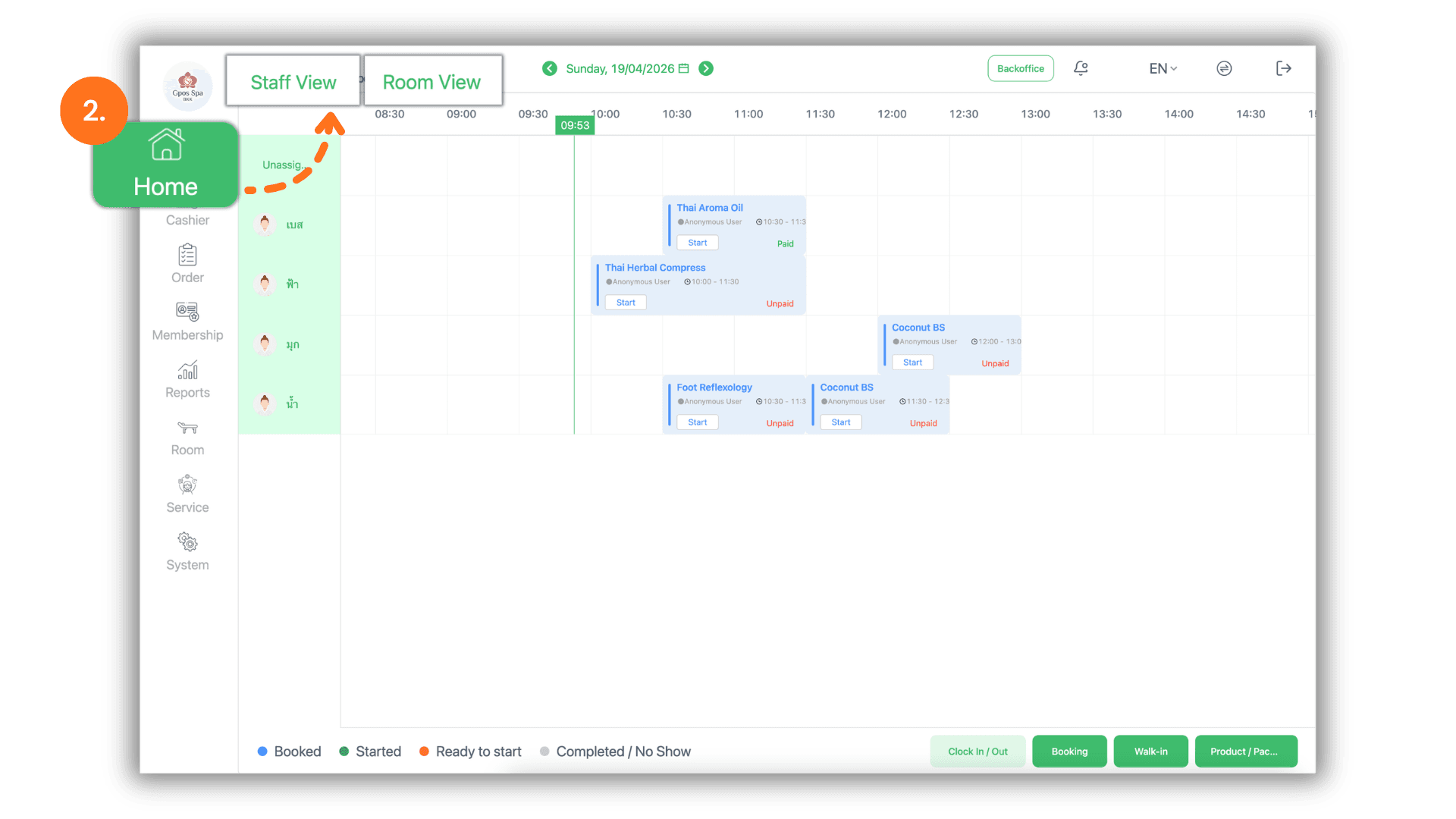
3.Monitor the Scheduled Date
- You can easily verify the date currently being viewed by checking the top center of the screen, where the active booking date is clearly displayed.
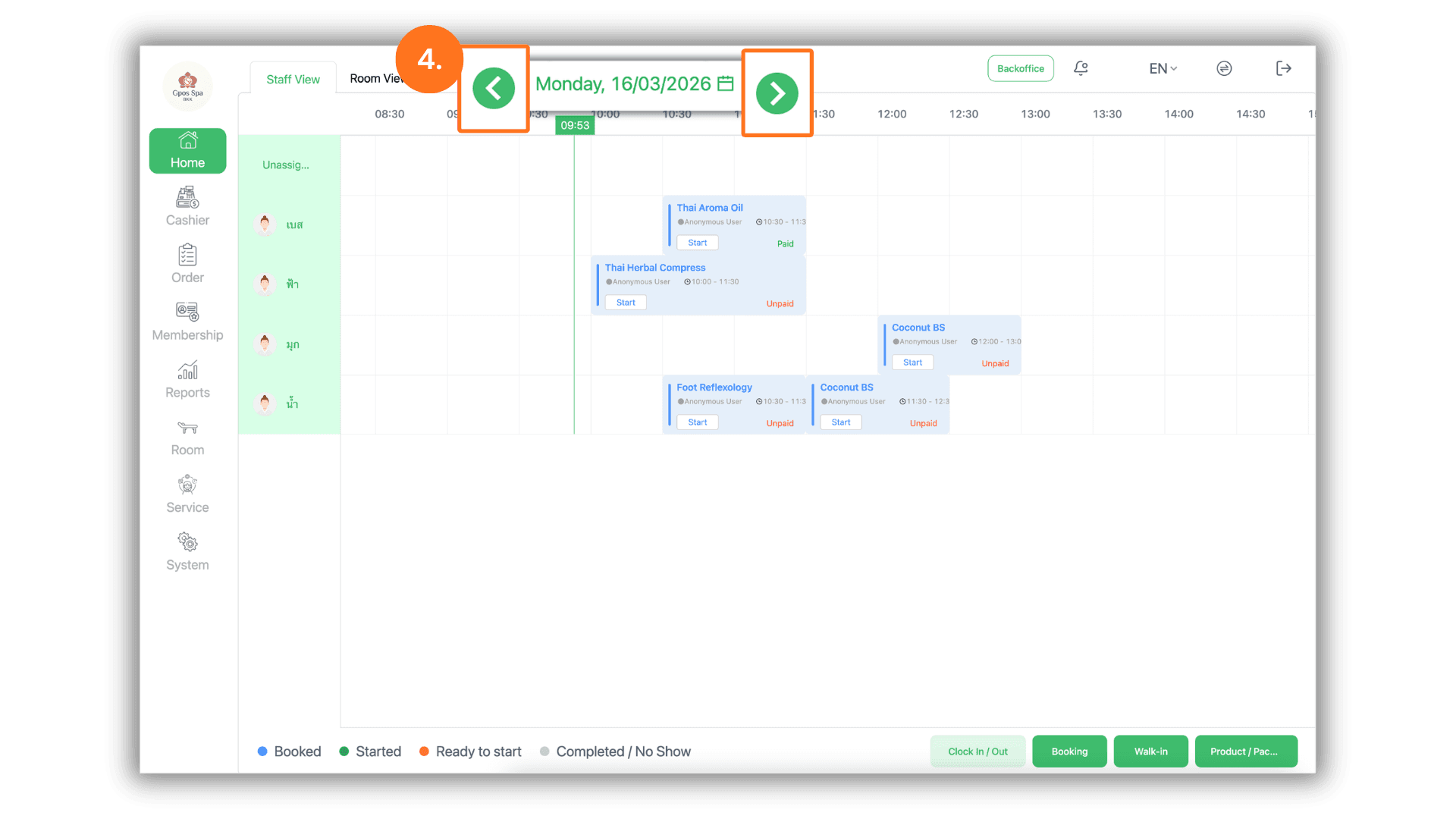
4.Navigate Between Dates
- To browse through different days, click the Left or Right Arrows located next to the date. This allows you to quickly shift the schedule view to the previous or next day.
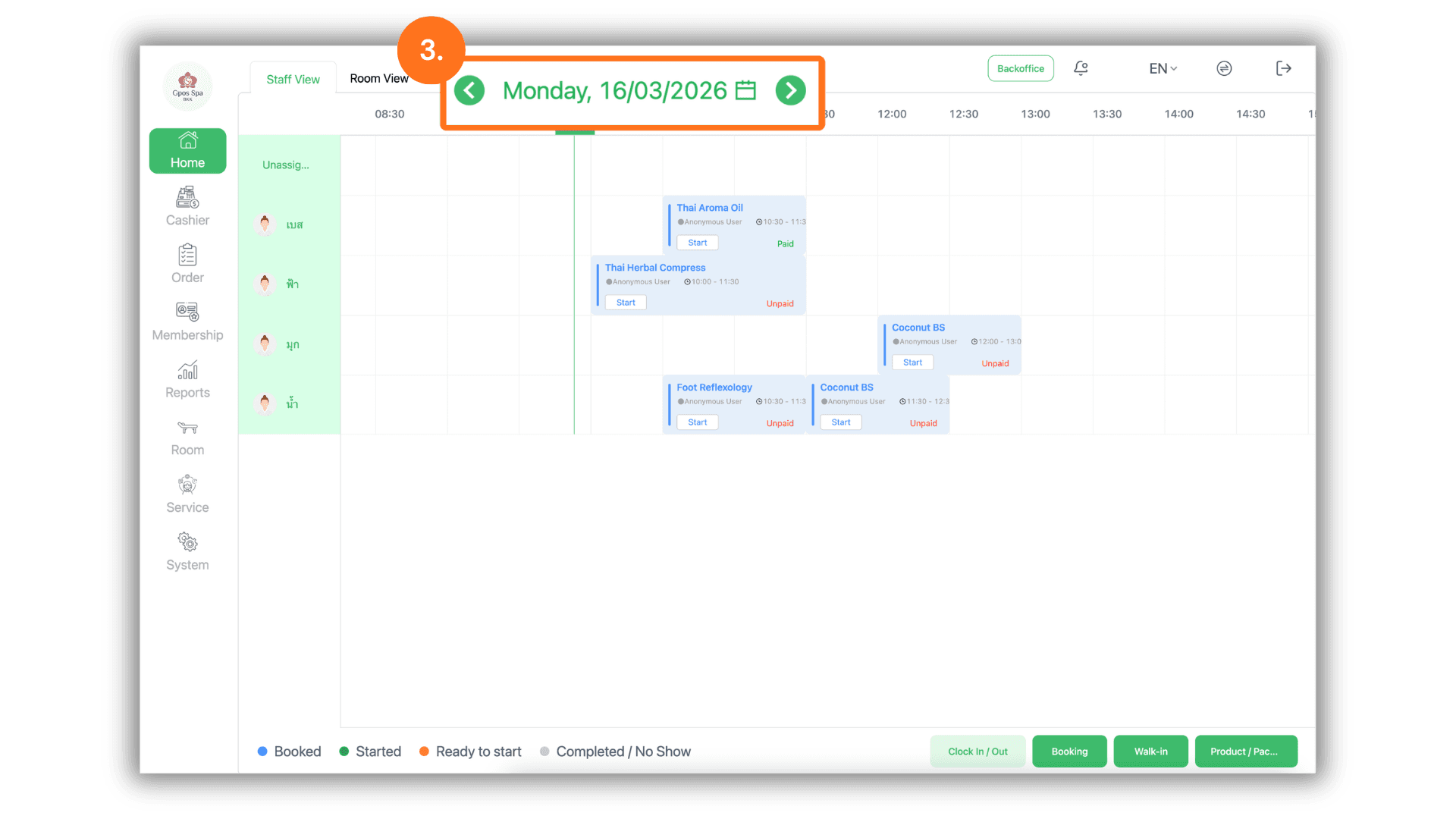
5.Select a Specific Date via Calendar
- For faster navigation to a specific day, click directly on the Date Display. This will open a Calendar Picker, allowing you to select any date you wish to inspect immediately.