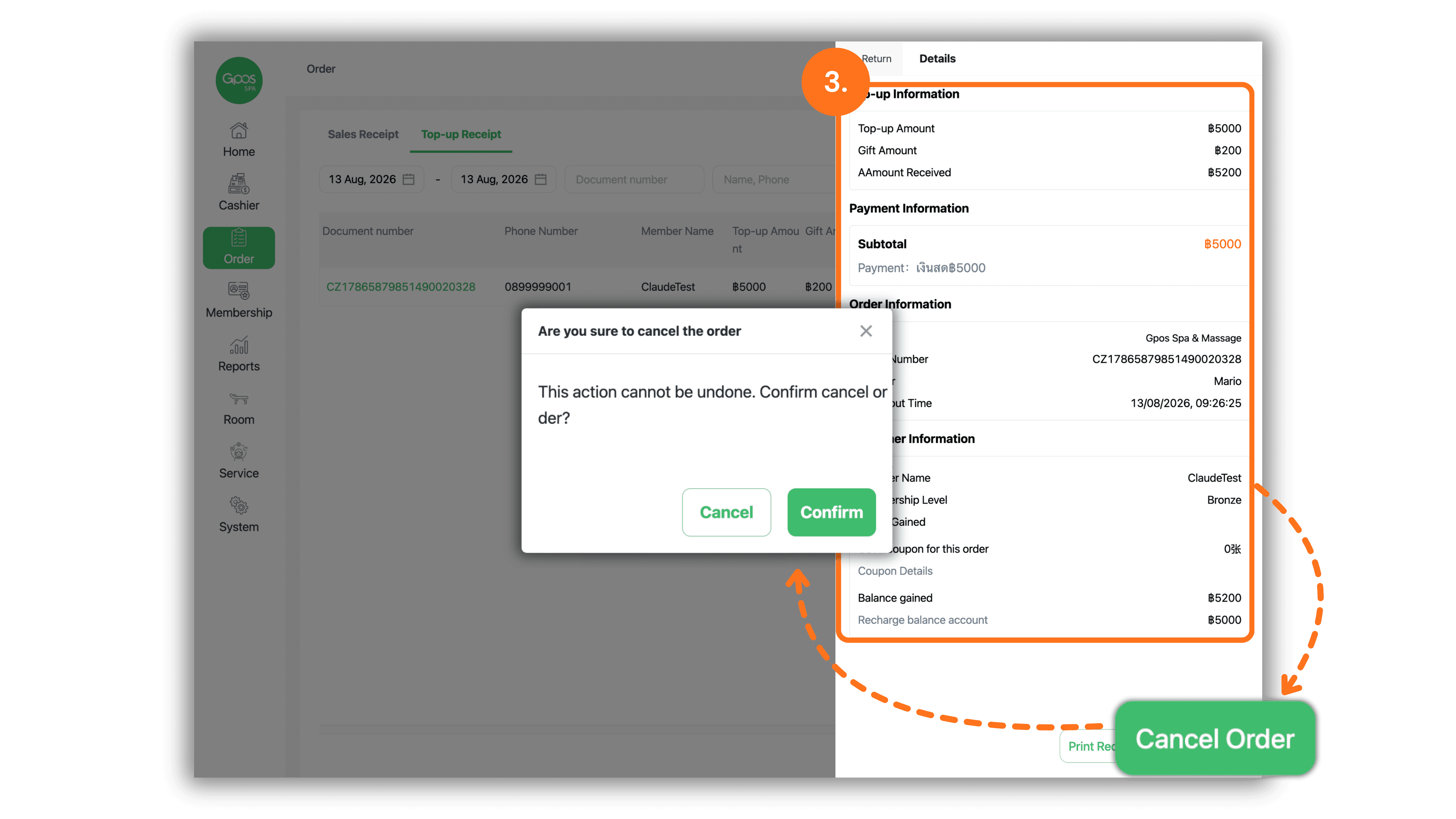
1. Select Branch Store
Start by selecting the desired store or branch from the Please select a store screen under The store I joined section to enter the management system.
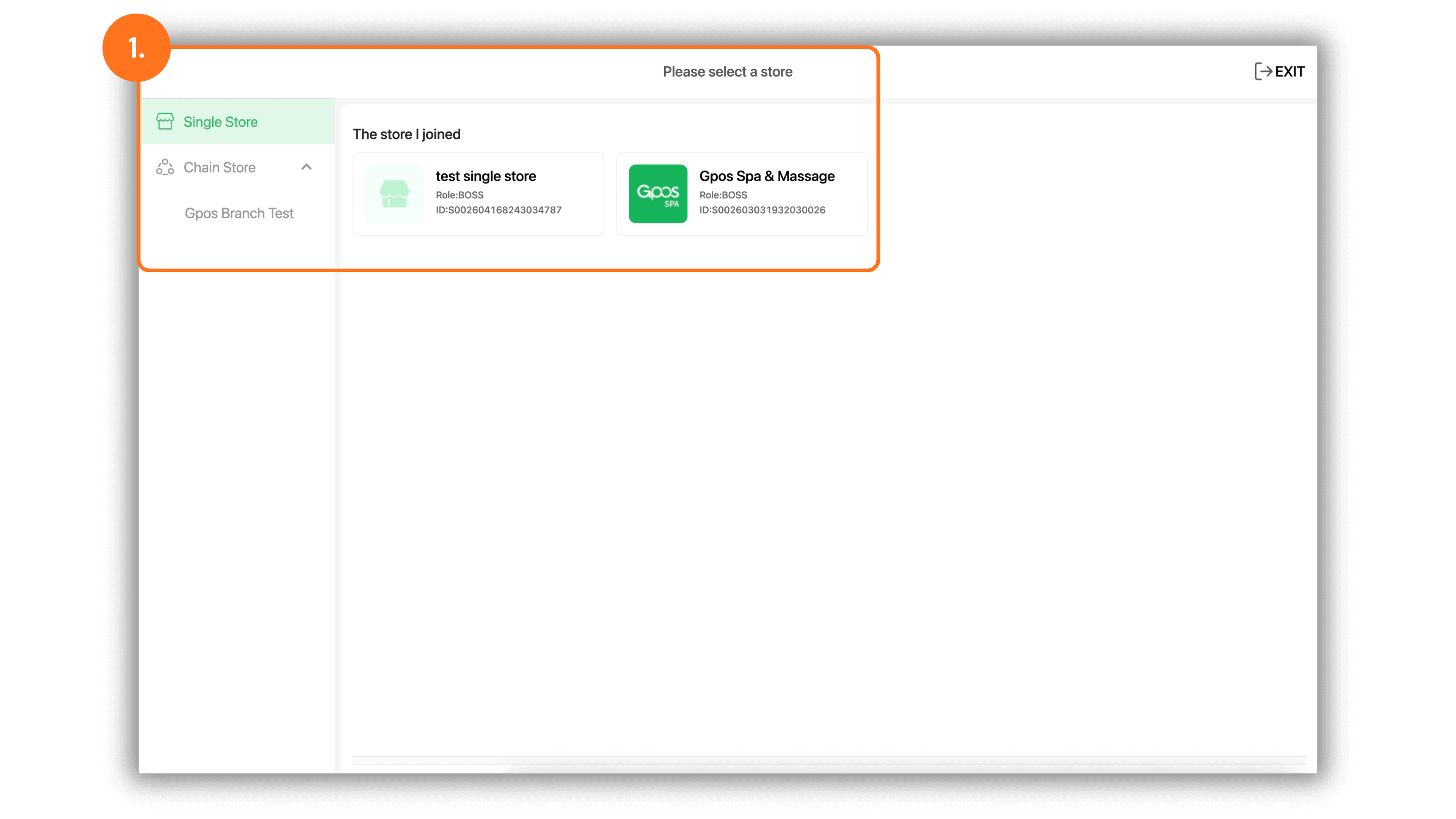
2. Navigate to Order Menu and Select Top-up Receipt
In the left menu, click Order, then switch to the Top-up Receipt tab at the top. Search for the transaction you wish to cancel and click its Document number (e.g., CZ17865879851490020328).
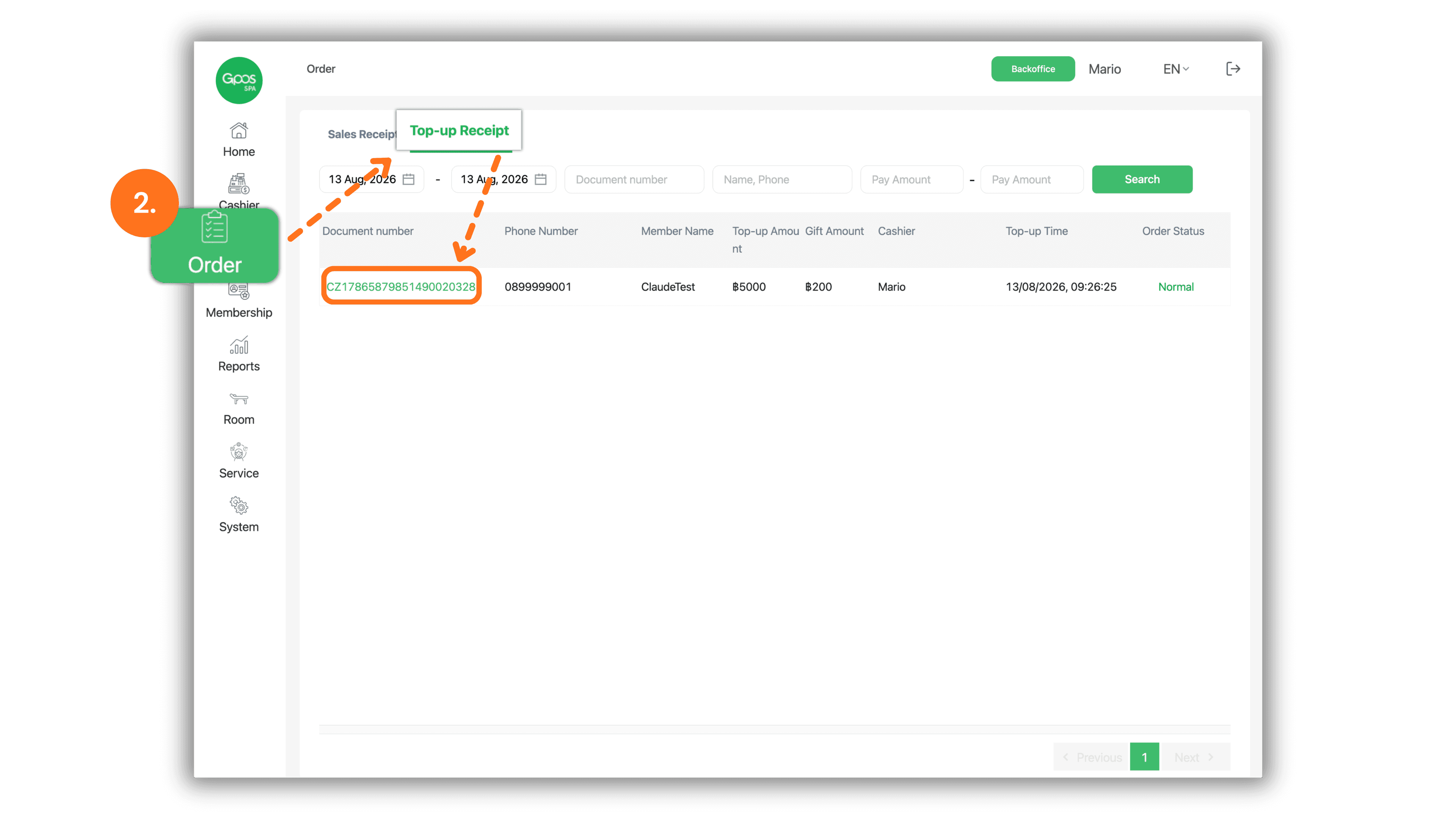
3. Verify Top-up Information and Confirm Order Cancellation
Review the top-up amount, payment details, and member account information in the right panel, then follow these steps:
- Click the green Cancel Order button at the bottom right corner of the details panel.
- When the confirmation pop-up appears ("Are you sure to cancel the order"), click Confirm to complete the cancellation.
Note: If the member's remaining account balance is less than the original top-up amount (for example, if a portion of the topped-up amount has already been used), the refund/cancellation cannot be processed.