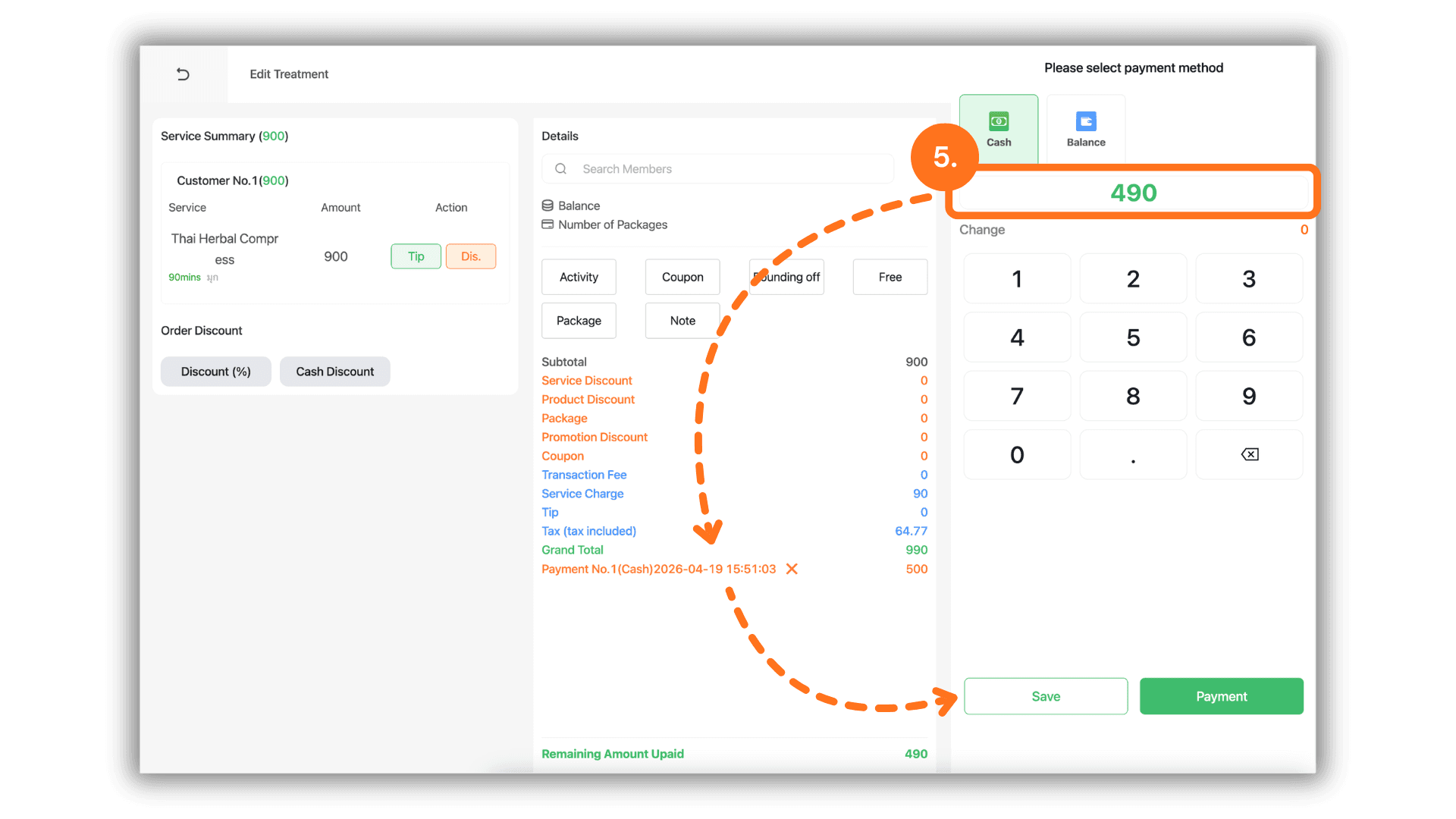
1.Select the Service Branch
- Begin by selecting the specific Store or Branch where the service will be provided to access the correct branch dashboard.
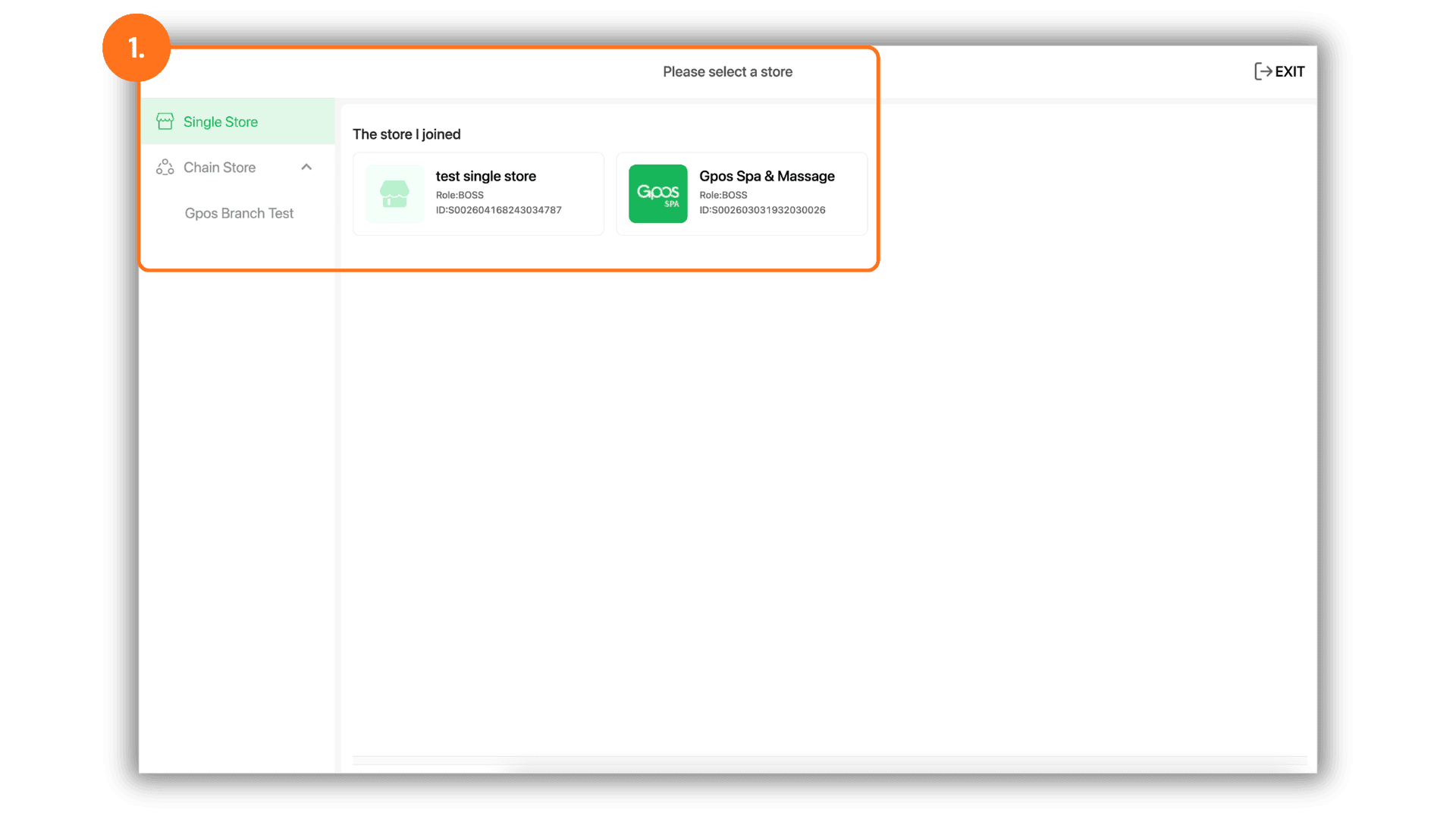
2.nitiate Booking or Walk-in
- From the "Home" screen, you can either select a specific Time Slot on the grid or click the "Booking / Walk-in" buttons to start a new reservation entry.
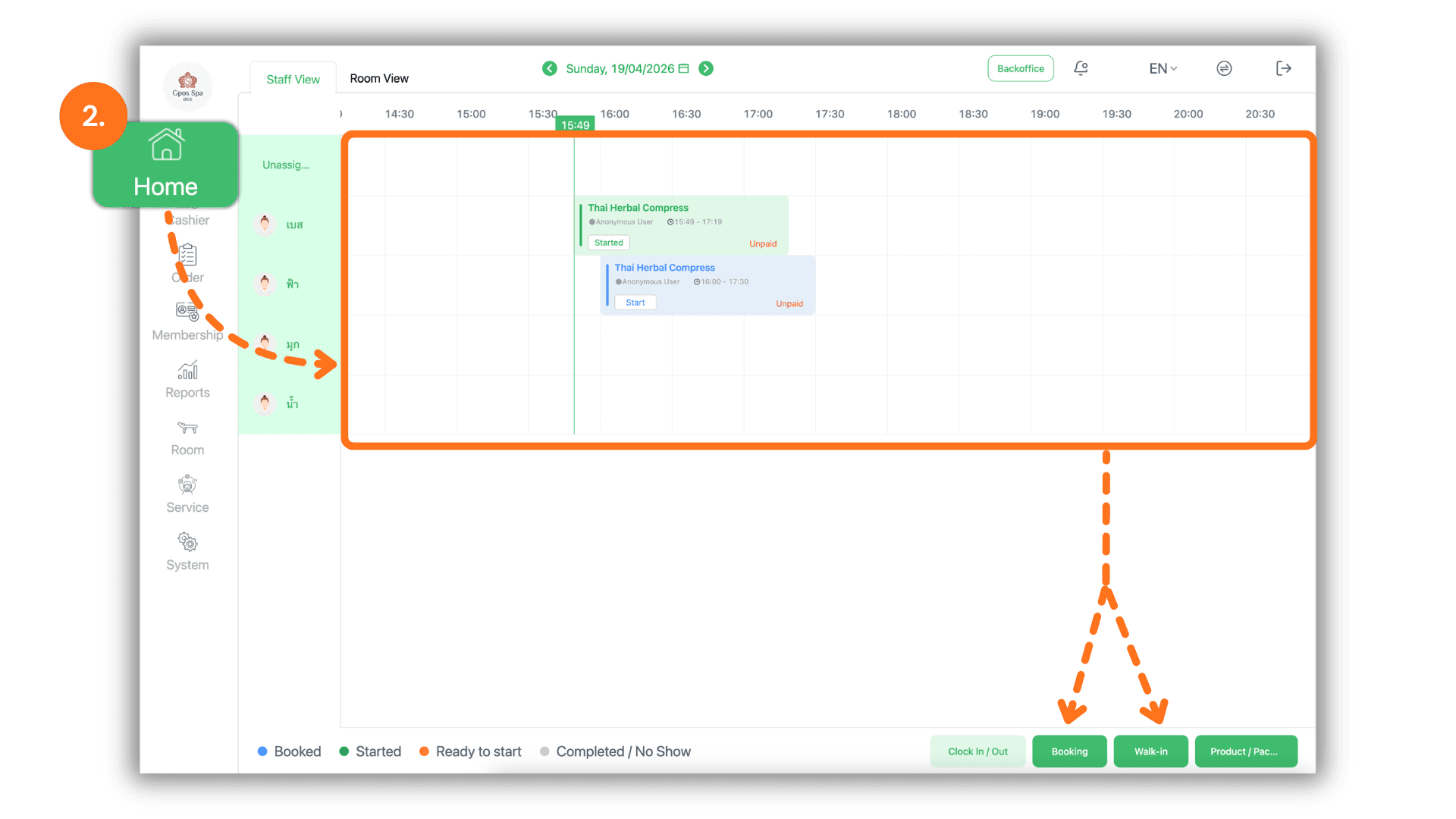
3.Select Service and Proceed to Payment
- Choose the specific Service the customer wishes to book. Once verified, click the "Pay Now" button to proceed to the checkout screen.
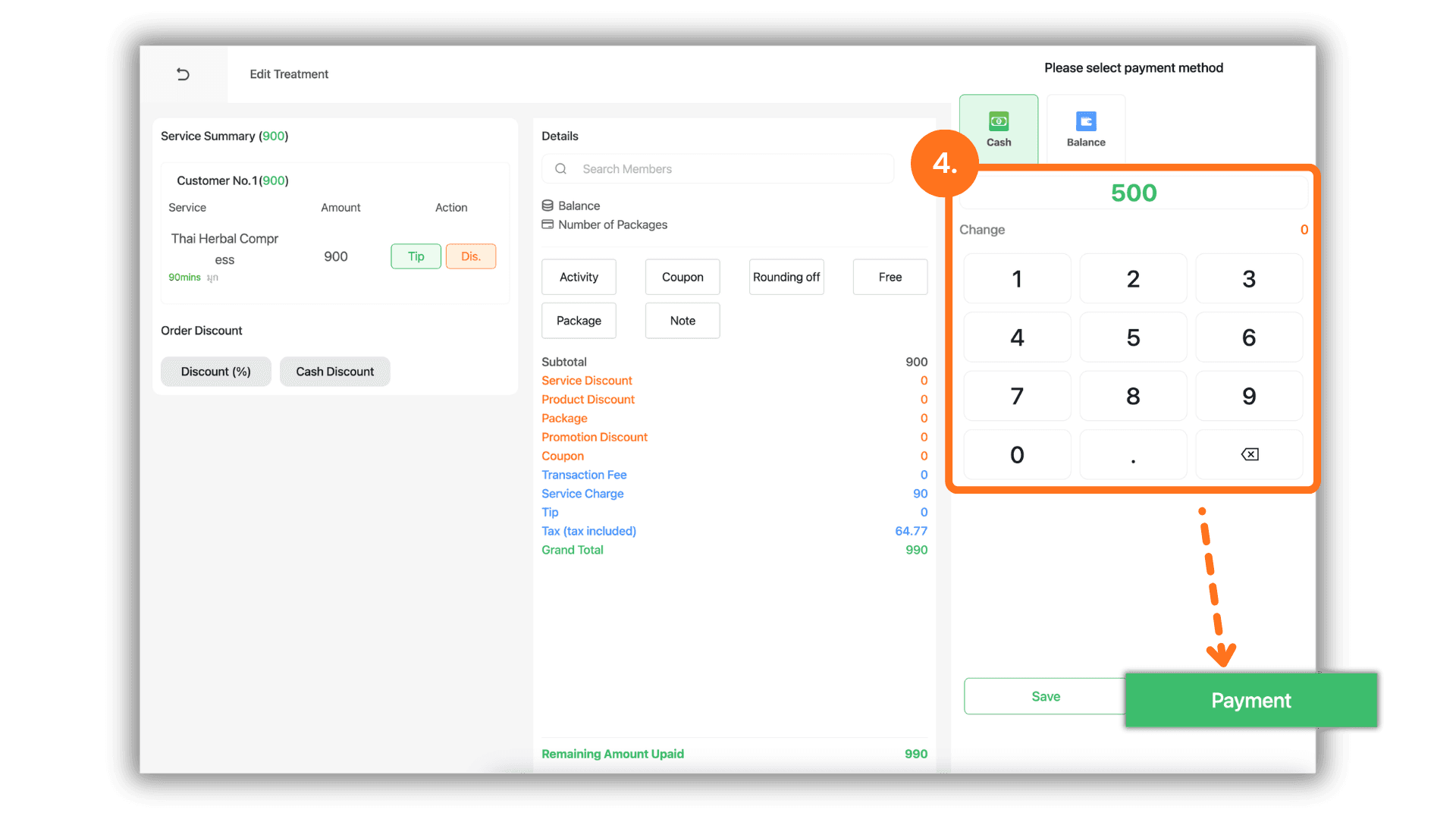
4.Adjust the Deposit Amount
- On the payment screen, clear the full amount and enter the specific deposit amount the customer wishes to pay. After entering the figure, click the payment button to process the deposit.
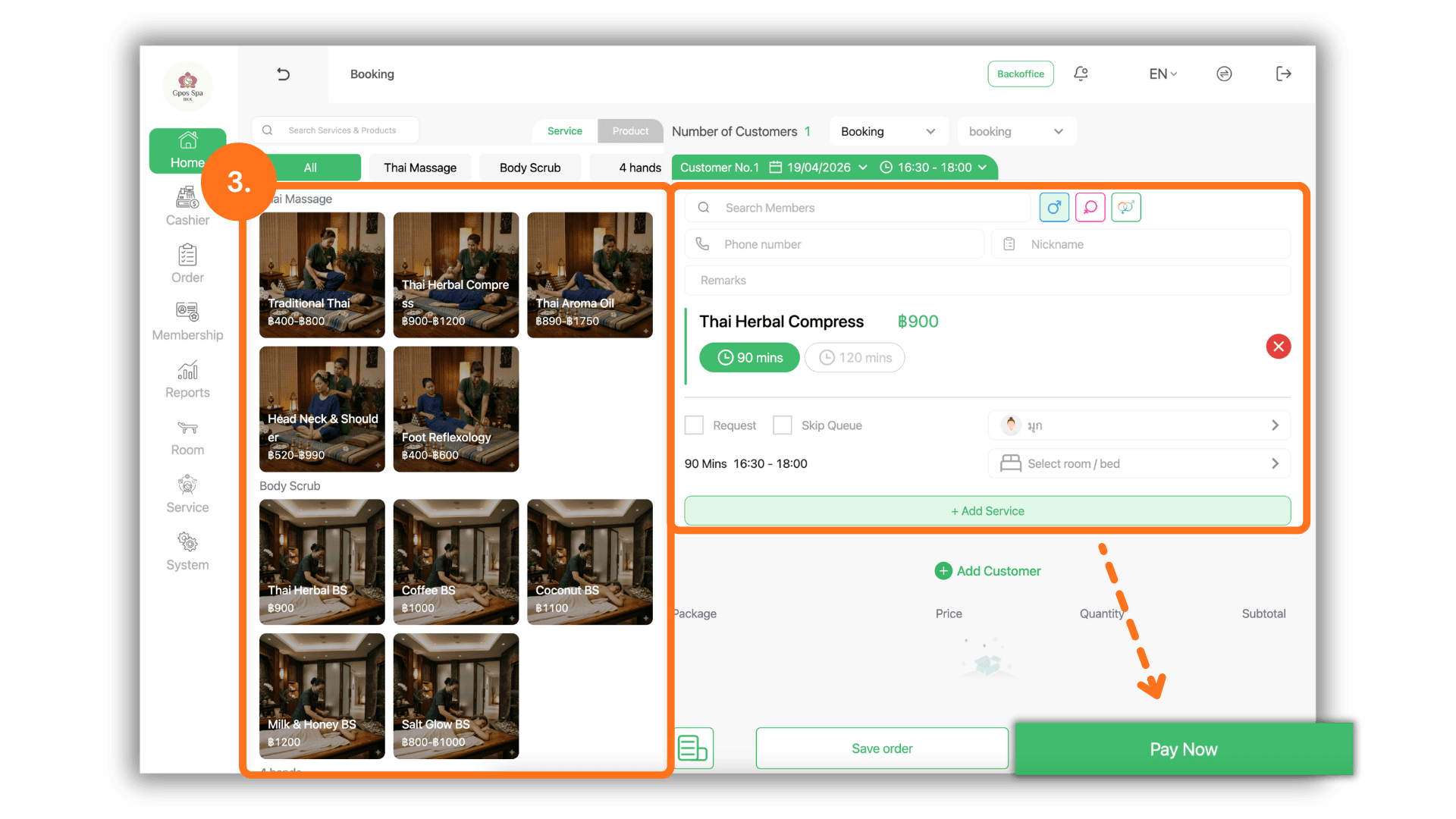
5.Verify Remaining Balance and Save
- Once the deposit is processed, the system will display the Remaining Balance. Review the totals and click the "Save" button to finalize and record the order into the system.