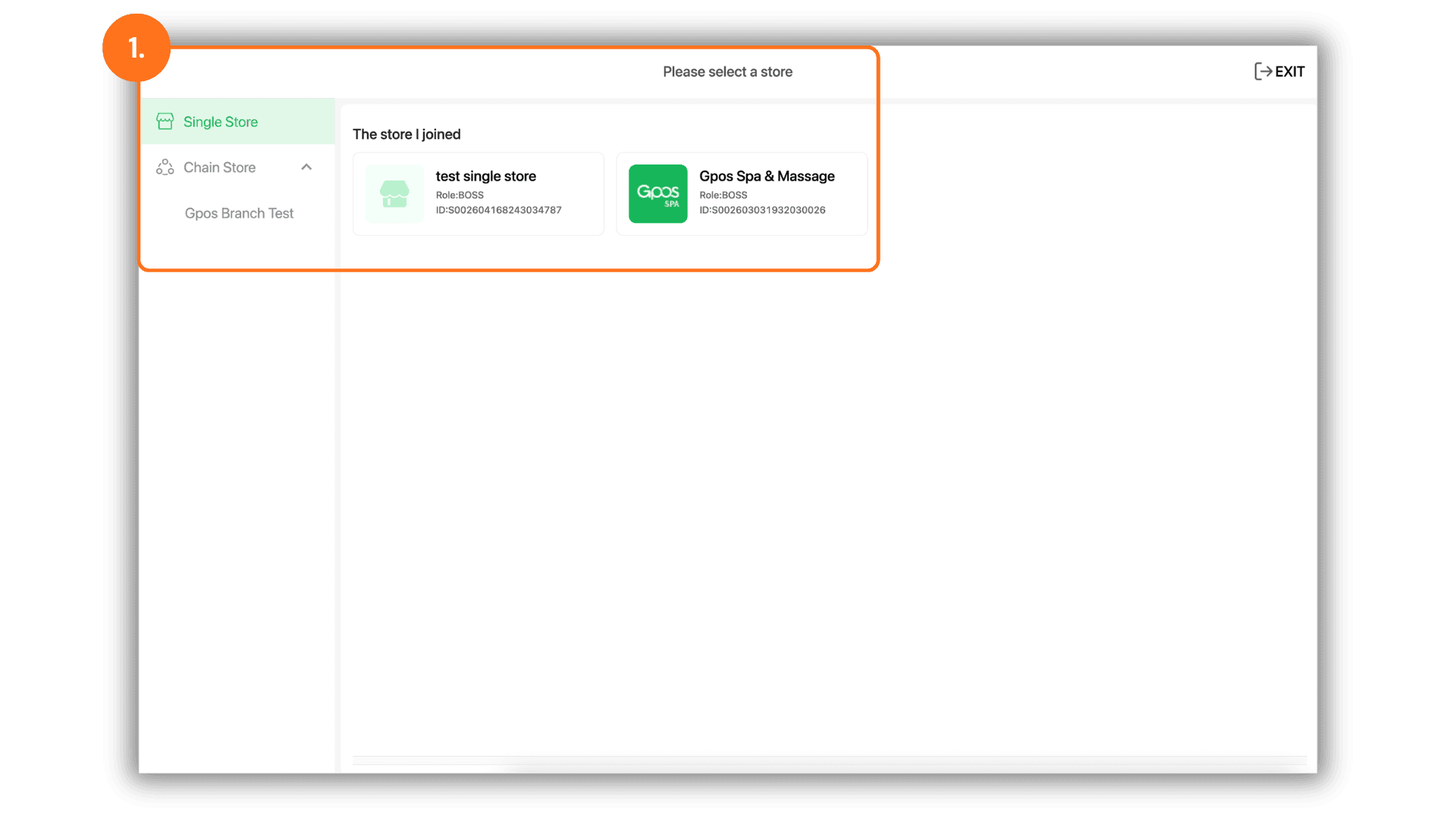
1. Select the Service Branch
- Start by selecting the specific Store or Branch where the booking will take place to access the correct administrative dashboard.
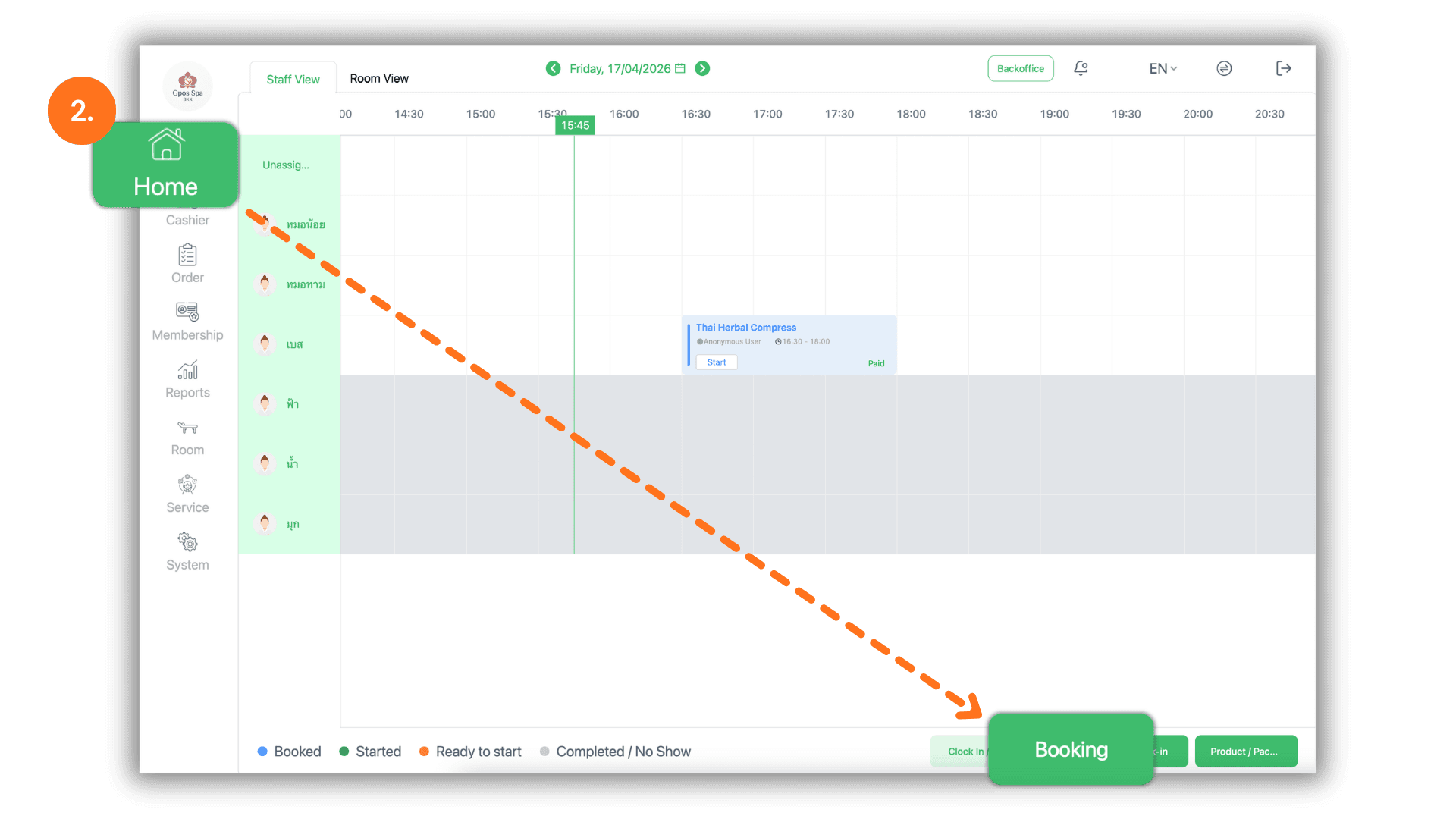
2. Initiate the Booking Process
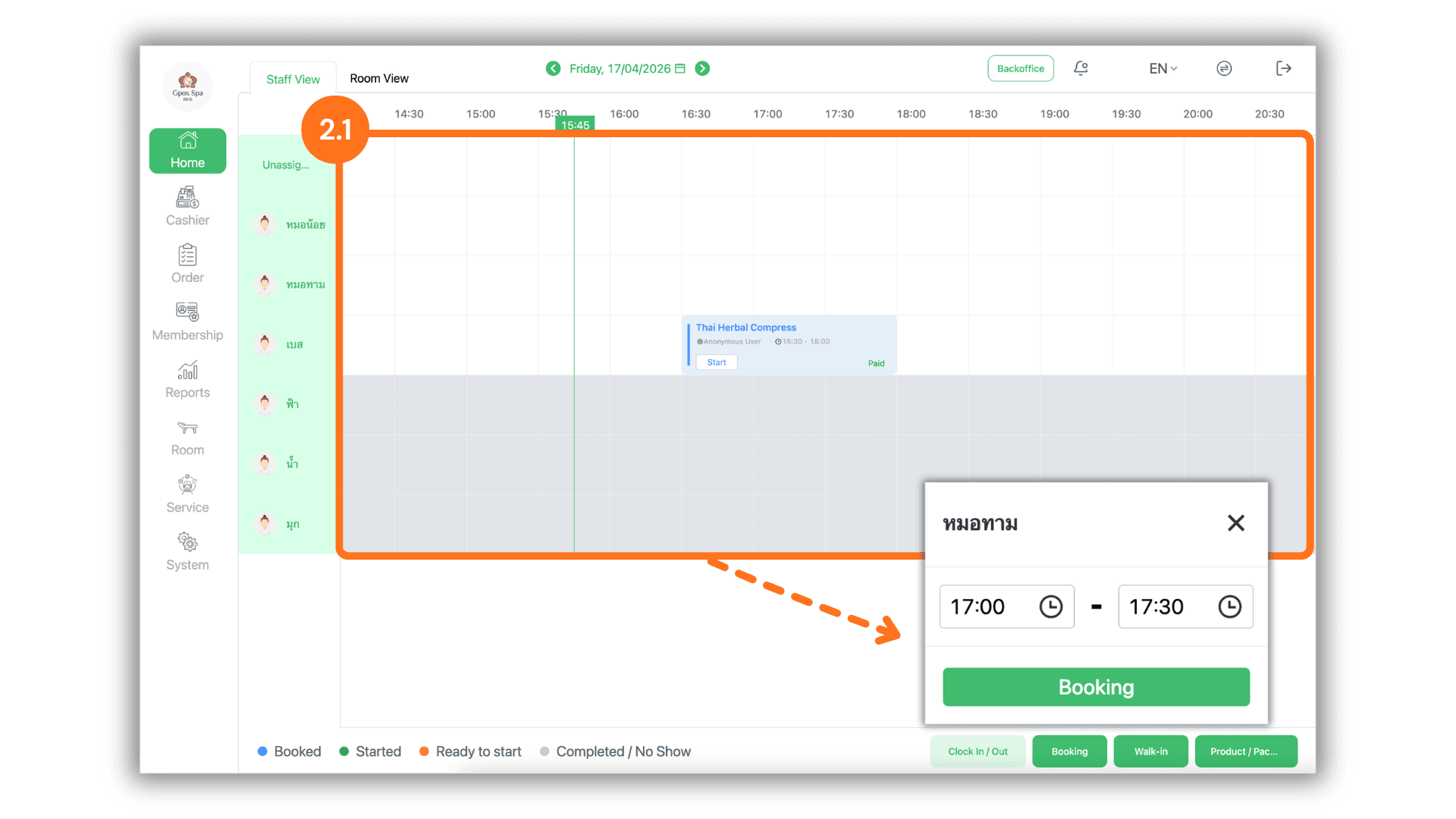
- You can begin a booking through two methods:
- Method 1 : Navigate to the “Home” screen and click the “Booking” button to open a new entry.
- Method 2 : Directly click on an available Time Slot on the main schedule grid. Once you have verified the time, proceed to the booking details.
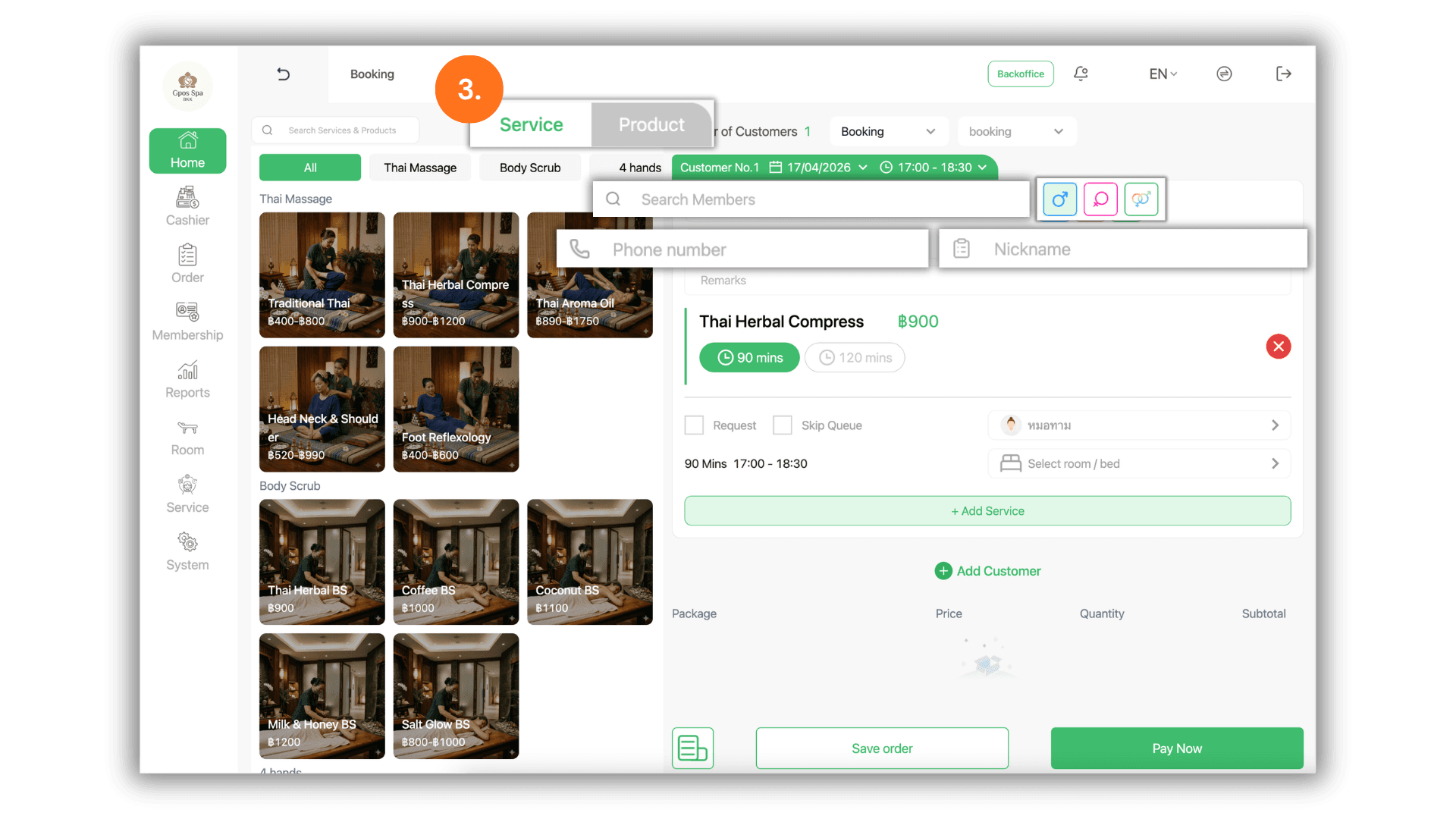
3. Select Items & Manage Membership
- Select the desired Services or Products. Within this step, you can:
- Existing Members : Search for a member using their name or phone number.
- New Members : If the customer is not in the system, enter their name and phone number in the provided fields to instantly register them.
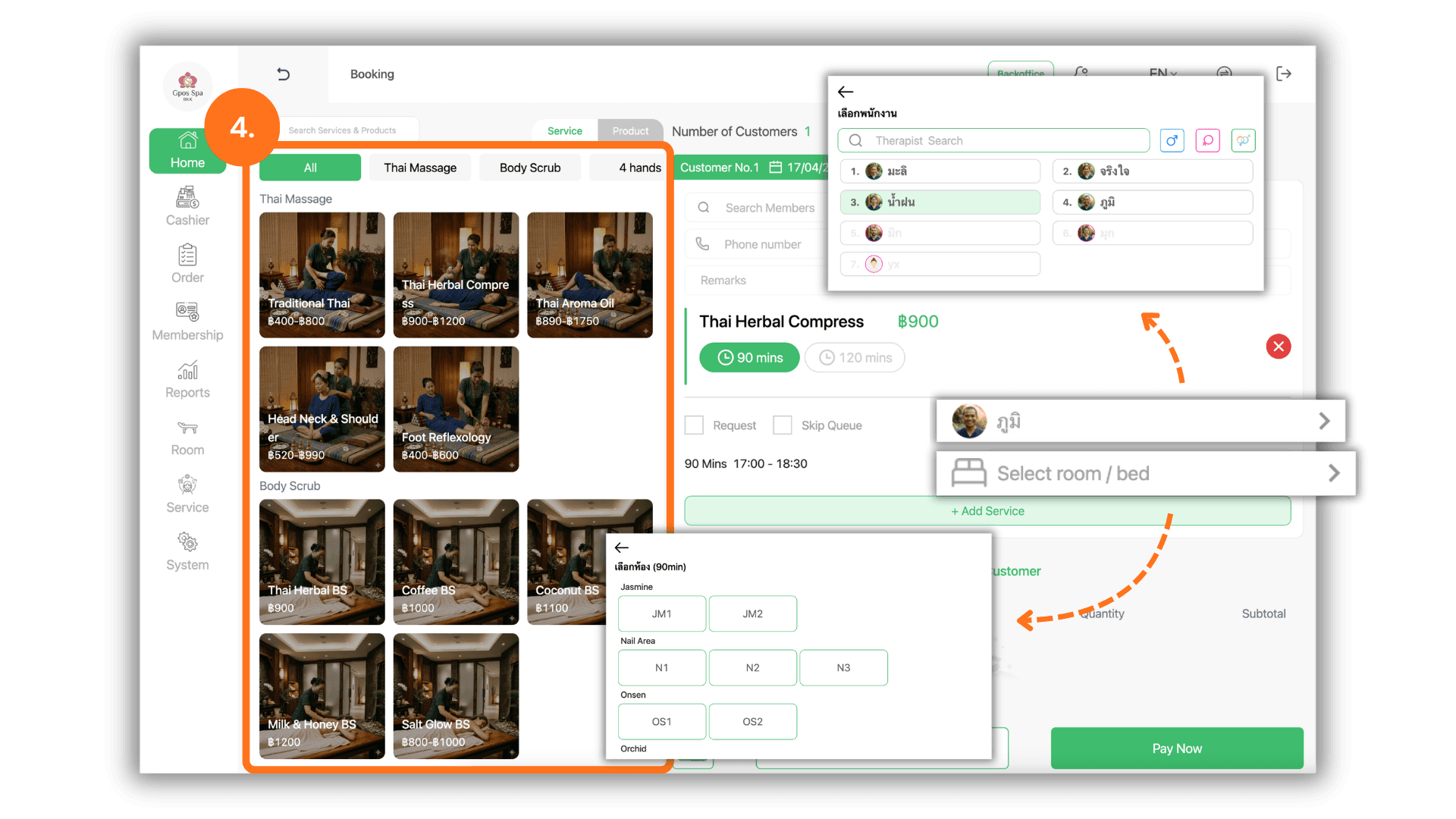
4. Assign Staff and Facilities
- Define the specific service details :
- Select or adjust the Duration of the service.
- Choose or change the Staff member assigned to the customer.
- Select or change the Room / Bed to be used for the session.
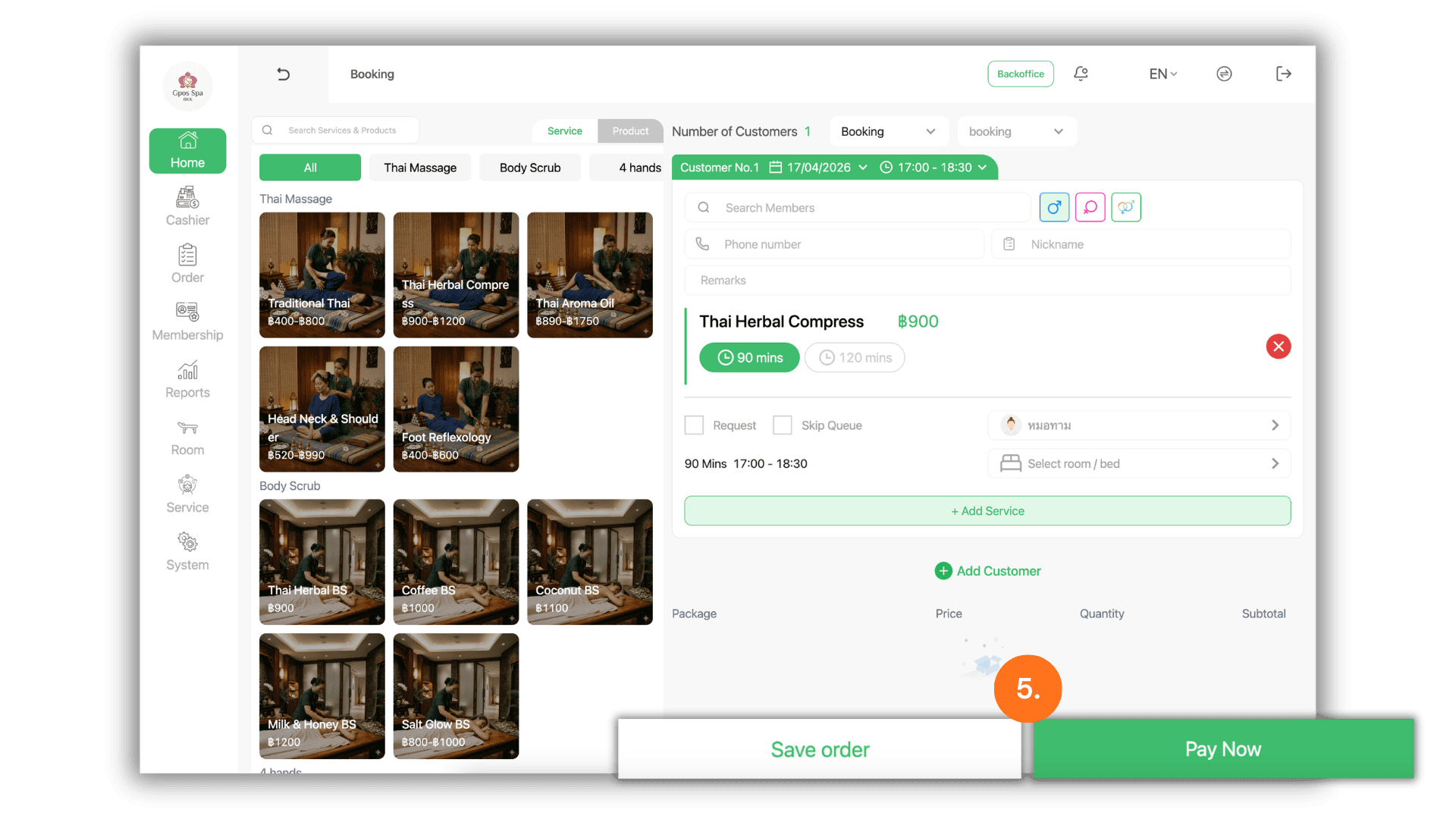
5. Save Entry or Proceed to Payment
- Review the booking summary and choose your next action:
- Save order : Record the booking in the system as an unpaid order.
- Pay Now : Proceed directly to the payment screen to settle the bill before the service begins.
6. Verify Membership & Apply Promotions
- On the summary screen, the system will display the customer's membership status and eligible Promotions or Coupons. Select the applicable offers to ensure the customer receives their discounts.
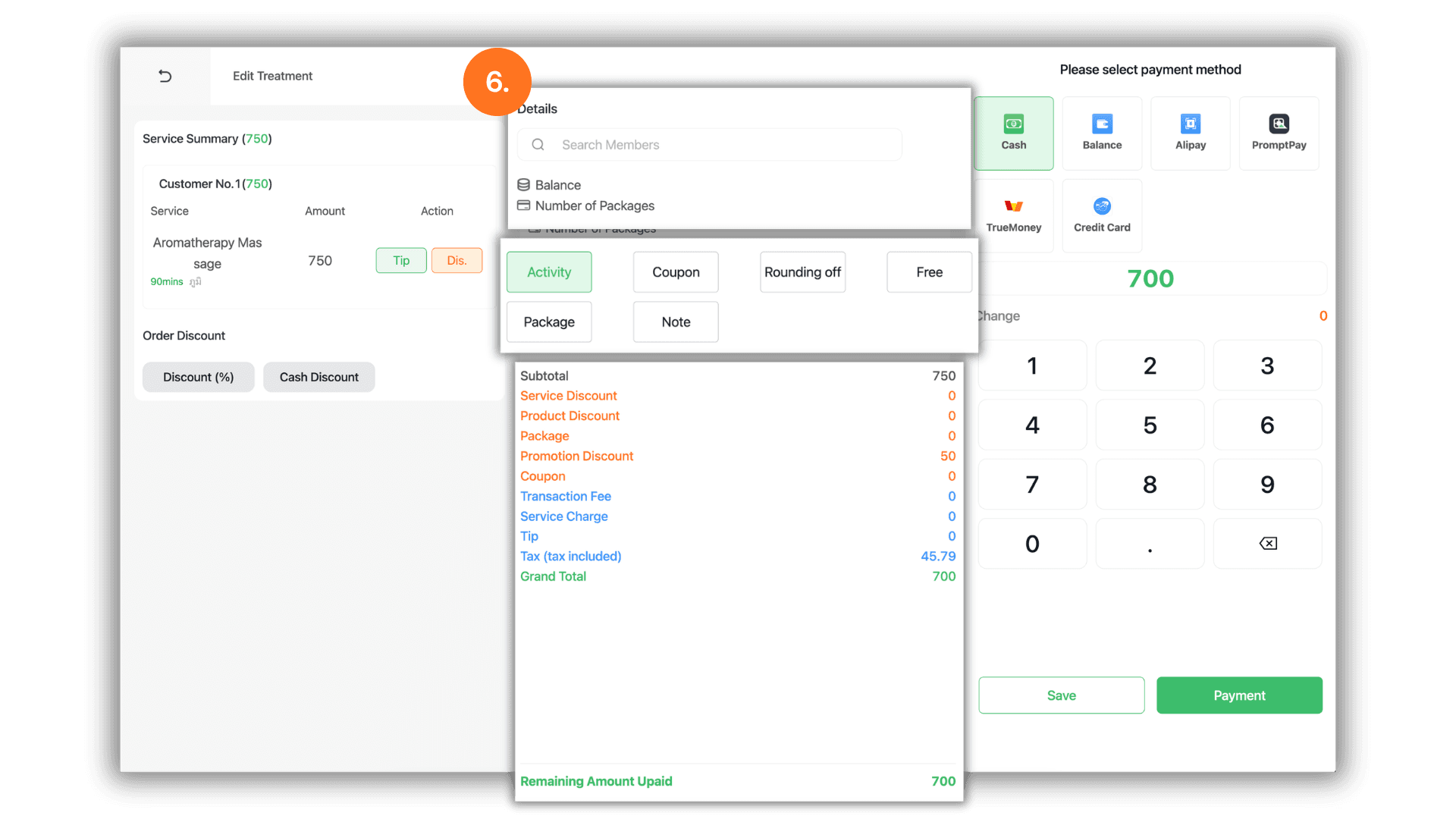
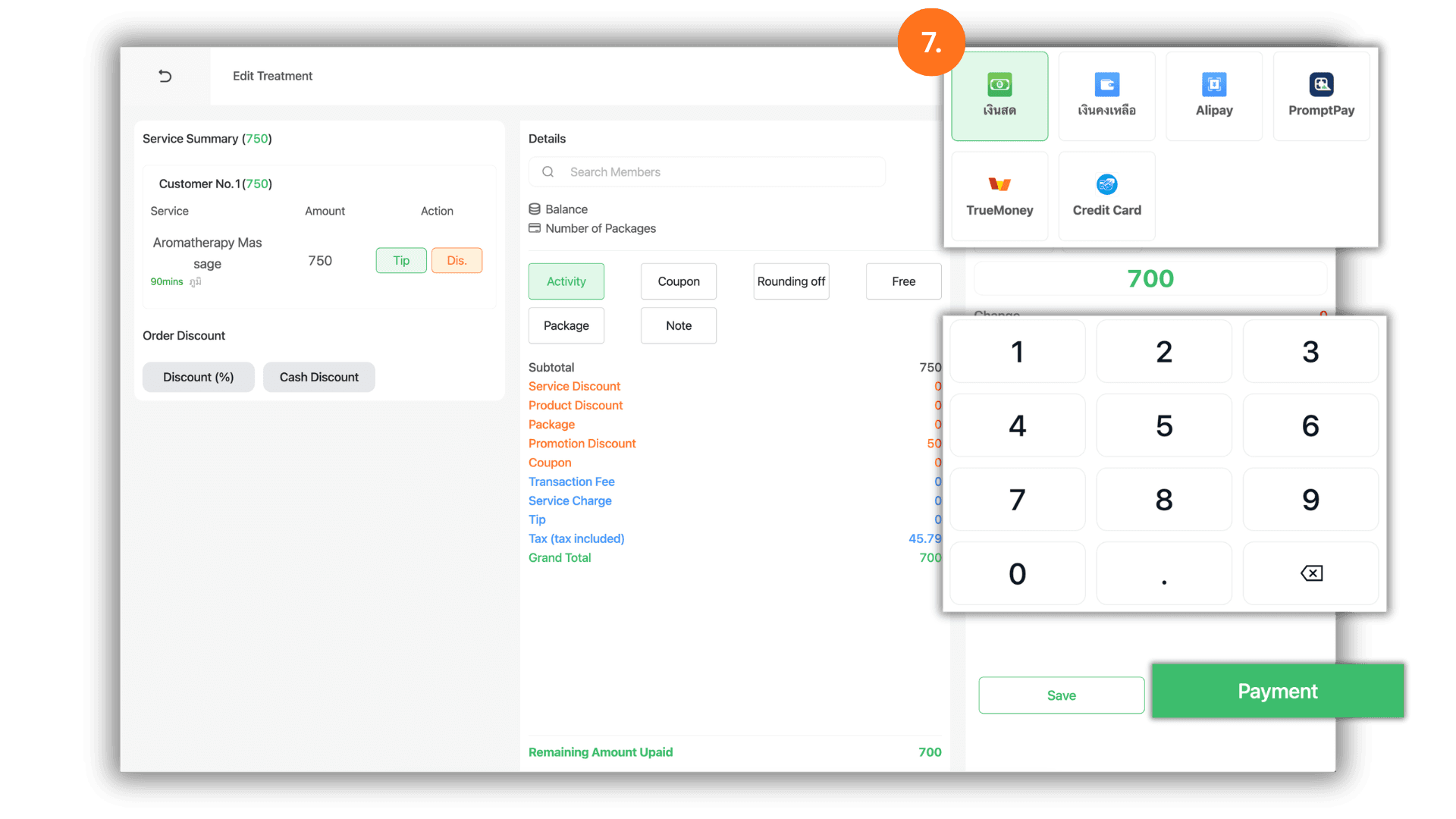
7. Choose Payment Type & Finalize
- Select the preferred Payment Type (e.g., Cash, Bank Transfer, or Credit Card), enter the actual amount paid, and click “Payment” to complete the booking transaction.