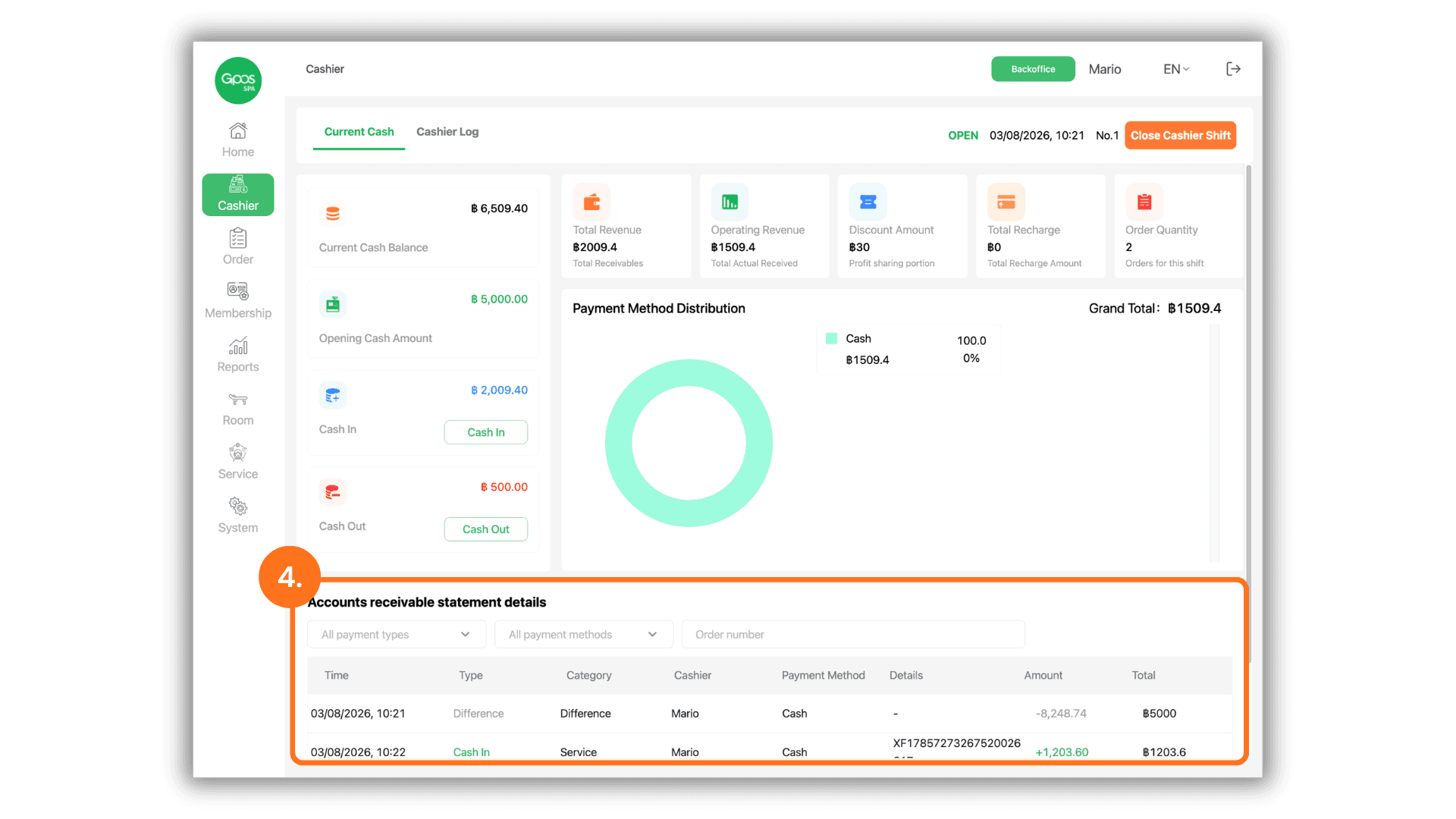
1. Select the store to manage
On the "Please select a store" landing page, click your target branch under "The store I joined" to access the store system.
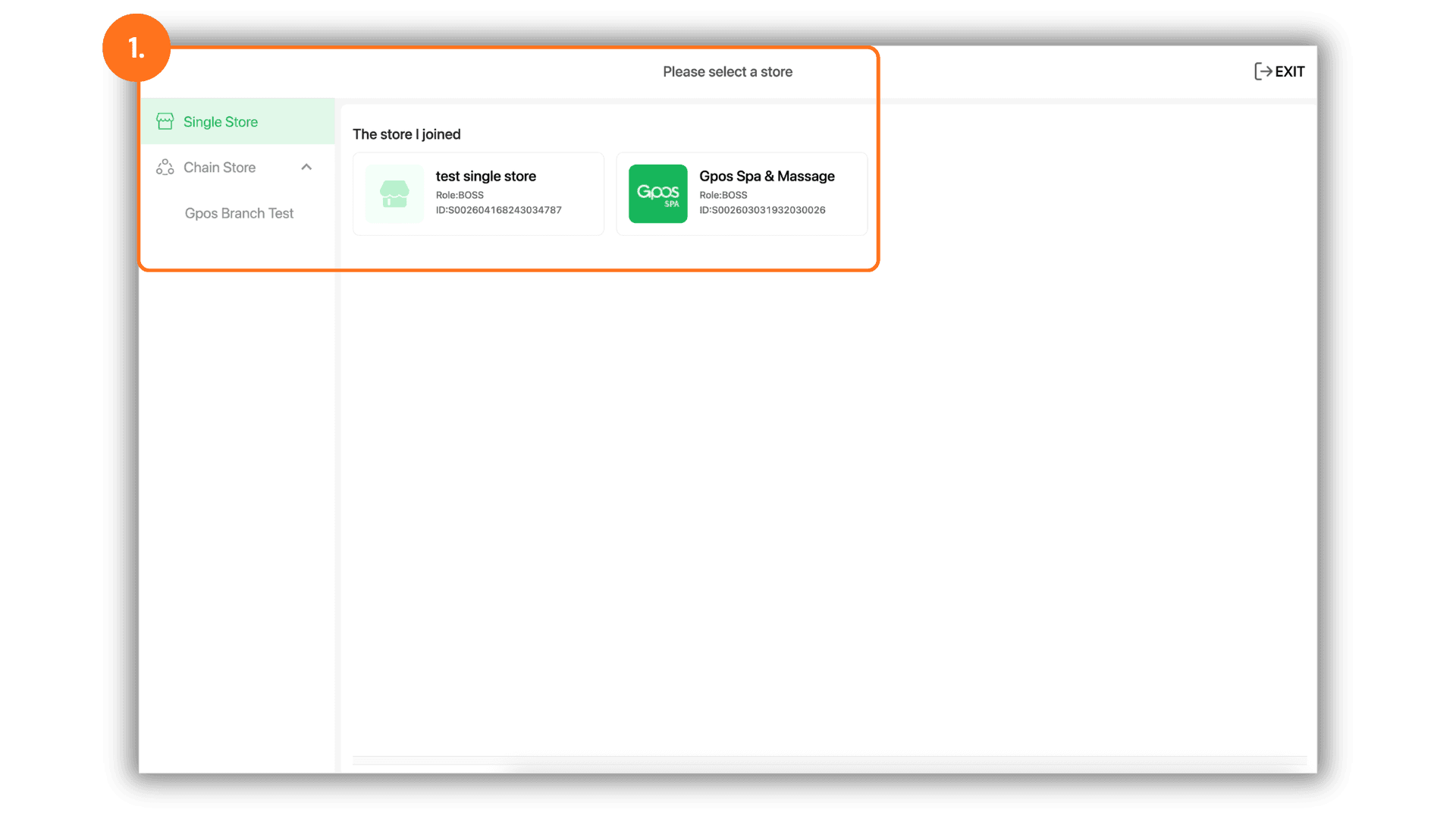
2. Open Cashier menu and locate Cash In / Cash Out
Click Cashier on the left menu. Under the Current Cash tab, check the Cash In and Cash Out sections.
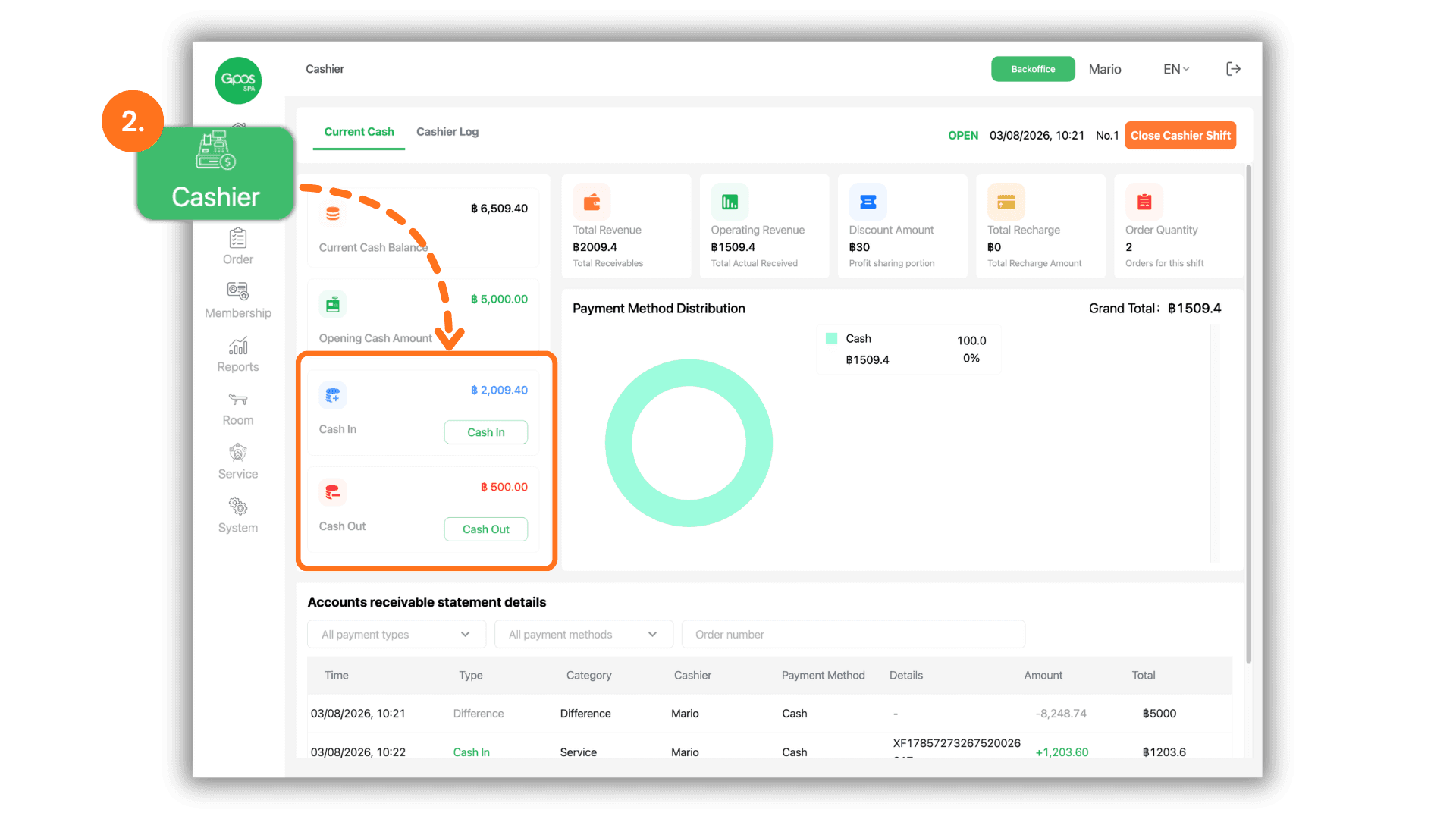
3. Perform Cash In or Cash Out transactions
Click the Cash In or Cash Out button depending on your cash management needs:
- Cash In: Enter the cash amount you wish to add to the drawer (e.g., adding starting change).
- Cash Out: Enter the cash amount you wish to withdraw from the drawer.
- Note: For Cash Out, the system does not permit withdrawing the entire balance. A minimum cash amount must remain in the register drawer.
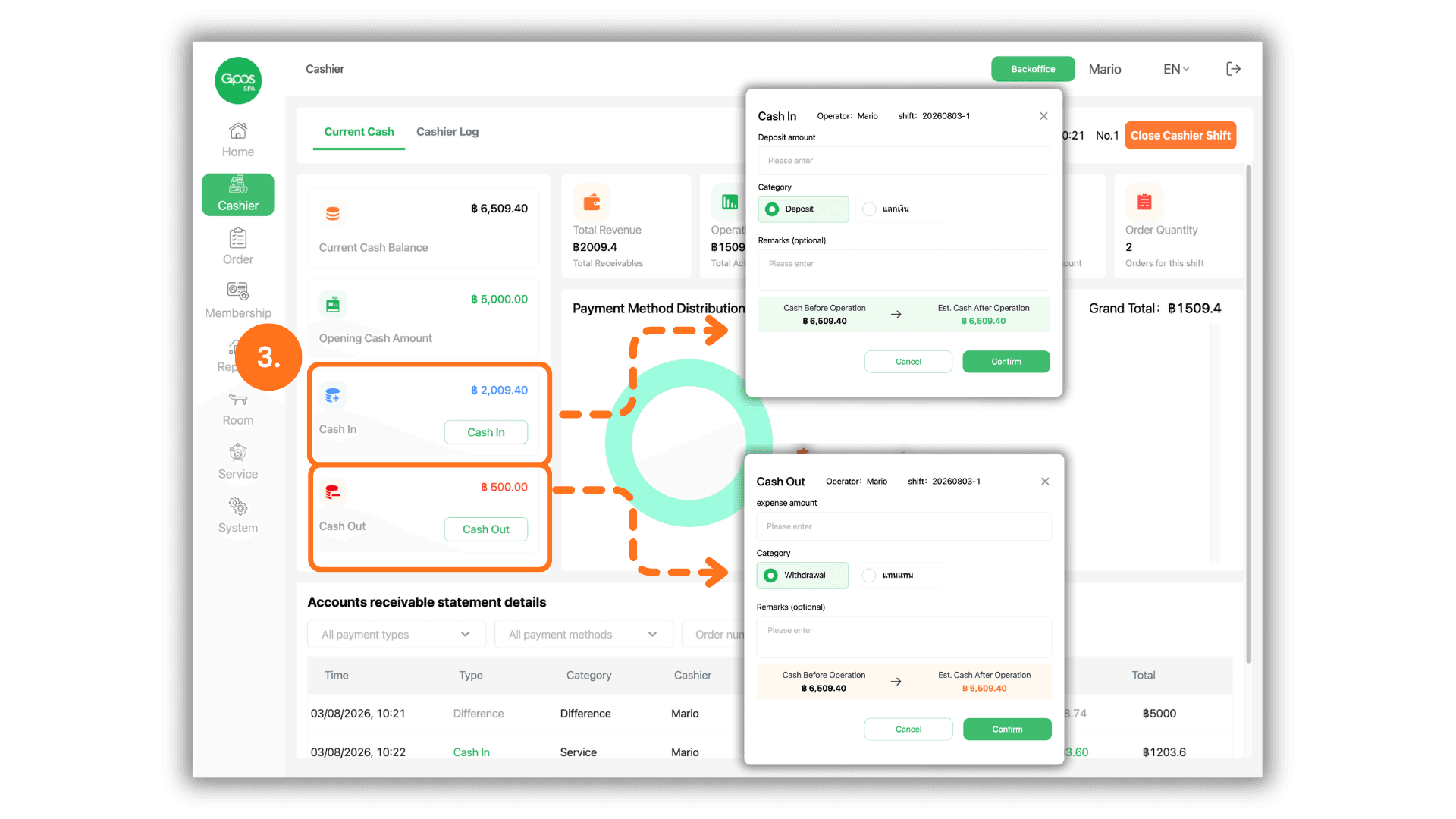
4. Review transaction history
Review full cash movement logs under Accounts receivable statement details at the bottom of the page to verify timestamps, types, and transaction amounts.