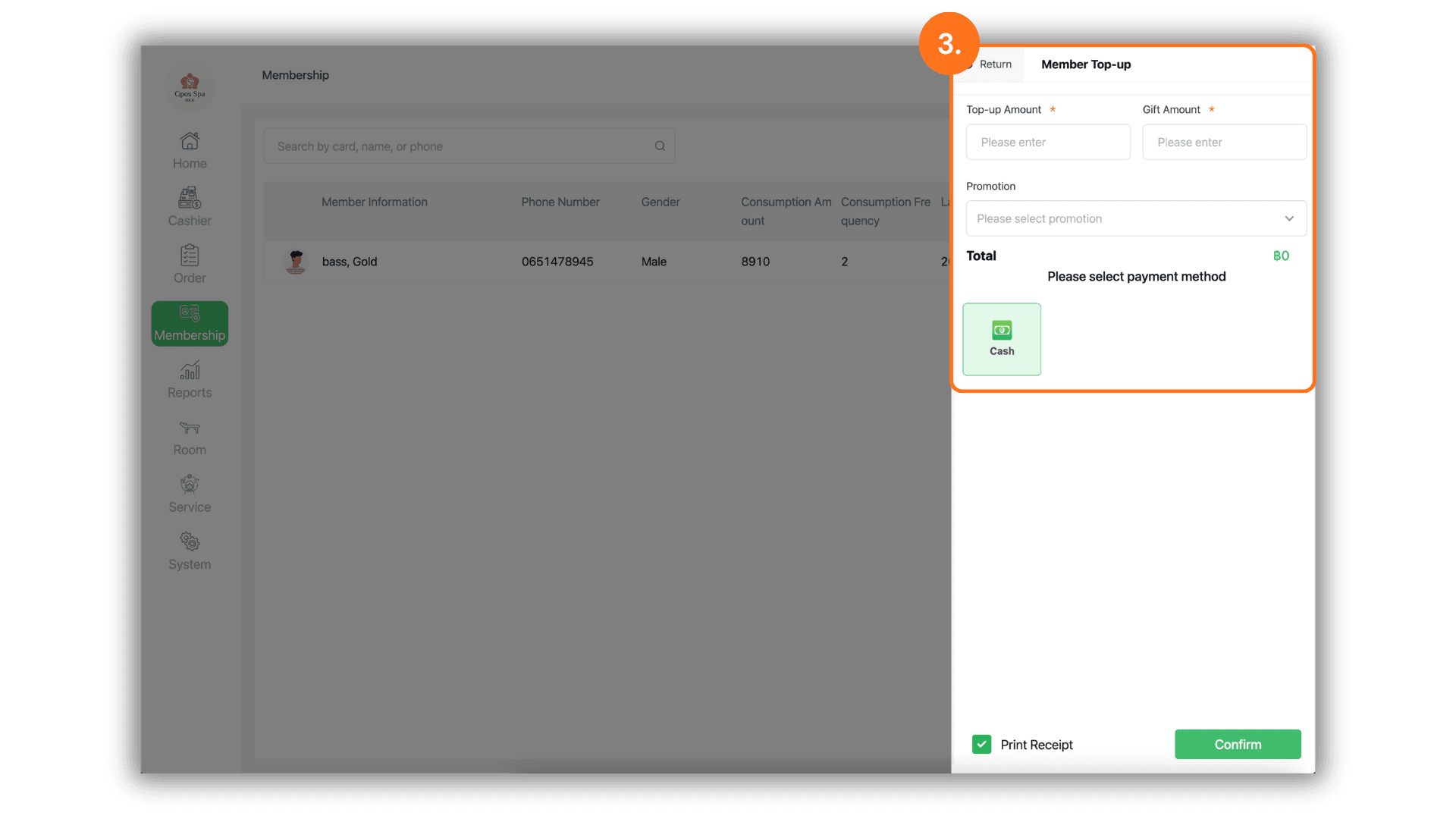
1.Select the Service Branch
- Start by selecting the specific Store or Branch where the transaction is taking place. This ensures the credit is added to the correct local database.
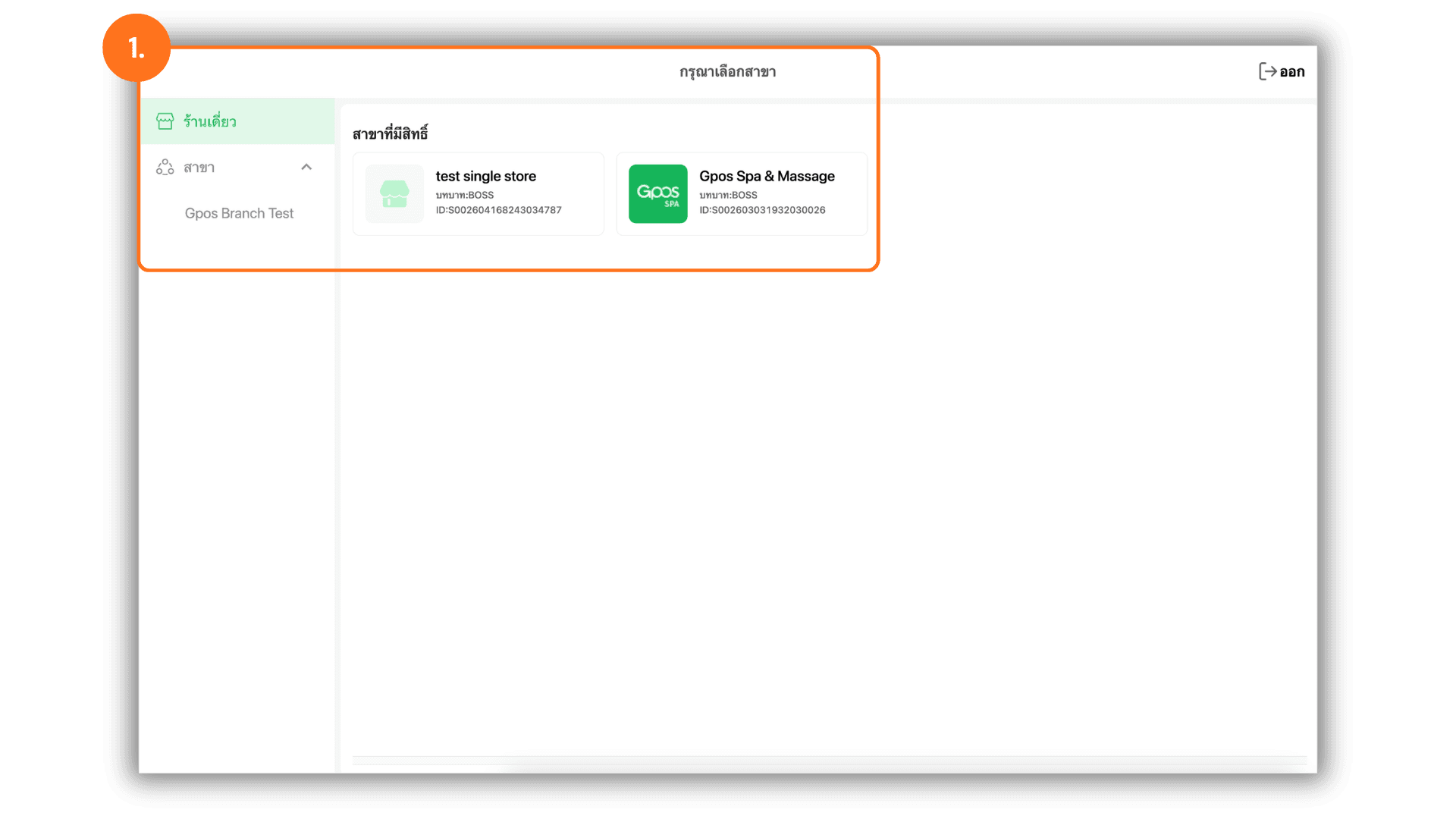
2.Access the Top-up Function
- Navigate to the "Member" menu, find the relevant customer profile, and click the "Top-up" button to initiate the balance update.
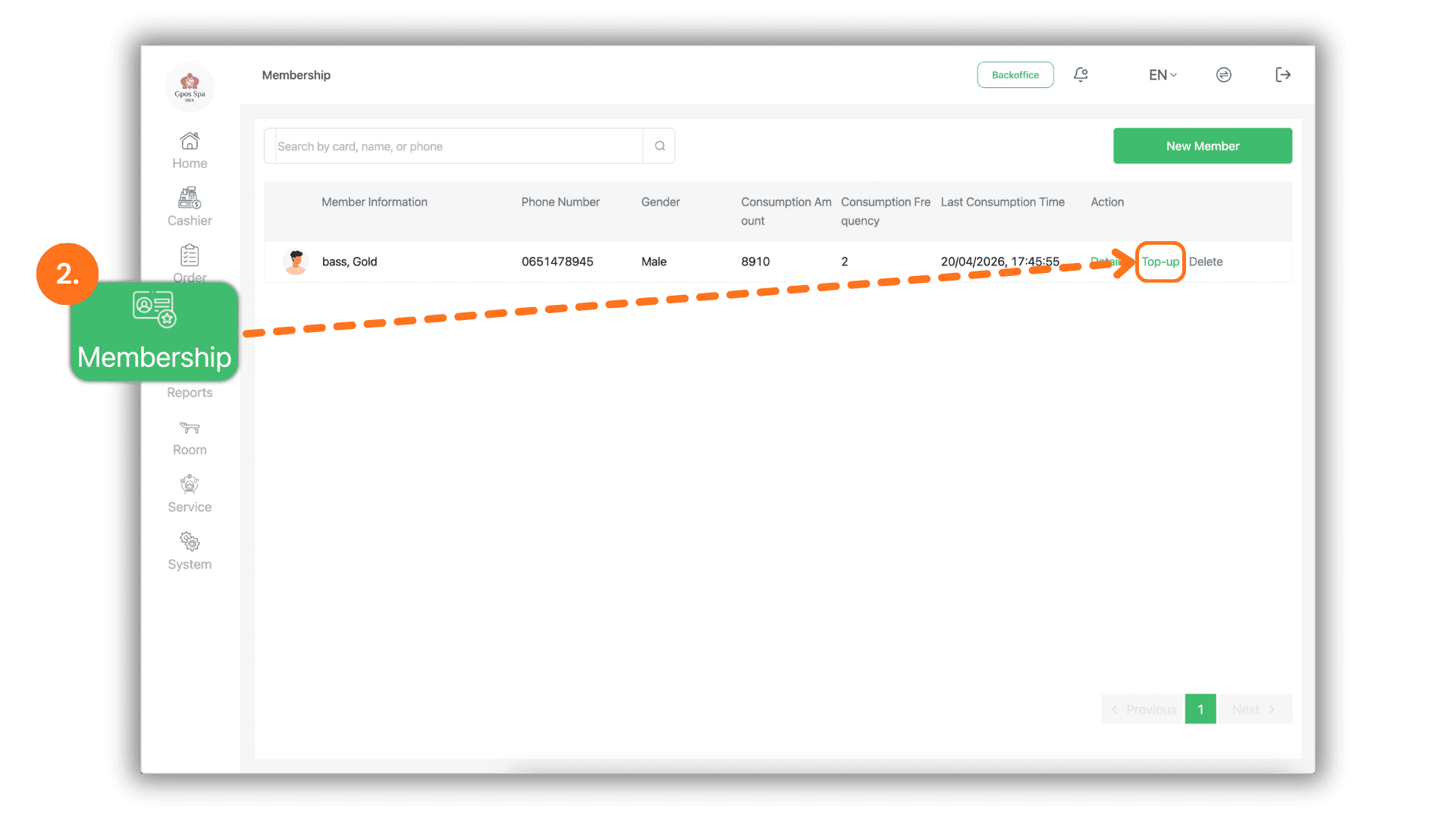
3.Enter Payment and Promotion Details
- Complete the top-up process by entering the following details:
- Top-up Amount : Enter the actual cash or credit amount the customer is paying.
- Bonus Credit : Manually enter any additional credit being gifted to the customer (if applicable).
- Promotions : If a pre-configured top-up promotion is available, you may select and apply it here.
- Payment Type : Select the method used for the transaction (e.g., Cash, Bank Transfer, or Credit Card) and confirm the entry.