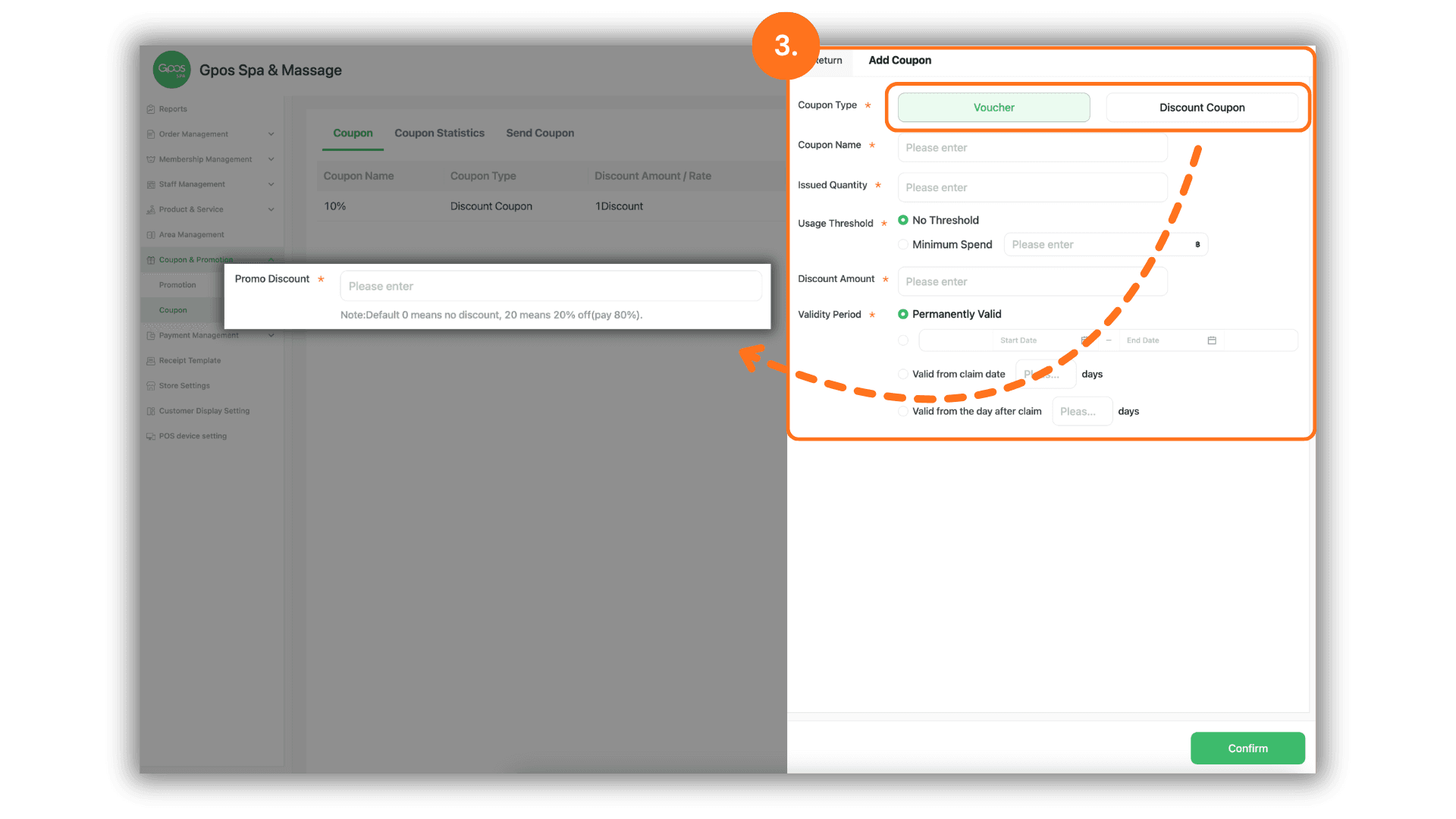
1. Navigate to the Coupons Menu
- Instruction: On the sidebar menu, click on "Coupons & Promotions" and then select the "Coupons" sub-menu to view your coupon dashboard.
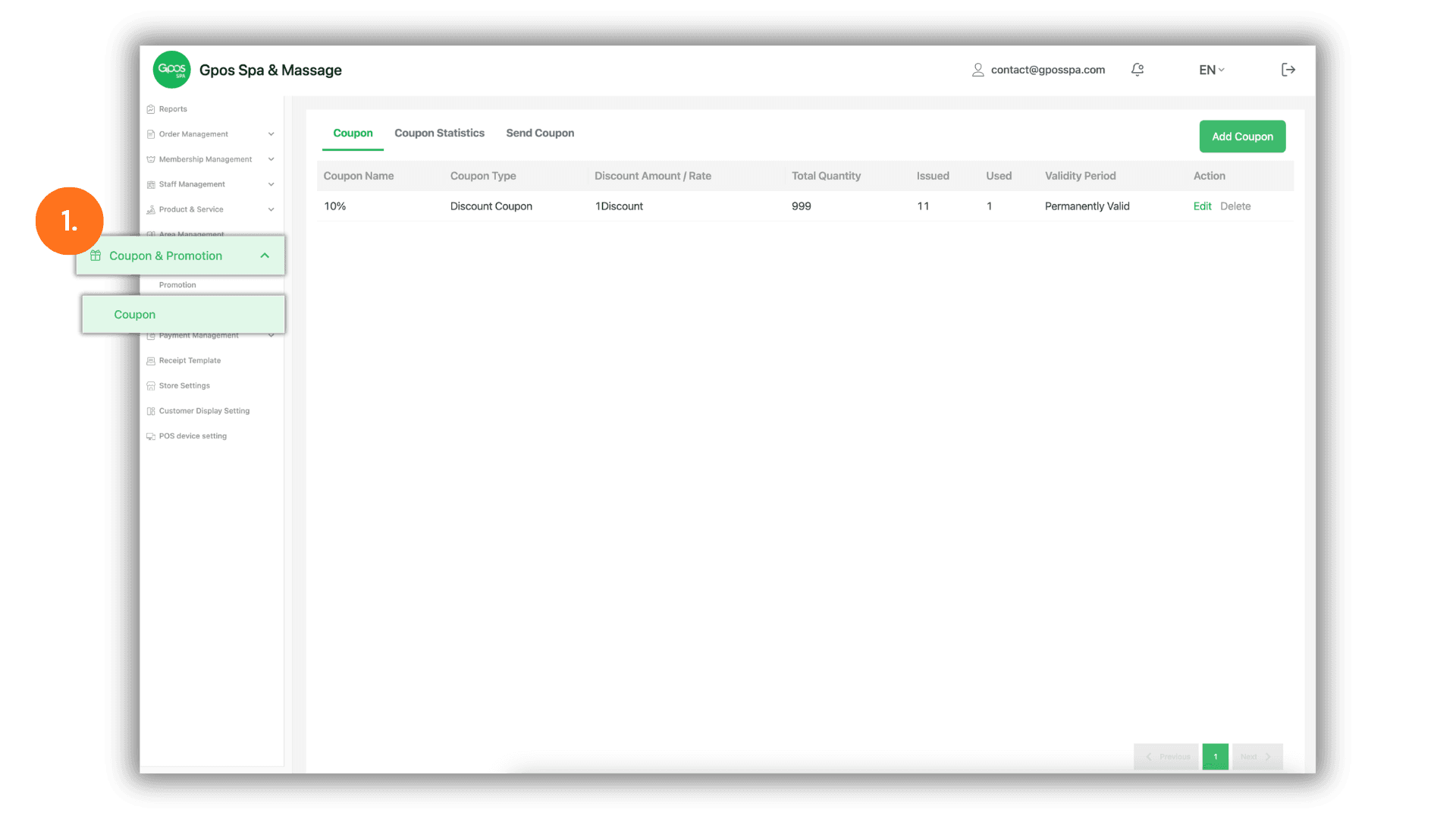
2. Initiate New Coupon Creation
- Instruction: In the Coupon list view, click the "Add Coupon" button to open the configuration form for a new incentive.
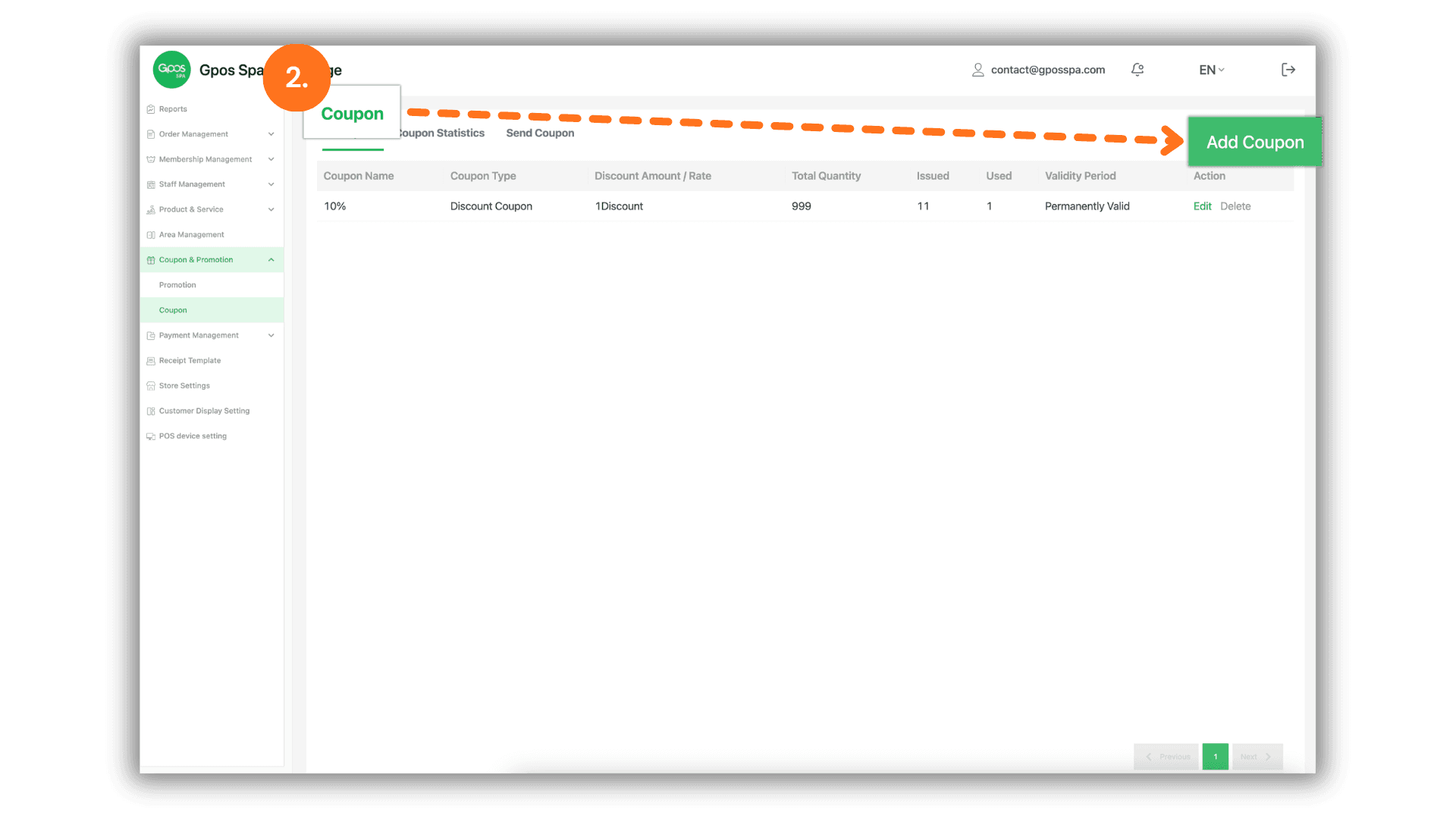
3. Configure Coupon Details
Fill in the following fields to define your coupon's value and rules:
- Coupon Type Selection:
- Cash Coupon: Select this to provide a fixed-sum discount. Enter the specific amount in the "Discount Amount" field.
- Discount Coupon: Select this to provide a percentage-based discount. Click on "Special Privilege Discount" and enter the numerical percentage (e.g., entering 80 will result in an 80% discount).
- Basic Information:
- Coupon Name: Enter a clear and descriptive name for the coupon.
- Quantity: Specify the total number of coupons available for distribution.
- Terms & Conditions: Define the rules or requirements customers must meet to use the coupon.
- Validity & Expiration Settings:
- Expiration Date: Choose a specific calendar date when the coupon will expire.
- Relative Validity Options:
- Effective from receipt date: The coupon is valid immediately upon receipt, and the validity countdown includes the day it was received.
- Effective day after receipt date: The coupon becomes valid and the countdown starts on the day following the receipt.