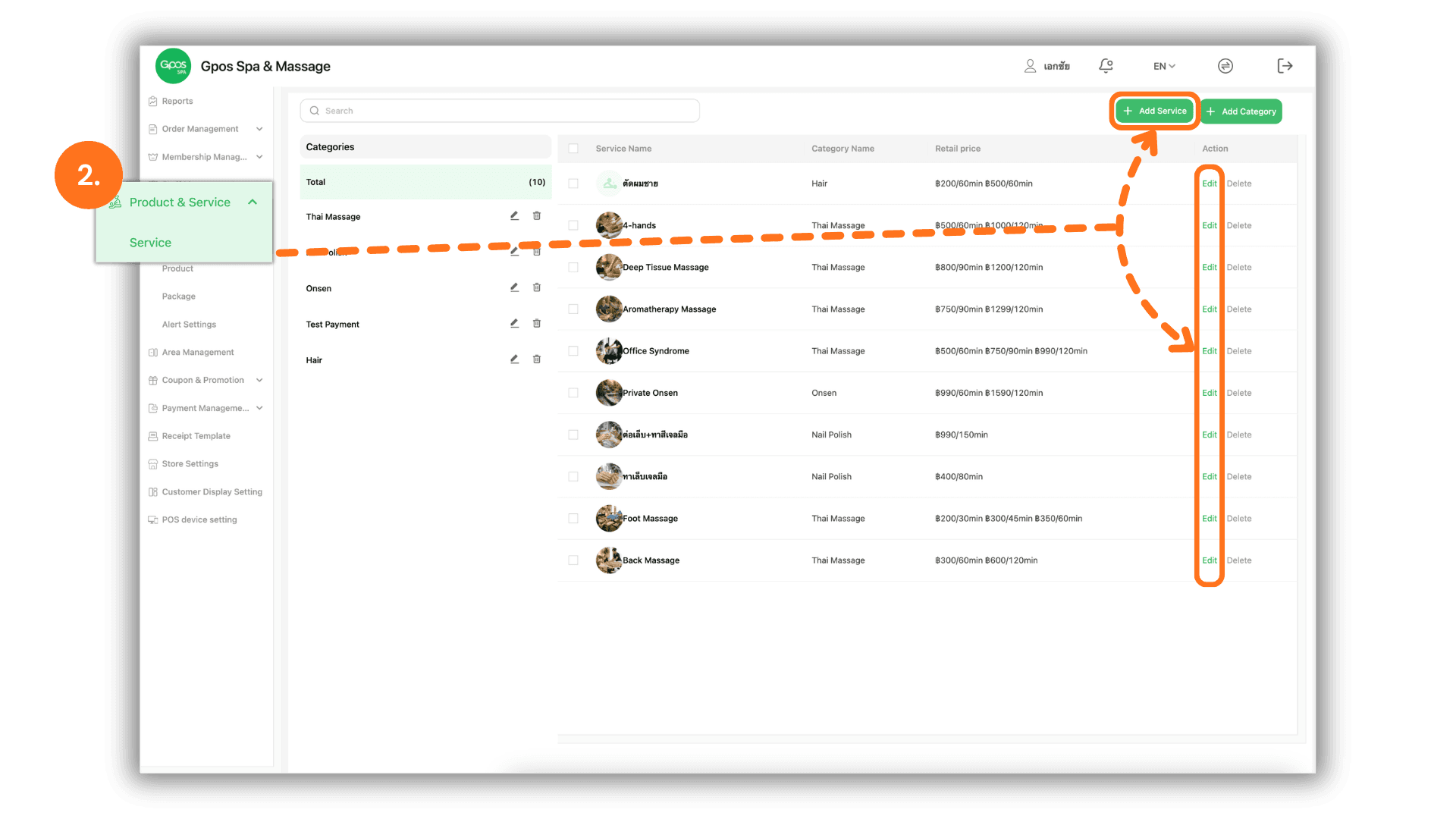
1.Select the Service Branch
- Begin by selecting the specific Store or Branch where you wish to provide services. This ensures that any visual updates are correctly localized to the chosen branch.
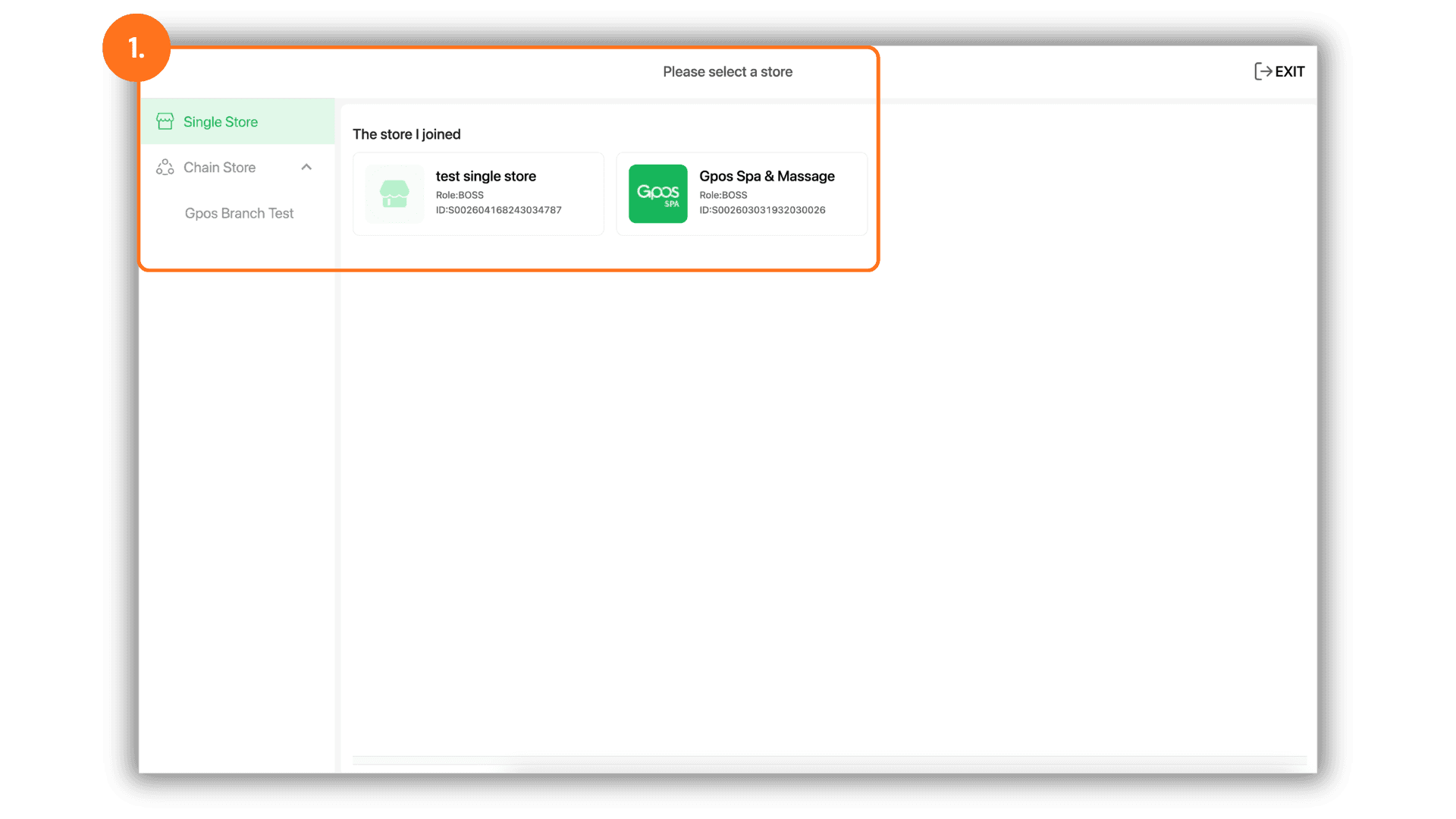
2.Access Service Management via Products & Services
- Navigate to the "Products & Services" menu and select "Service." Within this section, you can either:
- Click the "+ Add Service" button to create a new service entry.
- Click the "Edit" button on an existing service to update its details.
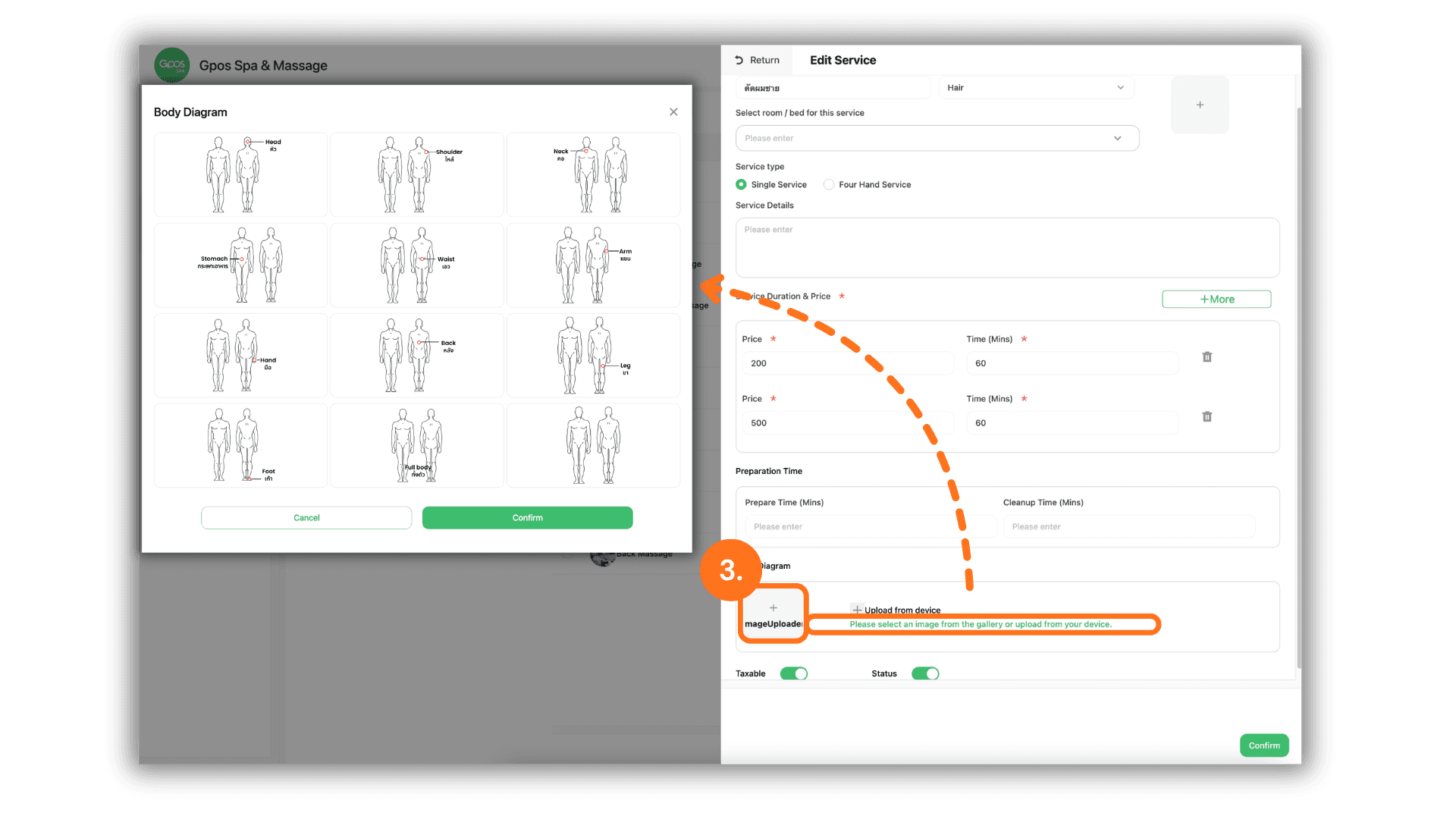
3.Upload or Select from the Image Gallery
- Manage your service visuals by choosing one of the following options:
- Click the "+" icon to upload a custom image directly from your store's library.
- Click "Please select an image from the gallery or upload from device" to browse and select a professional spa card image provided by the system.