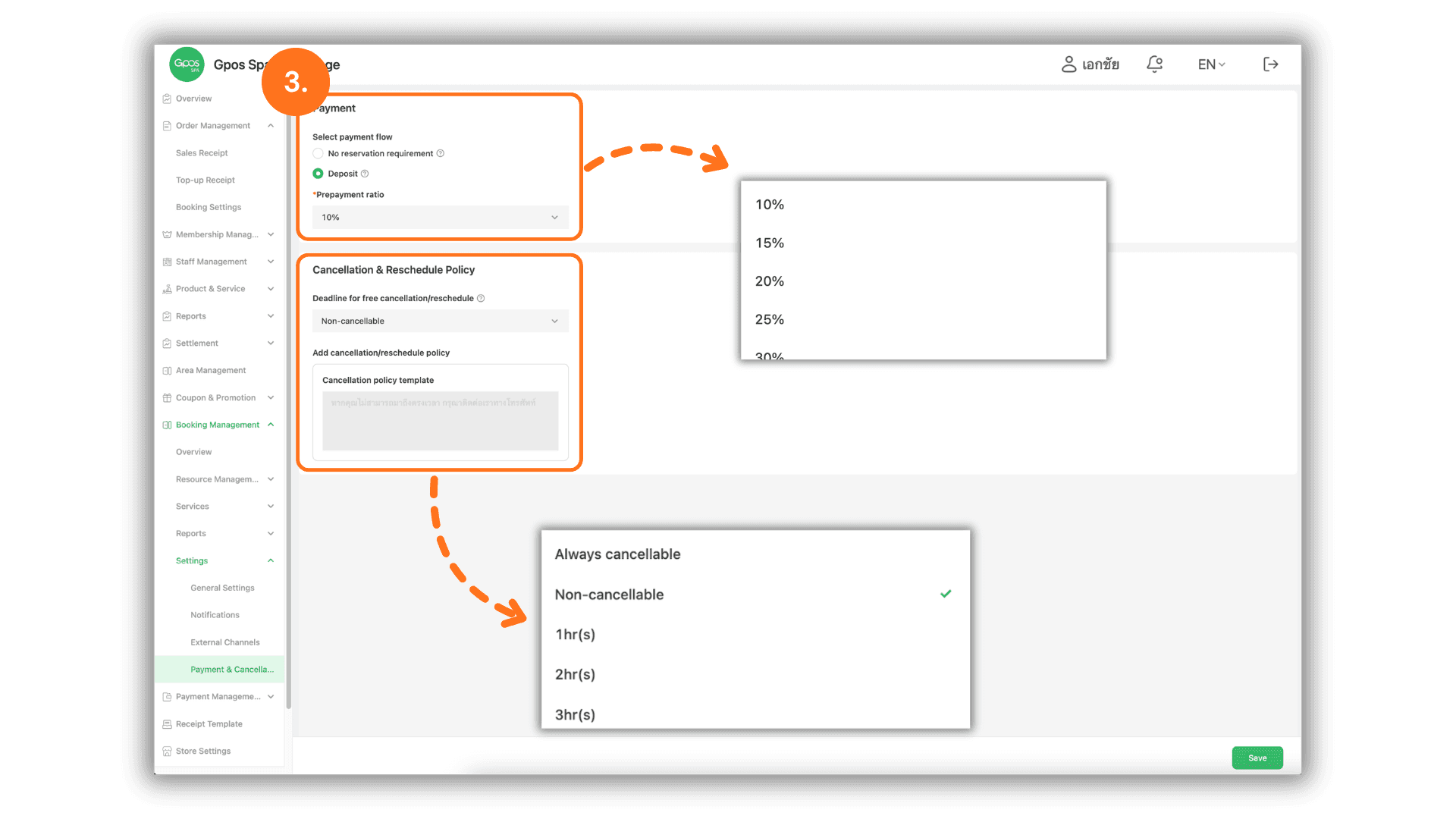
1. Select a Store or Branch
- Start by clicking and selecting the specific store or branch you want to configure. This ensures that the payment rules and cancellation policies are applied to the correct location.
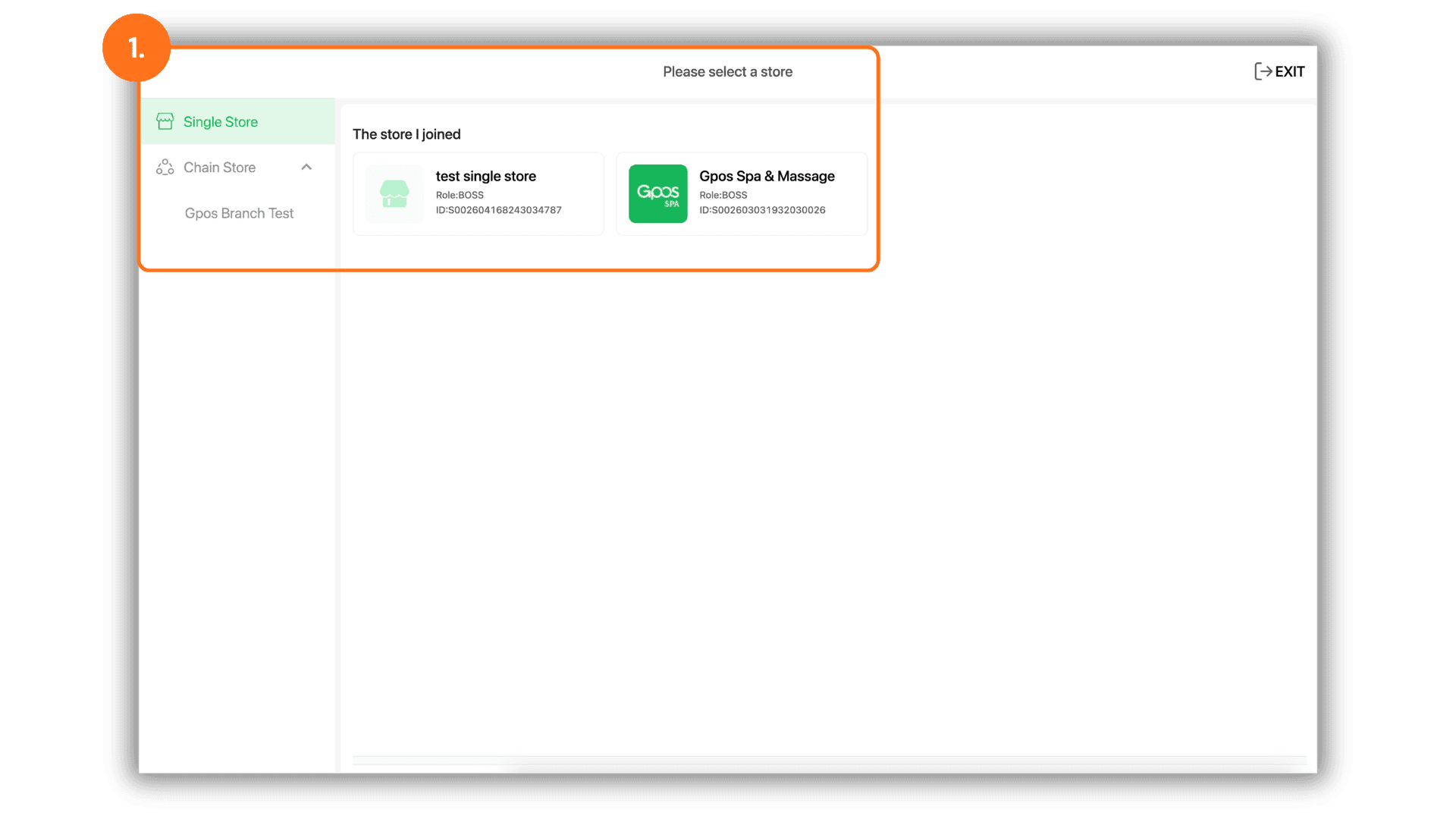
2. Access the Payments and Cancellations Settings
- Navigate to the menu on the left sidebar: Click on “Booking Management”.
- Next, select “Settings” and click on the “Payments & Cancellations” sub-menu to open the configuration dashboard.
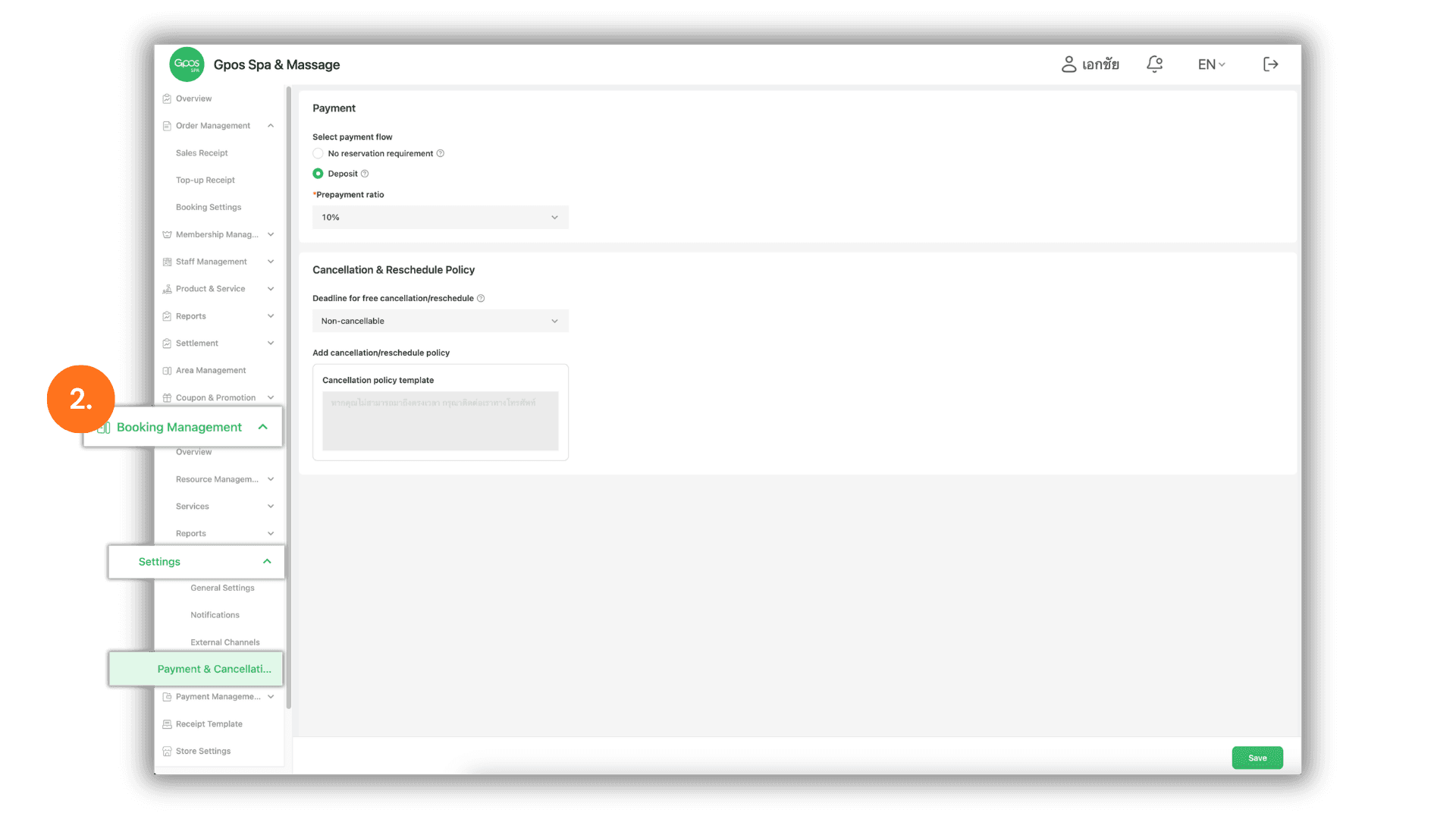
3. Configure Deposit Rules and Cancellation Policies
- On the settings screen, you can customize your policies and rules as follows:
- Payment Method for Bookings: Set up the online booking deposit requirements:
- No booking conditions: Customers can book slots instantly without any upfront payment.
- Prepayment: The system will require customers to make a deposit or advance payment online to successfully confirm their booking.
- (Note: If "Prepayment" is selected, you must enable the payment locking system before this feature can be used.)
- Cancellation and Rescheduling Policy: Click to select or specify your store's guidelines regarding order cancellations and appointment changes.
- Payment Method for Bookings: Set up the online booking deposit requirements:
- Once all settings are correctly adjusted, click the green “Save” button at the bottom right corner to immediately update the system.