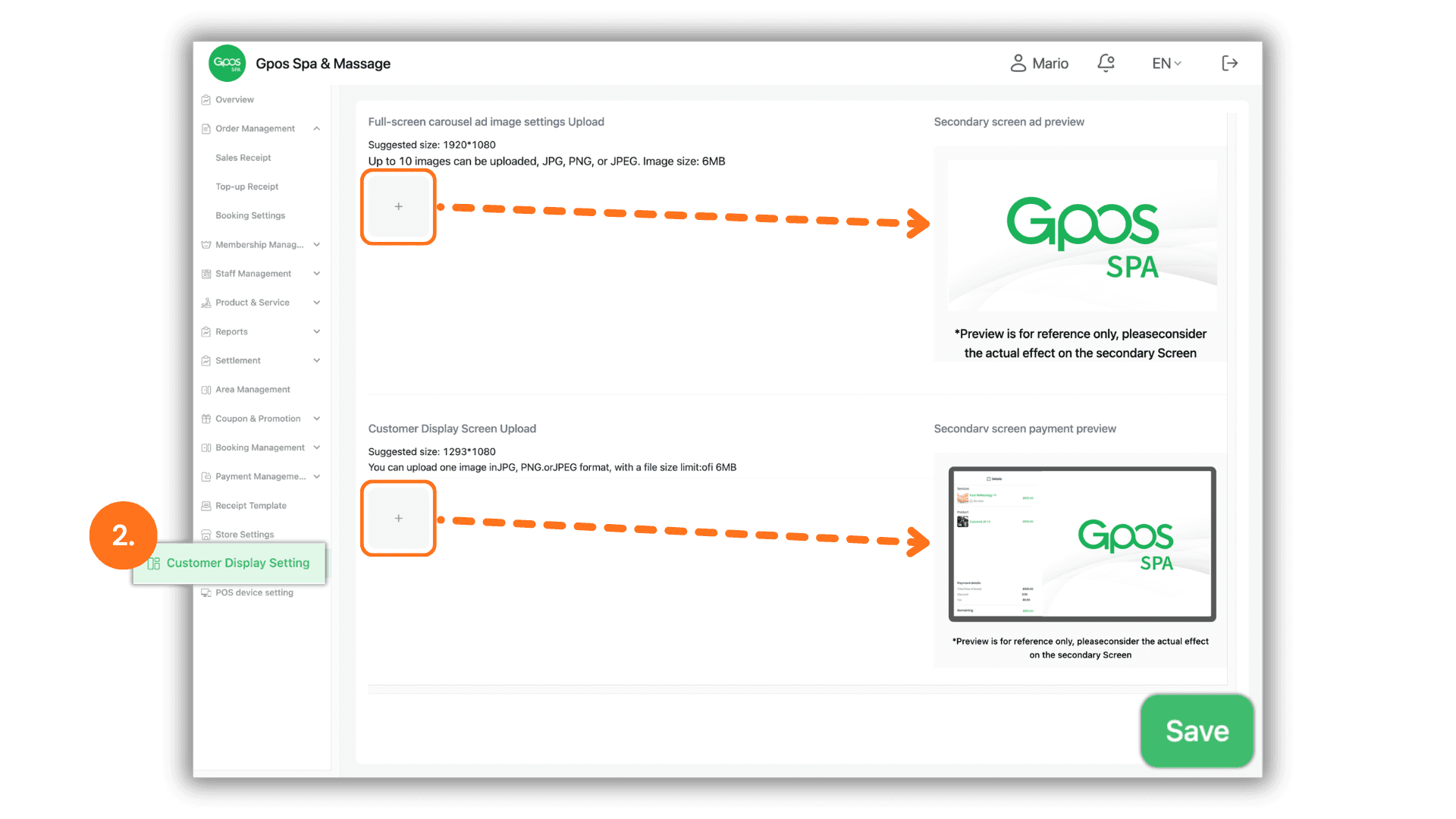
1. Select the Store or Branch for Service
Start by clicking to select the store or branch you wish to manage from the Please select a store page to enter the system for that specific store.
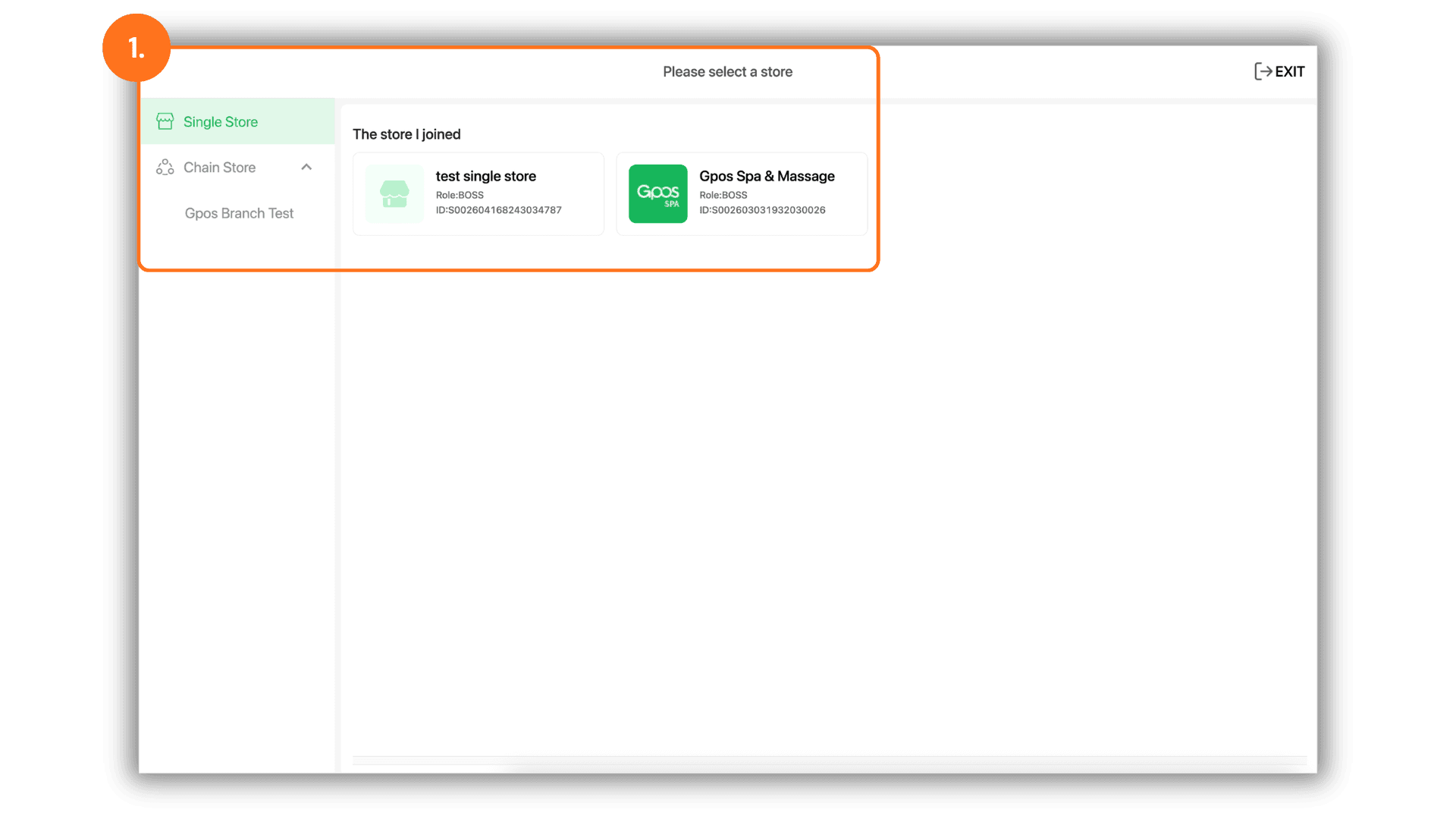
2. Configure Customer Display Images and Save Settings
Go to the left-hand menu, select Store Settings, and click Customer Display Setting. Upload the desired display images and save your settings as follows:
- Full-screen carousel ad image settings Upload: Upload up to 10 images (JPG, PNG, or JPEG format, maximum 6MB per file) with a suggested size of 1920*1080 pixels to play as rotating promotional slides on the customer screen.
- Customer Display Screen Upload: Upload 1 image (JPG, PNG, or JPEG format, maximum 6MB per file) with a suggested size of 1293*1080 pixels to display on the payment screen.
- Once all images are uploaded, click the green Save button in the bottom right corner to immediately update the display configuration.