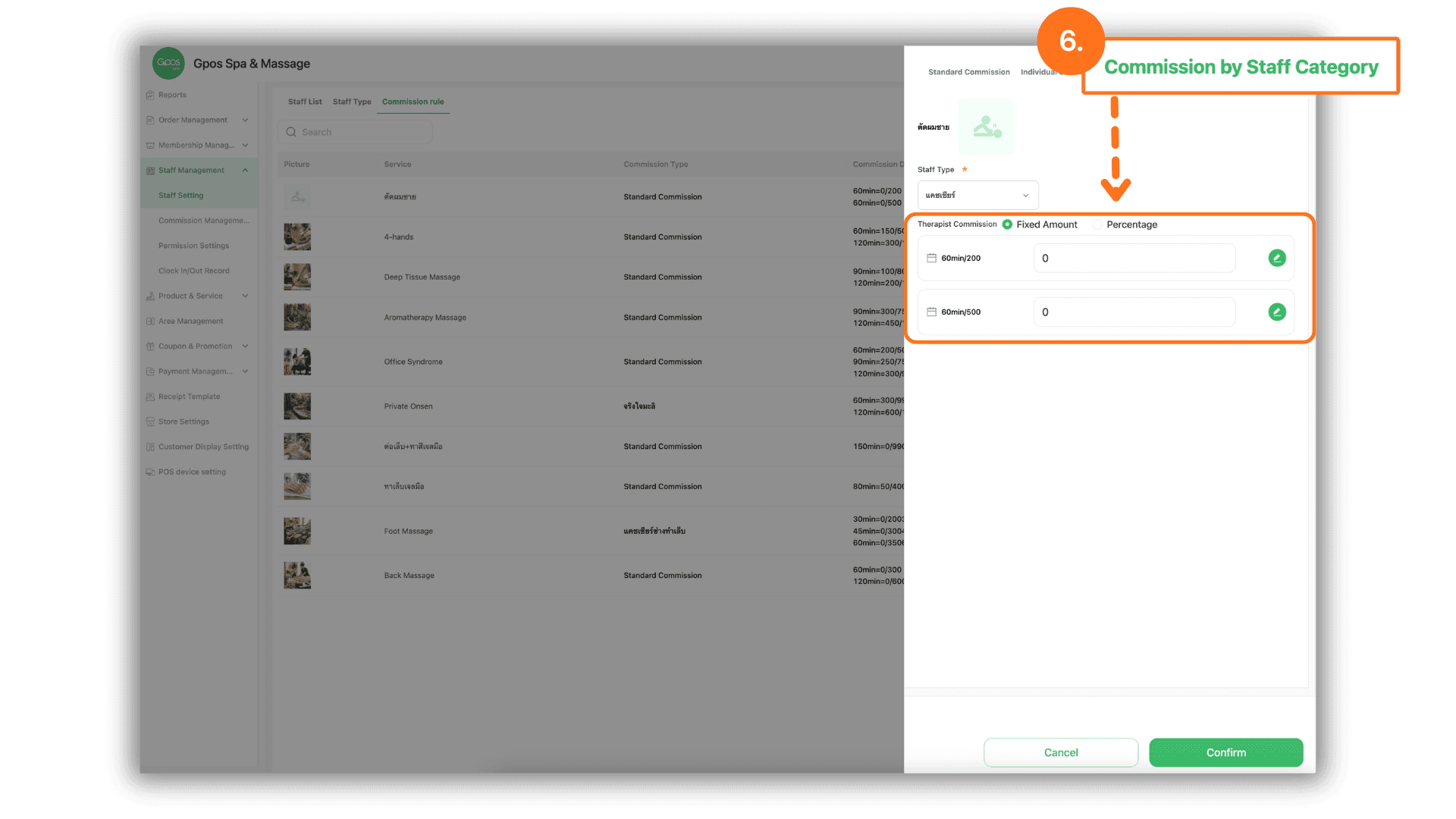
1.Select the Service Branch
- Begin by selecting the specific Store or Branch where you wish to configure the commission settings to ensure the rates are applied to the correct location.
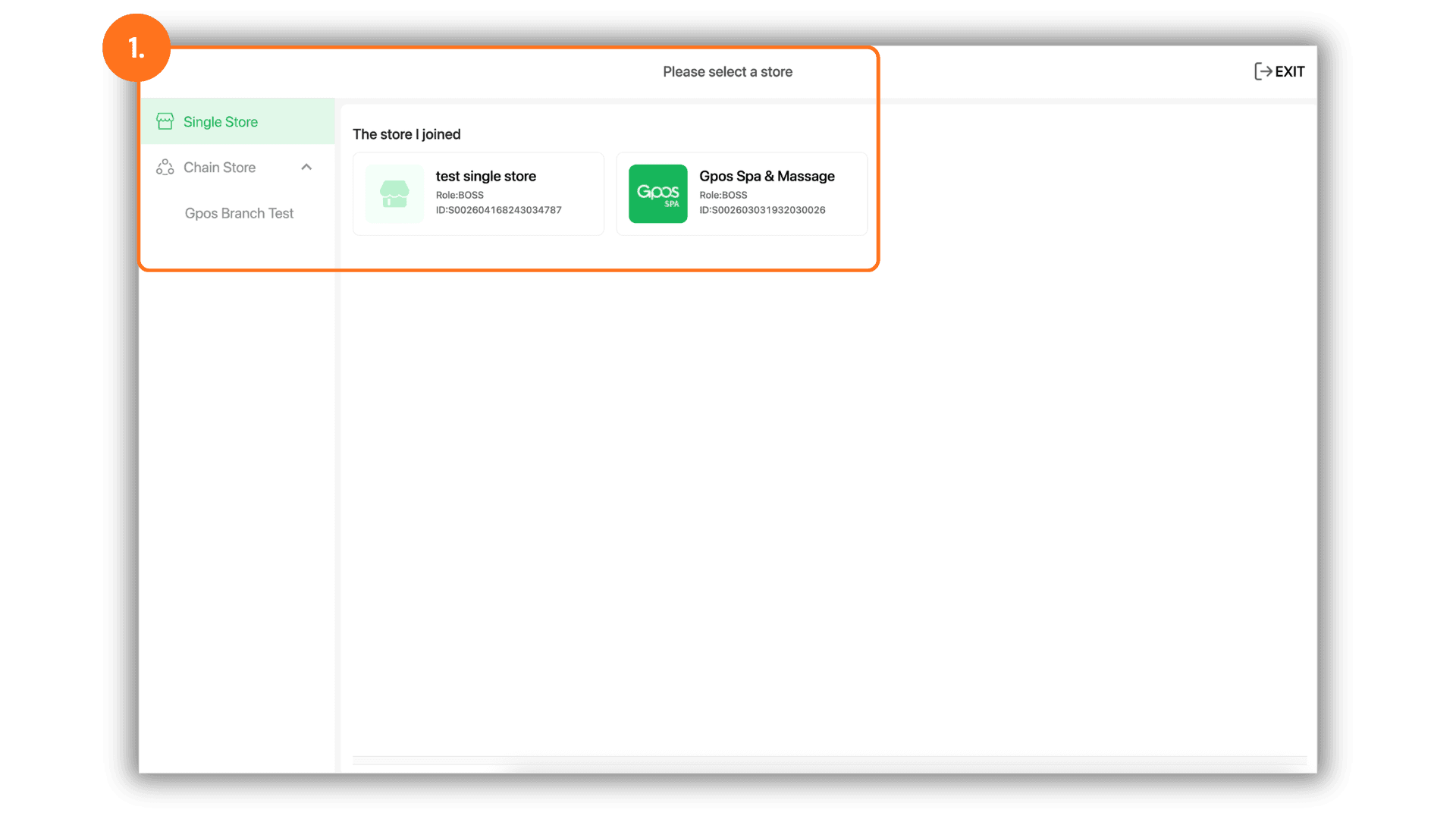
2.Navigate to Commission Settings
- In the main menu, go to "Staff Management," then select "Staff Settings," and click on "Set Commission" to enter the configuration dashboard.
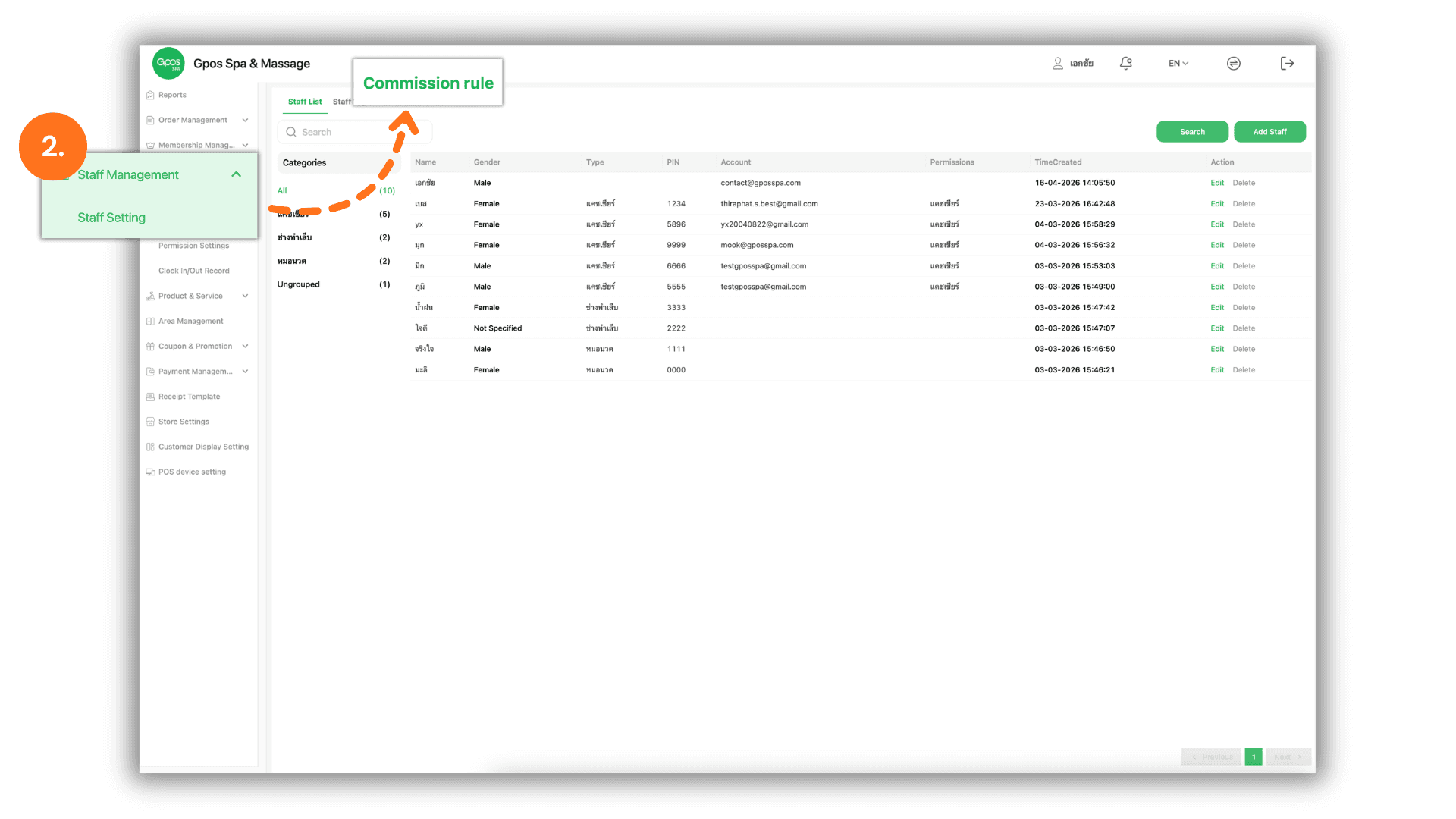
3.Edit Item Commission Rates
- The system will display a list of all available services and products. Click the "Edit" button on the specific item you wish to configure to set its unique commission parameters.
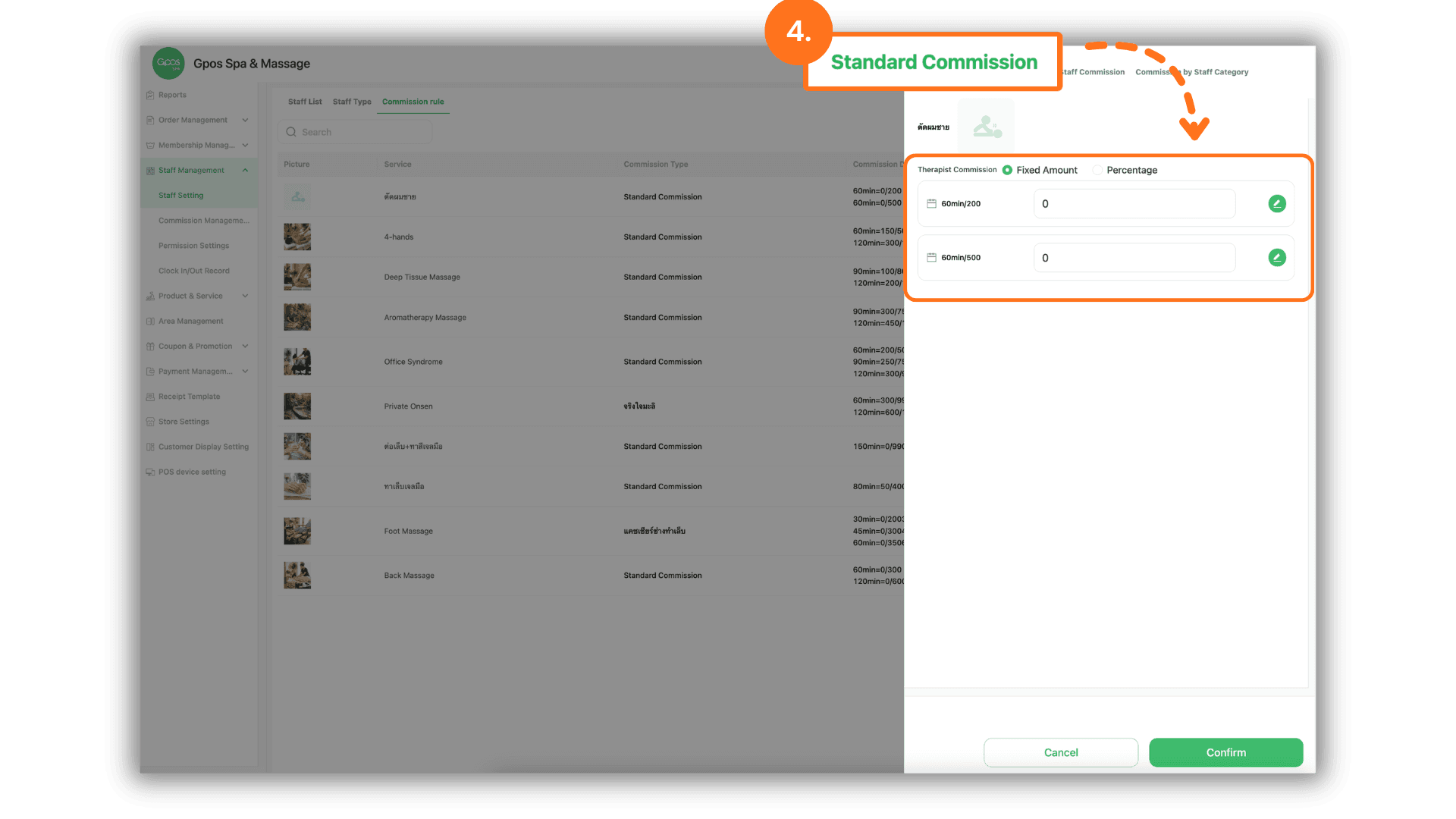
4.Configure Standard Commission
- Select the "Standard" tab to set a uniform commission rate for all staff members across the store:
- Set specific rates based on different Service Time Slots.
- Choose "Fixed Amount" to set a specific currency value per service.
- Choose "Percentage" to calculate the commission as a portion of the service price.
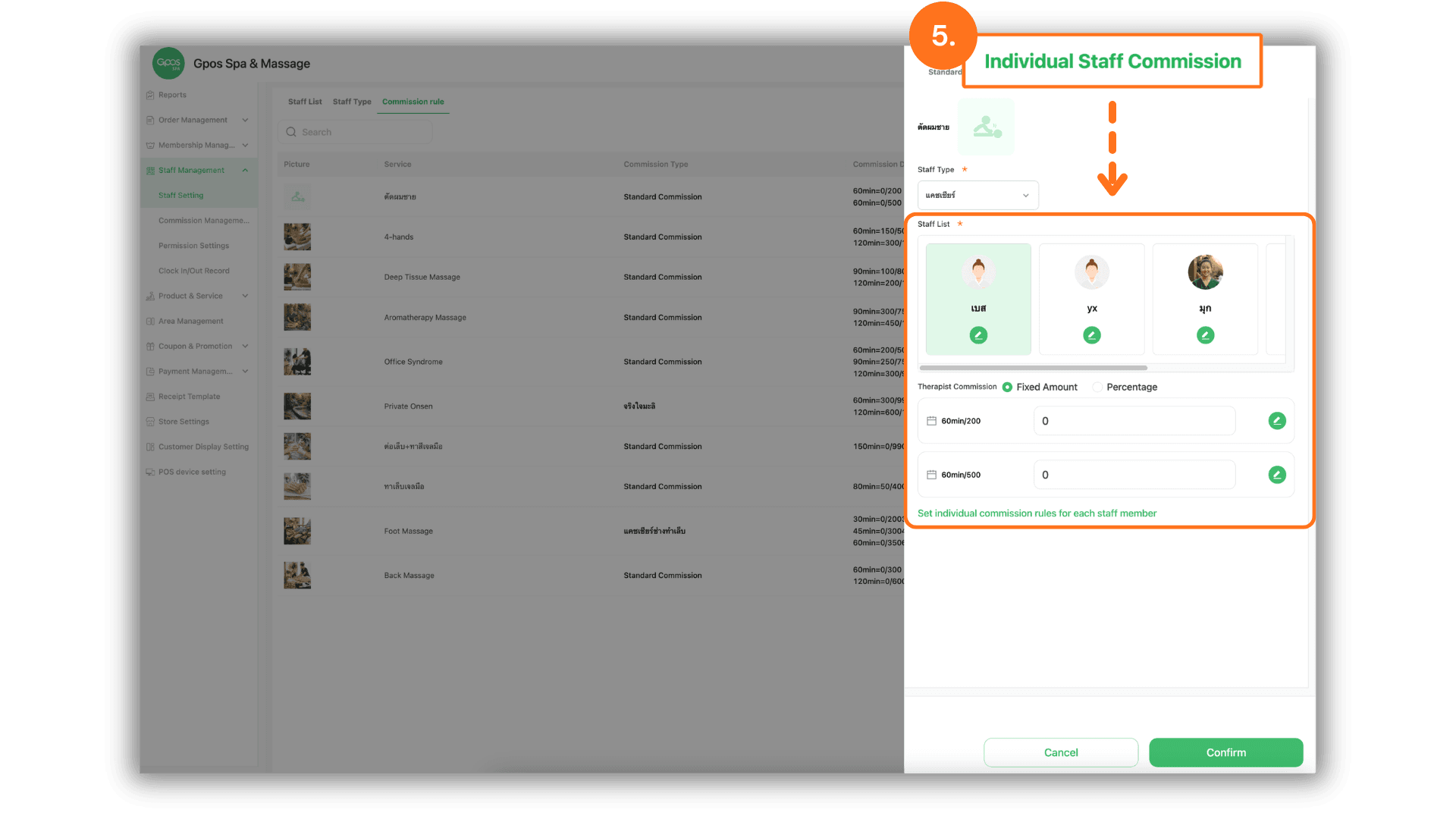
5.Configure Individual Commission
- Select the "Individual" tab to define specific commission rates for individual employees based on their expertise or contract:
- Apply specific rates for different Service Time Slots.
- Choose "Fixed Amount" or "Percentage" as the calculation method for each specific staff member.
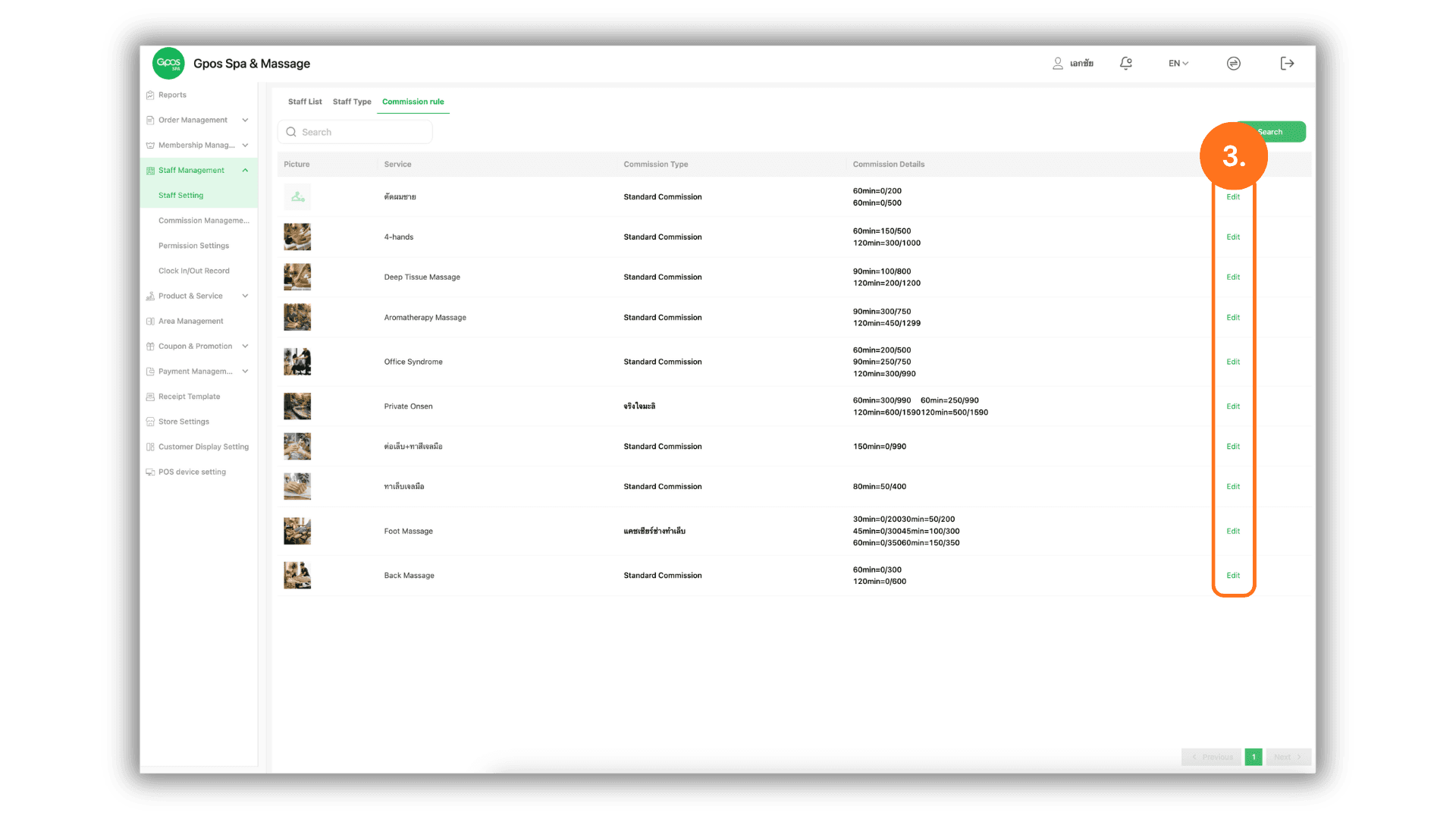
6.Configure Category-Based Commission
- Select the "By Category" tab to manage commissions for specific groups of employees (e.g., Senior Therapists or Juniors):
- Define rates based on Service Time Slots for that category.
- Set the reward as either a "Fixed Amount" or a "Percentage" to be applied to all staff within that specific group.