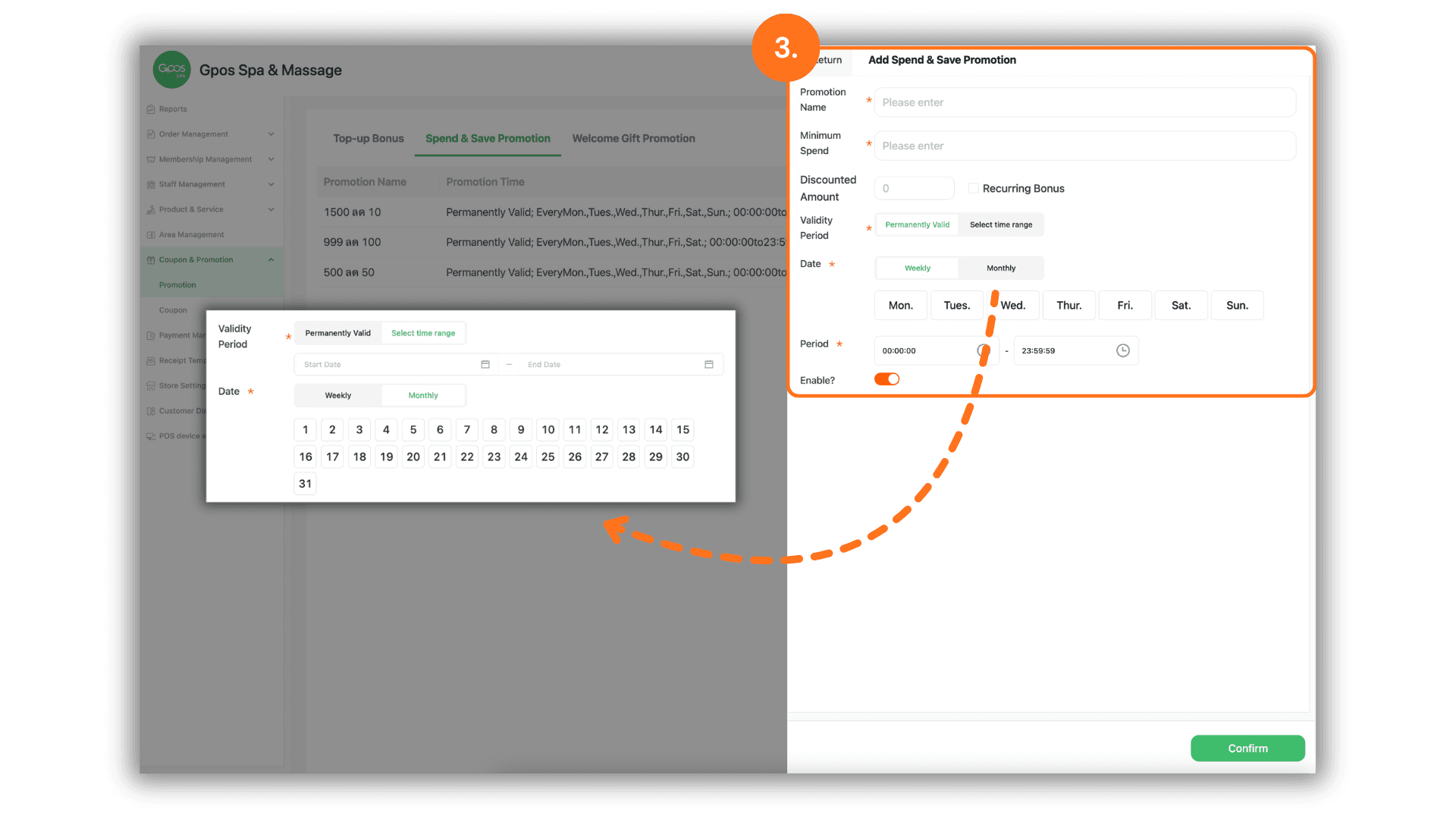
1. Navigate to the Promotions Menu
- Instruction: Click on the "Coupons & Promotions" menu on the left sidebar, then select the "Promotions" sub-menu to begin.
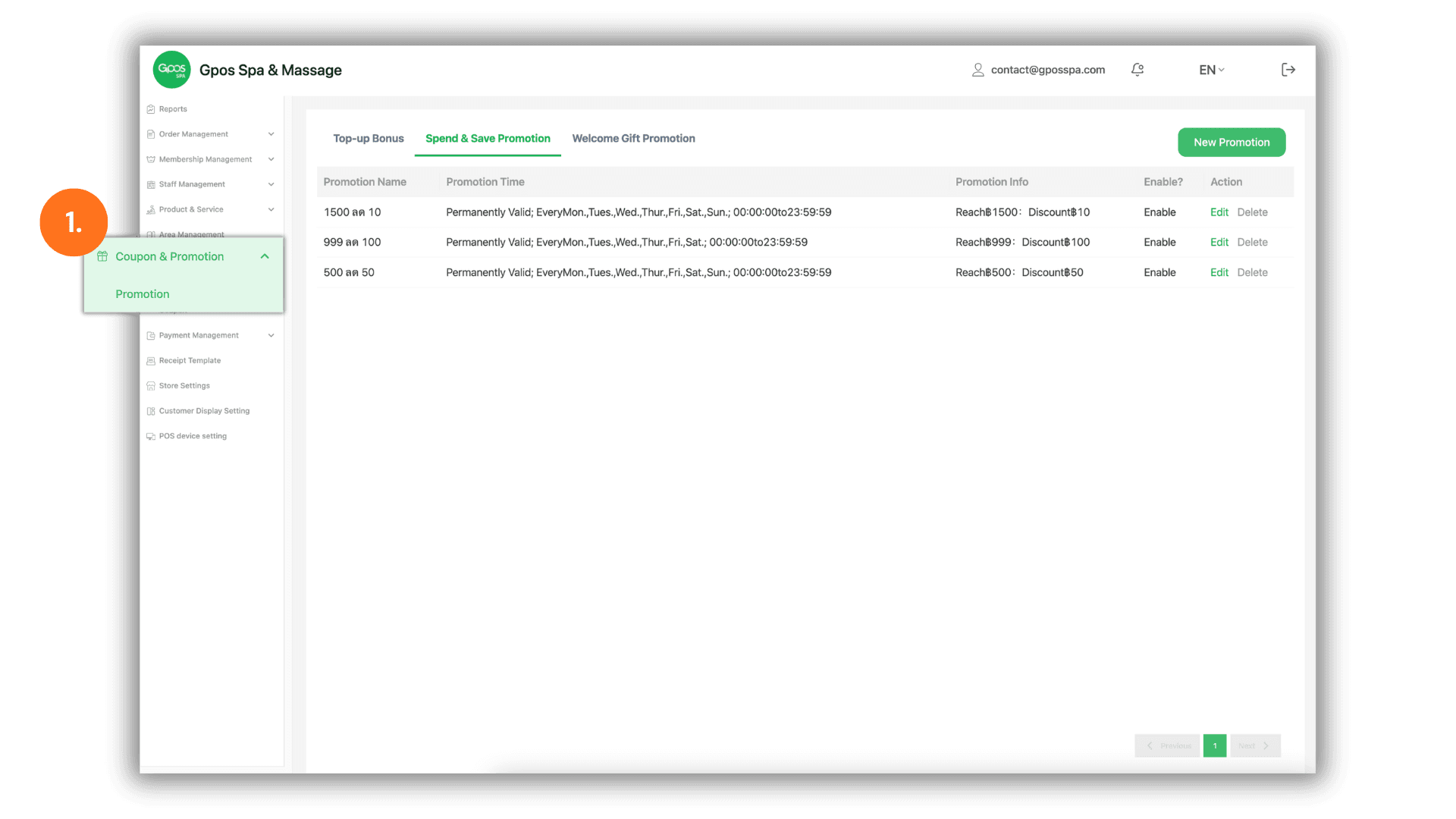
2. Select Promotion Type
- Instruction: Click on the "Spend & Save Promotion" tab. Then, click the “New Promotion" button to create a new campaign.
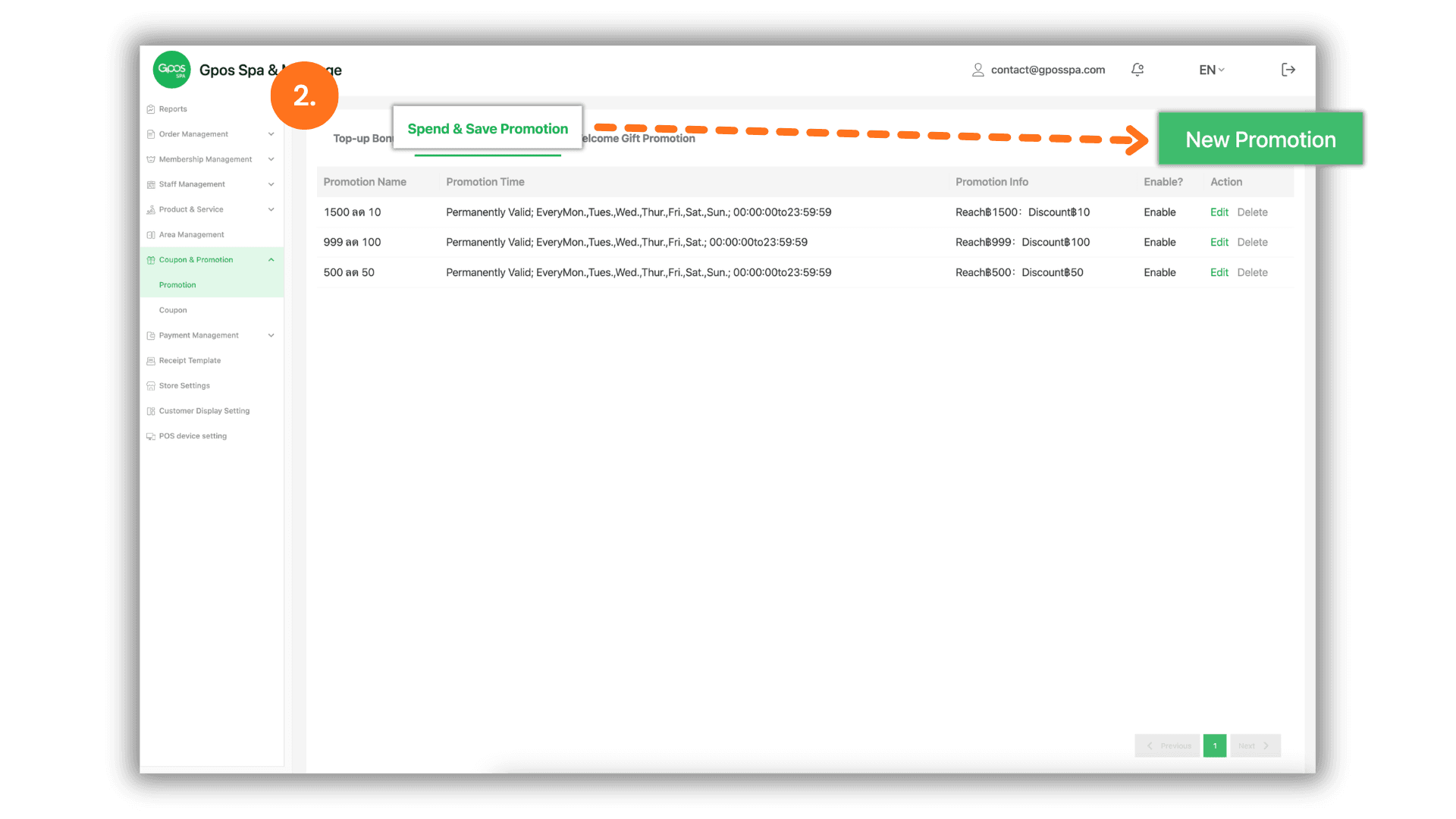
3. Configure Promotion Details
- Instruction: Fill in the following fields to set up your promotion logic:
- Promotion Name: Enter a name for the campaign for internal tracking and customer display.
- Spending Threshold: Enter the required amount in the "Minimum Spend" field to trigger the discount.
- Discount Amount: Specify the discount value. You can toggle "Recurring Bonus" to allow the discount to scale automatically with the spending (e.g., Spend 1,000 get 100 off, Spend 2,000 get 200 off).
- Availability Scheduling:
- Active Days: Select the specific days of the week when the promotion is valid.
- Expiration Date: If the promotion is time-limited, select the desired "Expiry Date."
- Time Slots: Define the specific hours (e.g., 10:00 AM - 2:00 PM) to enable the promotion during specific periods.