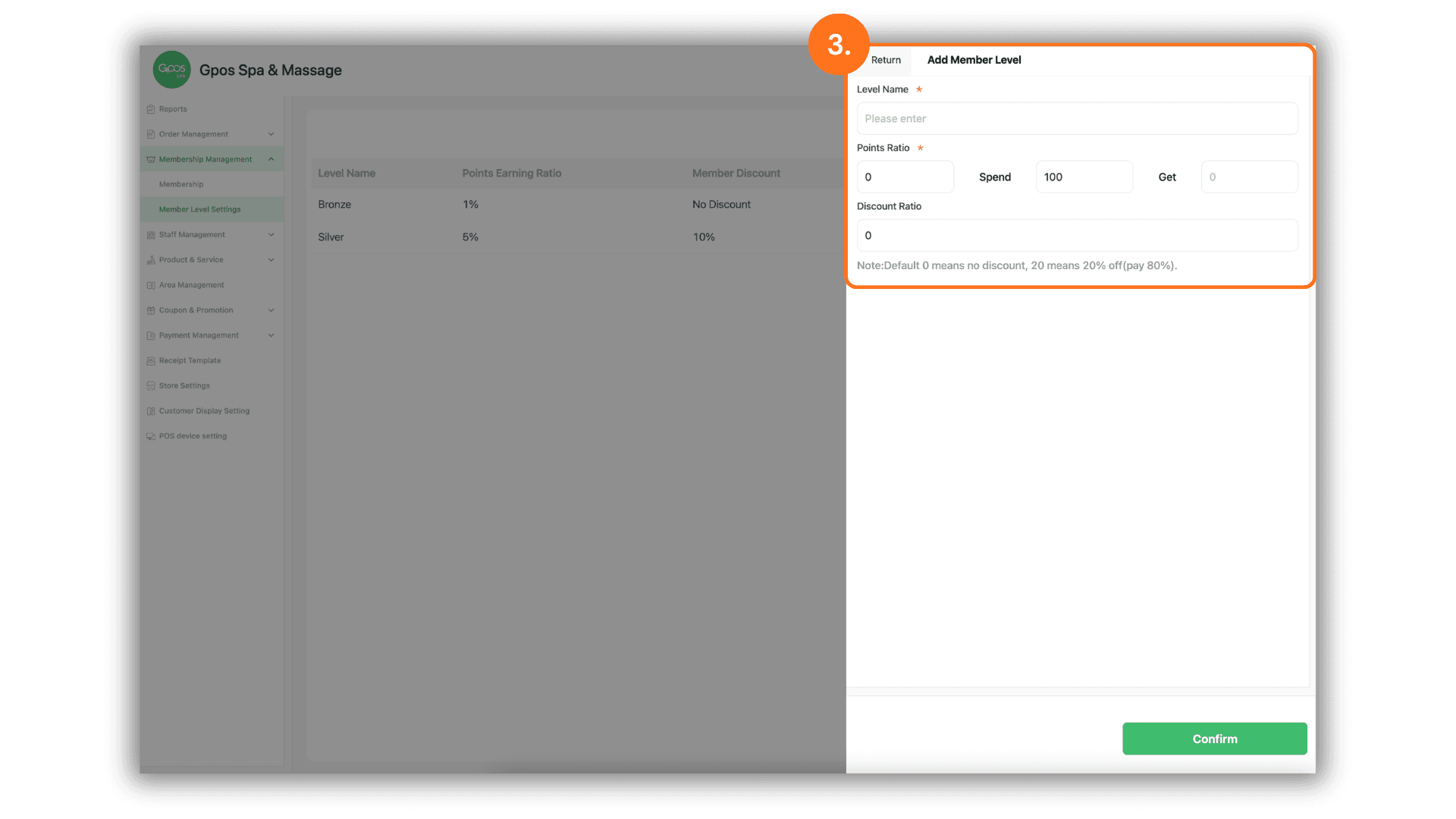
1. Navigate to Member Level Settings
- Instruction: On the left sidebar menu, click on "Membership Management" and then select the "Member Level Settings" sub-menu to view the management dashboard.
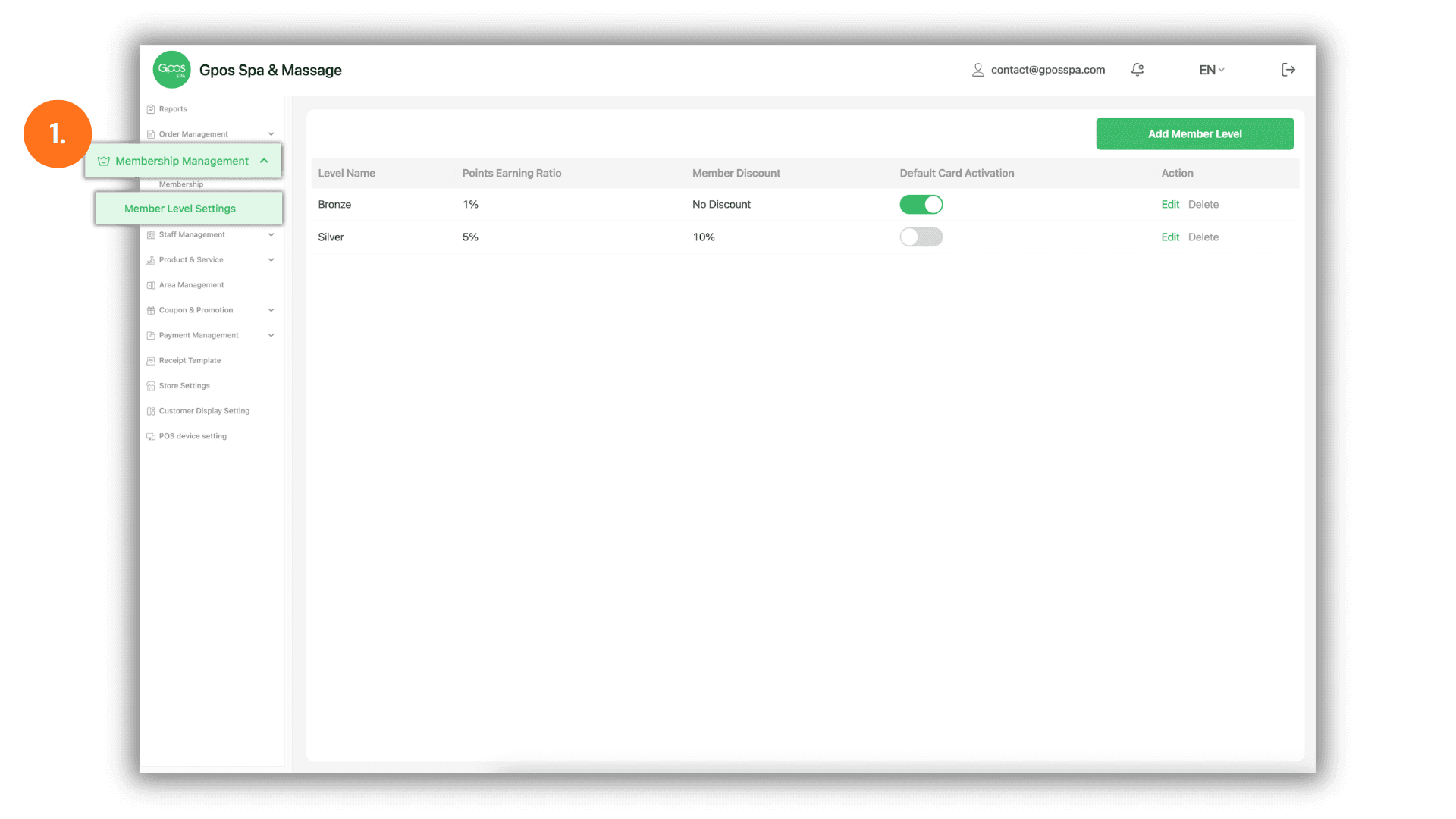
2. Add or Edit a Member Level
- Instruction: To create a new tier, click the "Add Member Level" button at the top right of the page.
- To modify an existing tier, click the "Edit" button at the end of the specific level row.
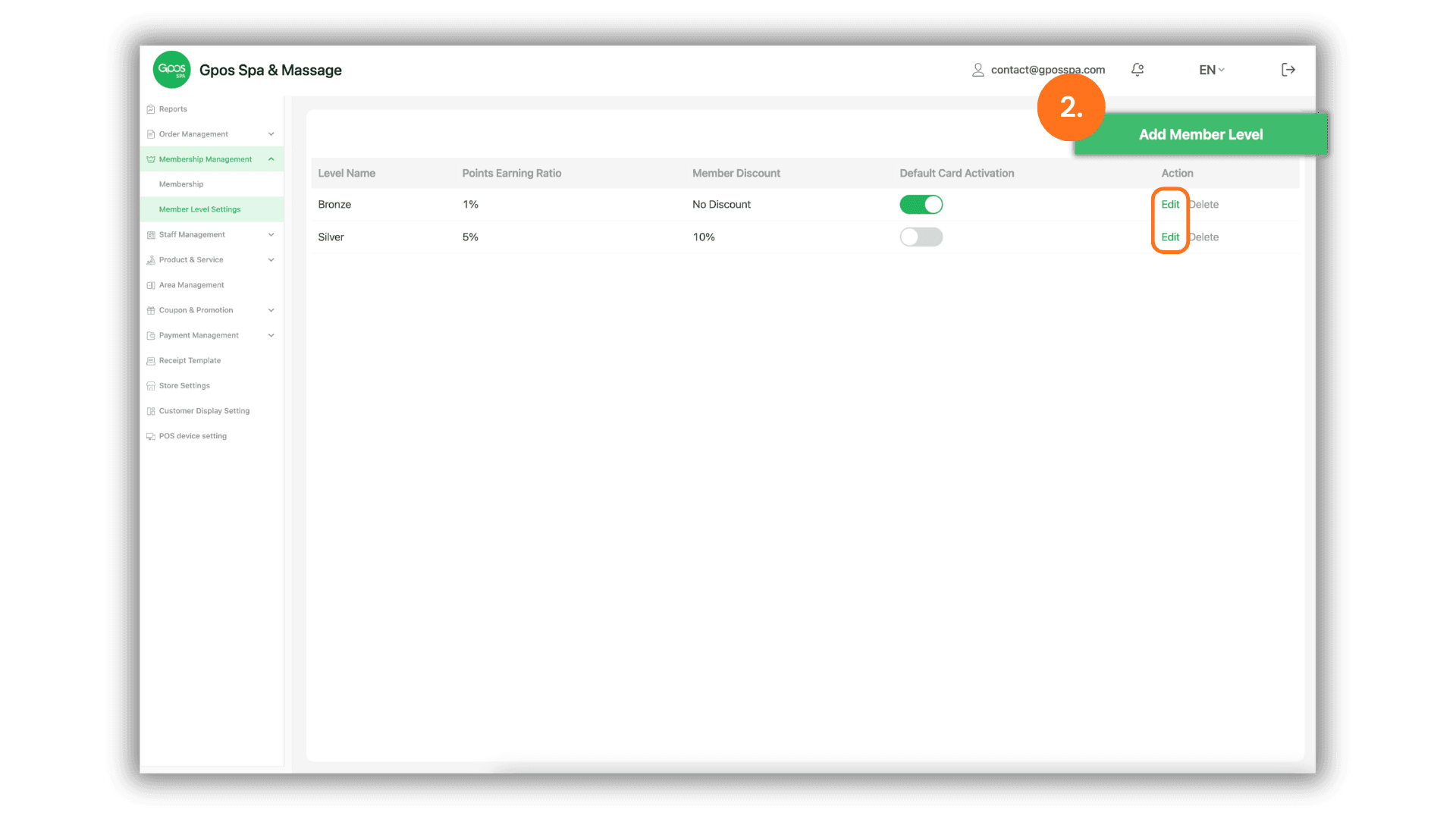
3. Define Level Parameters & Benefits
Enter the following information to configure the rewards for the selected level:
- Level Name: Enter the title for this membership tier (e.g., "Platinum" or "VIP").
- Points Ratio: Set the percentage of points a customer will receive based on their total spending after a service.
- Example: If set to 5%, a customer spending 1,000 will receive 50 points.
- Discount Ratio: Define the percentage-based discount applicable to this level.
- Note: The default value is 0 (no discount).
- Note: Entering a number like 80 will apply an 80% discount offer to members of this level.