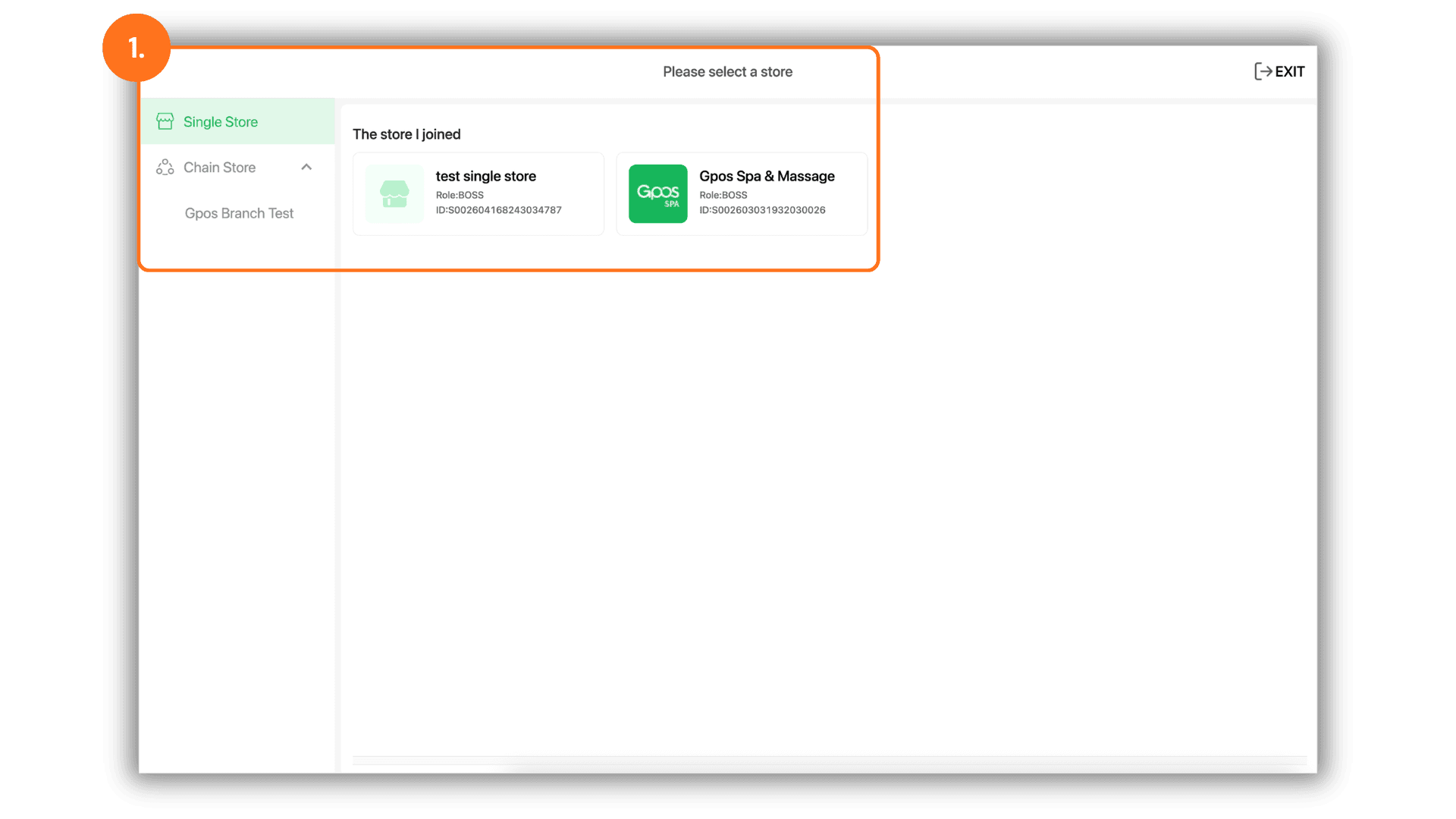
1. Select the store or branch you want to configure
Start by selecting the store or branch you want to service to access its management and payment channel setup page.
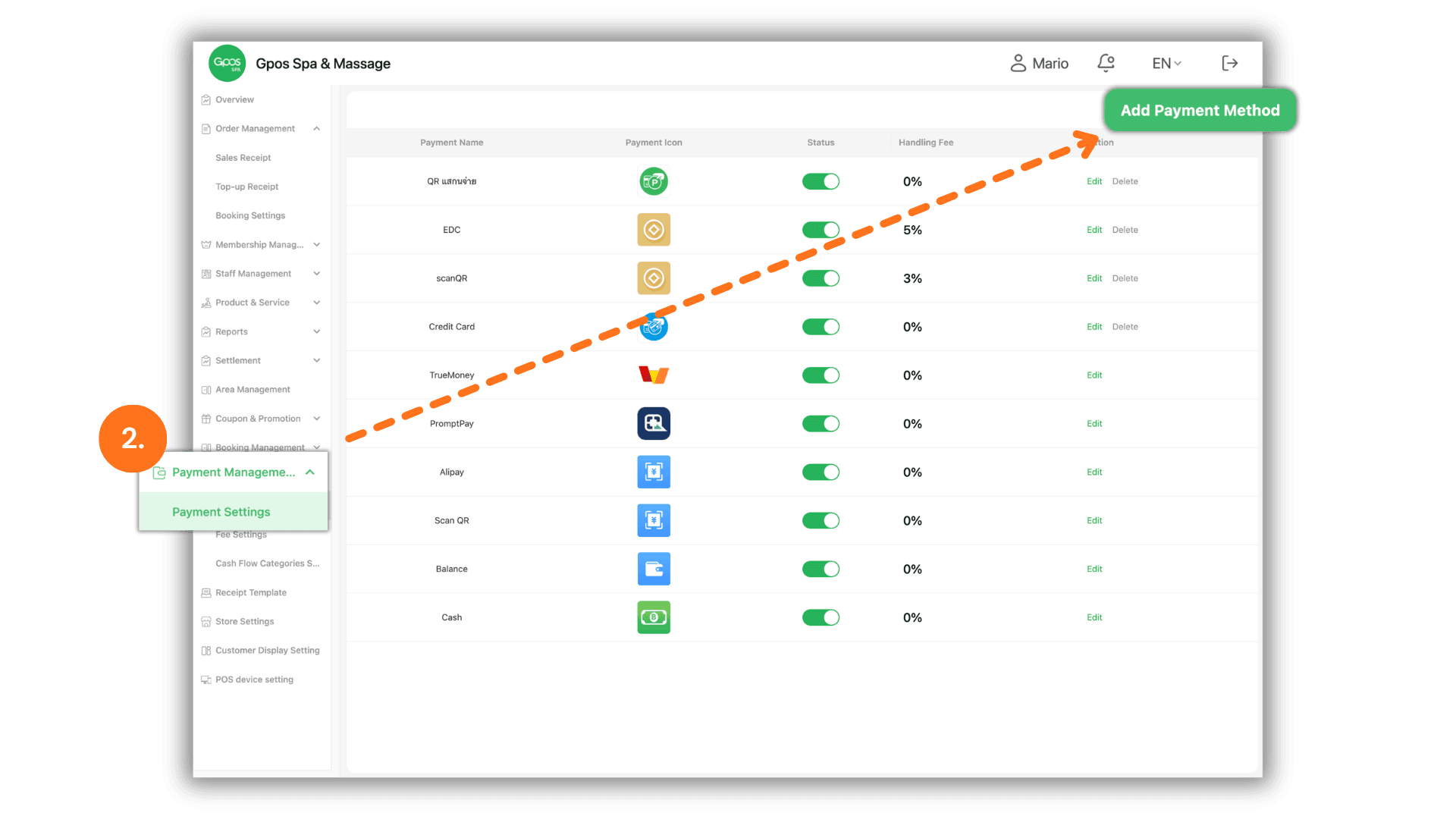
2. Access settings and click Add Payment Method
Go to the left menu, select "Payment Management", click the sub-menu "Payment Settings", and then click the "Add Payment Method" button in the top right corner of the screen.
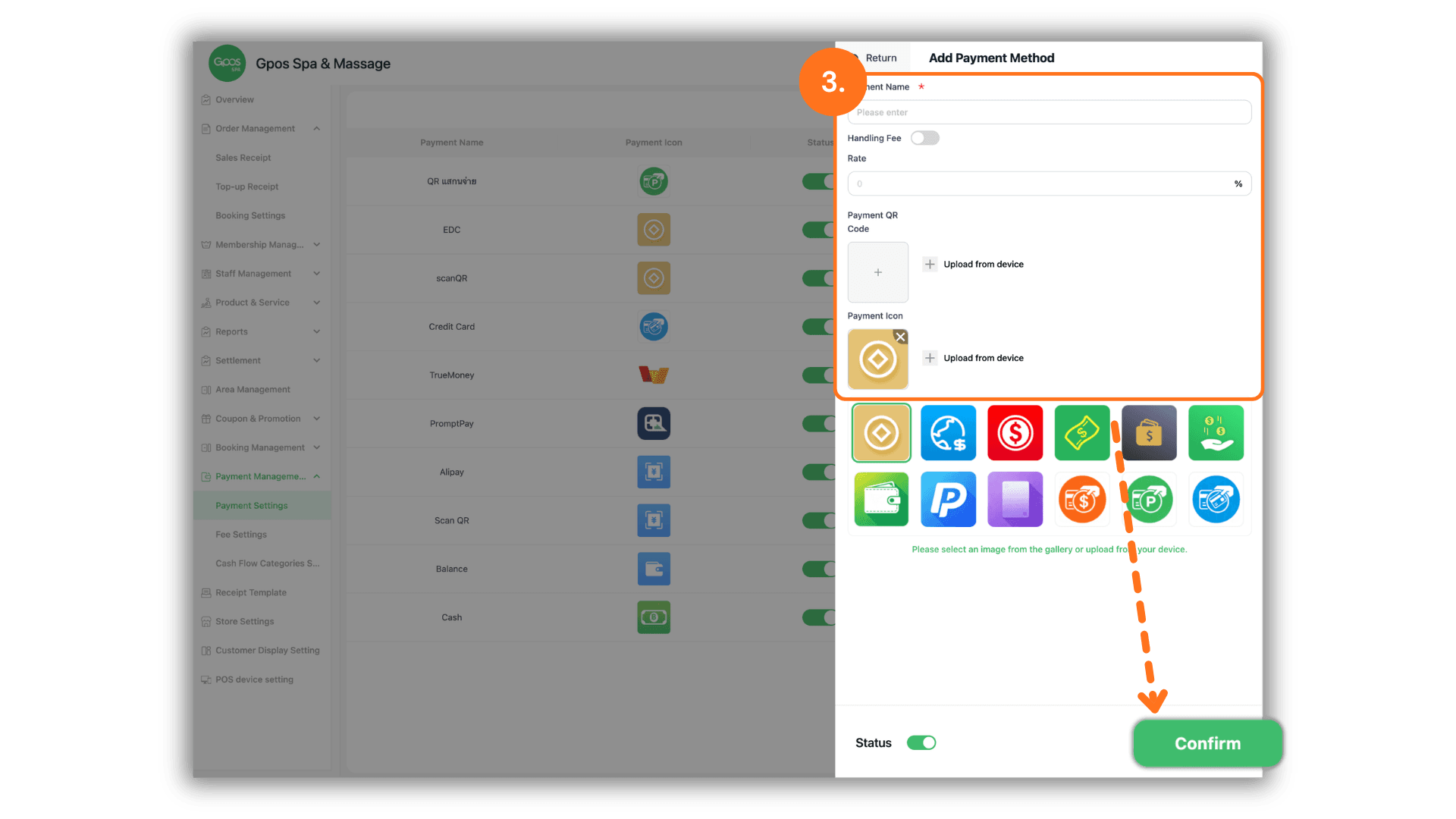
3. Fill in the details and save
Enter the payment method details completely as follows:
- Payment Method Name: Enter the desired payment channel name.
- Payment QR Code: Upload the desired QR code image directly from your device.
- Payment Icon: Select an icon image provided by the system or upload a custom image.
After filling in all details, click the "Confirm" button to save the settings and start using it immediately.
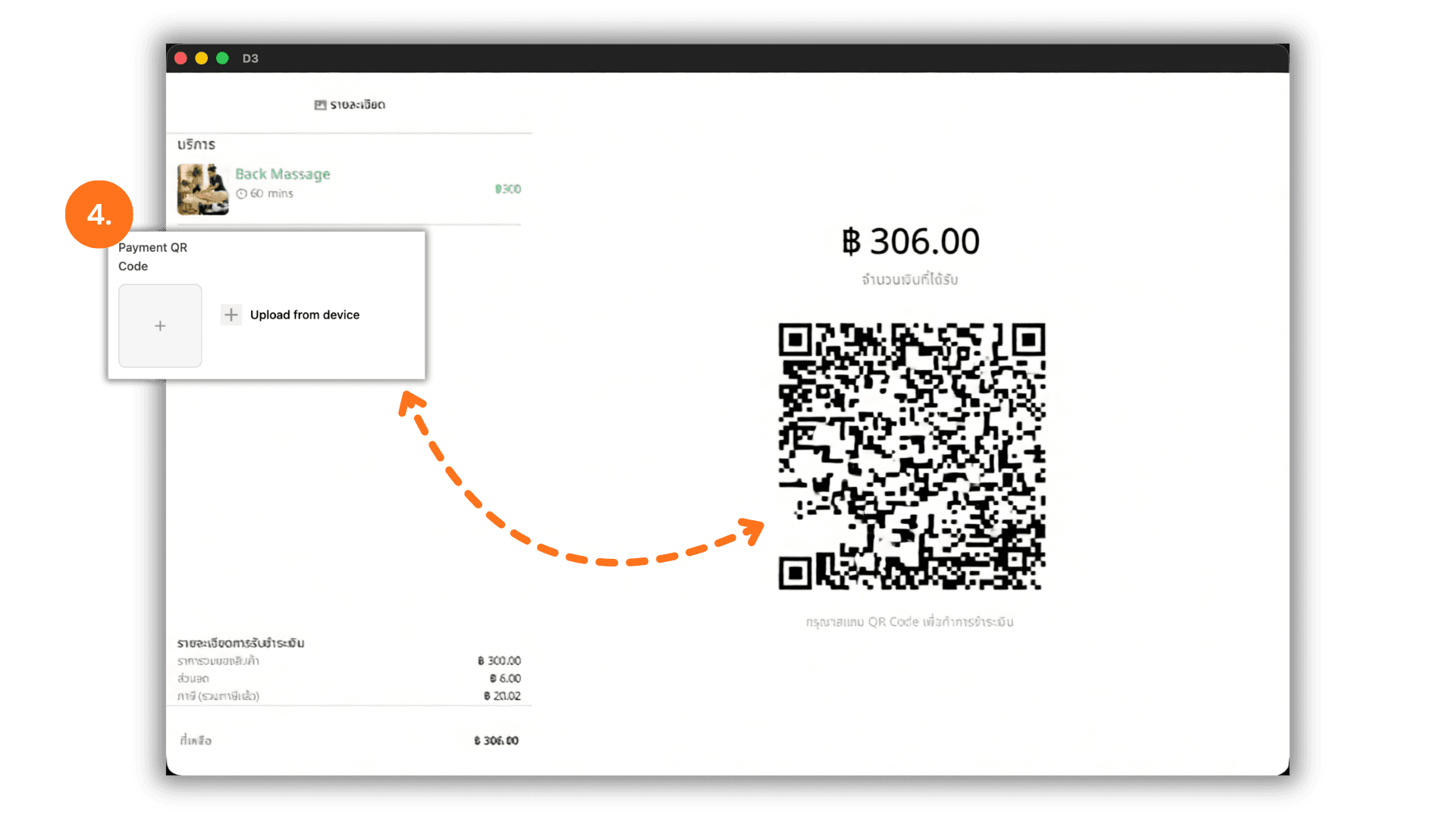
4. QR Code display on the customer-facing screen
If an image is uploaded in the Payment QR Code section, it will automatically be displayed on the Customer Display Screen for customers to scan conveniently, as well as appearing on the printed payment receipt.