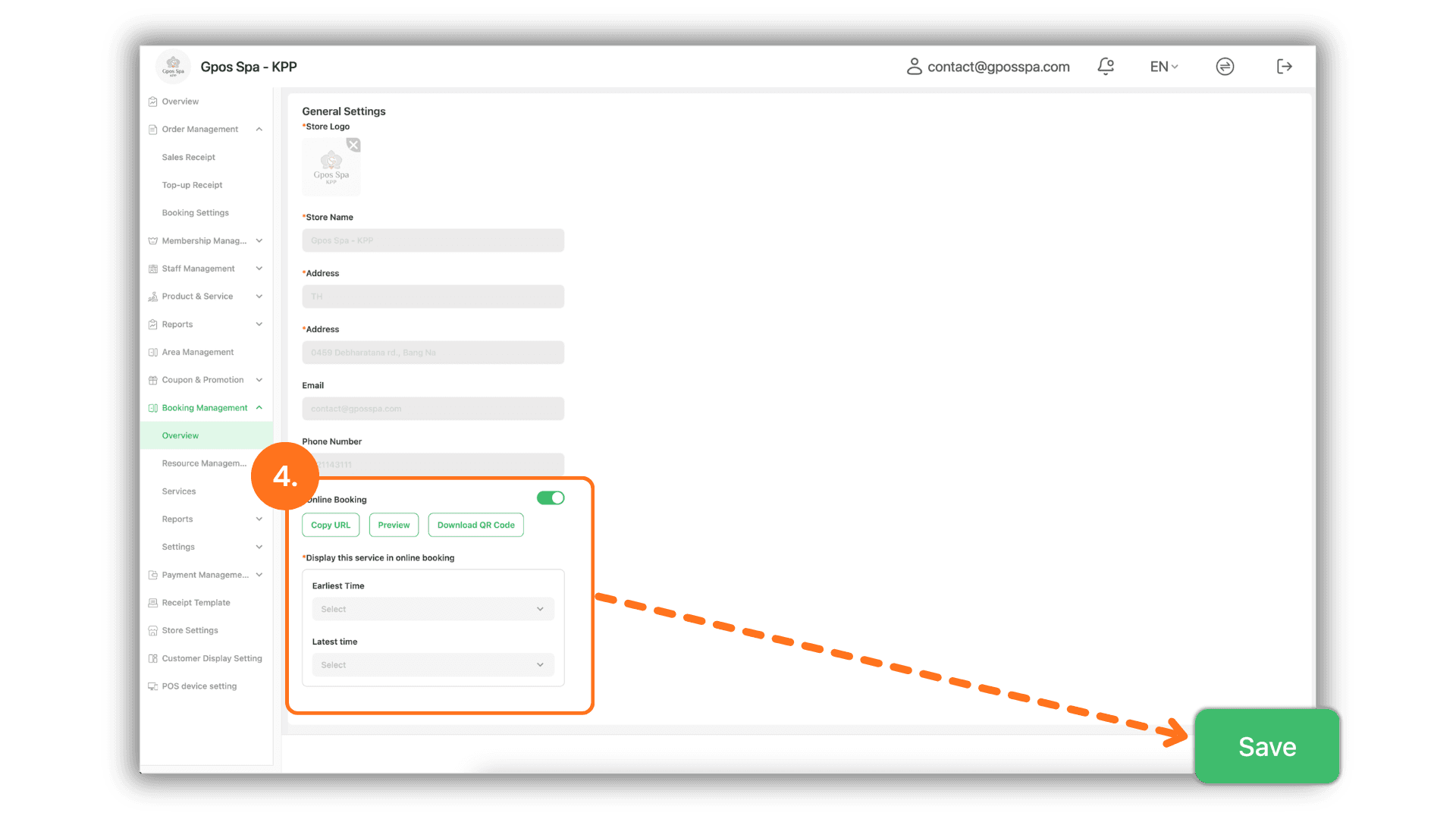
1. Select Your Preferred Branch
- Once you have logged into the system, select the "Store" or the specific branch you wish to activate the online booking service for from the available list.
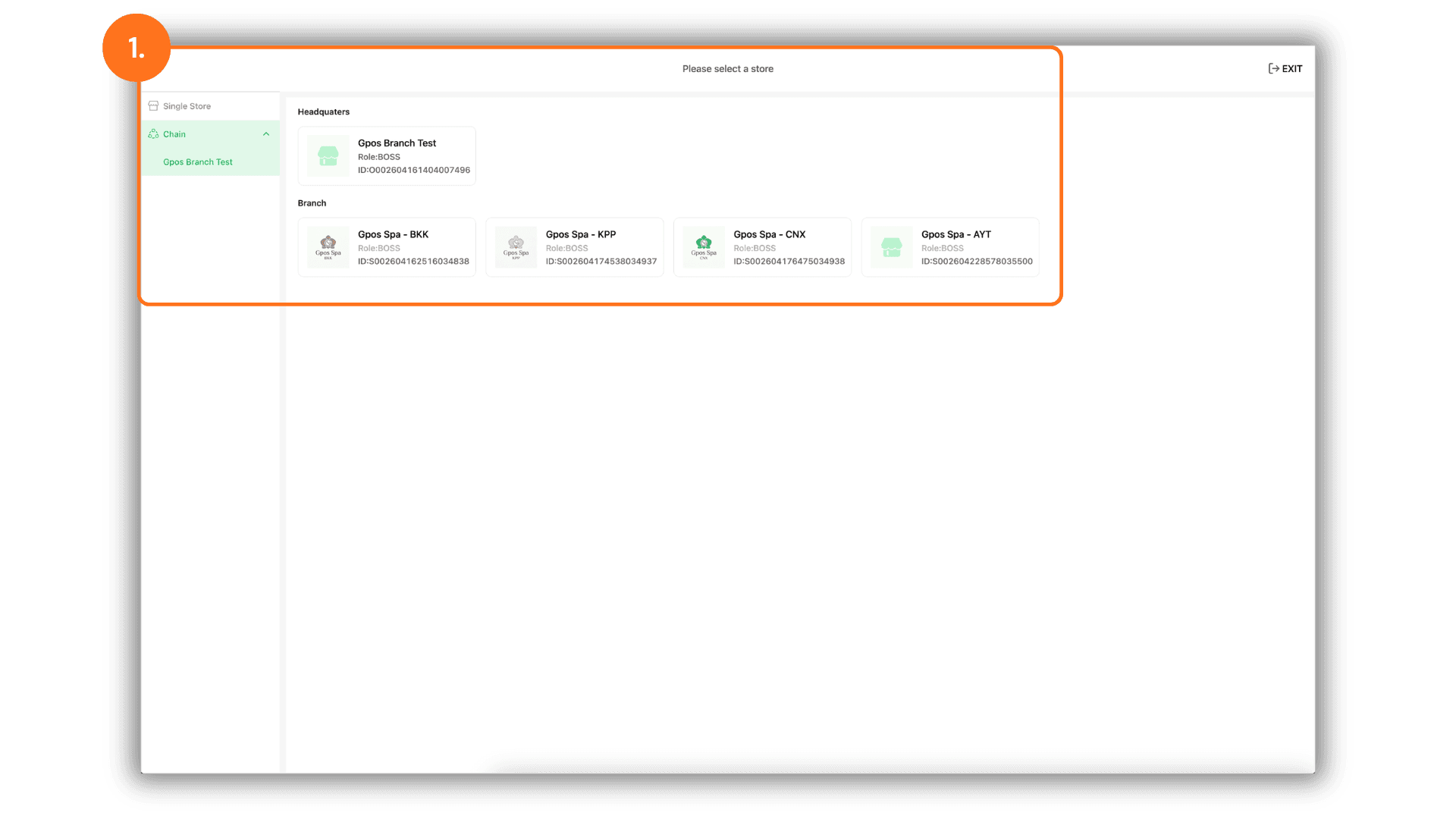
2. Initiate the Booking System
- Navigate to the menu bar on the left and select "Booking Management." Then, click on the "Overview" sub-menu and press the "Enable now" button located in the bottom right corner to begin the configuration process.
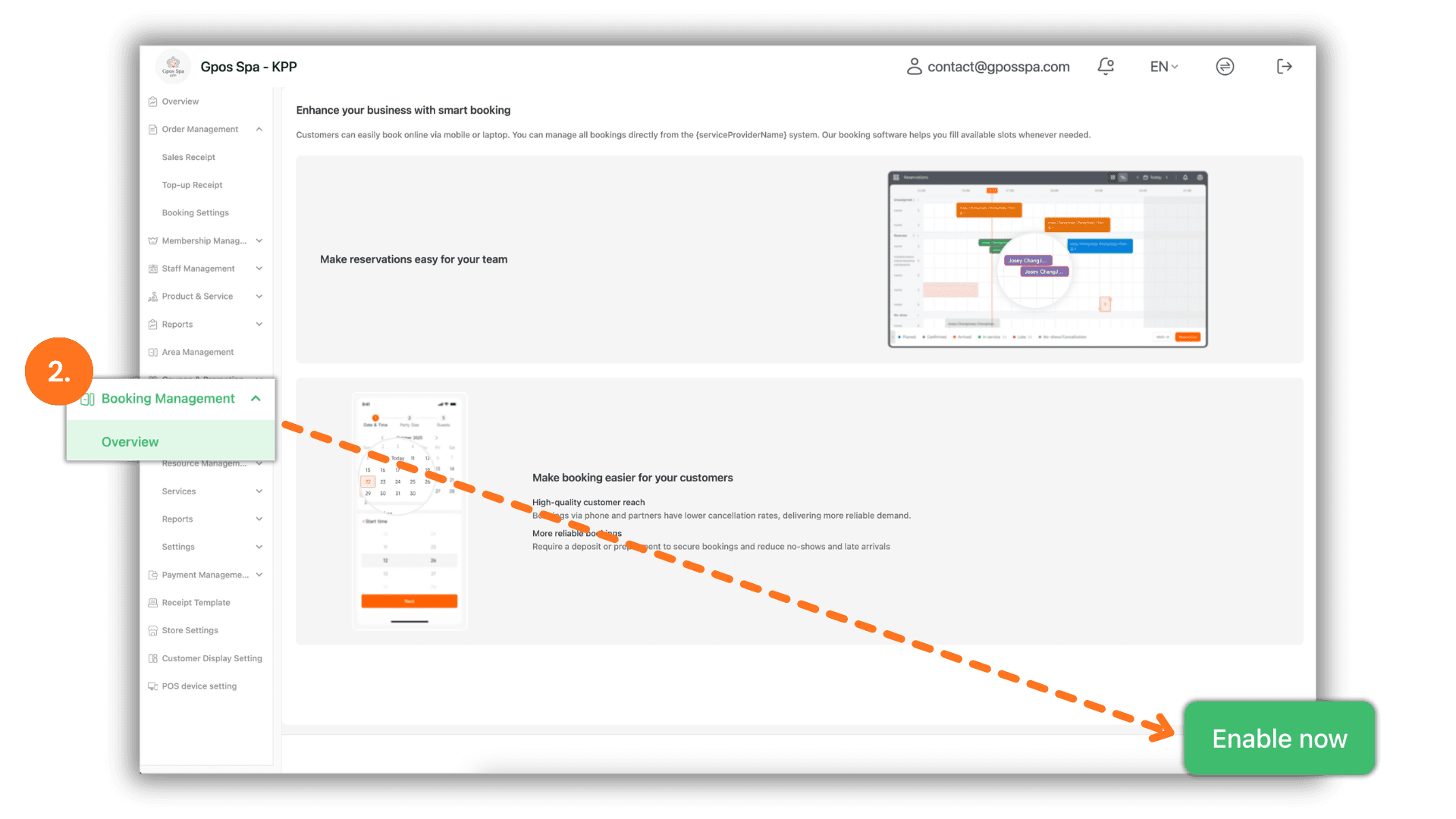
3. Access Store Settings
- On the Booking Overview page, click the "Settings" button. This will allow you to define and customize your store's specific details and requirements to ensure it is ready for online reservations.
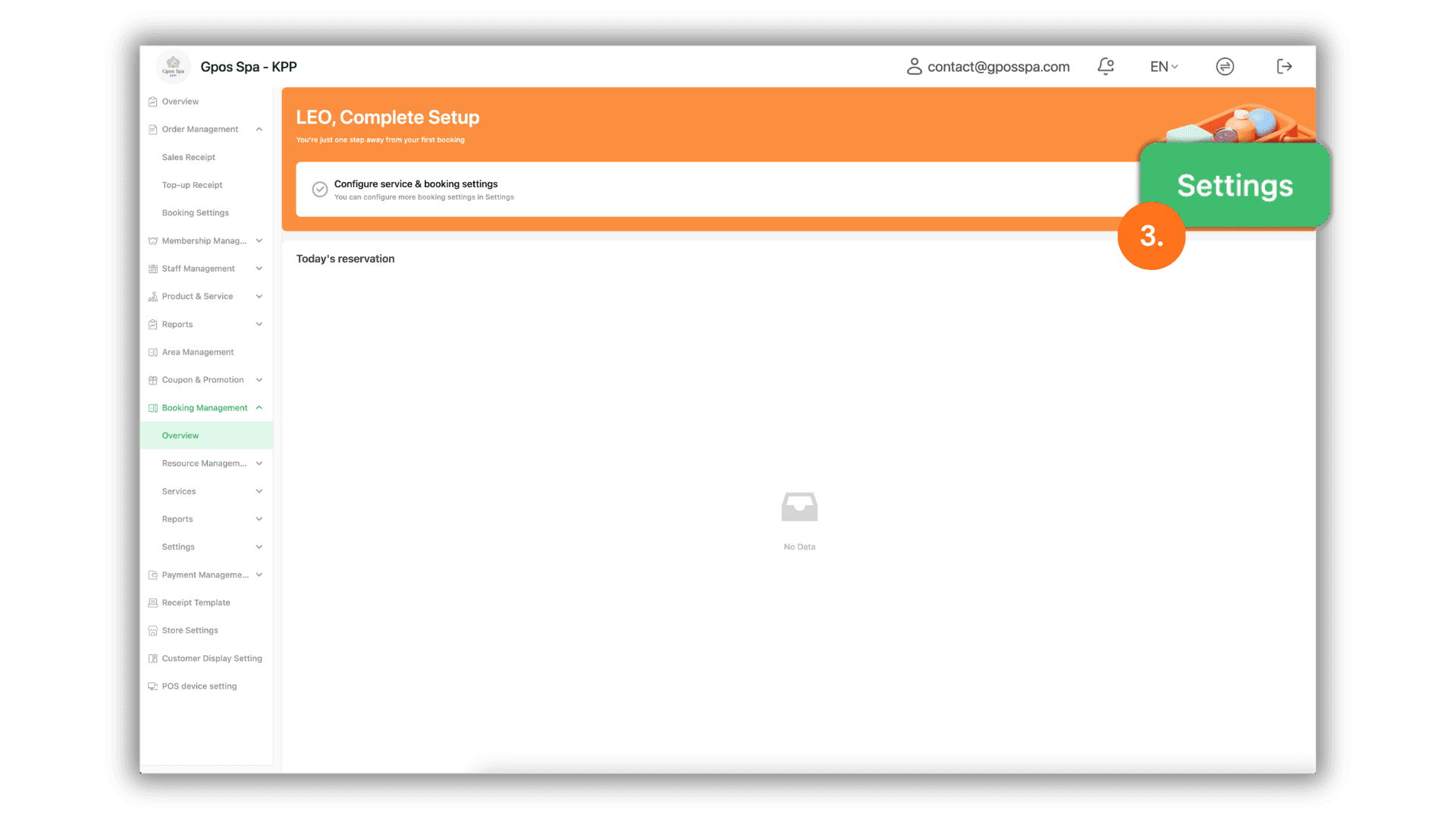
4. Share Booking Links and Set Service Hours
- Sharing Channels: You can instantly share the booking portal with your customers by clicking "Copy URL" or "Download QR Code" to distribute via your preferred platforms.
- Display Settings: Toggle the switch for "Display this service in online booking" to active. Then, define your service hours by selecting the "Earliest Time" and "Latest Time."
- Finalize: Once all configurations are complete, click the "Save" button to confirm and apply your settings.