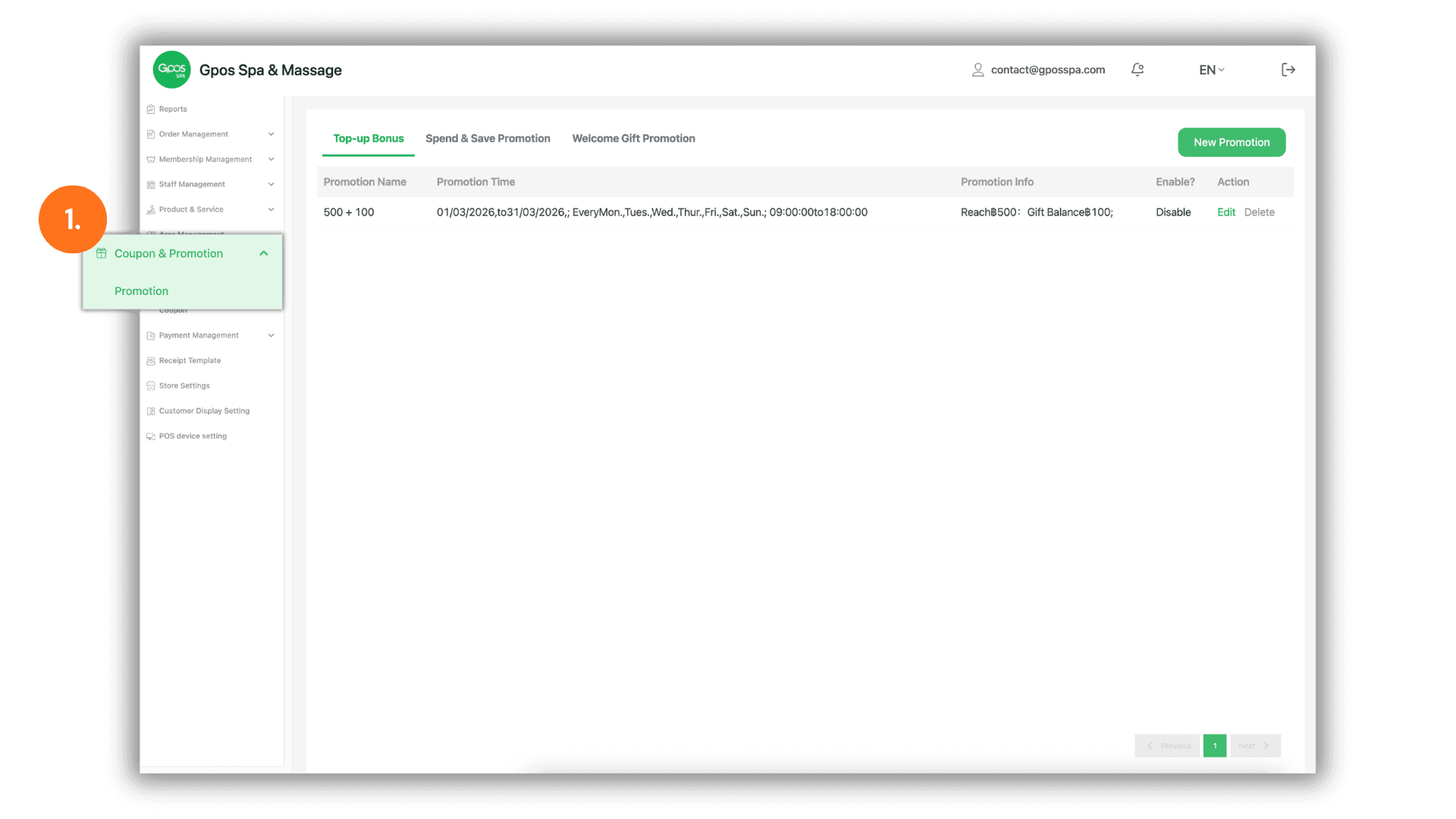
1. Access the Promotions Menu
- Instruction: On the sidebar menu, navigate to "Coupons & Promotions" and select the "Promotions" sub-menu to manage your marketing campaigns.
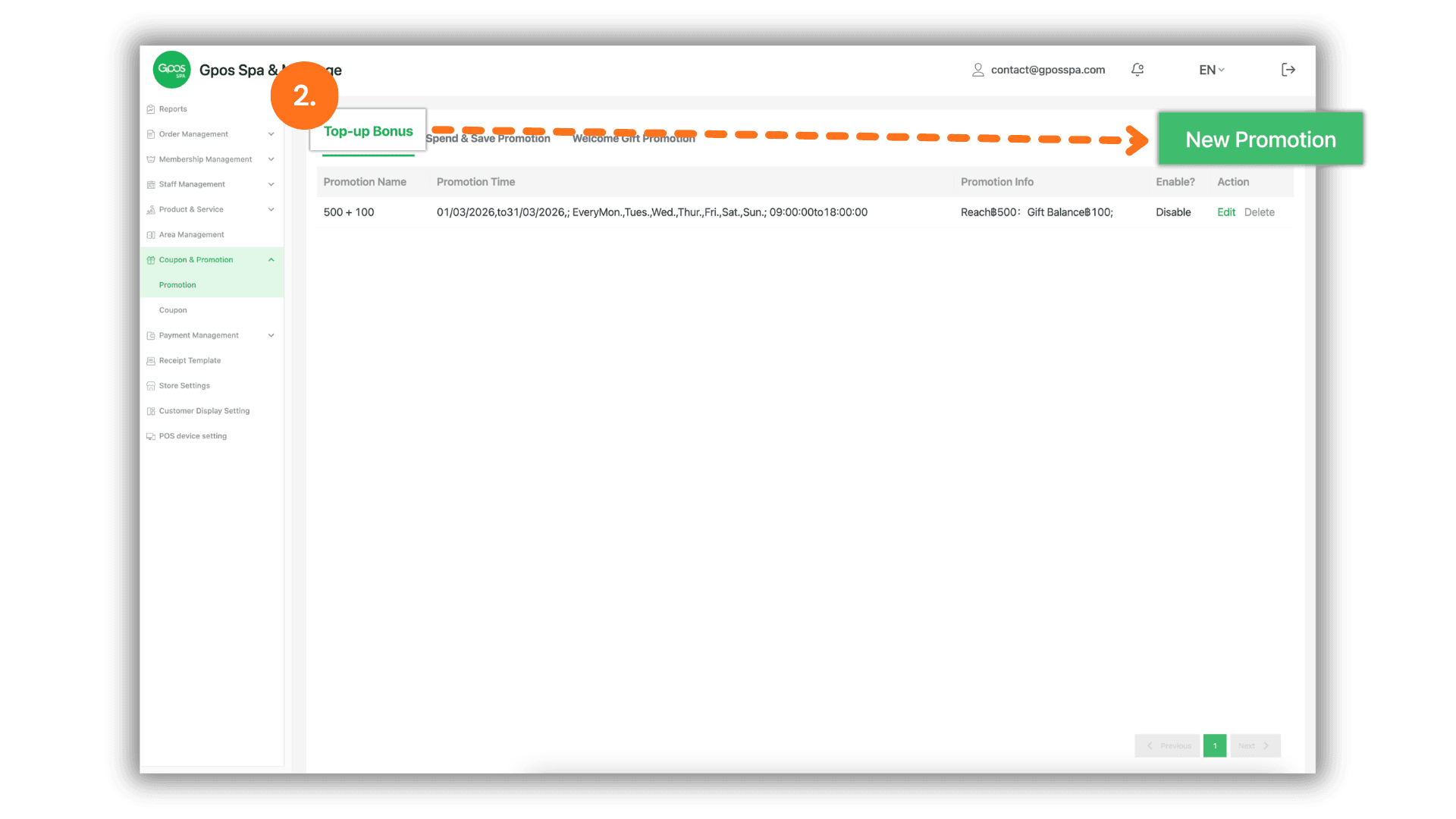
2. Create a Top-up Bonus Campaign
- Instruction: Click on the "Top-up Bonus" tab and then click the “New Promotion" button to start a new campaign configuration.
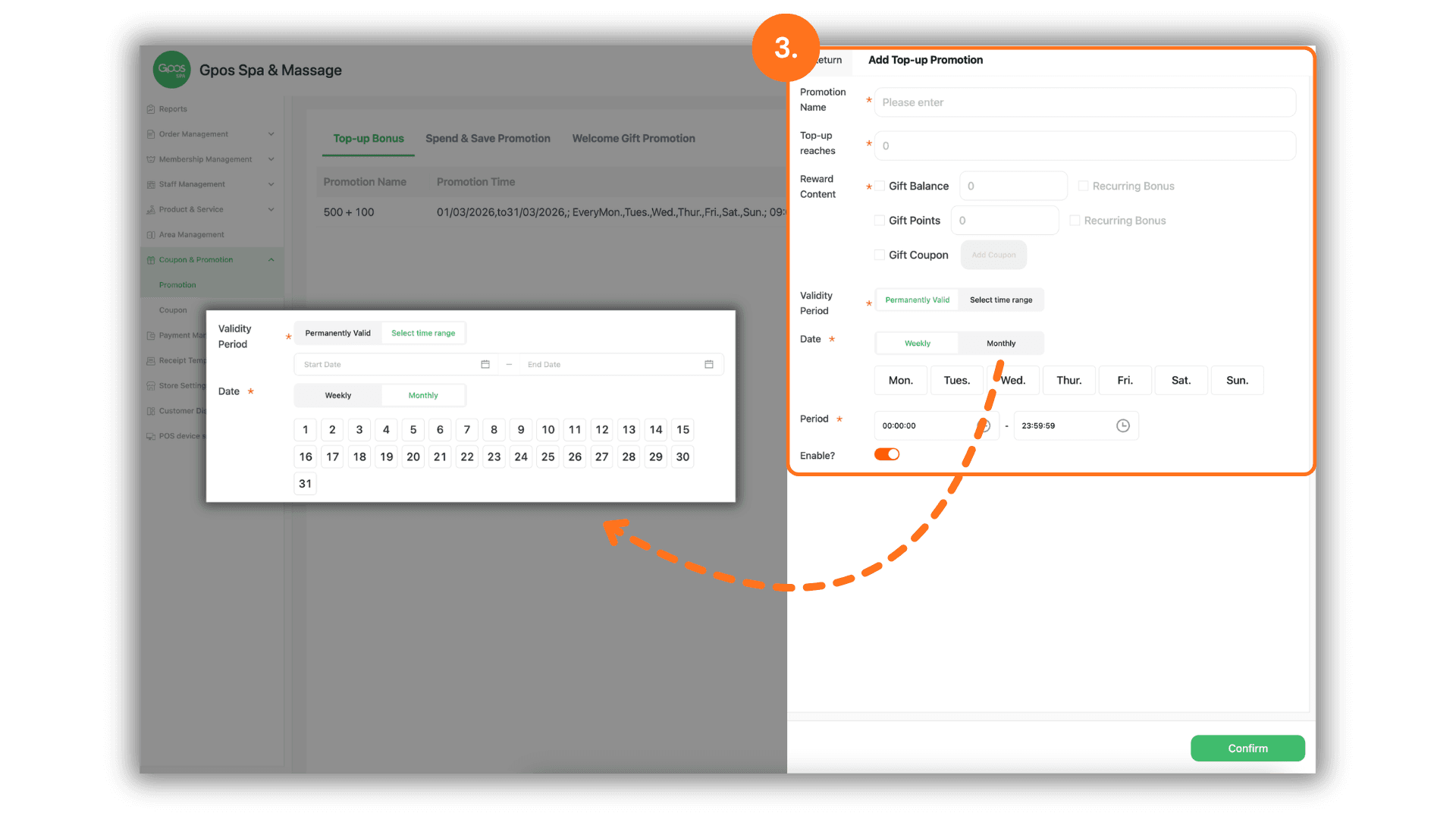
3. Configure Promotion Details & Rewards
- Basic Information:
- Promotion Name: Enter a clear title for your campaign.
- Minimum Top-up: Set the required amount in the "Top-up reaches” field to trigger the bonus.
- Reward Settings:
- Gift Balance: Enter the extra credit given. Toggle "Gift Balance" if you want the bonus to multiply based on the total top-up (e.g., Top-up 1,000 get 100, Top-up 2,000 get 200).
- Gift Points: Specify loyalty points to be awarded (also supports Proportional Scale).
- Gift Coupon: Select specific coupons from your system to be gifted upon top-up.
- Time & Availability Constraints:
- Expiration: Set an end date if the promotion is time-limited.
- Active Days: Select specific days of the week (e.g., Weekends only) when the promotion is active.
- Time Slots: Define specific hours (e.g., 13:00 - 16:00) to create "Flash Sale" style incentives during specific periods.