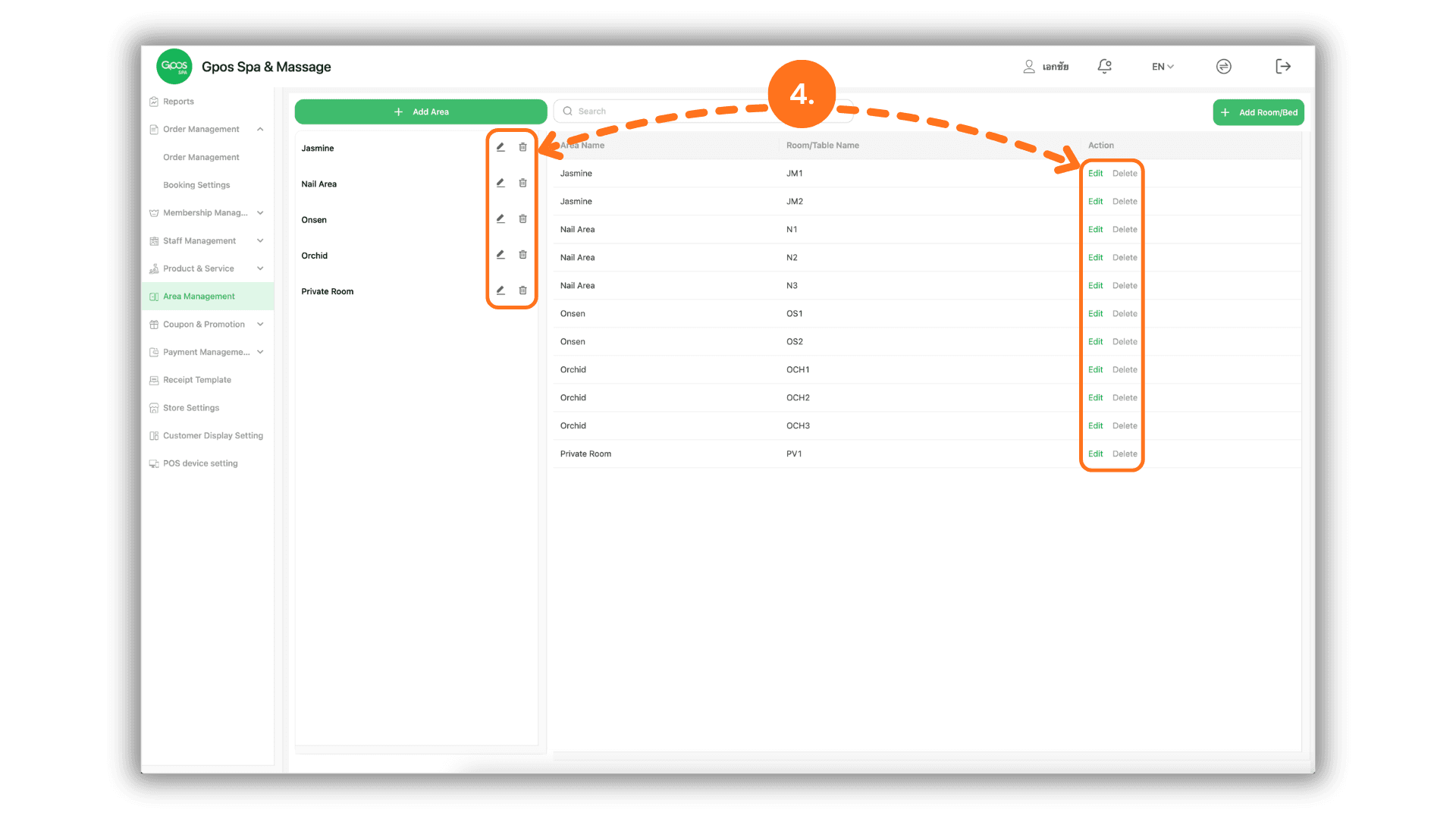
1.Select the Target Branch
- Begin by selecting the specific Store or Branch you wish to configure. This ensures that the facility layout is correctly mapped to the specific physical location.
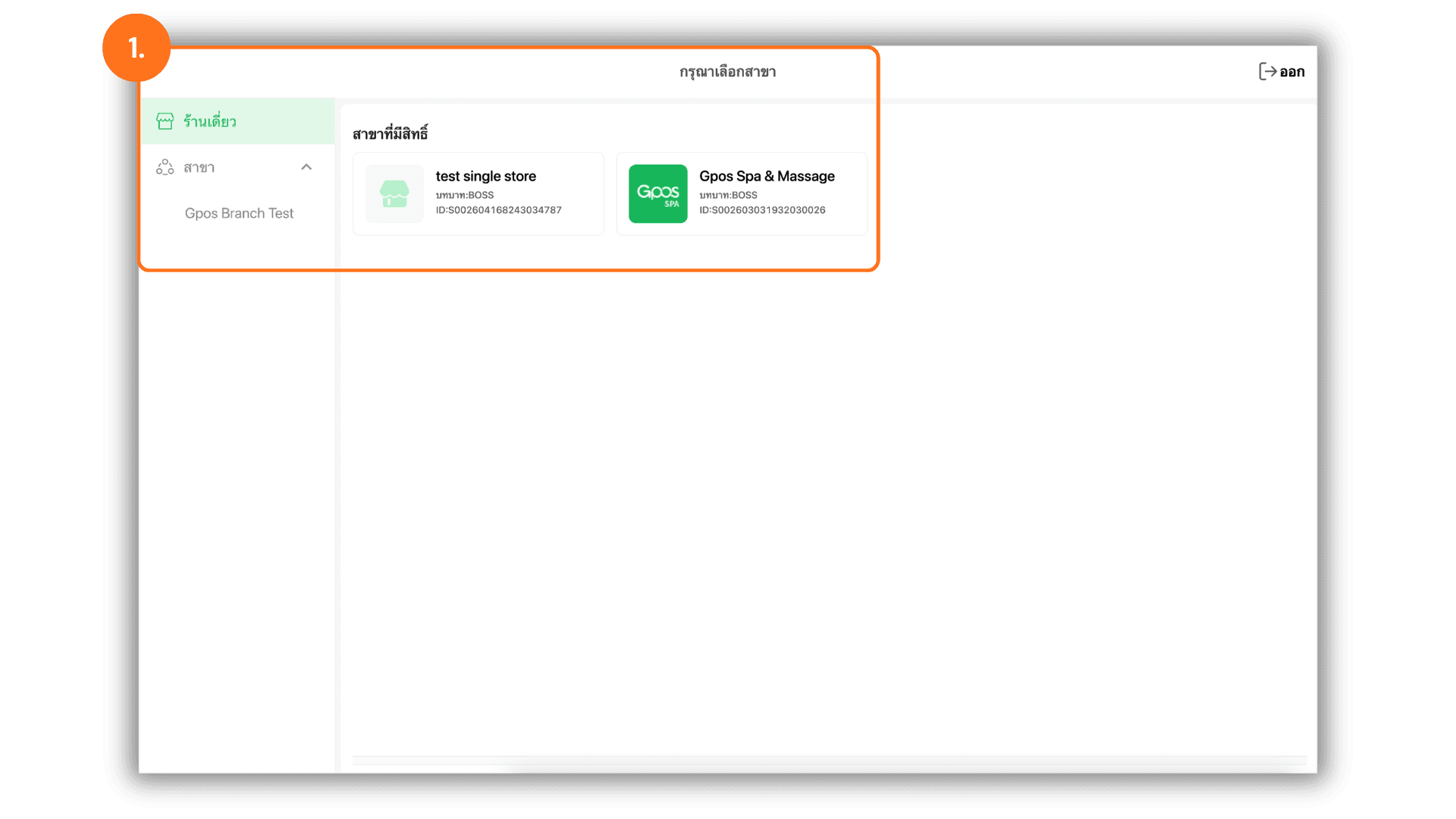
2.Create and Configure Service Zones
- Navigate to the "Zone Management" menu and click the "+ Add Zone" button to define a new service area. You will need to provide :
- Zone Name : The designated name for the area (e.g., Thai Massage Zone).
- Display Order : The numerical order in which this zone should appear on the dashboard.
- Description : Any additional details or specific notes regarding the zone.
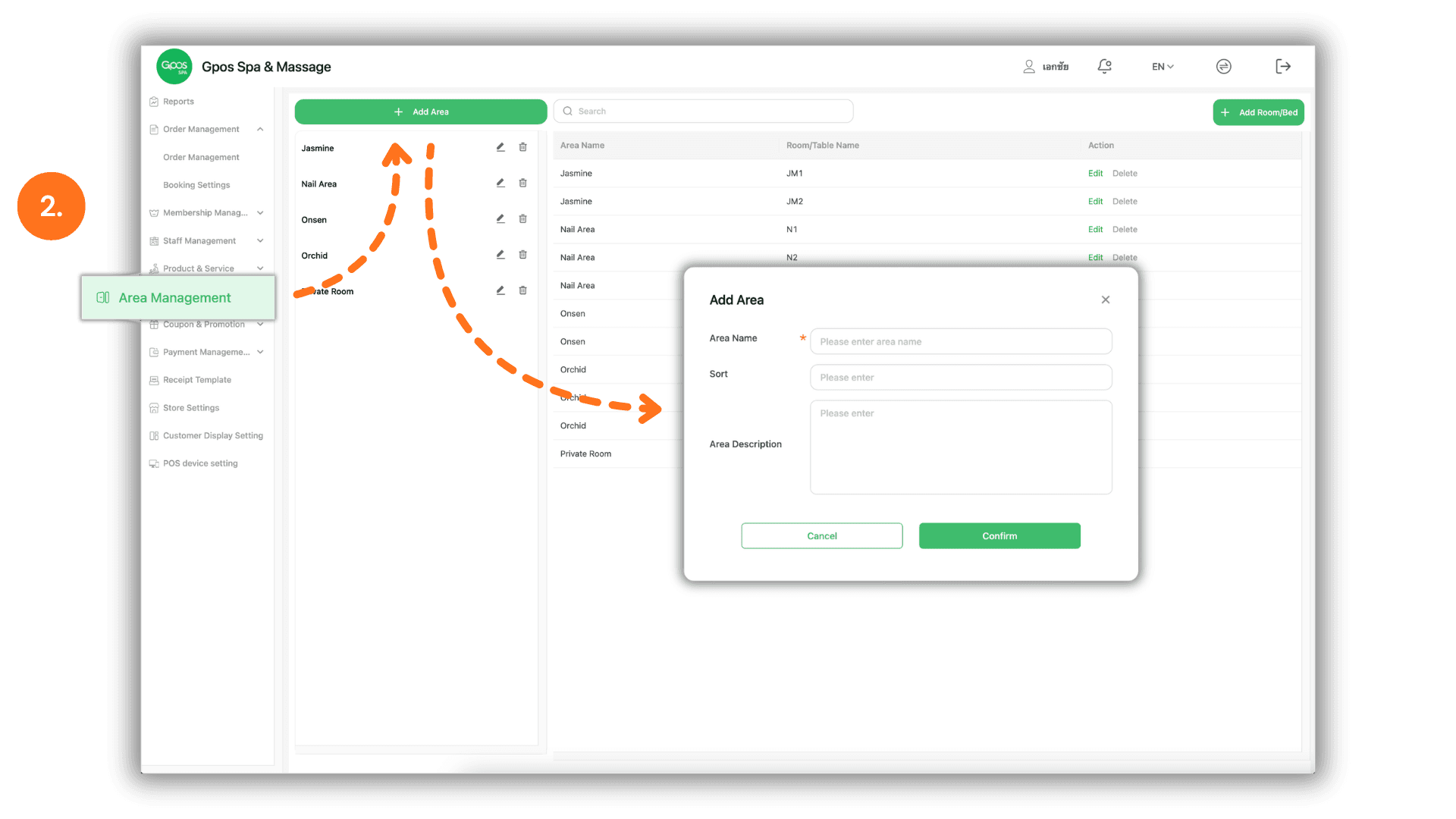
3.Register Rooms or Beds
- Once your zones are established, click the "+ Room/Bed" button to create specific service points. Fill in the following :
- Room/Bed Name : Enter the identifier for the specific unit (e.g., Room 101 or Bed B5).
- Select Zone : Link the room or bed to one of the previously created zones to ensure proper categorization.
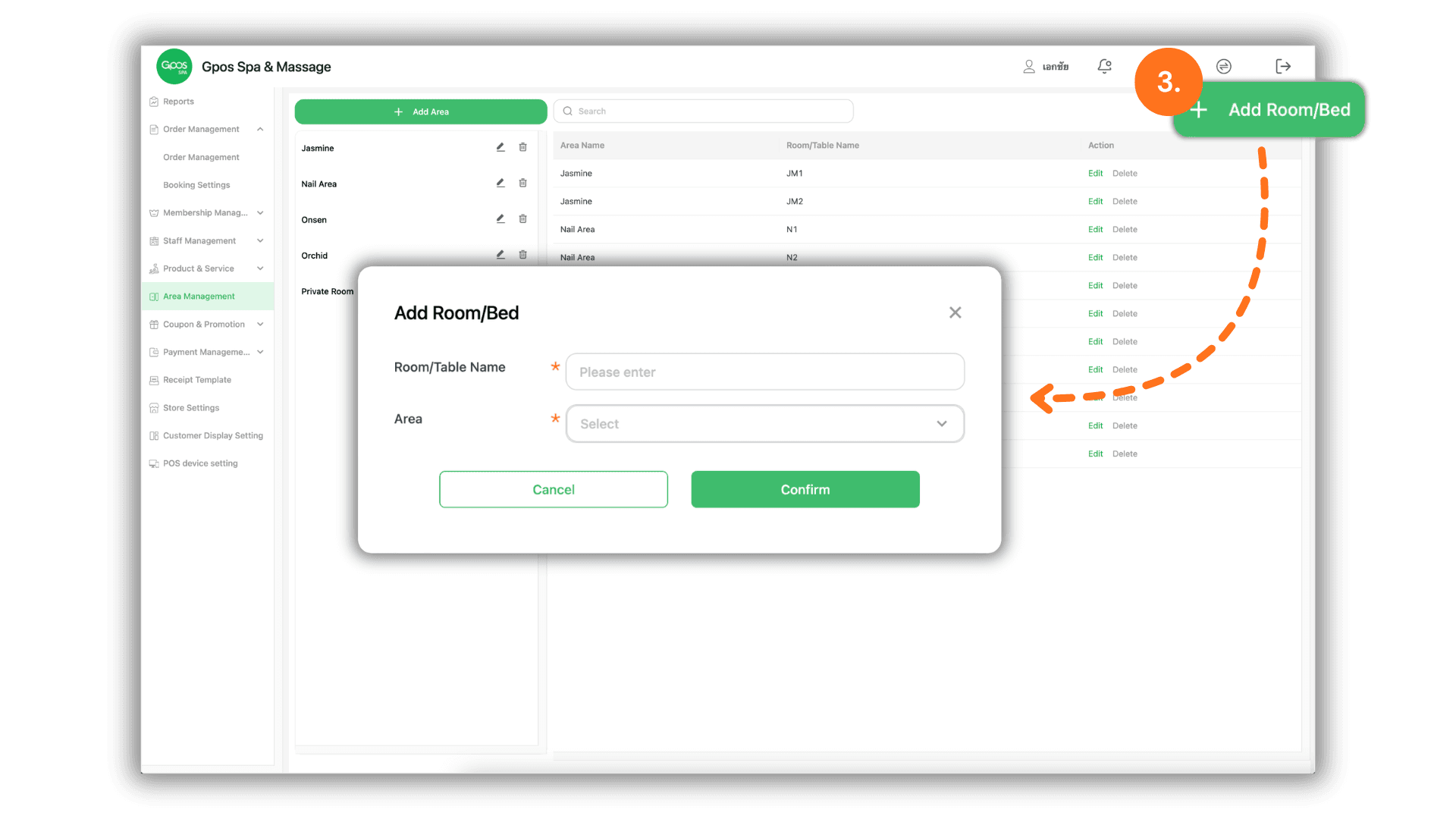
4.Manage Existing Layouts
- You can maintain and update your facility data at any time. Use the action icons to :
- Edit : Modify the names, orders, or zone assignments of your existing rooms and beds.
- Delete : Remove zones or specific rooms/beds that are no longer in service or during renovations.