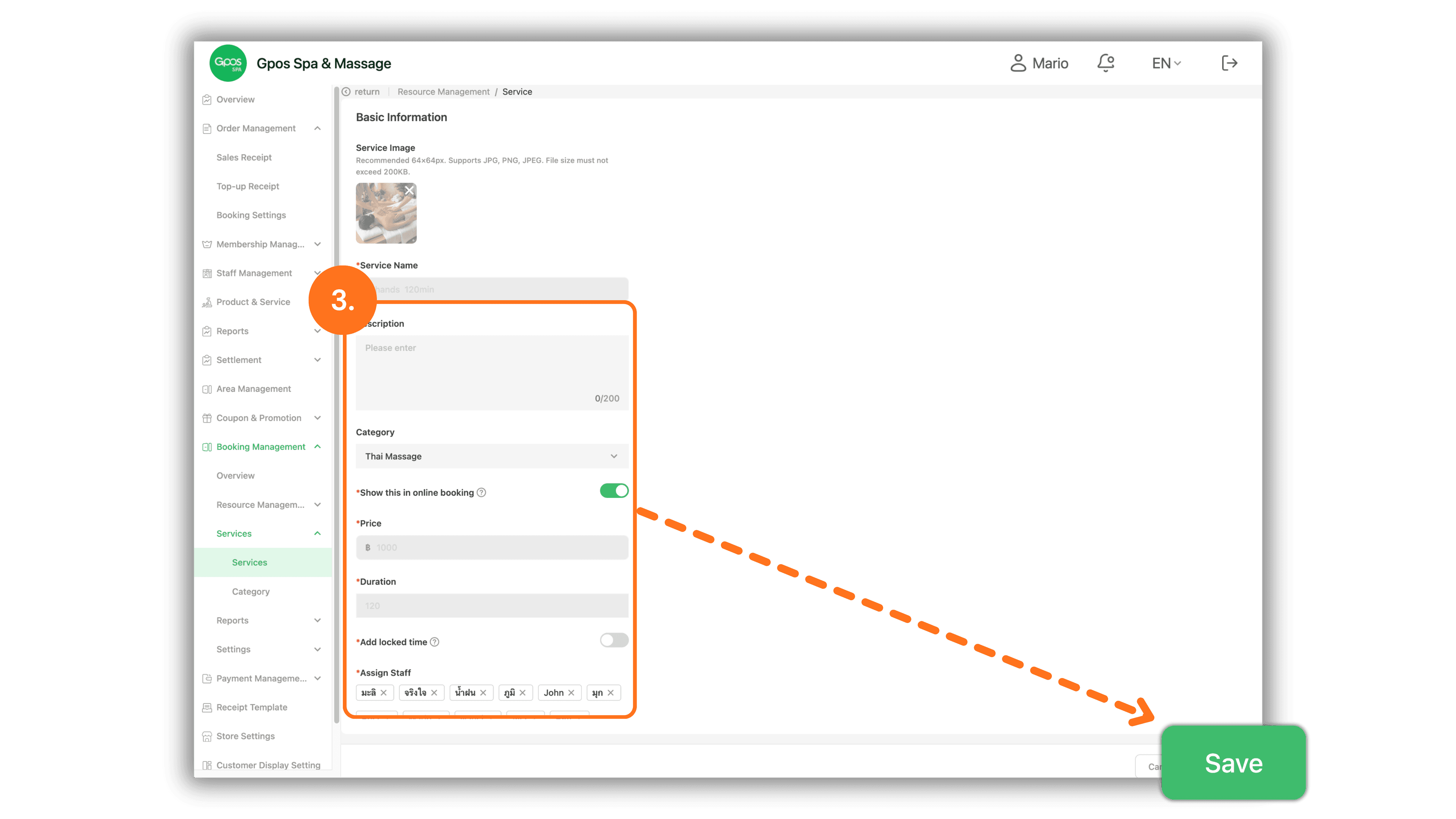
1. Select Branch Store to Access System
Start by selecting the desired store or branch from the Please select a store page to enter the store management dashboard.
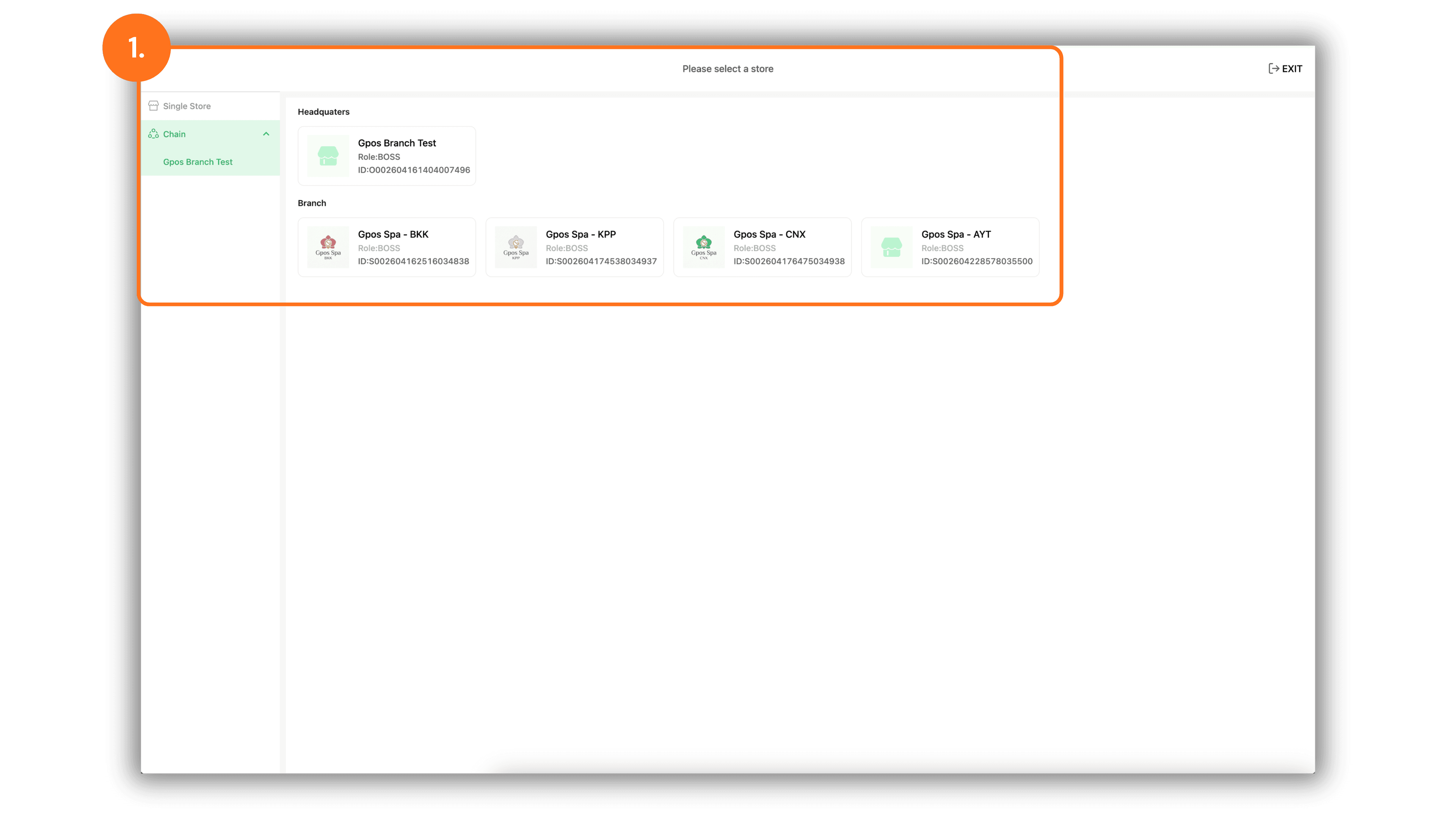
2. Access Services Menu and Manage Booking Status
In the left navigation menu, go to Booking Management > Services > Services to view the full service list:
- Pencil Icon: Click the pencil icon next to any service item to edit or add detailed service information.
- Status Toggle: Switch the toggle ON or OFF to instantly enable or disable online booking availability for that service.
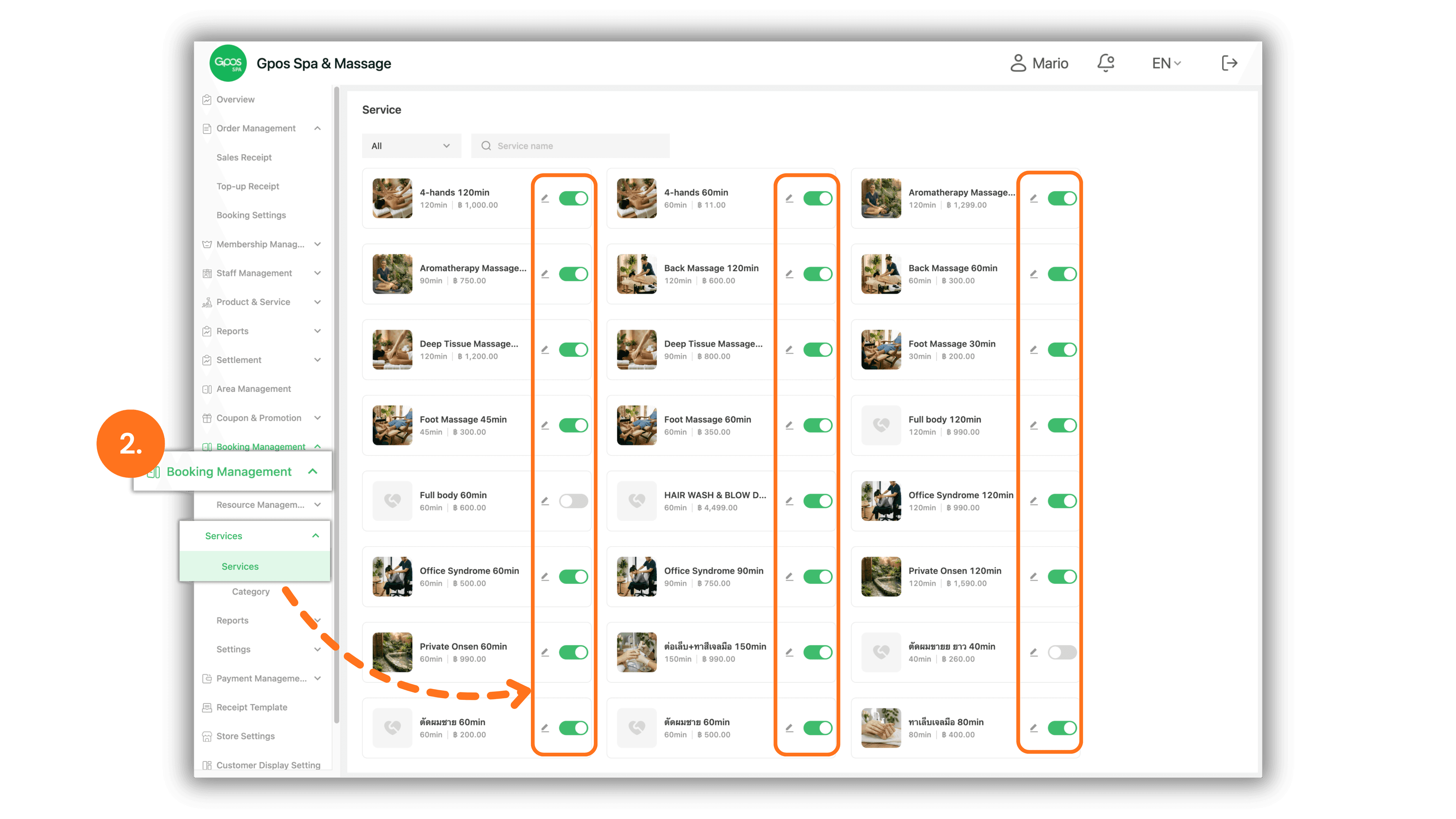
3. Configure Service Details and Save Changes
On the service edit page, verify and update the service parameters as needed:
- Description: Enter detailed service information or instructions for customers.
- Show this in online booking: Toggle ON or OFF to control whether this service appears on the customer online booking portal.
- Add locked time: Enable this option if you need extra buffer time after a service ends (e.g., for room cleaning, setup, or checkout) before the next appointment slot can be booked.
- Assign Staff: Verify and select qualified staff members authorized to perform this service.
- Click the green Save button at the bottom right corner to save all settings.