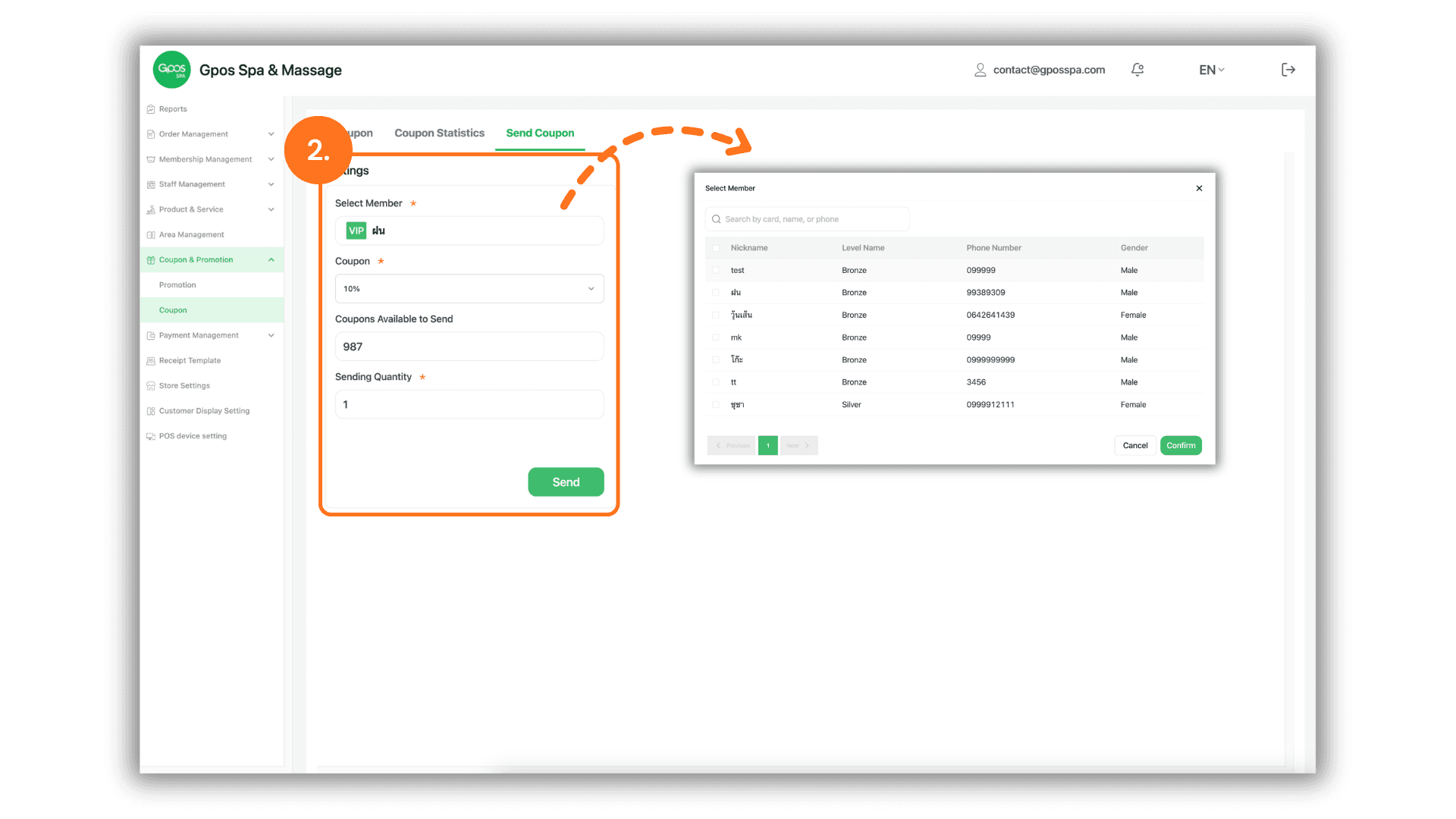
1. Access the Coupon Delivery Feature
- Instruction: Click on the "Coupons & Promotions" menu on the left sidebar and select the "Coupons" sub-menu.
- Then, click the "Send Coupon" button located at the top right of the page.
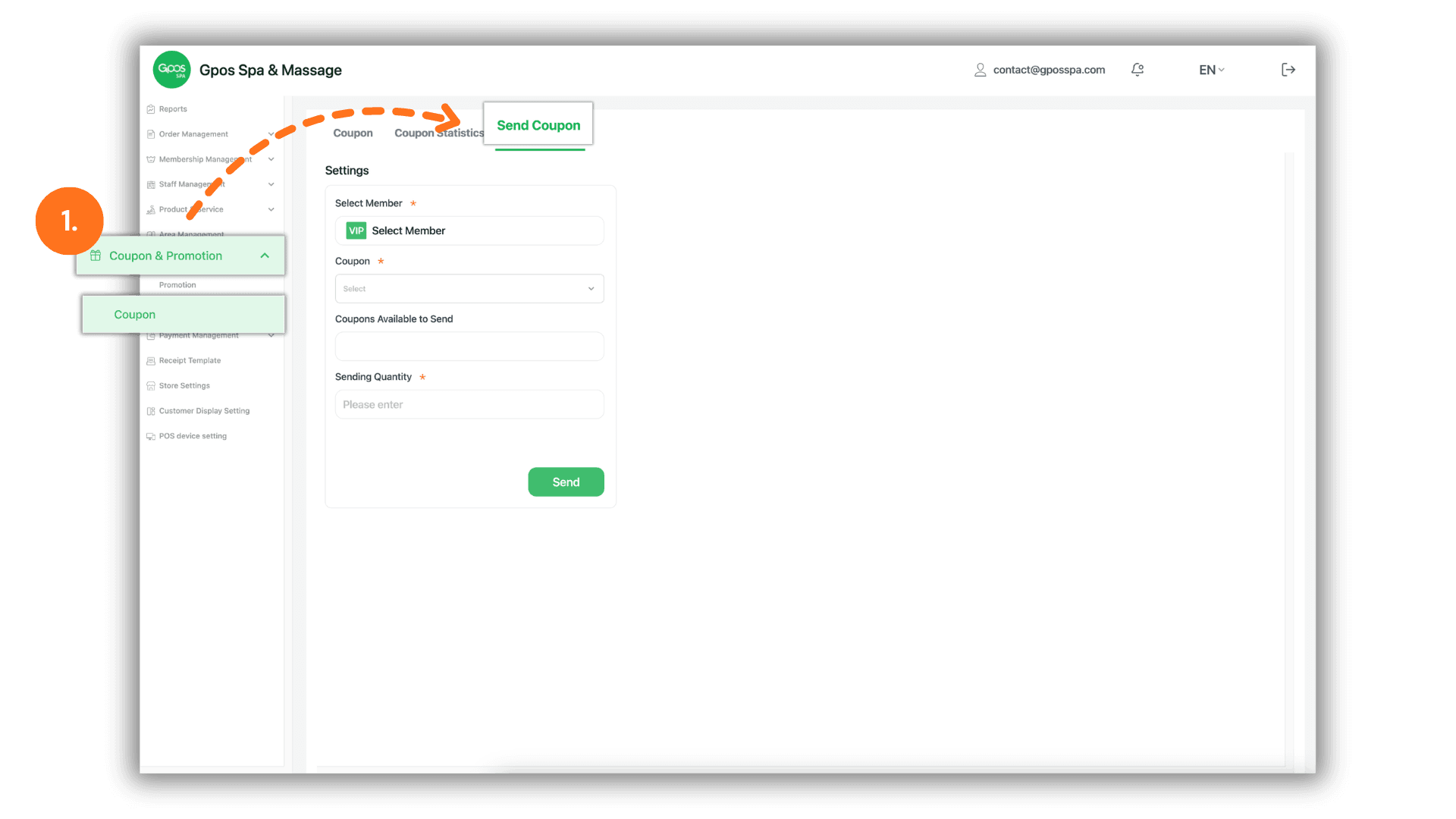
2. Select Recipients and Coupons
Once the "Send Coupon" modal appears, follow these steps to complete the delivery:
- Select Member: Click the "Select Member" field to search for and choose the specific member(s) you wish to receive the coupon. You can select multiple recipients at once.
- Select Coupon: Click the "Select Coupon" field to choose the specific discount or cash coupon you want to distribute from your existing list.
- Sending Quantity: Enter the specific number of coupons you want to send to each selected member in the "Sending Quantity" field.