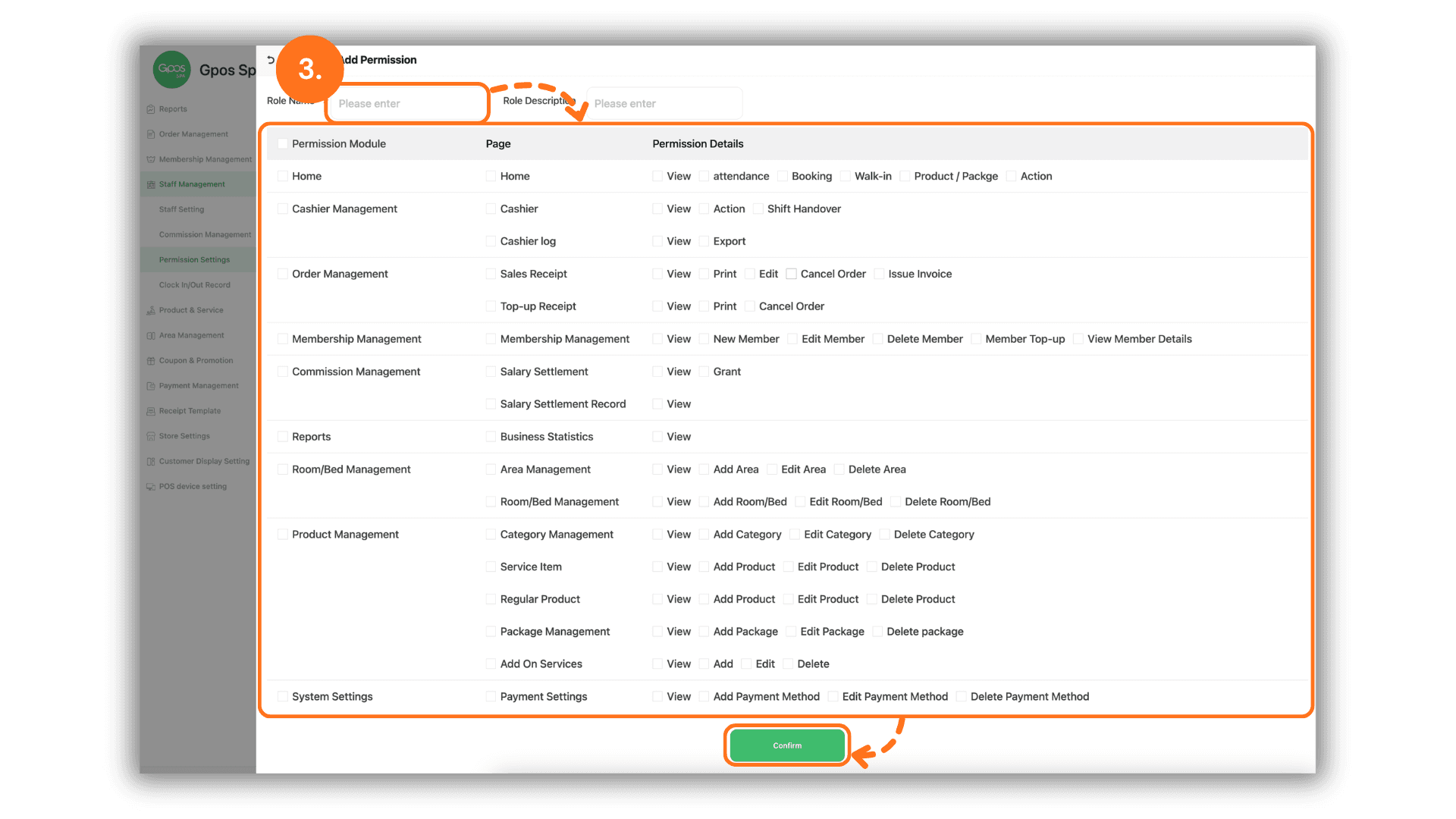
1.Select the Service Branch
- Start by selecting the specific Store or Branch where you wish to configure permissions to enter the administrative dashboard for that location.
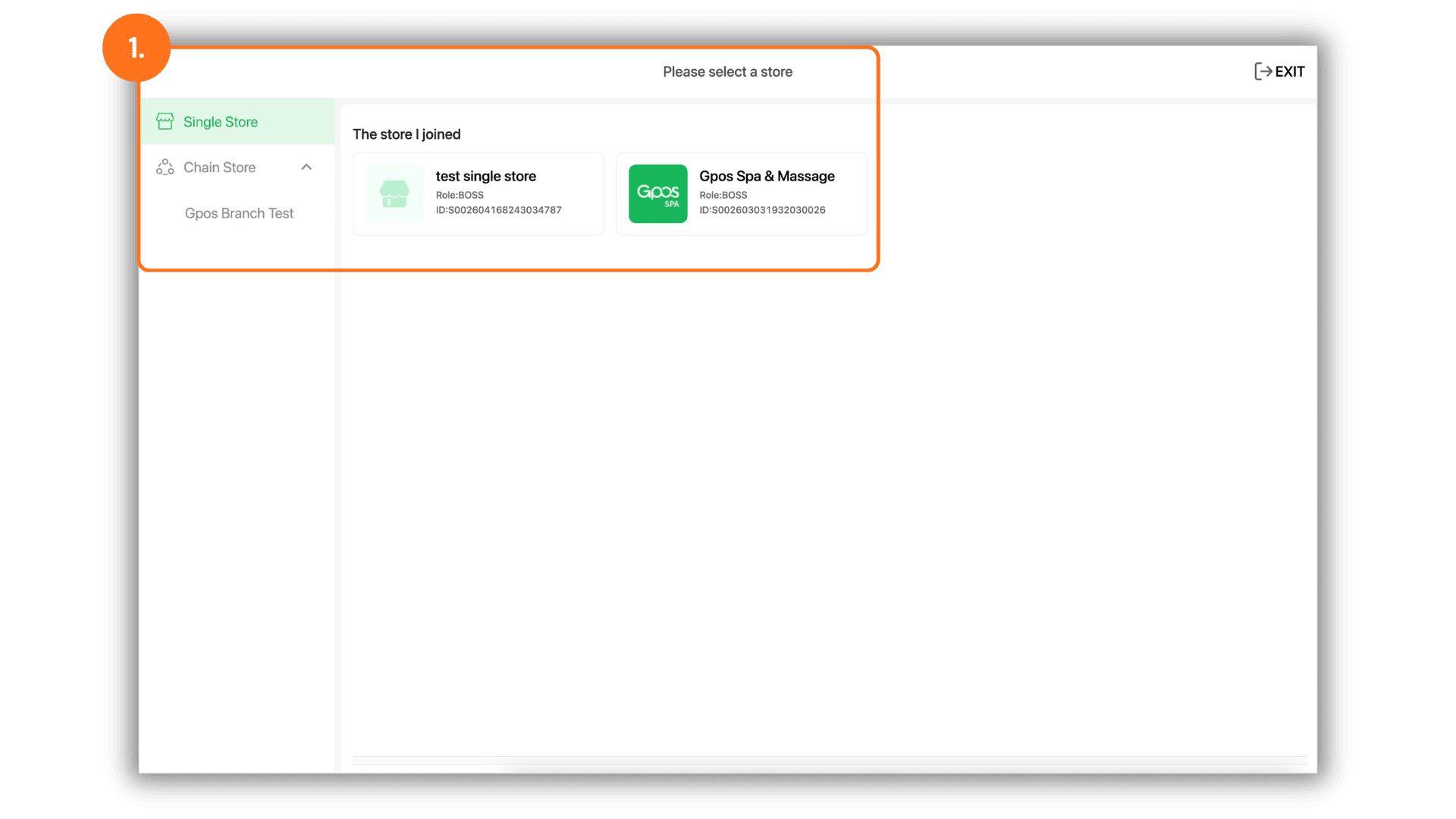
2.Access Management and Add New Permission
- Navigate to the "Staff Management" menu and select "Permission Settings." Then, click the "+ Add Permission" button to begin creating a new profile for your staff.
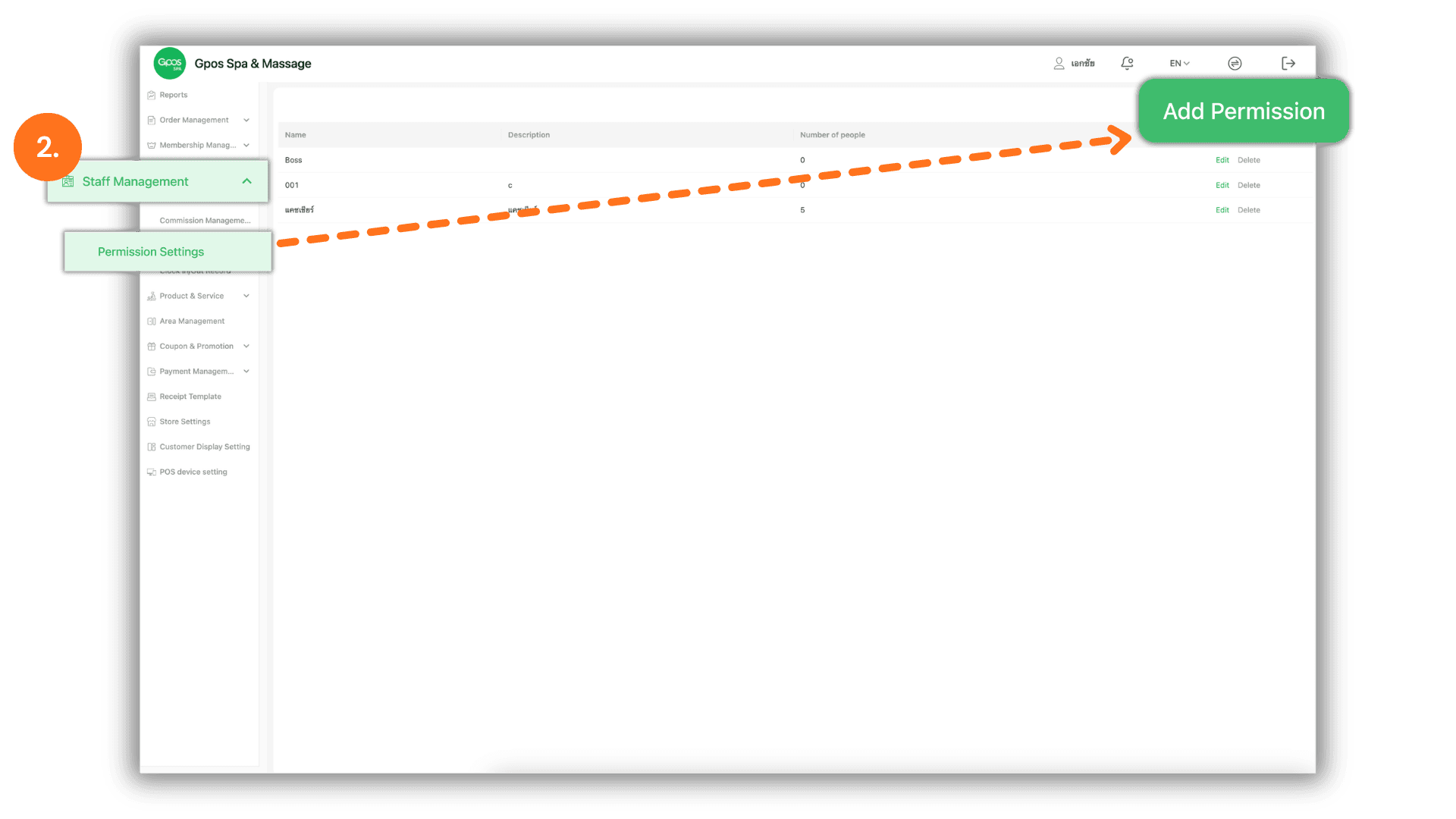
3.Define Roles and Assign Permissions
- Configure the role details as follows:
- Enter the Role Name (e.g., Manager, Receptionist, or Technician).
- In the Permitted Permissions section, check the boxes for the specific menus and features the employee is allowed to use.
- Once all selections are complete, click the "Confirm" button to save and activate the role.